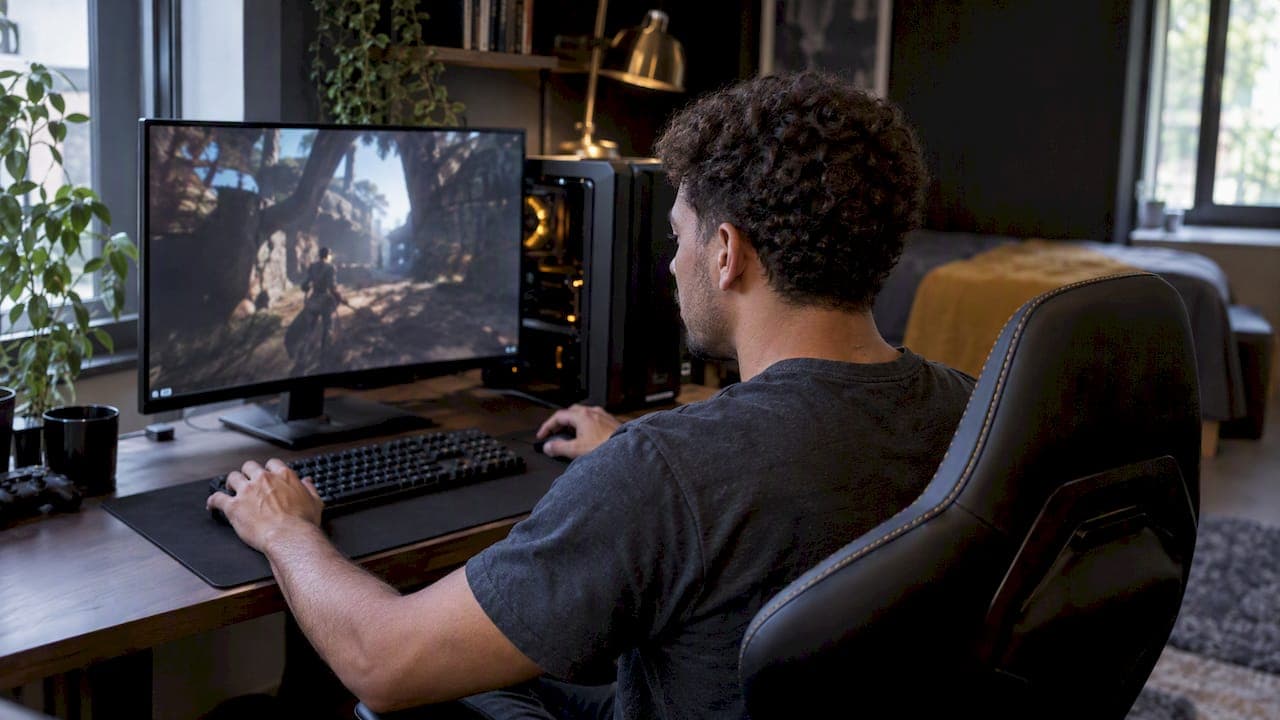
Low GPU usage in a game usually means something other than the graphics card is setting the pace: the CPU, a frame rate cap, memory, heat, a power limit, or Windows sending the game to the wrong GPU. Sometimes it means nothing is wrong at all. This guide shows you how to tell which case you're in, then walks through the fixes in the order that saves the most time.
TL;DR
- Low GPU usage is a symptom, not a fault. Read it next to frame rate, CPU load, temperature, power and VRAM before changing anything.
- If your FPS is already above your monitor's refresh rate, low usage is normal and you can leave it alone.
- The usual causes are a CPU limit, an FPS cap, single-channel or slow RAM, VRAM pressure, throttling, and the game running on the integrated GPU of a laptop.
- Change one thing at a time and re-test in the same gameplay scene, so you know which change helped.
- Tempered measures live CPU, RAM, GPU and disk load, explains what it finds in plain language, and keeps a one-click Undo for every change you approve.
Table of Contents
- When low GPU usage is normal
- Why GPU usage is low or keeps dropping
- Step 1: Measure properly before you change anything
- Step 2: Work out whether the CPU is the limiter
- Step 3: Check for frame caps and sync settings
- Step 4: Look at RAM and VRAM
- Step 5: Rule out heat and power limits
- Step 6: Make sure the right GPU is doing the work
- Step 7: Update drivers, BIOS and Windows options
- Our perspective: fix the limiter, not the number
- Let Tempered find the limiter for you
- A quick checklist to run tonight
- FAQ
- Sources
When low GPU usage is normal
A graphics card doesn't have to sit at 100%. It works only as hard as the frames it is asked to draw. If a game is capped at 60 FPS on a 60 Hz monitor, or you play an esports title at several hundred frames on a mid-range card, the GPU finishes each frame early and idles until the next one. That is a healthy system.
The real question is whether you're getting the frame rate and smoothness you want. Three situations are fine:
- Your FPS is comfortably above your monitor's refresh rate and the game feels smooth.
- You're in a menu, loading screen, launcher or paused game. These readings are meaningless, and PCWorld's bottleneck guide advises measuring during typical gameplay.
- An older or lightly demanding game simply doesn't need the card's full power.
It becomes a problem when usage is low and the game stutters, drops frames, or runs well below what your hardware should deliver.
Why GPU usage is low or keeps dropping
How-To Geek's rundown of performance stats lists the common explanations: a CPU limit, an FPS cap, shader-compilation or traversal stutter, too little system RAM, power limits, thermal throttling and exhausted VRAM. It also stresses that GPU usage alone can't name the cause, so you need to watch it alongside frame rate, temperature, power and VRAM.
Here is how those causes tend to look in practice.
| Cause | What you see | Quick test |
|---|---|---|
| CPU limit | GPU well below 95%, one or two CPU cores near max | Lower resolution: FPS barely changes |
| FPS cap or V-Sync | FPS flat at a round number (60, 144) | Turn the cap off and watch FPS |
| Slow or single-channel RAM | Low GPU use, stutter in busy scenes | Check RAM channels and speed |
| VRAM full | Hitching, usage dipping in bursts | Lower texture quality |
| Throttling | GPU clock and usage fall after minutes of play | Watch temperature and power over time |
| Wrong GPU (laptops) | Dedicated GPU idle, integrated GPU busy | Task Manager GPU Engine column |
| Shader compilation | Drops when entering new areas | Second run of the same area is smoother |
Step 1: Measure properly before you change anything
Pick a repeatable scene, such as the same stretch of a map or a built-in benchmark, and record what happens for two or three minutes. You want these readings together: GPU usage, CPU usage (per core if possible), FPS, GPU temperature, power draw and VRAM.
Tools that can do this:
- Task Manager. On the Performance tab, the GPU graph shows usage, and the Processes tab can show which GPU engine a game uses. It is built in and good enough to start.
- NVIDIA FrameView. NVIDIA's FrameView guide describes it as capturing FPS, GPU and CPU utilization, temperatures and power data with minimal overhead.
- Tempered. It reads live CPU, RAM, GPU, disk and uptime metrics and turns them into plain-language findings. If you want to go deeper on reading GPU load by engine and timing, our guide to spotting GPU culprits by engine type and timing covers it.
Note the numbers, then continue.
Step 2: Work out whether the CPU is the limiter
This is the most common cause. PCWorld's rule of thumb is that GPU utilization at 95% or higher points to a GPU limit, while anything lower points to a CPU limit. Treat it as a starting guide, not a verdict, because a frame cap or memory problem can also hold usage below that line.
Two traps catch people here:
- Total CPU usage looks low. A game may lean hard on one or two threads. A 16-thread processor showing 25% overall can still have its main game thread pinned at 100%. Look at per-core load.
- Resolution changes the picture. Lowering resolution makes each frame cheaper for the GPU, so the CPU becomes the limit more often. Raising resolution or graphics quality shifts work to the GPU, and usage climbs. That is why a card can look idle at 1080p in a CPU-heavy game and be fully loaded at 1440p.
A simple test: drop resolution by one step. If FPS stays the same, the CPU (or a cap) is your ceiling. If you're CPU-limited and you've been thinking about a new graphics card, read this first, because a faster card won't help. The guide on checking for a GPU upgrade bottleneck before you buy explains the logic well. Our own walkthrough, how to spot the real limiter in a CPU and GPU bottleneck check, gives a step-by-step method.
What helps with a CPU limit
- Raise graphics settings that mostly tax the GPU: resolution, anti-aliasing, texture quality, shadows. You get a better picture at the same frame rate.
- Lower CPU-heavy settings: crowd or object density, view distance, physics detail.
- Close background apps that eat CPU time: browsers with many tabs, overlays, launchers, capture tools.
- Trim startup programs so fewer things compete with the game after boot.
Step 3: Check for frame caps and sync settings
If FPS sits at one exact number, something is capping it. Check, in this order:
- The in-game FPS limit or menu option.
- V-Sync, in the game and in the graphics control panel. V-Sync locks frames to your refresh rate, so GPU usage falls once the card can hit that rate.
- Any frame limiter in your GPU vendor's software or overlay tools.
- Battery or power-saver modes on laptops.
If you have a variable refresh rate monitor, a cap a few frames under its maximum is a deliberate choice and a good one. Just remember it will keep GPU usage under 100% by design.
Step 4: Look at RAM and VRAM
Memory problems often show up as low GPU usage with stutter. The GPU waits for data, so it idles.
System RAM. Single-channel memory halves the bandwidth the CPU can reach, and slow memory speed can hurt CPU-limited games. If you have one stick in a board built for two, a matched second stick can make a visible difference. Our explainer on what really changes between dual channel and single channel RAM shows how to check and test it. Also make sure you aren't running out of RAM: if Windows is paging to disk while you play, frame times suffer.
VRAM. When the card's own memory fills up, the game spills data into system memory over a slower path. Frames hitch, and GPU usage bounces around. Lowering texture quality is the quickest fix. We cover a repeatable test in stopping VRAM stutter with a diagnostic.

On laptops with integrated graphics, don't try to "add" dedicated video memory in BIOS. Intel's community guidance notes that Windows drivers manage graphics memory dynamically based on demand, so reserving more won't speed anything up.
Step 5: Rule out heat and power limits
If GPU usage is fine at first and then falls after ten or twenty minutes, suspect throttling. The card or CPU reduces clocks to stay within temperature or power limits, and the frame rate drops with it.
Watch temperature and clock speed through a long session. On NVIDIA cards, the nvidia-smi tool installed with the driver can report clocks, power, temperatures, usage and throttle reasons. Signs of trouble include temperatures that climb steadily to the limit and clocks that sag as they do. Dust in the heatsink and fans, a blocked case intake, or a laptop running on battery are the usual culprits. Clean the fans, improve airflow, and plug the laptop in before you look at anything more exotic.
Step 6: Make sure the right GPU is doing the work
Laptops and some desktops have two graphics processors: a small integrated one and a dedicated one. If a game lands on the integrated chip, the dedicated card will sit nearly idle.
Before you assume that's the case, verify it. Dell's support guide explains that on many laptops the internal display is wired to the integrated GPU even when the dedicated GPU renders the game, so seeing integrated graphics tied to the screen doesn't prove anything. The reliable check is Task Manager: look at the game's GPU Engine column and match its GPU number to the adapter shown on the Performance tab.
If the game really is on the wrong GPU:
- Plug in the laptop and choose a Best Performance power mode.
- Open Settings > System > Display > Graphics, add the game, and set it to High performance. Intel's support page on setting the default GPU for games confirms Windows Graphics settings can assign a game to a preferred GPU.
- Keep vendor control panel settings consistent with the Windows setting, then fully restart the game.
- On desktops with a dedicated card, check that your monitor cable is plugged into the card, not the motherboard.
- If either GPU is missing from Device Manager, install the drivers. AMD's switchable graphics guidance says both GPUs should appear and be enabled, and that missing drivers can stop switchable graphics from working.
Step 7: Update drivers, BIOS and Windows options
Sudden swings from full usage to zero are a different pattern from a steady low reading. Intel's support article on GPU usage dropping when playing games says abrupt drops from 100% to 0% can be addressed by updating the graphics driver and the system BIOS. Update the driver cleanly, then test again in the same scene. If you want to confirm the update actually helped, our guide to measuring driver FPS gains reproducibly shows how, and the walkthrough on updating GPU drivers for gaming covers the process.
A few Windows-level items are worth a look:
- Game Mode. Make sure it's on in Settings > Gaming so Windows prioritizes the game.
- Fullscreen or windowed. Some games behave differently depending on display mode. Our three-step diagnostic for fullscreen versus windowed helps you pick without guessing.
- Power plan. On desktops and plugged-in laptops, use a balanced or high-performance plan rather than power saver.
- Shader compilation. If drops happen only the first time you enter an area, let the game finish compiling shaders and play the same area again.
If FPS falls in bursts rather than steadily, a frame-time trace will show more than an average. See our guide to stopping FPS drops on Windows 11 with frame-time traces.
Our perspective: fix the limiter, not the number
Most advice on this topic treats a low GPU percentage as the enemy. We don't. The percentage is a clue, and chasing 100% for its own sake is how people end up changing registry values, installing "booster" tools and breaking things they didn't need to touch.

We build Tempered around a different rule: find the measured constraint first, then propose one specific change, explain what it should do, and make it reversible. A typical case is a gamer whose GPU sits at 55% because a launcher, an updater and a browser are fighting the game for CPU time. The right answer there is to close or defer those background processes, not to tweak the graphics card. Another is a laptop quietly running the game on integrated graphics. The right answer is a Windows Graphics setting, not a driver reinstall.
We also don't clean the registry or invent problems to look busy. If your system is fine and your FPS is above your refresh rate, the honest result is "nothing to fix." And because no change happens without your approval, and every approved change can be undone in one click, you can test a fix, see whether your numbers move, and walk it back if they don't. That includes staying safe for anti-cheat systems, which matters if you play online.
— Ian
Let Tempered find the limiter for you
If you'd rather not juggle monitoring tools, Tempered analyzes your live CPU, RAM, GPU, disk and uptime readings, then recommends specific changes in plain language: which background processes to stop, which startup items to disable, when to switch on Game Mode, and which safe tweaks apply. Nothing is applied until you approve it, and every change is tracked with one-click Undo. You don't need technical knowledge or an AI API key.

There is a Free plan with limited AI scans, so you can see what it finds before you pay. Paid plans start at $5.99 per month for Torque and $12.99 per month for Torque Max. See the plans on the pricing page, or learn more at tempered.to. If you're also weighing an operating system move, our comparison of Windows 11 and Windows 10 for gaming and our guide to optimizing Windows 11 for gaming are good next reads.
A quick checklist to run tonight
- Record GPU, CPU per core, FPS, temperature, power and VRAM for three minutes of real gameplay.
- Compare FPS to your refresh rate. If it's above, stop: nothing needs fixing.
- Lower resolution one step. If FPS doesn't move, you're CPU or cap limited.
- Remove FPS caps and test V-Sync on and off.
- Confirm the game runs on the dedicated GPU in Task Manager.
- Check RAM channels and VRAM headroom.
- Watch temperatures and clocks over a long session.
- Update the graphics driver, then BIOS if the drops are abrupt.
- Re-test after each change and keep notes.
FAQ
Is 50% GPU usage bad in games?
Not automatically. If your frame rate is above your monitor's refresh rate and the game feels smooth, 50% just means the card has spare capacity. It's a problem when FPS is low or choppy and the GPU is below roughly 95%, which usually points to a CPU limit, a cap or a memory issue.
Why does my GPU usage keep dropping to 0% for a second?
Short, abrupt drops often come from driver or firmware issues. Intel's support guidance suggests updating the graphics driver and the system BIOS. If it happens only when entering new areas, shader compilation or asset streaming may be the cause instead.
Will a new graphics card fix low GPU usage?
Only if the old card was the limit, and low usage suggests it wasn't. A faster card on a CPU-limited system will often show the same frame rate with even lower usage. Diagnose the bottleneck first, then spend money.
Can I force my GPU to use 100%?
You can raise the load by increasing resolution or graphics quality, which usually improves the picture without hurting frame rate in a CPU-limited game. Forcing 100% with stress tools doesn't improve gameplay. Aim for steady frame times, not a percentage.
Does Windows decide which GPU a game uses?
On laptops and multi-GPU PCs, yes. You can assign a game to the High performance GPU in Settings > System > Display > Graphics. Then confirm in Task Manager's GPU Engine column that the game is on the right adapter.
Sources
- PC bottlenecks: How to know if your CPU or GPU is limiting gaming performance (PCWorld)
- These Are the Only PC Game Performance Stats I Monitor (How-To Geek)
- NVIDIA FrameView user guide
- Switchable graphics on Dell laptops (Dell Support)
- How to Configure Laptop Switchable Graphics (AMD)
- How To Set the Default GPU for Applications and Games (Intel)
- GPU usage drops when playing games (Intel)
- Intel HD Graphics 620 dedicated video memory (Intel Community)