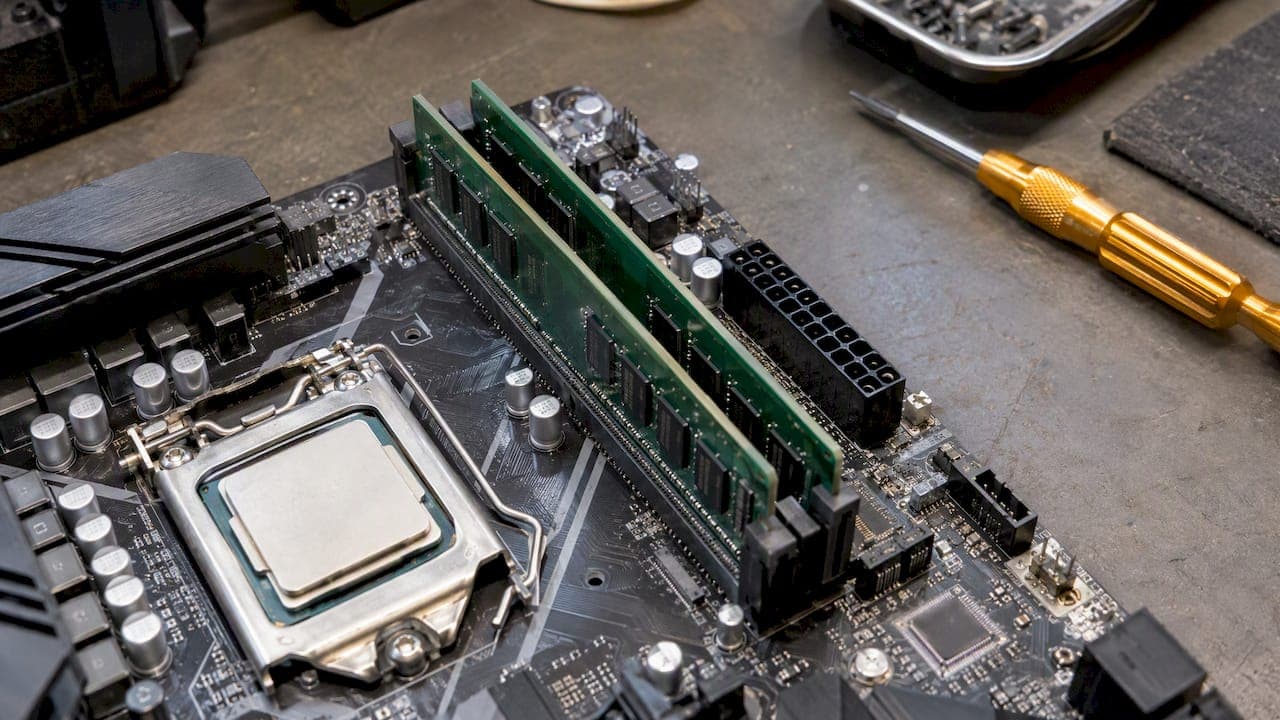
Dual-channel RAM gives your processor two paths to memory instead of one, which doubles the theoretical bandwidth at the same memory speed. In practice, the gain you feel depends on your workload. It can be large on a PC with integrated graphics and modest on a desktop with a strong dedicated GPU. For most systems that support it, two matched modules in the right slots is the setup to aim for. Below is what the difference means, how to check what you have, and when a single stick is still a sensible choice.
TL;DR
- Dual-channel doubles peak memory bandwidth, not application speed. Real gains range from barely noticeable to large, depending on the workload.
- Integrated graphics and CPU-limited games benefit most. A game held back by a discrete GPU often shows a small change in average FPS.
- Two matched modules in the slots your manual names is the reliable route. Unequal capacities give only partial dual-channel behavior.
- Windows power plans cannot turn single-channel into dual-channel. That is a hardware, slot and firmware matter.
- Before buying, confirm your CPU, board or laptop model, memory type and total capacity needs. Too little RAM hurts more than the wrong channel count.
Table of Contents
- What single channel and dual channel actually mean
- How much performance do you lose with single-channel RAM?
- Why integrated graphics care the most
- Why a discrete GPU changes the answer
- Capacity comes first
- How to tell whether your RAM runs in dual channel
- Whether your system can run dual channel at all
- Matching modules: what happens with unequal sticks
- When single channel is a reasonable choice
- Perspective: measure first, then change
- What about power plans and power modes?
- Prove it on your own PC
- Where Tempered fits
- FAQ
- Sources
What single channel and dual channel actually mean
A memory channel is a data path between the CPU's memory controller and the RAM. In single-channel mode, all memory traffic goes through one 64-bit channel. In dual-channel mode, the controller uses two independent 64-bit channels and spreads accesses across both. Intel's memory configuration guide describes how consecutive chunks of data are distributed to opposite channels so they can be fetched at the same time.
The same document gives a clean example of the theoretical gain: at DDR3-1333, peak bandwidth is 10.5 GB/s in single-channel and 21.0 GB/s in dual-channel. That figure is a ceiling on the memory path, not a promise about your frame rate.

The road analogy that ranks well in search results is fair: one lane versus two lanes. But a wider road only helps if traffic was jammed to begin with.
DDR is not dual channel
The two terms get mixed up constantly. DDR stands for double data rate, meaning the module transfers data on both edges of the clock. Dual-channel is about how many modules the controller reads in parallel. Tom's Hardware lists the belief that dual-channel doubles the data rate among its most common DRAM myths. A DDR-3200 module in single-channel is still DDR-3200. Adding a correctly configured second channel widens the path instead of changing the module's rated speed.
Dual channel does not add VRAM
System RAM channels have nothing to do with the dedicated memory on a graphics card. If you have a discrete GPU, it mostly works out of its own VRAM. Dual-channel system memory will not raise it. If you are chasing stutter tied to graphics memory, our VRAM diagnostic test is the better place to start.
How much performance do you lose with single-channel RAM?
There is no honest universal percentage. GamersNexus, in its single versus dual-channel benchmark guide, found that the result depends on the workload: bandwidth-hungry applications and integrated-graphics gaming can lose meaningfully, while many discrete-GPU gaming scenarios show smaller differences.
More recent testing points the same way but shows the gap can be bigger on fast modern CPUs. One roundup of recent results reports that TechSpot's 13-game test on a Ryzen 7 9700X found single-channel about 12% slower on average frame rate and 16% slower on 1% lows at 1080p, with some titles dropping far more. Treat that as one platform's result, not a rule for yours. Fast CPUs paired with a powerful GPU at low resolution are exactly where memory can become the limiter.
A rough guide by workload
| Your setup | Expected benefit from dual-channel |
|---|---|
| Integrated graphics (laptop or desktop APU) | Often large, because the GPU draws on system memory |
| Fast CPU, strong GPU, 1080p high-refresh gaming | Can be noticeable, especially in 1% lows |
| Mid-range GPU at 1440p or 4K | Usually small, the GPU is the limit |
| Office work, browsing, video calls | Hard to notice |
| Compression, rendering, scientific or technical work | Often meaningful when the task moves a lot of data |
This table is a pattern drawn from the testing above, not a measurement of any specific machine. The only number that matters is how your own PC behaves.
Why integrated graphics care the most
An integrated GPU has no VRAM pool of its own. Microsoft's DirectX team explains in its Task Manager GPU post that integrated graphics can use shared system memory, which both the CPU and GPU can draw on. When the graphics processor competes with the CPU for a single channel, bandwidth runs short quickly.

That is why a thin laptop with one soldered or single-slot module can feel sluggish in games that a similar laptop with two modules handles fine. If you game on integrated graphics, going from one module to two matched ones is typically among the most effective upgrades you can make, provided your machine has a second slot.
Why a discrete GPU changes the answer
With a dedicated graphics card, textures and frame buffers live in VRAM. The GPU's own memory bandwidth does the heavy lifting, so the system memory path matters less. It still matters for CPU-side game logic, asset streaming and loading, which is why a CPU-limited title can react to channel count while a GPU-limited one barely moves.
To know which side you are on, find your real bottleneck first. Our guide to a CPU and GPU bottleneck check walks through telling them apart. If your GPU sits near full load in your games, extra memory bandwidth will rarely lift your average FPS.
Capacity comes first
Channels are a bandwidth upgrade. They do not replace having enough RAM. If your system runs out of physical memory, Windows starts paging to disk, and that slowdown swamps any channel advantage. Microsoft's explanation in a Q&A thread on page files also makes clear that spreading page files over several drives is not a stand-in for dual-channel memory: one deals with swapping under memory pressure, the other with how the controller reads physical RAM.
Before spending money, see how much memory you really use under load. Our walkthrough on checking RAM usage in Windows shows how, and the piece on high memory usage in Windows 11 explains why available RAM is a better number than the percentage Task Manager shows. If you are hitting the ceiling, more capacity is the first fix. Tweaking virtual memory can soften the pain but does not replace RAM.
How to tell whether your RAM runs in dual channel
Work from the most reliable evidence to the least.
- Read the manual. Your motherboard or laptop manual shows which slots pair into channels. On many four-slot desktop boards, two sticks belong in alternating slots, not side by side. The manual is the authority, not a rule of thumb.
- Check the firmware. The BIOS or UEFI hardware information page often reports the memory configuration and speed.
- Use a reputable hardware-monitoring utility. Free tools such as CPU-Z show a channel field on their memory tab. Run it and confirm the result against the manual.
- Use Task Manager for the basics only. The Memory view under the Performance tab shows capacity, speed and how many slots are used. Treat it as a hint about your module count, not as proof of channel mode. Microsoft's community material does not establish it as a dependable channel detector, and its process totals can look inconsistent with the overall figure.
If you find one module in a two-slot machine, or two modules in slots that do not form a pair, you have a fixable situation.
Whether your system can run dual channel at all
Dual-channel is a platform capability, not a Windows setting. It depends on the CPU, the memory controller, the motherboard, the firmware and how the modules are installed. AMD, for example, states that its Ryzen 7000 desktop platform on the AM5 socket supports dual-channel DDR5. Supported speeds and maximum capacities vary by processor and board, so check your model's specifications.
Many ultrabooks solder their memory to the board. Some have one soldered module plus one open slot, and some have no slot at all. If you cannot add a second module, no software will change that.
Matching modules: what happens with unequal sticks
The simplest path is one module per channel, same capacity, ideally from a single matched kit. Intel's Flex Memory documentation shows what happens when capacities differ: the overlapping portion can run interleaved, and the leftover capacity runs with single-channel behavior. So a 16 GB module plus an 8 GB module can work, but only part of your memory gets the dual-channel benefit. Platform support and slot rules matter here, so confirm supported combinations before mixing.
If you are upgrading a PC that has one 8 GB stick, you have three realistic options:
- Add an identical 8 GB module. Cheapest, and gives full dual-channel if the part matches closely.
- Replace it with a matched 2 x 8 GB or 2 x 16 GB kit. Cleanest result, and the best choice if you also need more capacity.
- Add a different-size module. It works on many platforms, but expect partial benefit.
Memory prices move, and used kits are common on the secondhand market. If you are weighing a used pair against a new kit, it helps to check what RAM and other PC parts actually sell for before you pay.
When single channel is a reasonable choice
Single-channel is not a mistake in every case. It makes sense when:
- the device has one soldered module and no free slot;
- you are staging an upgrade and will add the second module soon;
- the machine is for light work such as browsing, documents and video calls;
- your games are clearly GPU-limited and you would rather spend on capacity or a better graphics card.
If none of those apply and you are buying fresh, two matched modules usually cost little more than one large one and avoid leaving bandwidth unused.
Perspective: measure first, then change
We build Tempered for people who want their PC faster without being talked into changes that do nothing. Memory channels are a good example. A lot of advice online promises a big speed jump from a single tweak, and a lot of optimizer software invents problems to sell a fix. Dual-channel is real, but it is a hardware fact about your machine. No software can switch it on, and no honest tool should claim it can.
What software can do is help you see the real constraint. If your GPU is pegged, extra memory bandwidth will not move your frame rate, and you should hear that before spending money. If memory is nearly full while a game runs, capacity is your issue, not channels. If background processes are eating RAM, closing them is free. That ordering is how we think about every recommendation: find the measured limit, explain the change, expect a specific result, and keep a way back.
That is also why Tempered shows live CPU, RAM, GPU and disk readings, explains suggestions in plain language, and only applies a change after you approve it, with a one-click undo for every adjustment. We will not tell you a Windows tweak fixes a one-stick memory layout, because it cannot.
— Ian
What about power plans and power modes?
People researching memory often end up asking about power plans, since both come up when a PC feels slow. They are separate things. Microsoft's guidance on changing the power mode covers how Windows trades energy use against performance. That policy affects how aggressively the system boosts and saves power. It does not change how many memory channels your hardware uses.
A sensible way to think about it:
- Balanced is the default and suits most desktop and laptop use, since it adapts to load.
- High performance or a best-performance mode favors speed over energy savings. It can help in sustained gaming, mostly by limiting power-saving behavior, and costs battery life and heat on a laptop.
- Ultimate Performance is a more aggressive plan that Windows exposes on some editions and configurations. Do not assume it unlocks anything on a typical gaming PC beyond what high performance gives.
The gains from switching vary by machine, so test: run the same game scene or benchmark under each setting, record average and 1% low frame rates, and keep whichever helps. A single-channel RAM setup stays single-channel under every one of them.
Prove it on your own PC
Because results are so workload-dependent, a short test beats any rule of thumb.
- Pick one repeatable scene, such as a built-in benchmark or a fixed route in your game.
- Close background apps and note your resolution and settings.
- Run it three times and record average FPS and 1% lows.
- Make one change only, such as adding the second module.
- Repeat the same three runs and compare.
If the numbers barely move, your game was limited elsewhere. That is useful information, too. Our guide on measuring driver FPS gains reproducibly uses the same method and applies directly to memory changes.
Where Tempered fits
If you are not sure whether memory, the GPU, startup bloat or background processes are holding your PC back, Tempered reads your live hardware metrics, explains what it finds in plain language, and proposes specific changes you approve one at a time. Every change can be undone. You can start on the Free plan with limited AI scans. Torque starts from $5.99 per month and Torque Max from $12.99 per month, both with higher scan limits and more features; see the pricing page for what each plan includes, or read more on the Tempered site.
FAQ
What is the difference between single-channel and dual-channel RAM?
Single-channel sends all memory traffic through one 64-bit path. Dual-channel uses two independent 64-bit paths at once, which doubles theoretical peak bandwidth at the same memory speed. It is a memory-controller feature, so it needs a supporting CPU, board and correct slot population.
Is dual-channel RAM worth it for gaming?
Usually yes if you are buying or upgrading anyway, since two matched modules often cost about the same as one large one. The gain is largest on integrated graphics and in CPU-limited games. If a discrete GPU is your bottleneck, expect a smaller change in average FPS.
How do I know if my RAM is dual-channel?
Check your motherboard or laptop manual for the correct paired slots, then confirm in your firmware's hardware page or a reputable monitoring utility such as CPU-Z. Task Manager shows capacity, speed and slots used, but it is not a dependable channel-mode indicator.
Can I mix different RAM sizes and still get dual-channel?
Sometimes partially. On platforms with Intel Flex Memory, the matched portion of two unequal modules runs interleaved while the extra capacity runs in single-channel fashion. For predictable results, use two modules of equal capacity, ideally one kit.
Sources
- Intel X38 Express Chipset Memory Technology and Configuration Guide
- Intel 965 Express Chipset Flex Memory documentation
- GamersNexus: RAM Performance Benchmark, Single-Channel vs. Dual-Channel
- Tom's Hardware: The Most Common DDR DRAM Myths Debunked
- Microsoft DirectX Developer Blog: GPUs in the Task Manager
- AMD Ryzen 7000 Series Desktop Processors
- Microsoft Q&A: page files on multiple drives vs dual-channel RAM
- Microsoft Q&A: Windows 11 Task Manager memory usage
- Microsoft Support: Change the power mode for your Windows PC
- Single Channel vs Dual Channel RAM: Real FPS Difference Tested