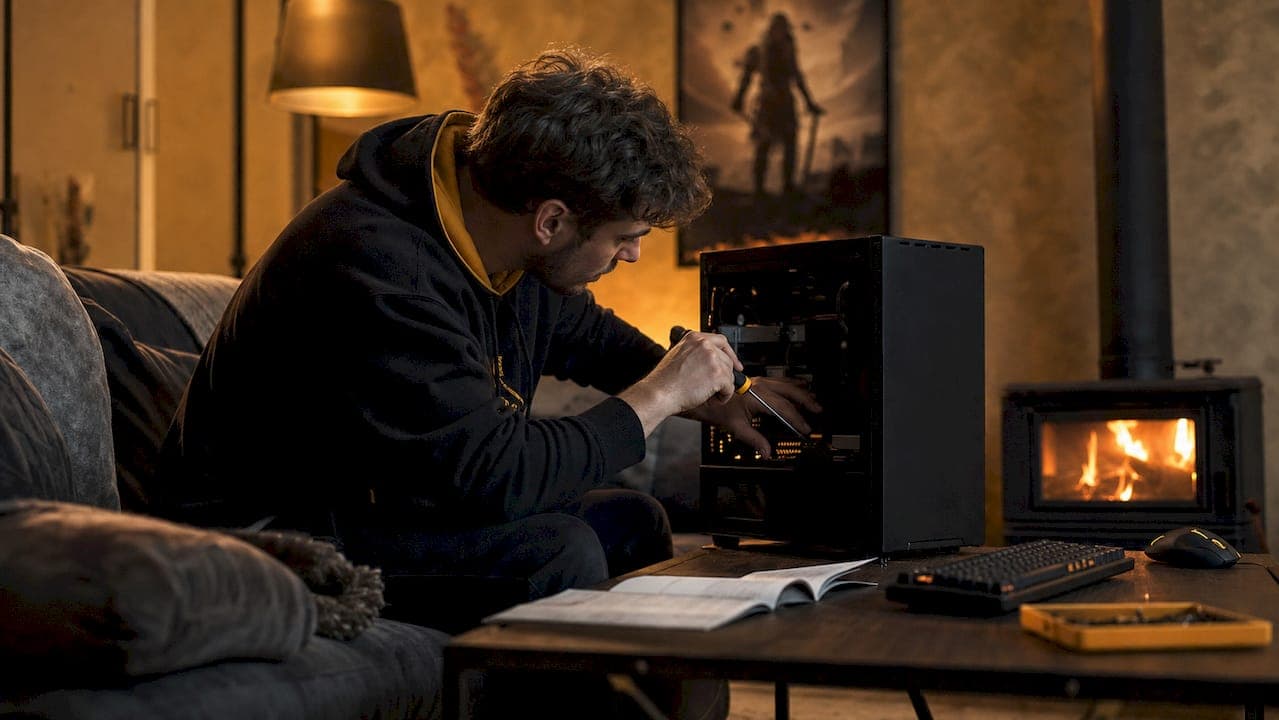
Updating GPU drivers is the process of installing the latest graphics card software to give your PC access to new performance improvements, bug fixes, and security patches. Graphics drivers, formally called display drivers, act as the translator between your operating system and your GPU hardware. Without current drivers, games run slower, crash more often, and miss out on optimizations built specifically for new titles. The good news: the graphics driver update process takes as little as 3–5 minutes when you use the right tool.
What you need before you update GPU drivers
The first step is knowing exactly what GPU you have. Open Device Manager on Windows, expand the "Display adapters" section, and your card's full name appears instantly. That name tells you which vendor app to download: NVIDIA App for GeForce cards, AMD Software: Adrenalin Edition for Radeon cards, or Intel Arc Control for Intel Arc GPUs.
Each vendor app handles the entire update workflow inside one interface. You can check your current driver version, see what's new in the latest release, and install with one click. Vendor applications like NVIDIA App, AMD Software: Adrenalin Edition, and Intel Arc Control complete most updates in 3–5 minutes. That speed matters when you want to get back to gaming fast.

Manual downloads from the vendor's website are still worth knowing about. Manual installations give you control over which driver branch you install, such as choosing between NVIDIA's Game Ready and Studio driver lines. Game Ready drivers are tuned for the latest titles; Studio drivers prioritize stability for creative workloads. Most gamers want Game Ready.
Before you start, confirm two things: your PC is connected to the internet, and you have administrator permissions on your Windows account. Without admin rights, the installer will fail partway through. Close any games or GPU-intensive apps so the installer has full access to the graphics hardware.
| Method | Best for | Typical install time | Control level |
|---|---|---|---|
| Vendor app (NVIDIA App, Adrenalin, Arc Control) | Most users, routine updates | 3–5 minutes | Automatic |
| Manual download from vendor site | Specific driver branches, troubleshooting | 5–10 minutes | High |
| Device Manager / Windows Update | Not recommended for gaming | Varies | Low |
How to update your graphics drivers using vendor apps
The vendor app method is the right choice for the vast majority of gamers. 95% of PC users should use vendor applications for driver updates. That figure reflects how much the apps have improved: they detect your hardware automatically, pull the correct driver, and walk you through installation without any guesswork.
Follow these steps for a standard update:
- Open your vendor app (NVIDIA App, AMD Software: Adrenalin Edition, or Intel Arc Control).
- Navigate to the "Drivers" or "Software" tab inside the app.
- Click "Check for updates" if the app does not check automatically on launch.
- Select the latest recommended driver, typically labeled "Game Ready" for NVIDIA or "Recommended" for AMD.
- Click "Download," then "Install" when the download finishes.
- Choose "Express Installation" for a standard update with no extra steps.
- Wait through any screen flicker or brief blackout. This is normal. The driver is resetting your display output.
- Restart your PC when prompted to finalize the installation.
Screen flicker during installation surprises a lot of people the first time. Screen flicker or momentary blackout is a normal part of driver installation as the system resets the display pipeline. Do not force a shutdown during this phase.
Pro Tip: Close GPU monitoring and tuning utilities before you start the installer. Background programs like MSI Afterburner or Corsair iCUE can block proper driver component registration and cause the installation to fail midway.
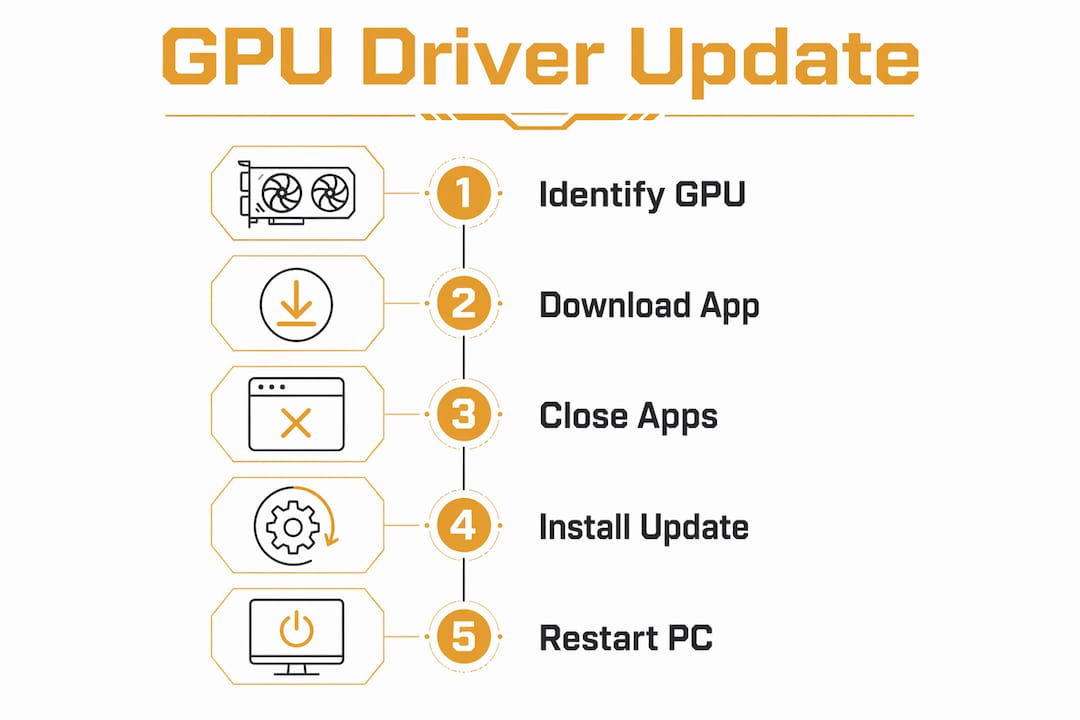
Closing those background apps takes 30 seconds and prevents the most common install failure. Background utilities like MSI Afterburner and Corsair iCUE interfere with driver installation by holding GPU processes open. Right-click each icon in your system tray and exit before launching the installer.
When and how to do a clean GPU driver install
A clean install goes deeper than a standard update. It removes all leftover driver files, registry entries, and settings before placing the new driver on your system. Most users do not need this every time, but certain situations call for it.
Use a clean install when you experience persistent crashes, black screens, or low FPS that a standard update did not fix. Switching from one GPU brand to another, such as moving from an AMD card to an NVIDIA card, also requires a clean install. Old driver files from the previous brand can conflict with the new hardware and cause instability.
The vendor installers include a built-in clean install option. During a custom installation, check the box labeled "Perform a clean installation." Running the installer as administrator and selecting the clean installation option resolves most stability issues without extra tools. This method works well for routine cleanup within the same GPU brand.
For deeper problems, Display Driver Uninstaller (DDU) is the industry standard tool. DDU completely strips all driver files and registry entries that the vendor installer might leave behind. DDU is safest run in Safe Mode, where it removes all driver files and registry entries before restarting automatically. Safe Mode prevents Windows from reloading the driver mid-removal.
Clean install with DDU: step-by-step. Download DDU from Guru3D. Disconnect from the internet so Windows cannot auto-install a generic driver. Boot into Safe Mode (hold Shift, click Restart, then choose Troubleshoot > Advanced Options > Startup Settings > Safe Mode). Run DDU, select your GPU type, and click "Clean and restart." After the reboot, reconnect to the internet and install your new driver from the vendor app or manual download.
Clean installs are recommended every 6–12 months or whenever you switch GPU brands. That cadence prevents driver file buildup from causing long-term instability.
Clean install best practices:
- Always download the new driver before running DDU so it is ready to install immediately after the reboot.
- Disconnect from the internet before running DDU to block Windows Update from pushing a generic driver.
- Do not use DDU for routine updates. Reserve it for troubleshooting or brand switches.
- Back up your GPU overclock or color settings before running DDU, since it wipes those profiles.
- Reconnect to the internet only after the new vendor driver is fully installed.
Pro Tip: Note the driver version number of any stable setup that works well for you. If a future update causes problems, you can roll back to that version manually from the vendor's driver archive page.
Common problems and how to fix them after a driver update
The most common mistake gamers make is relying on Device Manager or Windows Update to handle their graphics drivers. Device Manager and Windows Update often install older generic drivers that lack the latest performance optimizations. Generic drivers miss game-specific tuning and can leave conflicting files on your system. Always use the vendor app or a manual download from the vendor's website instead.
If your new driver causes crashes or visual glitches, roll it back. Windows makes this straightforward:
- Open Device Manager and expand "Display adapters."
- Right-click your GPU and select "Properties."
- Go to the "Driver" tab and click "Roll Back Driver."
- Select a reason when prompted and confirm.
- Restart your PC. Windows loads the previous driver version.
If the installer fails entirely, the fix is usually one of three things. First, close all background GPU apps as described earlier. Second, temporarily disable your antivirus, since some security software blocks driver file writes. Third, run the installer executable directly as administrator by right-clicking it and choosing "Run as administrator."
Verifying a successful update is simple. Open Device Manager, right-click your GPU, select "Properties," and check the driver version and date on the "Driver" tab. Cross-reference that version number against the vendor's release notes to confirm you have the latest build.
The newest driver is not always the most stable one. Waiting a few days after a new driver releases reduces the risk of installing a buggy version. Driver release threads on forums like Reddit's r/nvidia or r/Amd surface problems within 24–48 hours of a release. A brief wait costs you nothing and can save hours of troubleshooting.
Key Takeaways
Vendor apps are the fastest and most reliable way to update GPU drivers, completing the process in 3–5 minutes for the vast majority of gamers.
| Point | Details |
|---|---|
| Use vendor apps first | NVIDIA App, AMD Software: Adrenalin Edition, and Intel Arc Control handle most updates in 3–5 minutes. |
| Close background utilities | Apps like MSI Afterburner block driver registration; exit them before installing. |
| Clean install for serious issues | Use DDU in Safe Mode when switching GPU brands or troubleshooting persistent crashes. |
| Avoid Device Manager for drivers | Windows Update installs generic drivers that miss game-specific performance tuning. |
| Wait before installing new releases | Holding off a few days after a driver launch helps you avoid buggy early versions. |
What 15 years of driver updates actually taught me
The advice I give every gamer I know is simple: update your drivers roughly once a month, not every time a new version drops. Driver releases follow a cadence, and the first build after a major game launch is almost always the one that gets patched a week later. Patience is a real strategy here.
I have seen more problems caused by over-updating than by running a slightly older driver. A system that runs stable on a three-month-old driver is a system that lets you play without interruption. Chasing the newest release every week introduces variables you do not need.
Clean installs with DDU are powerful, but I only recommend them when something is actually broken. Running DDU every update cycle is overkill. The built-in clean install option inside the vendor apps handles the vast majority of cases without the extra steps. Save DDU for the moments when standard methods fail.
The habit that has saved me the most time: writing down the driver version number whenever my system feels perfectly stable. That note becomes my fallback point. If a new driver causes stuttering or crashes, I know exactly where to return without guessing.
Tools like Tempered make this kind of system awareness much easier by surfacing GPU temperature and performance data in real time, so you can actually see whether a new driver improved things or made them worse. That kind of feedback loop turns driver management from guesswork into a deliberate process.
— Ian
Tempered keeps your GPU running at its best
Knowing how to update video card drivers is only half the equation. The other half is knowing whether your GPU is actually performing well after the update.

Tempered is an AI PC optimizer that analyzes your GPU temperature, CPU load, and RAM usage in real time. It flags inefficiencies and recommends specific actions, including driver-related issues, without requiring any technical background. The Undo Center means every change Tempered suggests is reversible with one click. For gamers who want peak performance without hours of manual tuning, Tempered's AI optimizer gives you a clear picture of your system's health and what to do about it.
FAQ
How do I update GPU drivers on Windows 11?
Download the vendor app for your GPU (NVIDIA App, AMD Software: Adrenalin Edition, or Intel Arc Control), open it, and install the latest recommended driver. The process takes 3–5 minutes and requires a restart to complete.
What is a clean install of GPU drivers?
A clean install removes all existing driver files and registry entries before installing the new driver. Use the "Perform a clean installation" option in the vendor installer, or use Display Driver Uninstaller (DDU) in Safe Mode for a deeper removal.
Should I use Device Manager to update my graphics driver?
No. Device Manager and Windows Update install generic drivers that lack game-specific optimizations. Always use the official vendor app or a manual download from the vendor's website for the best gaming performance.
How often should I update my GPU drivers?
Updating once every 4–6 weeks is a practical cadence for most gamers. Wait a few days after a new driver releases to let early bug reports surface before you install.
What should I do if my GPU driver update fails?
Close all background GPU utilities like MSI Afterburner, temporarily disable your antivirus, and run the installer as administrator. If the problem persists, use DDU in Safe Mode to fully remove the existing driver, then reinstall from scratch.