
High VRAM usage by itself isn't a problem. It only becomes one when it produces stutter, texture pop-in, or crashes tied to memory. The first move is simple: open a monitoring tool and watch VRAM alongside frame-time or your in-game HUD while you play the same section you always struggle with. If the numbers climb but nothing hitches, leave it alone.
TL;DR:
- High VRAM usage is only problematic if it causes stuttering, texture pop-in, or crashing; simply allocating a large buffer is normal for modern games.
- Tools like MSI Afterburner and GPU-Z, combined with overlay monitoring, provide accurate VRAM readings and help distinguish between allocation and residency.
- The main causes of excessive VRAM are ultra textures, high resolution, ray tracing, overlays, and mods, which often inflate memory needs but don't necessarily trigger issues unless evictions occur.
- Reducing texture quality, disabling ray tracing, and closing background programs are effective first steps to fix VRAM-related performance issues before considering hardware upgrades.
- Most current games comfortably operate within 16GB VRAM, with only demanding titles or workloads requiring more, making additional VRAM unnecessary for typical gaming at standard resolutions.
Table of Contents
- How to Check High VRAM Usage Reliably
- What Causes Excessive VRAM Consumption?
- Fixing High VRAM Usage: A Prioritized Plan
- When Does High VRAM Usage Actually Hurt Performance?
- Windows-Specific Diagnostics You Shouldn't Skip
- Should You Upgrade Your GPU or Just Optimize Settings?
- Try a Guided Scan Instead of Manual Testing
- Sources
- FAQ
How to Check High VRAM Usage Reliably
Guessing wastes time. You need a tool that shows dedicated memory, not just a Task Manager number that lumps allocation and shared system RAM together.
- Install MSI Afterburner with RivaTuner Statistics Server, or run GPU-Z alongside it. Overlay both dedicated VRAM usage and frame-time graphs on screen.
- Turn on your vendor's overlay (Nvidia, AMD, or Intel) or Steam's advanced performance HUD as a second reference point.
- Learn the difference between allocation and residency. Windows reports a video-memory budget and a current-usage figure through DXGI's memory-management APIs, but a game can allocate far more than it's actively touching. Allocation alone doesn't prove a problem exists.
- Run a repeatable route. Pick the same in-game path or scene every time, note VRAM at baseline and at the exact moment of any hitch, then record frame-time and 1% lows for that stretch.
- Close background GPU consumers before testing. A browser tab or capture app running mid-test will contaminate your numbers.
If Windows readings look inconsistent with what you'd expect, cross-checking against GPU-Z's sensor tab usually clears up the confusion fast.
What Causes Excessive VRAM Consumption?
Certain settings and background processes drive VRAM usage up predictably, and testing them in order saves you hours of guesswork.
- Texture packs and ultra texture settings. This is the single biggest lever in almost every modern game.
- Resolution and render target size. Native 4K rendering, plus any supersampling, multiplies memory footprint fast.
- Ray tracing, DLSS, and FSR frame generation. These features add dedicated buffers and denoiser overhead on top of the base scene.
- Overlays, browser hardware acceleration, and streaming software. Discord, OBS, and even a Chrome tab with acceleration enabled can quietly eat several hundred megabytes.
- Mods, high-resolution texture replacements, and memory leaks. These show up as usage that climbs steadily over a session instead of stabilizing.
A nearly full VRAM meter can be entirely normal if the engine isn't evicting and re-streaming resources often. Modern games routinely allocate large texture pools up front, and that allocation alone doesn't mean anything is wrong until it starts forcing evictions, which is when you'll actually feel stutter and frame-time spikes.
Fixing High VRAM Usage: A Prioritized Plan
Work through these in order and re-test after each change, using the same route from your diagnostic pass.
- Drop texture quality one notch. This alone resolves the majority of VRAM-related stutter without a visible downgrade.
- Disable ray tracing or frame generation temporarily, then turn on a quality upscaler like DLSS Quality mode to claw back performance.
- Close overlays, browsers, and capture or streaming software. Disable hardware acceleration in your browser settings if you keep it open while gaming.
- Restart the game and refresh the GPU driver. A stuck driver session after hours of play is a surprisingly common, easily missed culprit.
- Update or roll back your driver, but only after you've confirmed the above steps didn't fix it. Driver changes should be your last variable, not your first.
- If the problem persists, reduce resolution, disable mods or texture-replacement packs, and test on a single monitor to rule out multi-display memory overhead.
- Run a clean boot if usage keeps climbing over a session, which points to a leak rather than a settings issue.
Pro Tip: Keep a simple five-column log for every test: the change you made, VRAM before, VRAM after, the frame-time symptom you saw, and the visual cost of the setting. That log turns a vague "it feels better" into evidence you can act on.
If none of this helps and the game is a recent release, check the developer's support forums. Patches for VRAM leaks are common in the first few weeks after launch. If your card is genuinely undersized for the resolution you play at, no amount of tweaking closes that gap permanently.
When Does High VRAM Usage Actually Hurt Performance?
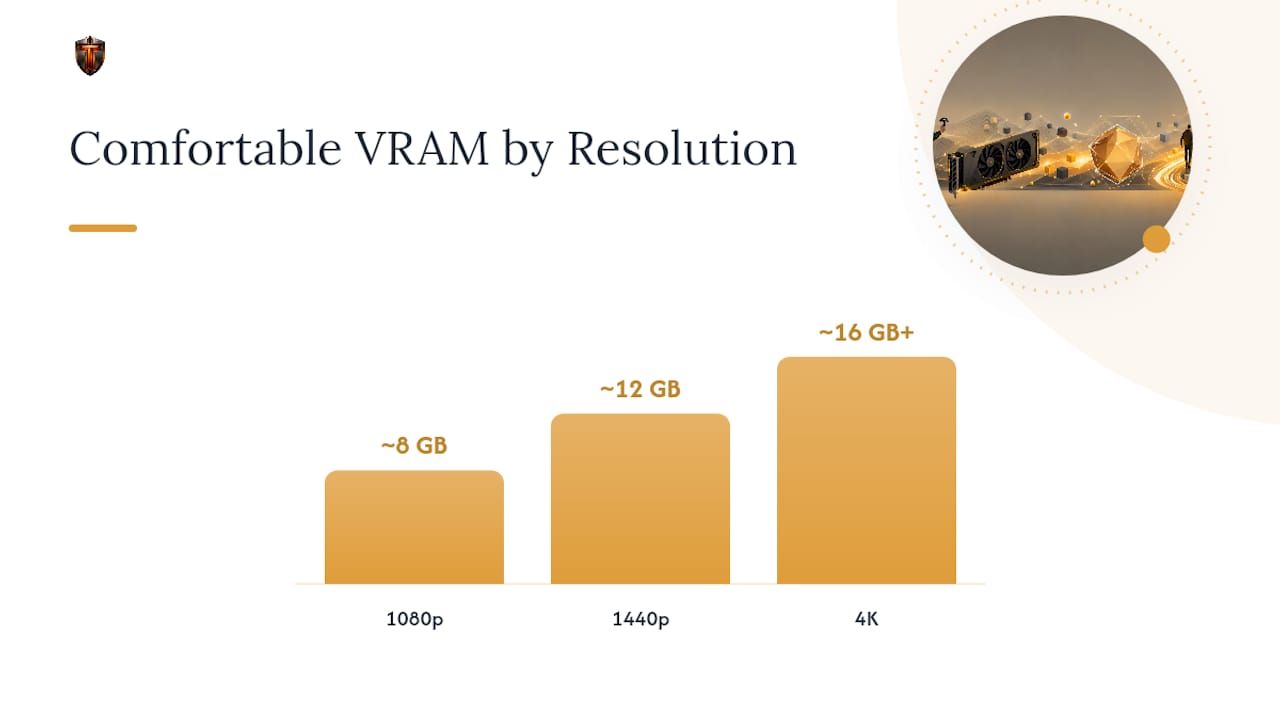
Allocation and residency are different things, and confusing them is the most common mistake in this whole topic. A game can allocate 90% of your VRAM and run perfectly, because most of that allocation just sits there unused most frames. Real trouble shows up as stutter, texture pop-in, and 1% low frame-time spikes rather than a smooth decline in average FPS. VRAM overflow behaves like a cliff, not a slope.
Rule-of-thumb comfort bands exist by resolution, but treat them as starting points, not hard limits, since engine design changes the math. The Last of Us Part 2, for instance, manages 4K at maximum settings on 8GB cards through efficient asset streaming that most engines don't bother implementing.
| Resolution | Comfortable VRAM | Notes |
|---|---|---|
| 1080p | ~8GB | Fine for most titles at high settings |
| 1440p | ~12GB | Ray tracing pushes this higher fast |
| 4K | ~16GB+ | Texture-heavy or ray-traced titles need the buffer |
Before escalating to a support ticket, collect your driver version, a minimal repro route, and before/after memory logs from your test runs.
Windows-Specific Diagnostics You Shouldn't Skip
Task Manager's GPU tab includes a "Dedicated GPU Memory" column that's worth cross-checking against your overlay readings, since discrepancies often point to a background process Task Manager mislabels. For a deeper look, Microsoft's own DXGI documentation distinguishes Budget from CurrentUsage, which explains why your allocation number can look alarming while performance stays smooth.
Make changes one at a time and in a conservative order: overlays first, then background apps, then driver settings, then hardware-accelerated GPU scheduling last, since scheduling changes affect memory management system-wide. Know how to revert each step, whether that's re-enabling GPU scheduling or adjusting virtual memory back to its prior value, before you touch the next setting.

Should You Upgrade Your GPU or Just Optimize Settings?
Settings-first makes sense when your VRAM pressure is marginal, temporary, or tied to one mod-heavy title you rarely play. Dropping one texture setting for a game you'll finish in a weekend isn't worth a hardware purchase.
A GPU with more VRAM makes sense when the pressure is structural: every recent release you care about needs headroom you don't have, and you've already run the diagnostic route above more than once with the same result. Document your before-and-after numbers either way. That log is what turns a vague hunch into a productive warranty conversation or a confident hardware decision instead of a guess.
— Ian
Try a Guided Scan Instead of Manual Testing
Running the full diagnostic route above by hand works, but it takes time most gamers would rather spend playing. There are Windows 10/11 optimization tools that scan live hardware metrics, including GPU memory, and flag actual background processes consuming resources rather than guessing at generic fixes.
Some optimization tools provide suggestions with plain-language explanations, expected outcomes, and undo options, ensuring that changes only occur with user approval. That matters if you've ever run a "PC optimizer" that reset something you needed and gave no way back. Certain optimization software can detect hidden GPU consumers, apply Game Mode safely, or clean up startup items while saving change history. Start with the free scan, or check the Torque and Torque Max plans if you want unlimited scans and the full feature set.
Sources
- Go
- How Running Out of VRAM Affects Your FPS (2026) | SpecPicks
- High VRAM Usage: What It Means and How to Fix It - PC Gaming Universe (2026)
FAQ
Why Is So Much of My VRAM Being Used?
Modern games allocate large texture and buffer pools up front because it's more efficient than loading them on demand. That allocation number looks high, but it only matters if it's causing actual stutter or texture pop-in rather than just sitting there unused.
How Do I Reduce My VRAM Usage?
Start by lowering texture quality one notch and disabling ray tracing or frame generation, then re-test with MSI Afterburner or GPU-Z running. If that doesn't fix it, close overlays and background apps, restart the game and driver, and check for mods or texture packs pushing usage higher than the game needs.
Is 32GB of VRAM Too Much?
For nearly all current games, yes, VRAM beyond 16GB goes well beyond what even 4K ray-traced titles need right now, since comfortable 4K bands sit closer to 16GB or more. It only makes sense for people running heavy production or machine-learning workloads alongside gaming.
Is 16GB of VRAM Too Much?
No. 16GB is a reasonable comfort target for 4K gaming in texture-heavy or ray-traced titles, and it gives you headroom as future games raise their memory footprint. At 1080p or 1440p it's more than enough, with room to spare for mods and higher texture settings.