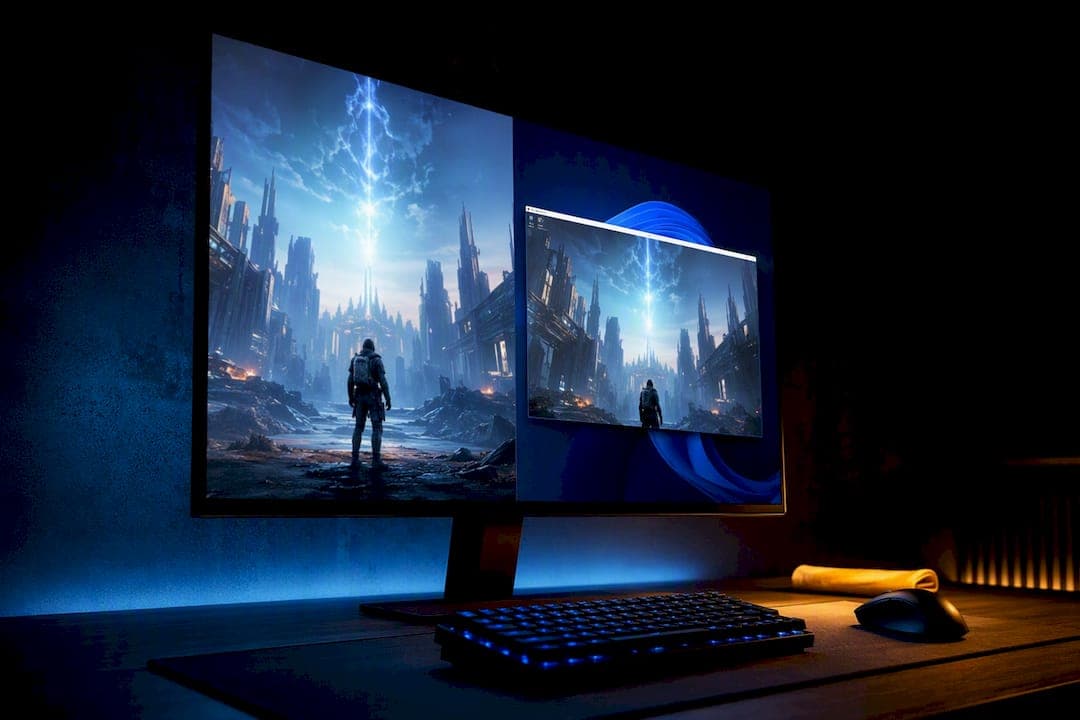
For competitive single-monitor gaming, exclusive fullscreen still wins on raw latency. For streaming, alt-tabbing, or running multiple monitors, borderless windowed is the better default. Windowed mode itself only earns a spot when an old game refuses to cooperate any other way. On a modern Windows 10 or 11 machine, Fullscreen Optimizations blur the gap between the first two more than most players expect.
TL;DR:
- For high-refresh-rate single-monitor gaming, exclusive fullscreen offers the lowest latency, especially at 144Hz or higher.
- Borderless windowed mode is preferable for streaming, multitasking, or multi-monitor setups due to instant alt-tabbing and stable overlay support.
- Modern Windows versions with Fullscreen Optimizations significantly reduce the latency gap between fullscreen and borderless windowed modes.
- Old or unstable games that crash or have trouble alt-tabbing should be played in windowed mode to ensure stability.
- Running performance tests with frame-time overlays helps determine the best mode for your specific hardware and setup.
Table of Contents
- Fullscreen vs Windowed: Quick Picks by Use Case
- What's the Difference Between Exclusive Fullscreen, Borderless, and Windowed?
- Does Fullscreen Actually Reduce Input Lag?
- How Do Alt-Tab, Overlays, and Multiple Monitors Behave?
- What Do Windows Fullscreen Optimizations and Xbox Mode Actually Do?
- How Do You Choose the Right Mode for Your Setup?
- Fixing Tearing, Stutter, and Alt-Tab Problems
- Why Guessing at Display Modes Wastes Your Time
- See What's Actually Slowing Down Your Game
- Sources
Fullscreen vs Windowed: Quick Picks by Use Case
Before the technical breakdown, here's the short version. If you're deciding right now, mid game install, these three rules cover almost every situation:
- Competitive shooters, high refresh rate, single monitor: exclusive fullscreen.
- Streaming, Discord overlays, or multiple monitors: borderless windowed.
- Old or poorly optimized titles that crash or refuse to alt-tab cleanly: windowed.
The table below maps how each mode behaves across the factors that actually change your experience.
| Factor | Exclusive Fullscreen | Borderless Windowed | Windowed |
|---|---|---|---|
| Best for | Competitive, single monitor | Streaming, multitasking, multi-monitor | Legacy titles, compatibility |
| Performance / input latency | Lowest, direct presentation path | Near-identical on modern systems with Fullscreen Optimizations | Slightly higher overhead |
| Alt-tab & multitasking | Slower, can trigger mode switch | Instant | Instant |
| Overlay & capture friendliness | Inconsistent, can black-screen | Reliable | Reliable |
| Multi-monitor behavior | Locks other displays or minimizes them | Full access to all monitors | Full access to all monitors |
| Adaptive sync compatibility | Full support (G-Sync/FreeSync) | Supported on most modern drivers | Limited, varies by title |
Exclusive fullscreen's biggest strength is also its biggest annoyance: it takes over the display pipeline completely, which is great for latency and terrible the moment you need to check a browser tab. Borderless windowed trades a sliver of that latency for a desktop that behaves like a desktop. Windowed mode is rarely anyone's first choice anymore, but it remains the safest fallback when a game engine is too old to handle anything else gracefully.
What's the Difference Between Exclusive Fullscreen, Borderless, and Windowed?
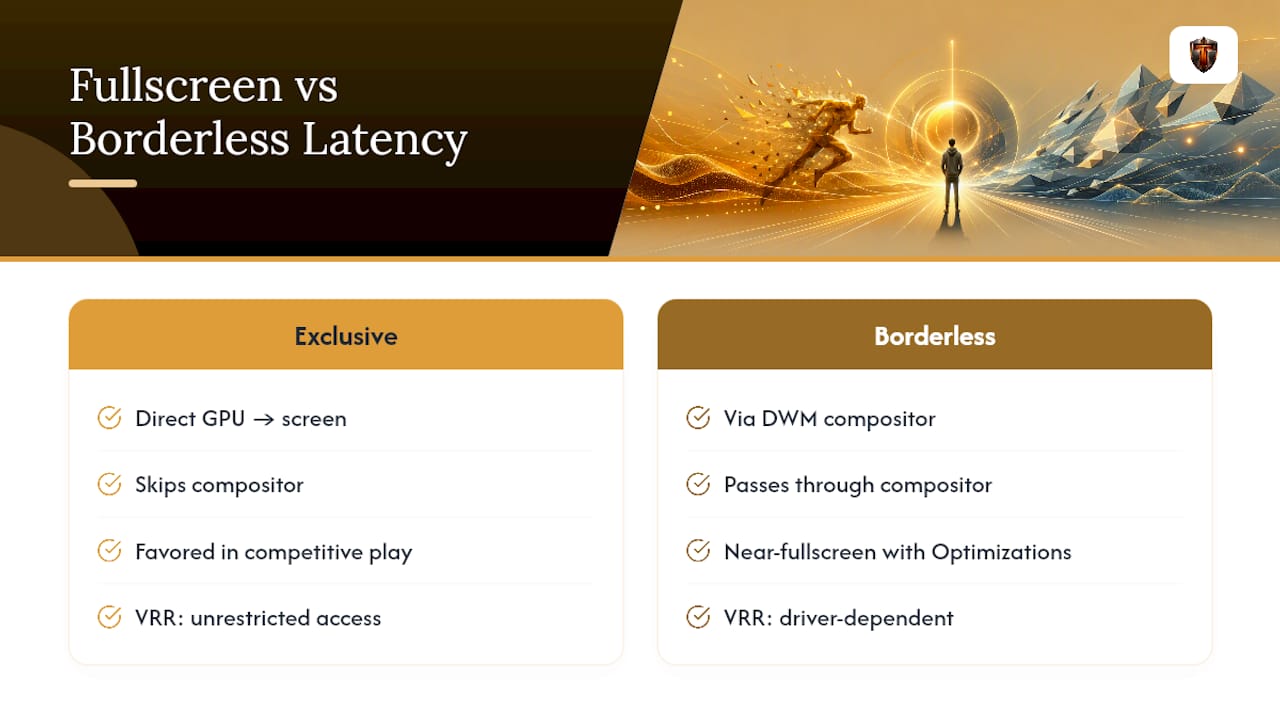
Exclusive fullscreen hands the game direct control over the display pipeline. The GPU renders straight to the screen without the Windows desktop compositor sitting in between, which is why it can reduce input latency and improve frame-presentation consistency.
Borderless windowed looks identical to fullscreen, no title bar, no borders, but it runs inside the Desktop Window Manager (DWM), Windows' compositor. That's what lets you alt-tab instantly and keep overlays visible, though it historically added a small overhead since every frame passes through composition before hitting the screen.
Windowed mode keeps the title bar and borders and renders inside a bounded frame the compositor treats like any other app. It's the least efficient of the three, but some older engines only render correctly this way.
- Exclusive fullscreen = direct present path, one app owns the display
- Borderless windowed = fullscreen window, compositor mediates
- Windowed = bounded window, compositor mediates, borders visible
You'll also see "fullscreen exclusive" and "fullscreen window" used interchangeably with these terms in game settings menus. Unity's own engine documentation uses that exact split, and it's worth knowing both names since not every developer labels the setting the same way.
Does Fullscreen Actually Reduce Input Lag?
Yes, but the size of that reduction depends heavily on your Windows configuration. Exclusive fullscreen shortens the path between your GPU and the screen by skipping compositor handoff entirely, which is why it has historically been the go-to for competitive players chasing every possible millisecond.
Borderless windowed used to carry a real latency penalty because every frame had to pass through the DWM before display. That gap has narrowed. Microsoft's own engineering team explains that Fullscreen Optimizations give a borderless game most of the system's resources when no other windows are visible, effectively letting borderless mode perform close to exclusive fullscreen on modern hardware.
Pro Tip: Don't trust your gut on latency differences. Run an in-game frame-time overlay (MSI Afterburner or the built-in overlay in most competitive titles) in both modes for five minutes each and compare the numbers directly.
Here's where it actually matters: at 144Hz or higher, in a fast-paced shooter, a few milliseconds of extra latency is something a trained player can feel. At 60Hz in a single-player RPG, the same difference is invisible. Adaptive sync technologies like G-Sync and FreeSync also interact differently with each mode. Exclusive fullscreen generally gets full, unrestricted access to variable refresh rate, while borderless support depends on your GPU driver version and whether Fullscreen Optimizations are active for that title.
How Do Alt-Tab, Overlays, and Multiple Monitors Behave?
Borderless windowed is the practical default for anyone who streams, chats, or runs more than one display. It visually matches fullscreen while allowing instant Alt+Tab, overlays, and multi-monitor interaction, because the game never actually takes exclusive control away from Windows.
Exclusive fullscreen, by contrast, can trigger a driver-level mode switch every time you tab out. That switch sometimes shows up as a black screen for a second or two, or a jarring resolution flicker, especially with older GPU drivers.
- Borderless windowed: instant alt-tab, stable overlays, reliable OBS/Discord capture
- Exclusive fullscreen: slower restores, occasional black-screen flicker, can minimize other monitors entirely
- Mouse pointer capture in exclusive fullscreen can lock to the primary display, causing headaches if you're actively using a second monitor for chat or stream alerts
Pro Tip: If your stream keeps dropping frames or your capture software shows a black box where the game should be, switch to borderless windowed before touching any other setting. It's the single most common fix for that exact symptom.
What Do Windows Fullscreen Optimizations and Xbox Mode Actually Do?
Fullscreen Optimizations is a Windows feature that runs your game in a highly tuned borderless window and gives it priority access to system resources when no other windows are visible on screen, which is why borderless can end up performing close to exclusive fullscreen without sacrificing alt-tab speed.
Xbox Full Screen Experience (Xbox mode) is a related but separate feature. It trims background app load and presents a console-like shell on boot. Its real benefit is predictability and reduced background noise rather than a guaranteed frame-rate boost, and Windows' own documentation confirms that windowed rendering trades some resource efficiency for stability.
Settings worth checking when a game behaves oddly in any mode:
- Game Mode (Settings > Gaming > Game Mode)
- Fullscreen Optimizations, per game, in the executable's compatibility properties
- GPU driver overlay settings (NVIDIA/AMD in game overlays)
- Hardware-accelerated GPU scheduling
How Do You Choose the Right Mode for Your Setup?
Run through these questions in order:
- Are you playing competitively on a single monitor at high refresh rate? Choose exclusive fullscreen. The latency advantage is real and measurable at 144Hz and above.
- Are you streaming, using Discord overlays, or running multiple monitors? Choose borderless windowed. The convenience outweighs a latency difference most people can't feel anyway.
- Is the game old, unstable, or crashing in either fullscreen mode? Fall back to windowed and check for a compatibility patch or updated launch option.
To settle it on your own machine, run a simple three-step test:
- Turn on an FPS and frame-time overlay (MSI Afterburner, RivaTuner, or the in-game equivalent).
- Play the same section of a level in exclusive fullscreen, then switch to borderless windowed, and note both the numbers and how input feels.
- Repeat once more to rule out random variance, since background processes can skew a single run.
Pro Tip: Close Discord, your browser, and any capture software during the test. Background overlays are the most common reason people blame "windowed mode" for a stutter that's really coming from somewhere else entirely.
If the difference on your screen is a couple of milliseconds and you never play ranked matches, take the convenience. Borderless windowed's small overhead is a fair trade for never losing your stream overlay again.
Fixing Tearing, Stutter, and Alt-Tab Problems
Most "mode" complaints aren't actually about the mode. They're about vsync, drivers, or a rogue overlay. A few targeted fixes handle the majority of cases:
- Screen tearing: enable vsync or, better, adaptive sync (G-Sync/FreeSync) instead of forcing a mode switch.
- Stutter in borderless: disable unnecessary overlays first; heavy compositor batching from Discord, Steam, and GPU OSDs running simultaneously is a common culprit.
- Alt-tab hangs in exclusive fullscreen: toggle fullscreen optimizations off or on for that specific executable and see which behaves better.
- Capture software showing a black screen: switch the game to borderless and confirm your overlays aren't conflicting with OBS.
- General sluggishness regardless of mode: check whether hardware-accelerated GPU scheduling is enabled, and confirm Game Mode is active.
Why Guessing at Display Modes Wastes Your Time
Most advice about fullscreen and windowed modes treats the choice like a coin flip based on vibes. It isn't. The real issue underneath most "which mode is faster" debates is usually a background process, an outdated driver, or an overlay eating frame time, not the mode itself.
This approach is built around the idea: measure first, then fix the specific thing that's actually wrong, with a clear undo path if a change doesn't help. On Windows 10 and 11, that means catching the process or setting quietly stealing your frames before you spend an hour switching display modes for nothing. Test one change at a time and keep what works.
— Ian
See What's Actually Slowing Down Your Game
Switching display modes only fixes the problem if the display mode was the problem. Half the time, what looks like a fullscreen versus windowed issue is really a background process hogging your CPU, an outdated driver setting, or startup bloat nobody's touched in months.

A diagnostic tool can scan your live hardware metrics, CPU, RAM, GPU, disk, and uptime, and flag the specific things dragging down performance, not generic tweaks. Recommendations can come with plain-language explanations and undo options, so you're never guessing what changed.
| What you get | Why it matters |
|---|---|
| Live hardware diagnostic scan | Finds the actual bottleneck instead of assuming it's the display mode |
| Plain-language fix suggestions | You approve every change before it happens |
| One-click undo | Nothing sticks around if it doesn't help |
If your frame rate feels off no matter which mode you're running, run a free scan with Tempered and see what's really behind it.
Sources
- Demystifying Fullscreen Optimizations - DirectX Developer Blog
- Fullscreen vs borderless windowed: which is better for gaming? - HowToGeek
- Fullscreen vs. Windowed borderless: which is best for gaming? - Digital Trends
- Windows gaming full screen experience - Microsoft Support
- Allthings