
Undervolting means lowering the voltage your laptop CPU receives at a given speed. Less voltage means less waste heat, so the chip can run cooler and hold its boost clocks longer. On a supported Intel laptop you do it with Intel XTU or ThrottleStop: lower the core offset in small steps, test after every step, and settle on a value with margin. Many laptops block the setting in firmware, so check that first.
This guide covers which laptops allow it, the exact steps in both tools, how to test stability, how to undo changes, and where XMP and underclocking fit in.
TL;DR
- Undervolting lowers CPU voltage to cut heat. Done conservatively, it shouldn't slow your laptop and can help it avoid thermal throttling.
- Many laptops lock voltage control in the BIOS. Check your exact model before you download anything.
- Change the offset in 5 to 10 mV steps, test at idle, under load and on battery, and keep a daily value a step or two shallower than the deepest one that passes.
- A bad setting usually causes crashes or shutdowns, not damage, and a restart normally restores defaults.
- XMP is a memory overclock profile. It is a different thing from undervolting.
Table of Contents
- What undervolting does on a laptop
- Undervolt, underclock, overclock: the difference
- Check whether your laptop allows it
- Get a baseline before you change anything
- Undervolt with Intel XTU
- Undervolt with ThrottleStop
- Test for stability, and don't trust one passed benchmark
- Is undervolting safe, and how do you undo it?
- Before you undervolt, rule out simpler heat problems
- XMP: what it is and whether it belongs in this conversation
- Perspective
- Find out what's throttling your laptop first
- FAQ
- Sources
What undervolting does on a laptop
Every CPU gets a voltage from the factory that works for the worst chip in a batch. Your chip may be better than that, and can run the same clock speeds on less voltage. Power draw falls, heat falls with it, and the fans have less to do.
That matters most in a laptop, where the cooling system is small and shared between CPU and GPU. When the CPU hits its temperature limit, it slows itself down. Cutting heat at the source can keep it from doing that. How-To Geek notes that undervolting won't make the computer slower and can improve performance when better cooling prevents thermal throttling.
Set your expectations by the numbers. One manufacturer test reported only about 2% lower power draw at -50 mV, and warned that results depend on workload and the individual chip. Larger offsets on newer chips can do more. Treat any promised figure as a ceiling, not a guarantee.

Heat behaves the same way in any electronics, whether it is a phone or a laptop. If you want background on causes of device overheating, the principles carry over: sustained load, poor airflow and aging parts all push temperatures up.
Undervolt, underclock, overclock: the difference
- Undervolting lowers voltage while the clock speed stays the same. Performance should stay the same.
- Underclocking lowers the clock speed (and usually the voltage with it). You trade speed for lower heat and power. It is a blunt tool, and Windows power plans already do a version of it.
- Overclocking raises the clock speed, usually with more voltage and more heat.
Undervolting is the gentle option because you keep the speed. The catch is that there is a floor: below a certain voltage, the chip can no longer finish its calculations correctly.
Check whether your laptop allows it
This is the step most guides skip, and it decides everything.

Check the processor. Intel says XTU officially supports unlocked K/KF or Core X processors. Installing it on a locked processor can cause unexpected issues, and changing voltage on an unsupported laptop may be unreliable. Plenty of laptop chips (the HX series, for example) are unlocked. Many others are not.
Check the BIOS. Laptop makers decide which controls to expose. Intel also describes Undervolt Protection, which can stop a negative offset from being applied below a BIOS-defined minimum and is enabled by default. If you apply an offset and nothing changes, a firmware lock is the likely reason. Look at your model's BIOS options and the manufacturer's support page.
Check Windows security features. Intel lists Core Isolation Memory Integrity, Hyper-V and Virtual Machine State as incompatible with XTU. Don't turn off a security feature on a hunch. Our walkthrough on testing before you disable Memory Integrity shows how to decide first. If you need to turn off virtualization, see how to do it safely in Windows 11.
Know what to expect from your chip. Silicon varies. UltrabookReview reports that modern mobile CPUs commonly accept roughly -125 to -165 mV, while older third and fourth generation Core mobile chips may manage only about -40 to -50 mV. Your result will land somewhere in a range, not on a published number.
Get a baseline before you change anything
You can't tell if undervolting helped without a before picture. Spend ten minutes on this:
- Close background apps and plug in the laptop.
- Run a CPU benchmark you can repeat, such as Cinebench, and write down the score.
- While it runs, watch package temperature, CPU utilization, maximum core frequency and throttle flags in your monitoring tool.
- Repeat on battery if you care about battery behavior.
If you want a primer on reading these numbers, see our guide on how to monitor CPU temperature on Windows. To judge whether your temperatures are a problem at all, what safe CPU temps look like for gaming is a good reference.
Undervolt with Intel XTU
The process below follows Notebookcheck's XTU guide.
- Install Intel XTU from Intel and open it. Confirm the Advanced Tuning tab shows a core voltage offset control.
- Record your baseline score and temperatures, as above.
- Set the Core Voltage Offset to a small negative number, such as -10 mV, and apply it. Move in steps of 5 to 10 mV.
- After each step, test at idle and under load. XTU's built-in stress test is useful while you tune.
- When a test fails or the laptop crashes, restart and go back 5 to 10 mV from the failing value.
- Once you find a stable value, validate it for one to two hours with Prime95 or AIDA64. Notebookcheck treats those heavier tools as the better long-term confirmation.
If the chip has a separate cache offset, keep it matched to the core offset, since the two share a voltage rail on many Intel designs.
Undervolt with ThrottleStop
ThrottleStop reaches the same voltage controls and is popular because it can apply settings at startup. The steps below follow UltrabookReview's ThrottleStop guide.
- Open ThrottleStop and click FIVR.
- Tick Unlock Adjustable Voltage and select Adaptive mode.
- Set conservative offsets for CPU Core and CPU Cache. The guide uses -80 mV as an example starting value, not a target.
- Click Apply, then test at idle, under load and on battery. The guide reports that battery operation is a particularly revealing stability test.
- After a crash, reduce each offset by 5 mV and try again.
- When you are happy, save the profile. Only enable automatic application at startup after you have confirmed stability.
Test for stability, and don't trust one passed benchmark
Reaching the desktop proves little. ArchWiki warns that insufficient voltage can cause incorrect calculations or a failure to boot, so a laptop that looks fine may still be producing errors.
A practical routine:
- Stress test: one to two hours of Prime95 or AIDA64, with no errors and no restarts.
- Idle and light load: browse, play video, leave it idle for a while. Low and variable loads are where an over-aggressive undervolt often fails, because the CPU drops to lower voltage states.
- Battery: repeat the checks unplugged.
- Real use: use the laptop normally for a week.
Bestware reports that instability can show up weeks after apparently successful testing, as software crashes, blue screens, shutdowns, visual artifacts or audio glitches. It recommends reducing the offset when unexpected incidents occur. So pick a daily setting that is a step or two shallower than the deepest value that passed. You lose a degree or two and gain peace of mind.
Is undervolting safe, and how do you undo it?
Done in small steps, undervolting is unlikely to damage your laptop. Too much can cause instability, crashes or shutdowns without warning. Save your work before every test, and don't run a new offset while editing anything important.
To undo it:
- Restart. Settings return to defaults unless you set the tool to apply the undervolt at startup.
- XTU: reset the offset to 0 mV, or use the reset option.
- ThrottleStop: delete the ThrottleStop.ini file and shut down the computer fully before starting it again, as the guide describes.
- Boot problems: if the laptop crashes before you can open the tool, disable the startup launch (boot into Safe Mode if needed) and reset the offset.
Warranty terms differ by manufacturer, so read yours before making changes.
Before you undervolt, rule out simpler heat problems
Undervolting is a fine-tuning step. If your laptop runs hot because of dust, a blocked vent, a heavy background load or a bad power plan, a voltage offset only masks it. Fix the basics first:
- Clean the vents and use a hard surface or a stand. These laptop cooling tips walk through quick wins.
- Cut background load. Here are safe, low-effort fixes for thermal throttling.
- Confirm you are actually throttling. This guide shows how to prove and fix CPU thermal throttling.
- Gaming? Try these fixes for laptop overheating while gaming.
XMP: what it is and whether it belongs in this conversation
People often search for XMP and undervolting together, but they are different things. XMP (Extreme Memory Profile) is a memory overclock profile stored on your RAM. It raises memory speed past the default standard and has nothing to do with CPU voltage offsets.
Is XMP safe? G.Skill describes XMP as a memory overclock that requires BIOS adjustments and platform support. The product page for its laptop memory says the maximum speed depends on the motherboard and CPU, and that overclocking may affect stability and component warranties. Used within the kit's rating on supported hardware, it is a common setting. Still, if you see random crashes after enabling it, go back to the default profile.
Can you use XMP on a laptop? Often not. The same page notes an XMP-equipped laptop memory module boots at standard JEDEC speed by default and reaches its rated speed only when the BIOS enables XMP and the platform supports it. Many laptop BIOSes don't show the option at all. The reliable checks are your exact model's BIOS and manual, the CPU's memory support and the module's own XMP data.
How to turn it on, if your BIOS offers it:
- Restart and press the BIOS key for your laptop (commonly F2, Del or F10).
- Find the memory settings, often under Advanced, Performance or Overclocking.
- Enable XMP and select the profile.
- Save and exit, then confirm the speed in Task Manager's Performance tab, under Memory.
The CPU-Z utility can also show whether your memory carries XMP profiles. Windows 11 uses the same BIOS steps. Nothing about it changes inside Windows itself.
Perspective
Most people who search for undervolting don't actually want to edit voltages. They want a laptop that stays cool and quiet and doesn't slow down in the middle of a game or a video call. Voltage offsets are one route there, and for some chips a good one. But the first question should always be what is limiting your machine right now.
That is how we built Tempered. We measure live CPU, RAM, GPU, disk and uptime data, tell you in plain language what the constraint is, and propose specific changes that you approve one by one. Every change is explained, comes with an expected outcome, and is logged with a one-click Undo. We don't clean the registry or invent problems, and nothing happens without your say-so.
That same habit is what makes undervolting work: change one thing, measure, keep a way back. If your numbers show a thermal problem, you will know before you start tuning, and you will have a clear before and after.
Ian
Find out what's throttling your laptop first
If you aren't sure whether heat is your real problem, Tempered reads your live hardware metrics and explains what it finds. It can manage background processes, customize startup options, turn on Game Mode and apply safe performance tweaks, each one approved by you and each reversible with Undo. It is built for Windows 10 and 11, and it doesn't require technical expertise or an AI API key.
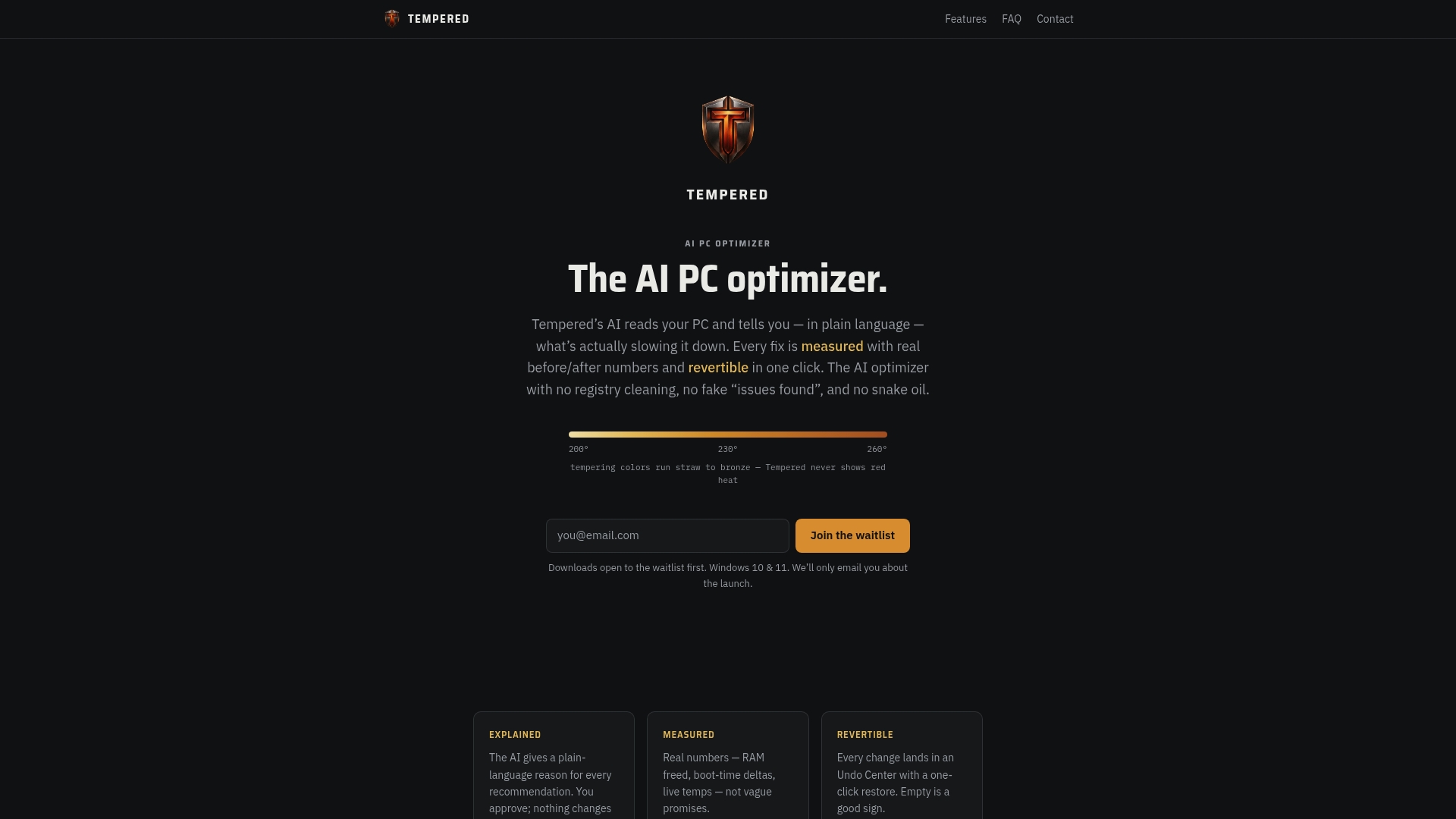
There is a free tier with limited AI scans. Torque starts at $5.99 per month and Torque Max at $12.99 per month, and you can compare them on the Tempered pricing page. You can also start from the Tempered homepage.
FAQ
Does undervolting reduce laptop performance?
Not when it is done within what your chip can handle. The clock speeds stay the same, only the voltage drops. If anything, a cooler CPU can hold boost clocks longer. Push the offset too far and you get crashes, not slowness.
Can I undervolt any laptop CPU?
No. Intel XTU officially supports unlocked processors, and many laptop BIOSes hide or block voltage controls. Check your processor and your laptop's BIOS options before you install a tool. If the offset has no effect after you apply it, a firmware lock is the likely cause.
What is the difference between undervolting and underclocking?
Undervolting lowers voltage while the clock speed stays the same. Underclocking lowers the clock speed itself, so you give up speed for lower heat and power. Undervolting is usually tried first because it costs little or nothing in speed.
Is XMP the same as undervolting?
No. XMP is a memory overclock profile that raises RAM speed and needs BIOS support. Undervolting lowers CPU voltage. Many laptops don't expose XMP, so check your model's BIOS and manual.
What offset should I start with?
Start small, around -10 mV, and move in 5 to 10 mV steps. Reported ranges vary widely by chip generation, so a number from a forum post for another laptop isn't a target. Your stable value is the one that passes long testing with a little margin.
Sources
- How to Undervolt Your Laptop So It Runs Cooler, Faster, and Longer (How-To Geek)
- Undervolting on Intel Laptops in 2020 (Igor's Lab)
- Phone Overheating: Causes, Fixes and When It Is a Battery Problem (MobSpares)
- Common Issues and Resolutions for Intel Extreme Tuning Utility (Intel)
- What Is Undervolt Protection (Intel)
- The ThrottleStop Guide (UltrabookReview)
- Intel Extreme Tuning Utility (XTU) Undervolting Guide (Notebookcheck)
- Undervolting CPU (ArchWiki)
- Technical details and guidance on Undervolting (Bestware)
- G.Skill F5-5600S4645A16GX1-RS product overview