Memory Integrity is Microsoft's name for Hypervisor-protected Code Integrity (HVCI), a feature that runs inside Virtualization-based Security (VBS) to stop malicious drivers from tampering with the Windows kernel. Keep it on. The only real exceptions are a driver that flat-out refuses to load with it enabled, or a measurable frame-rate hit in games you've actually tested. Turning it on requires modern hardware, Secure Boot, and drivers built for it.
TL;DR:
- Memory Integrity requires modern hardware, Secure Boot, and properly signed drivers, and may be disabled by default after an upgrade from Windows 10.
- Hardware support such as MBEC and SLAT significantly reduces performance impact, with recent CPUs experiencing under 5% slowdown in productivity tasks and minimal effect on gaming.
- Compatibility issues primarily stem from outdated or unsigned drivers, which can often be resolved by updating or removing the problematic hardware or software.
- The feature can be turned on or off via the Windows Security toggle, registry, or Group Policy, but its status may be misreported if system policies override direct control.
- Windows automatically disables Memory Integrity if the system fails to boot properly with it enabled, tracked through specific registry keys and logs.
Table of Contents
- What Is Memory Integrity in Windows?
- How Does Memory Integrity Actually Work?
- What Are the Real Benefits of Enabling Memory Integrity?
- Does Memory Integrity Slow Down Your PC?
- What Hardware and Software Does Memory Integrity Need?
- How to Check if Memory Integrity Is Enabled
- How to Turn On or Turn Off Memory Integrity
- How to Fix Incompatible Driver Errors
- Why Is the Memory Integrity Toggle Greyed Out?
- What Tempered's Diagnostic Approach Gets Right About Security Trade-offs
- Diagnose the Real Bottleneck Before You Touch a Security Setting
- Where to Verify These Claims Yourself
- Sources
- FAQ
What Is Memory Integrity in Windows?
Memory Integrity is the consumer-facing name for a feature that checks kernel-mode drivers before they're allowed to run, using a hardware-isolated verification process instead of relying on the operating system alone to police itself. Microsoft's own documentation describes it as a mechanism that uses hardware virtualization to isolate code integrity checks from the rest of the operating system, which makes it much harder for a compromised driver to hijack the kernel.
You'll run into several names for essentially the same system, and the overlap trips up a lot of people:
- Memory Integrity: the toggle you see in Windows Security under Core isolation.
- HVCI: the technical name Microsoft uses in documentation and Group Policy.
- VBS: the broader virtualization layer that HVCI runs on top of. You can confirm VBS status separately in the System Information tool.
- Core isolation: the settings page in Windows Security that houses Memory Integrity and related protections.
They're not four separate features stacked on top of each other. VBS creates a secure, hardware-isolated region of memory using your CPU's virtualization extensions. HVCI, which shows up as the Memory Integrity toggle, is the specific service that runs inside that isolated region to verify kernel-mode code before execution.
Microsoft has pushed hard to make this the default state on new hardware. As of 2026, Memory Integrity ships enabled out of the box on clean installs of Windows 11 and on all secured-core PCs, and Microsoft has been expanding that default enablement to a wider range of eligible systems. If you upgraded from an older Windows 10 install rather than doing a clean setup, though, Memory Integrity may be sitting off simply because Microsoft chose not to override your existing configuration during the upgrade.
How Does Memory Integrity Actually Work?
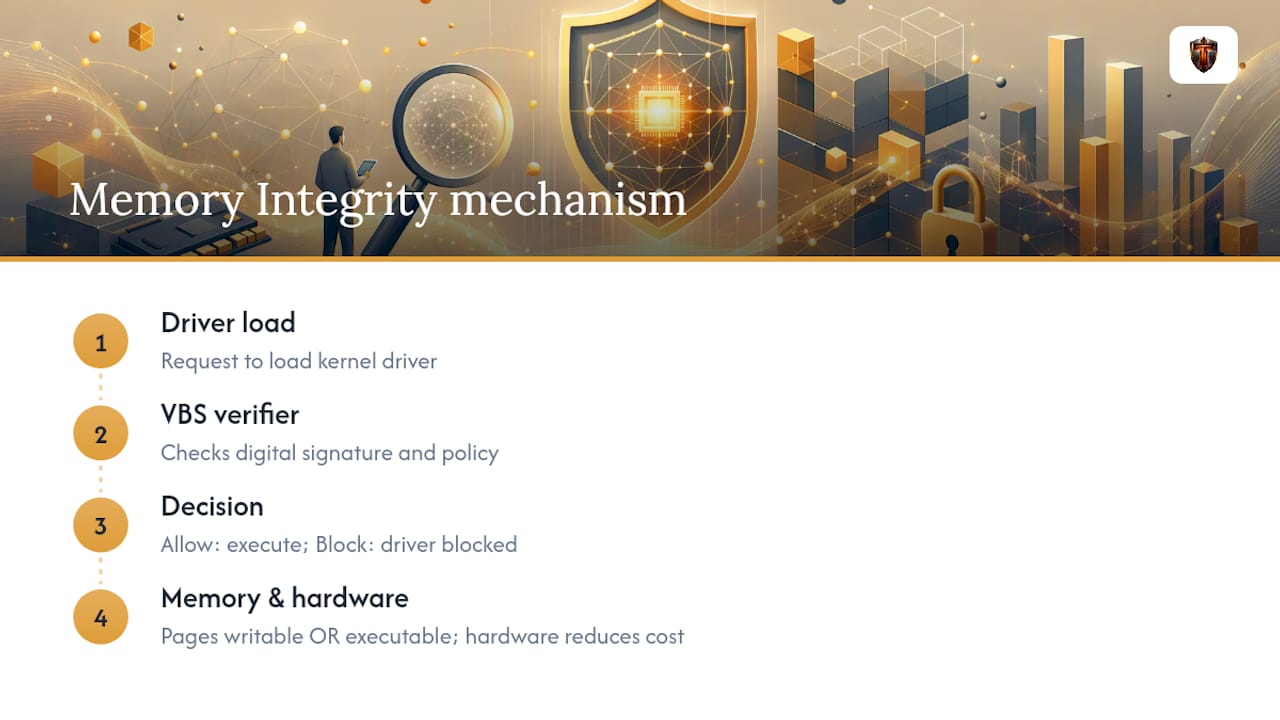
Memory Integrity works by moving a critical trust decision out of the operating system's reach. Normally, kernel-mode drivers run with almost unlimited access to memory, which is exactly why rootkits and driver-based malware target that layer. HVCI changes the arrangement by running its code integrity verifier inside the VBS-isolated environment, a space that even a fully compromised Windows kernel cannot read or modify.
When a driver tries to load, the verifier inside that isolated region checks its digital signature and code integrity policy before allowing execution. If the driver fails the check, Windows blocks it rather than letting it run and hoping antivirus software catches the problem afterward. That's a meaningful shift: instead of detecting bad behavior after the fact, HVCI prevents the bad code from getting kernel-level trust in the first place.
The other piece of the mechanism involves how memory pages get marked. Under Memory Integrity, kernel-mode memory pages are set so they can be either writable or executable, never both at the same time. That single restriction closes off a huge category of exploit techniques that rely on writing malicious code into memory and then tricking the system into executing it as if it were legitimate.
None of this comes free in processing terms, which is where hardware support matters. Modern CPUs include features like Mode Based Execution Control (MBEC) and, on the Intel side, technologies that reduce the cost of these virtualized checks. Without that hardware acceleration, the hypervisor has to fall back on slower software-based techniques to enforce the same memory restrictions, and that gap is a major reason performance results vary so much between a five-year-old laptop and a current-generation desktop.
What Are the Real Benefits of Enabling Memory Integrity?
Memory Integrity's main job is closing off the kernel to a specific, well-worn attack path: malicious or vulnerable drivers used to plant rootkits or disable security tooling from inside the operating system's most trusted layer. Driver-based attacks are attractive to attackers precisely because a compromised driver runs with kernel privileges, letting it hide processes, intercept security software, or persist across reboots. HVCI's code-signing and execution checks cut that path off before the driver ever gets to run.
This matters more in some situations than others. Anyone handling sensitive financial data, running a business laptop that travels, or managing enterprise fleets should treat Memory Integrity as close to mandatory. It's part of the baseline Microsoft expects for secured-core PCs, and enterprise IT teams generally shouldn't be disabling it without a strong documented reason.
Casual home users get a real benefit too, just a quieter one. Most people never encounter a driver-level rootkit, but the protection costs nothing until it conflicts with something specific on your machine.
Where people legitimately consider turning it off temporarily: a specialized peripheral driver (some older capture cards, niche audio interfaces, or legacy VPN clients) that hasn't been updated for HVCI compatibility, or a competitive gaming rig where every frame matters and testing shows a real, repeatable hit. Even then, a temporary disable to finish a specific task is a different decision than leaving it off permanently.
Does Memory Integrity Slow Down Your PC?
Yes, but the size of the hit depends heavily on your hardware and what you're doing. This is one of the most searched questions about the feature, and the honest answer is "it depends on your CPU generation," not a flat percentage.
Testing from Tom's Hardware found that general productivity workloads typically see a performance penalty under 5% on modern processors, which for most everyday tasks is not something you'd notice without a benchmark running. Gaming tells a different story on some systems, with certain benchmarks showing hits in the 7 to 10% range or higher, particularly on CPU-bound titles.
The performance gap tracks hardware generation almost exactly. PCWorld's testing found that older CPUs without newer virtualization acceleration took noticeably larger hits in browser and application workloads than recent chips with MBEC support built in.
MBEC is the feature doing most of the heavy lifting here. Processors that support it let the hypervisor enforce memory restrictions with hardware assistance rather than falling back on slower software emulation, which is why a current-generation CPU barely notices Memory Integrity while an aging one can show real stutter in CPU-bound games.
Rather than guessing, run your own before-and-after comparison:
- Note your current frame rates or app load times in whatever you actually use daily.
- Toggle Memory Integrity off, reboot, and repeat the same test under the same conditions.
- If you're chasing a gaming issue specifically, watch for micro-stutters or frame-time spikes rather than just average FPS, since that's often where the real cost shows up on older CPUs.
- A tool that tracks CPU usage patterns during the test can help you confirm whether the slowdown is actually coming from HVCI or from something else entirely competing for the same cores.
What Hardware and Software Does Memory Integrity Need?
Memory Integrity isn't available on every machine, and Windows won't let you enable it if your hardware doesn't meet a specific baseline. Before you spend time chasing a greyed-out toggle, run through what the feature actually requires.
Processor and architecture:
- 64-bit CPU with virtualization extensions (Intel VT-x, AMD-V, or the equivalent on Qualcomm Snapdragon systems for ARM devices).
- Second Level Address Translation (SLAT) support, standard on most CPUs made in the last decade.
- MBEC support is not strictly required but makes a measurable difference in overhead, as covered above.
Firmware and platform settings:
- UEFI firmware with Secure Boot enabled, not legacy BIOS mode.
- A Trusted Platform Module, ideally TPM 2.0.
- Virtualization enabled in firmware settings, sometimes labeled Intel VT-x, AMD-V, or SVM Mode depending on the motherboard vendor.
Drivers and software:
- Every kernel-mode driver on the system needs to be HVCI-compatible and properly signed. This is the single most common blocker.
- Windows reports incompatible drivers directly inside the Core isolation page under Memory Integrity, usually with the specific driver name flagged.
If your system falls short on any of these, the toggle in Windows Security either won't appear or will refuse to switch on, and Windows typically tells you which requirement is missing when you try.
How to Check if Memory Integrity Is Enabled
Windows exposes the current state of Memory Integrity in several places, and checking more than one location helps you spot a mismatch between what the UI says and what's actually running.
- Windows Security app. Open Windows Security, go to Device Security, then Core isolation details. The Memory integrity toggle here is the fastest read on current status, and Microsoft's own Core isolation documentation walks through what each state means.
- System Information (msinfo32). Press
Windows key + R, typemsinfo32, and press Enter. Look for "Virtualization-based security" and check the "Services Running" line, which lists Hypervisor enforced Code Integrity if HVCI is actually active, not just toggled in the UI. - Event Viewer. Navigate to
Applications and Services Logs > Microsoft > Windows > CodeIntegrity > Operational. Code Integrity compatibility events, including EventID 3087, show up here and can reveal why a driver got flagged or why enablement failed during setup. - Registry. Check
HKLM\SYSTEM\CurrentControlSet\Control\DeviceGuard\Scenarios\HypervisorEnforcedCodeIntegrity. The Enabled DWORD value reflects the current configuration and is useful when the graphical toggle disagrees with what you expect.
If msinfo32 shows the service running but the Windows Security toggle looks off, or vice versa, that mismatch is usually a sign a reboot is pending or a policy is overriding the UI display.
How to Turn On or Turn Off Memory Integrity
Most people only ever need the graphical toggle, but registry and Group Policy paths exist for edge cases, particularly on managed devices.
- Standard toggle. Open Windows Security, click Device security, then Core isolation details. Switch Memory integrity on or off, then restart when prompted. The setting doesn't take effect until after the reboot.
- Registry method. Open Registry Editor and navigate to
HKLM\SYSTEM\CurrentControlSet\Control\DeviceGuard\Scenarios\HypervisorEnforcedCodeIntegrity. Set the Enabled DWORD to1to turn it on or0to turn it off, then restart. Back up the registry key or create a system restore point before editing anything here. - Group Policy (managed devices). On domain-joined or business-managed machines, Memory Integrity is often controlled through Group Policy under Computer Configuration, Administrative Templates, System, Device Guard. If your toggle says "managed by your administrator," this is almost always the source, and changing it locally may require IT involvement rather than a registry edit.
Pro Tip: Before you disable Memory Integrity to test a theory, jot down the exact registry value and toggle state first. If the "fix" doesn't solve your problem, you want a clean path back to the secure default instead of guessing what your original configuration was.
How to Fix Incompatible Driver Errors
When Windows blocks Memory Integrity from turning on, it's almost always because of one specific driver, and the Core isolation page will usually name it directly under a warning about incompatible drivers.
Once you know which driver is the problem, work through these steps in order:
- Check the device manufacturer's website for a newer driver version. HVCI compatibility issues are common with drivers that haven't been updated in years, and an OEM refresh often solves it outright.
- If no update exists, consider whether you actually need that specific device or application. Uninstalling it removes the blocker along with the hardware or software it supports.
- Try rolling back to a previous driver version only as a last resort, since older drivers are frequently less HVCI-compatible, not more.
- Contact the vendor directly if the device is business-critical and no compatible driver is publicly listed. Some manufacturers maintain compatibility patches that aren't advertised on the main download page.
For a deeper look, tools like Autoruns (from the Sysinternals suite) or the built-in Device Manager can help you identify exactly which driver is loading and from where, which matters when a piece of legacy software installs a driver without clearly naming it. Be careful with Autoruns specifically. Disabling the wrong startup entry can affect system stability well beyond the Memory Integrity issue you're trying to fix, so change one item at a time and note what you touched.
Microsoft's own guidance backs a measured approach here: rather than disabling Memory Integrity outright to sidestep an incompatible driver, request a vendor update or use a controlled rollback first, so you're not giving up kernel protection over a fixable driver problem.
Why Is the Memory Integrity Toggle Greyed Out?
A greyed-out toggle almost always traces back to one of three sources: Group Policy, a registry value set by a management tool, or domain-level device management that overrides local settings entirely. Windows Security will often display "This setting is managed by your administrator" directly under the toggle when this is the case, which is your clearest signal to check policy before touching the registry.
The keys worth examining live under the DeviceGuard scenario path covered earlier. Look specifically at:
- Enabled, the DWORD that reflects whether HVCI is currently turned on.
- WasEnabledBy, which records what process or policy last changed the setting, useful for figuring out whether a management tool or Windows itself made the change.
- EnabledBootId, part of the boot-safety tracking Windows uses to confirm the system booted successfully with HVCI active.
Those last two keys point to something most people never learn about: Memory Integrity has a built-in safety net against unbootable systems. Microsoft's enablement documentation explains that Windows tracks enablement attempts using a BootId counter, and if the system fails to boot successfully with HVCI turned on, it can automatically disable the feature rather than leaving you stuck in a boot loop.
If you suspect this happened to you, setupact.log is the file to check. It contains SYSPRP HVCI enablement messages that explain exactly why an auto-enablement attempt passed, failed, or got rolled back during setup, which is far more useful than guessing from the Windows Security UI alone.
What Tempered's Diagnostic Approach Gets Right About Security Trade-offs
Most guides treat Memory Integrity as a binary choice: security purists say never touch it, performance forums say disable it and move on. Neither answer holds up once you actually look at the data.
My rule of thumb is simple: never disable a security feature to solve a performance problem you haven't actually measured. I've seen too many people blame Memory Integrity for a slowdown that turned out to be a stuck background process or a thermal-throttling laptop with dust-clogged fans. Test first, toggle second.
This is exactly the gap Tempered is built to close. Instead of guessing whether HVCI is the culprit, Tempered reads your actual CPU, RAM, and GPU behavior and shows you what's really constraining your system before you touch a security toggle you might later regret disabling. If Memory Integrity genuinely is costing you meaningful frame rate, you'll see it in the data instead of a forum thread.
One last habit worth keeping: before any registry edit related to Memory Integrity, create a restore point. It saves you from a rough afternoon.
— Ian
Diagnose the Real Bottleneck Before You Touch a Security Setting
Tempered is built for exactly the moment this article leads to: you're wondering whether Memory Integrity, a background process, or aging hardware is actually behind your slowdown, and guessing wrong means either losing protection for nothing or missing the real fix.

Rather than pushing generic tweaks, Tempered scans your live CPU, RAM, GPU, disk, and uptime data and shows you, in plain language, what's genuinely constraining performance, with a clear explanation and a one-click undo for every change it suggests. If the bottleneck turns out to be a stalled background process or startup bloat rather than HVCI, you'll know before you disable anything security-related. Every plan starts free, with paid Torque and Torque Max tiers unlocking deeper scans and more suggested fixes once you know what's actually worth changing. Check the current plans and pricing and run a scan to see what's really slowing your PC down before you touch Core isolation at all.
Where to Verify These Claims Yourself
Microsoft's own documentation is the most reliable place to confirm anything about Memory Integrity's behavior on your specific machine. The Device Security support page covers the Core isolation interface directly, while Microsoft's OEM enablement documentation explains the registry keys and boot-safety logging in technical detail.
For real-world performance numbers, Tom's Hardware and PCWorld have both run independent benchmarks tracking how HVCI affects productivity and gaming workloads across different CPU generations, and both are worth checking if you want figures beyond what's summarized here.
Sources
- Device Security in the Windows Security App - Microsoft Support
- Memory integrity enablement | Microsoft Learn
- Microsoft will expand Windows 11 memory integrity feature to more PCs — Tom's Hardware
- Tested! Here's how much the new Windows security features hurt PC performance | PCWorld
FAQ
Should I Leave Memory Integrity Turned On?
Yes, for the vast majority of Windows users, keeping Memory Integrity enabled is the right default since it blocks a well-known category of driver-based kernel attacks. The exceptions are a specific incompatible driver you can't replace or a measured, repeatable performance cost that matters for your particular workload.
I Can't Turn Off Memory Integrity. What Should I Do?
If the toggle is greyed out or shows "managed by your administrator," check Group Policy settings first, since domain-managed and business devices commonly lock this setting through policy rather than the local UI. If no policy applies, the Enabled DWORD under HKLM\SYSTEM\CurrentControlSet\Control\DeviceGuard\Scenarios\HypervisorEnforcedCodeIntegrity can restore control, but back up the registry before making changes.
Does Memory Integrity Slow Down a PC?
It can, but the effect varies a lot by hardware. Testing shows productivity workloads on modern CPUs typically stay under a 5% penalty, while some games on older processors have shown hits in the 7 to 10% range or higher. Running your own before-and-after test, using a diagnostic tool to spot what's actually eating CPU cycles, gives you a far more reliable answer than a general rule.
Why Does Memory Integrity Automatically Turn Off on My Computer?
Windows includes a boot-safety mechanism that can automatically disable Memory Integrity if the system fails to boot successfully with it enabled, tracked through the WasEnabledBy and EnabledBootId registry keys. Checking setupact.log for SYSPRP HVCI enablement messages will usually tell you exactly why the auto-disable triggered on your machine.
What Does Tempered Cost If I Want to Diagnose Performance Issues First?
Tempered offers a Free plan alongside paid Torque and Torque Max tiers, with Torque starting at $5.99 per month and Torque Max starting at $12.99 per month. Full plan details and features are available on the Tempered pricing page.