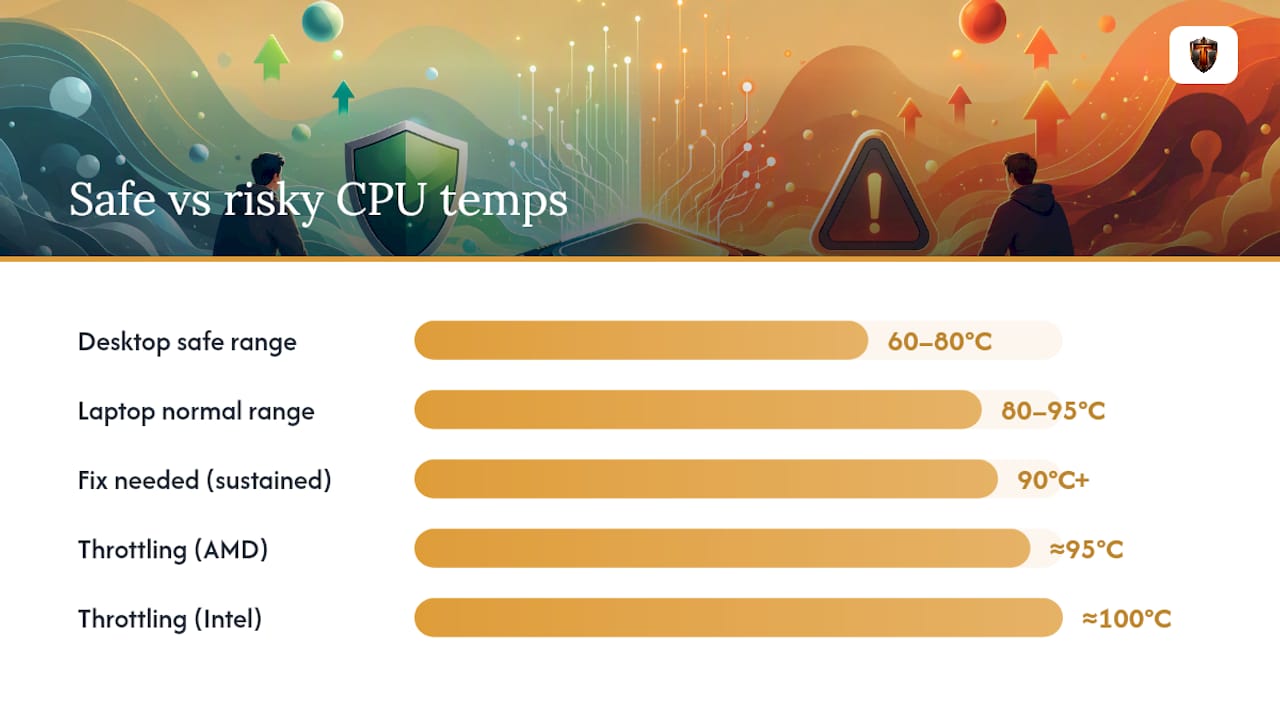
A safe CPU temp while gaming is roughly 60°C to 80°C for a desktop under sustained load, with occasional spikes into the low 80s being nothing to worry about. Anything that consistently sits at 90°C or higher during actual gameplay, not just a loading screen, means your cooling setup needs attention. Laptops and small form factor (SFF) builds run hotter by design, often landing between 80°C and 95°C under the same kind of load.
The number that matters most isn't your CPU's absolute limit, called TJMax. It's the gap between where you're running and where throttling kicks in. A processor rated to survive 100°C doesn't mean 95°C during Call of Duty is fine to ignore.
Here's the quick reference:
- Desktop, ideal: under 70°C sustained
- Desktop, acceptable: 70°C to 85°C sustained
- Desktop, warning zone: 90°C+ sustained, or frequent throttling
- Laptop/SFF, ideal: under 80°C sustained
- Laptop/SFF, acceptable: 80°C to 90°C sustained
- Laptop/SFF, warning zone: consistently 90°C to 95°C+ with clock drops
Key Takeaways
Safe CPU temps for gaming stay under 85°C sustained on desktops and under 90°C on laptops, with brief spikes near TJMax being normal and 90°C+ sustained readings signaling a cooling problem worth fixing.
| Point | Details |
|---|---|
| Desktop safe range | Keep sustained gaming temps at or below 80–85°C; treat 90°C+ as a signal to investigate. |
| Laptop/SFF run hotter | Expect 80–95°C under sustained load by design, not as a defect. |
| Sustained beats spikes | Judge temps by logged maximums over a full session, not momentary peaks during loading screens. |
| Know your TJMax | Intel typically caps near 100–110°C, AMD desktop chips near 95°C; check your exact SKU. |
| Fix cheap first | Cleaning, repasting, and fan curve tweaks resolve most overheating before you need a new cooler. |
| Automate the monitoring | Tempered runs live hardware diagnostics and flags background load issues with one-click undo for every change. |
Table of Contents
- Normal CPU Temps While Gaming: Why the Range Is So Wide
- How Does CPU Temperature Affect Gaming Performance?
- What Is TJMax and How Do Vendor Limits Differ?
- How to Monitor CPU Temperature While Gaming
- When Should You Worry About High CPU Temps?
- How to Lower CPU Temps in Practice
- Quick Troubleshooting Checklist for Overheating
- Building a Repeatable Monitoring Routine
- What Counts as "Good Enough" for Most Gaming Rigs
- A Simpler Way to Keep Tabs on Your Temps
- Frequently Asked Questions
- Sources
Normal CPU Temps While Gaming: Why the Range Is So Wide
That 60°C to 80°C range isn't vague hedging. It reflects real differences in workload, chassis, and how you're measuring.
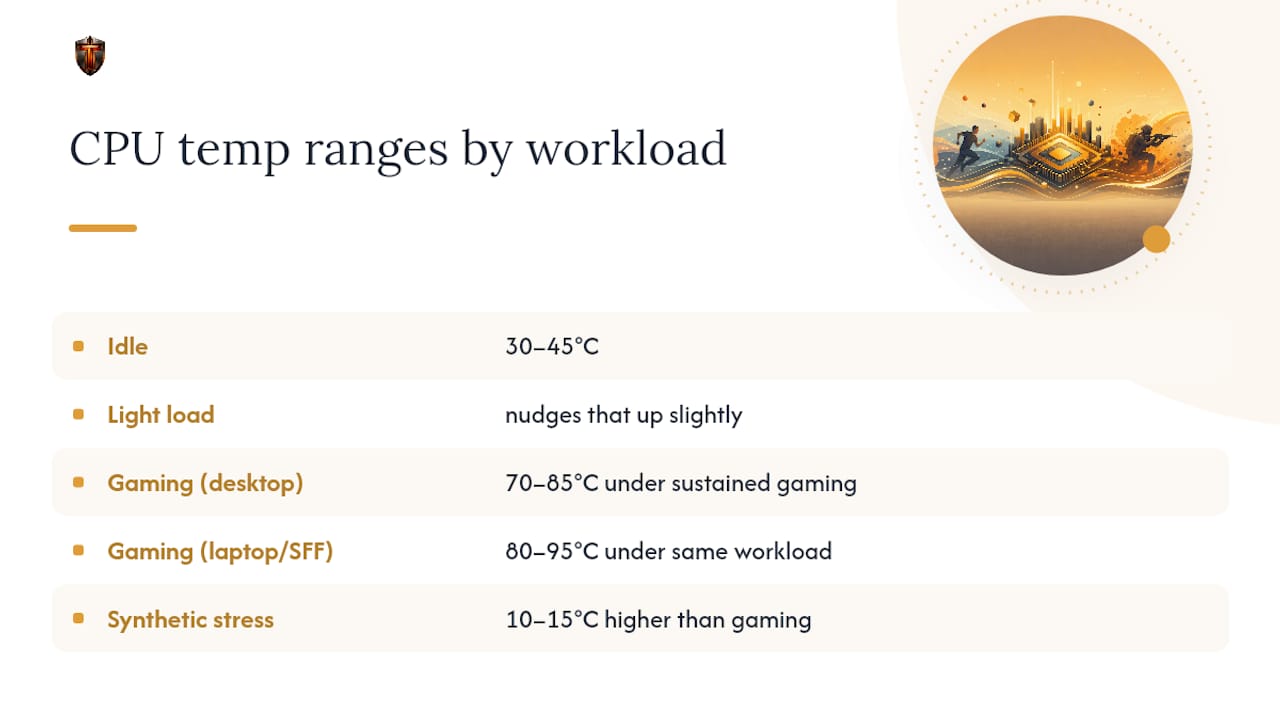
At idle, a modern CPU typically sits in the 30°C to 45°C range, doing basically nothing. Light load (browsing, video playback) nudges that up slightly. Gaming pushes several cores hard while leaving others relatively idle, which is why gaming temps usually land below full synthetic stress test numbers. All-core stress tests like Cinebench or Prime95 routinely push CPUs 10°C to 15°C higher than a typical game session, because games rarely load every core evenly.
Form factor changes the baseline substantially; for insights on managing heat in compact systems, see Why Do MacBooks Overheat? Causes and Fixes. Desktop CPUs commonly run 70°C to 85°C under sustained gaming, while laptop and SFF systems often run 80°C to 95°C under the same workload, simply because there's less room for airflow and heatsink mass. That's a design trade-off manufacturers accept, not a sign that your laptop is broken.
Spikes versus sustained averages matter more than most people realize. A momentary jump to 88°C during a cutscene transition is meaningless. A logged average of 88°C across a 30-minute raid boss fight is a different story entirely.
Pro Tip: Every 5°C rise in ambient room temperature typically pushes CPU temps up by a similar amount. A CPU running 72°C in a 68°F room in winter can easily hit 78°C to 80°C in a warm bedroom in July, with zero hardware changes.
How Does CPU Temperature Affect Gaming Performance?
Modern CPUs from Intel and AMD use boost algorithms that scale clock speed based partly on thermal headroom. As temperatures climb toward the throttling threshold, the chip pulls back frequency to protect itself, and that shows up directly in your frame rate.
You'll notice it as stutters during demanding scenes, a fan that suddenly sounds like a jet engine, or, in worse cases, a full shutdown mid session. Thermal throttling typically begins around 95°C on AMD chips and closer to 100°C on Intel chips, with emergency shutdown protection kicking in near 105°C on many designs.
- Reduced boost clocks and inconsistent frame pacing
- Fan curves ramping to max, adding noticeable noise
- Random stutters that weren't there during a fresh install
- In extreme cases, unexpected shutdowns during intense scenes
A brief spike to 95°C during a boss fight isn't the same event as sitting at 95°C for the entire raid. Silicon degradation is a function of sustained heat over months and years, not the occasional momentary spike that any modern CPU is engineered to absorb.
What Is TJMax and How Do Vendor Limits Differ?
TJMax, sometimes called Tjunction, is the maximum junction temperature your CPU's silicon can reach before the chip forces throttling or shuts down to prevent damage. It's a manufacturer-set ceiling, not a target.
Values differ by vendor and even by specific chip family. Intel typically documents maximum operating temperatures between 100°C and 110°C depending on the SKU, while most AMD desktop chips cap around 95°C. Some Zen 4 X3D chips run an even lower effective ceiling near 89°C because of their stacked 3D V-Cache design, though later X3D generations restored higher limits, so check your exact model.
- Look up your exact CPU model on the Intel product spec page, or your motherboard/OEM documentation for AMD parts.
- Search for "Tjunction Max" or "maximum operating temperature" in the listing.
- Cross-check with a monitoring tool like Core Temp or HWiNFO64, which often display the reported TJMax directly next to your live readings.
How to Monitor CPU Temperature While Gaming
You can't manage what you don't measure, and a single glance at a temperature overlay during a loading screen tells you almost nothing useful.
Three tools cover essentially everything a gamer needs. HWiNFO64 gives the deepest sensor breakdown, including per-core, package, and sometimes junction readings, plus logging you can export and review later. Core Temp is lighter weight and great for a quick, always-on look at per-core max and current values without much overhead. MSI Afterburner pairs with its RivaTuner overlay to show live temps directly in-game, which is the easiest way to catch a spike as it happens rather than after the fact.
Here's the distinction that trips people up: some sensors report the CPU package temperature (an average across cores), while others report per-core or junction temperature (the hottest single point). If your tool shows junction temp, expect it to run a few degrees hotter than the package average, and that's normal, not a red flag.
A simple, repeatable workflow:
- Launch your monitoring tool of choice before opening the game.
- Enable logging (HWiNFO64) or an in-game overlay (MSI Afterburner).
- Play a representative 20 to 30 minute session, ideally something demanding rather than a loading menu.
- Pull the logged maximum sustained value, not just the peak spike, and compare it against the safe ranges above.
Pro Tip: Set your overlay to update once per second, not once every few seconds. A slower refresh rate can smooth over short throttling events and make your temps look better than they actually are. For a deeper walkthrough of setup steps, see this guide on how to monitor CPU temperature on Windows PCs.
When Should You Worry About High CPU Temps?
Not every warm reading is a problem. The trick is knowing which patterns actually demand a fix versus which ones are just how your build runs.
Signs worth investigating:
- Sustained readings of 90°C or higher across most of a gaming session
- Visible throttling (clock speed dropping noticeably under load)
- Unexpected shutdowns during gameplay
- Idle temps above 50°C, which often points to a mounting or paste issue rather than a load problem
Run through this before assuming the worst:
- Confirm fans and pump (if liquid cooled) are actually spinning at expected speeds.
- Check that the cooler is seated correctly and making full contact.
- Log a session in HWiNFO64 to get real numbers instead of guesswork.
- Note the room's ambient temperature, since a hot room skews everything.
- Remove the side panel temporarily to see if case airflow is the bottleneck.
The same number showing up during a game that barely used to warm the CPU last month is the one that means something changed.
How to Lower CPU Temps in Practice
Fix the cheap stuff before you spend money. Most overheating complaints resolve with cleaning, reseating, and repasting long before a new cooler enters the conversation.
Fast wins (free, under 10 minutes):
- Blow out dust from intake fans, filters, and the heatsink itself.
- Reseat any loose fans and tidy cable runs blocking airflow paths.
- Move the tower away from a wall, a rug, or a heat-trapping desk enclosure.
Mid-level fixes (an hour, low cost): 4. Reapply thermal paste if your cooler hasn't been serviced in two or more years. 5. Rebuild your fan curve in BIOS or a fan-control app so fans ramp earlier instead of waiting until things get hot. 6. Apply a mild undervolt or adjust power limits, which can cut heat output with minimal performance loss.
Upgrade path (real money, real gains): 7. Move from a stock or budget air cooler to a higher-performance tower cooler or a 240/360mm AIO. 8. Add or reposition intake and exhaust fans to build proper front-to-back or bottom-to-top airflow. 9. Swap into a case with a mesh front panel if your current case is heavily restricted.
Professional servicing or a cooler/pump replacement becomes worth considering when a AIO pump gets noticeably louder over time or stops ramping with load, which usually signals it's failing rather than just needing a fan curve tweak.
Pro Tip: Going from a stock cooler to a quality 240mm or 360mm AIO typically cuts peak gaming temps by 15°C to 20°C, though the exact gain depends heavily on case airflow and how hot your room runs. Good case airflow habits also pay off on the GPU side. See this guide on lowering GPU temperature for fixes that help both components at once.
Quick Troubleshooting Checklist for Overheating
Work through this in order during or right after a gaming session that felt too hot.
- Log a real session (10 minutes): Run HWiNFO64 through 15 to 20 minutes of gameplay. Resolved if max sustained temp sits under 85°C on a desktop.
- Check fans and pump (2 minutes): Confirm every fan spins and the pump (if liquid cooled) isn't silent or grinding.
- Check cooler mounting (5 minutes): Loose mounting pressure is one of the most common causes of a sudden temperature jump.
- Check thermal paste age (10 minutes if replacing): Dried-out paste past the two-year mark is a frequent, cheap fix.
- Test with the case open (5 minutes): If temps drop noticeably, your case airflow is the bottleneck, not the cooler itself.
Stop the DIY checklist and consider a repaste or new cooler if none of the above moves the needle. At that point, you're likely dealing with a genuinely undersized cooler for your CPU, not a maintenance issue.
Building a Repeatable Monitoring Routine
Verifying that a fix actually worked requires more discipline than most people apply. Run the same test before and after any change, or you're just guessing.
- Log a baseline 20 to 30 minute gaming session before touching anything, using the same game and roughly the same in-game scenario.
- Make exactly one change (repaste, new fan curve, undervolt, whatever you're testing).
- Repeat the identical session length and game.
- Compare logged maximum sustained temperature and average temperature side by side, not just peak numbers.
What to capture in your log:
- Package temperature (overall average)
- Per-core maximum (catches localized hot spots)
- Junction temperature if your tool reports it separately
Set your sample rate to once per second for a clean signal without generating an unmanageable log file. Re-run this same test every few months, and especially after major Windows or GPU driver updates, since driver behavior changes can shift how hard your CPU works even in the same game. The monitor PC temps guide covers sensor interpretation in more depth if you want to go further.
What Counts as "Good Enough" for Most Gaming Rigs
Most gamers chase a number that's colder than it needs to be. If your desktop sits in the 70s under sustained load and never throttles, you don't have a problem. You have a working PC.
Budget matters here more than people admit. A $1,000 build with a solid air cooler running 82°C sustained is perfectly fine for years of gaming. Spending $150 on an AIO to shave off 8°C only makes sense if you're already hitting throttling, chasing extra silence, or building something in a cramped SFF case where every degree counts more.
Clean your intakes twice a year, repaste every couple of years, and don't panic over a single 88°C spike during a cutscene. That's what modern silicon is built to handle.
A Simpler Way to Keep Tabs on Your Temps
Manually logging sessions in HWiNFO64 and comparing numbers before and after every tweak works, but it takes real time most gamers don't want to spend every week. Tempered handles the ongoing part of that job. It runs live diagnostics on your CPU, RAM, GPU, and disk, then flags real constraints, like a background process quietly hogging cores during your raid nights, with plain-language explanations of what changed and why.

Every suggested change comes with a one-click undo, so you're never stuck wondering what got altered on your system. Tempered's Game Mode also handles the background cleanup that otherwise adds load (and heat) while you're trying to hit a stable frame rate. The free tier covers limited scans if you want to see what it finds first; the Torque and Torque Max plans unlock unlimited scans and the full recommendation set for anyone who wants continuous tracking without doing the legwork manually. Start with a scan and see what's actually running in the background of your next gaming session.
Frequently Asked Questions
What is a safe CPU temp for gaming? A safe CPU temp for gaming generally falls between 60°C and 80°C sustained on a desktop, with occasional spikes into the low 80s being acceptable. Consistent readings at 90°C or above call for a cooling fix.
Is 80°C safe for CPU while gaming? Yes, 80°C during sustained gaming is within the normal, acceptable range for most desktop CPUs and doesn't indicate a problem on its own.
What CPU temperature causes throttling? Throttling typically starts around 95°C on AMD desktop chips and closer to 100°C on Intel chips, though the exact threshold depends on your specific CPU's TJMax rating.
Why does my laptop run hotter than my desktop while gaming? Laptops and SFF systems are built with less airflow and smaller heatsinks by design, so 80°C to 95°C under gaming load is normal and expected rather than a sign of failure.
How do I lower my CPU temperature while gaming? Start with cleaning dust and improving airflow, then reapply thermal paste and tune your fan curve. If temps still run high, upgrading to a better air cooler or a 240/360mm AIO typically cuts peak temperatures by 15°C to 20°C.