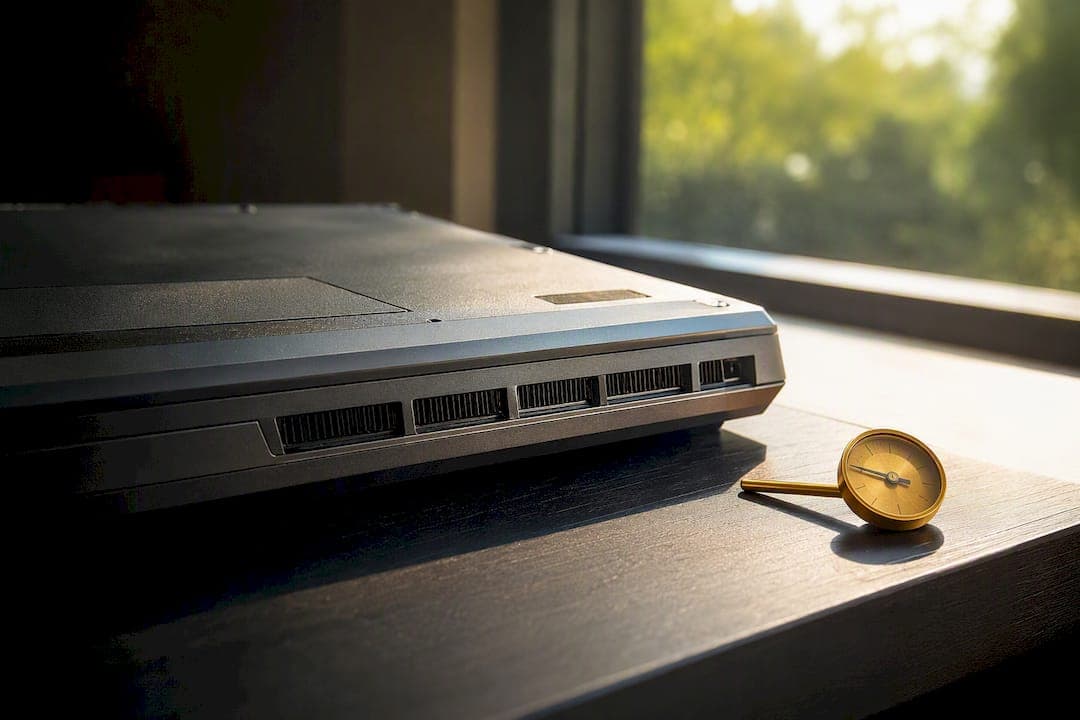
The fastest fix for a hot laptop is moving it to a hard, flat surface, closing whatever is maxing out the CPU or GPU, and switching to Balanced or Power Saver mode. Do just that and you can see idle temperatures fall 8 to 12°C, with another 5 to 8°C possible under load once the rear is propped up. Everything else, cleaning fans, replacing paste, buying a cooling pad, builds on that foundation. This guide comes from the kind of hands-on troubleshooting Tempered's Ian relies on when helping Windows users track down what's actually cooking their machine.
TL;DR:
- Elevating your laptop on a hard, flat surface and closing unnecessary CPU or GPU-heavy applications can reduce idle temperatures by up to 12°C.
- External cleaning of vents with compressed air every three to six months prevents dust buildup that can trap heat and cause throttling.
- Applying fresh thermal paste and conducting internal cleaning every three to five years can lower sustained load temperatures by 15 to 25°C.
- Adjusting software settings to limit processor utilization and closing background apps can cut heat generation without opening the device.
- Avoid using cooling pads unless they properly align with your laptop’s vents, as their effectiveness depends on fit and contact.
Table of Contents
- Laptop Cooling Tips: 5 Fast Steps for the Next 15 Minutes
- Cleaning, Stands, and Thermal Paste: The Hardware Fixes That Matter
- Software Settings and Monitoring: Cutting Heat Without a Screwdriver
- What Tempered Checks Before You Touch a Screwdriver
- When DIY Isn't Enough: Signs You Need a Repair
- Why Direct Sunlight and Hot Rooms Undo Everything Else
- Battery Habits That Keep Temperatures in Check
- Priorities That Actually Make Sense
- Try Tempered Before You Reach for a Screwdriver
- Where to Read More
- Sources
- FAQ
Laptop Cooling Tips: 5 Fast Steps for the Next 15 Minutes
Before you touch a screwdriver or open a settings menu, run through this sequence. It costs nothing and takes less time than waiting for a video to buffer.
- Get it off the couch. Set the laptop on a hard, flat surface and prop the rear edge up 15 to 20 degrees with a book or stand. That alone opens the intake vents most laptops hide on the bottom panel.
- Kill the heavy stuff. Close browser tabs running video, cap your game's frame rate, and shut down anything chewing through CPU or GPU cycles you don't actually need right now.
- Switch power modes. Drop into Balanced or Power Saver temporarily, and dim the screen a notch. Both cut wattage, and wattage is heat.
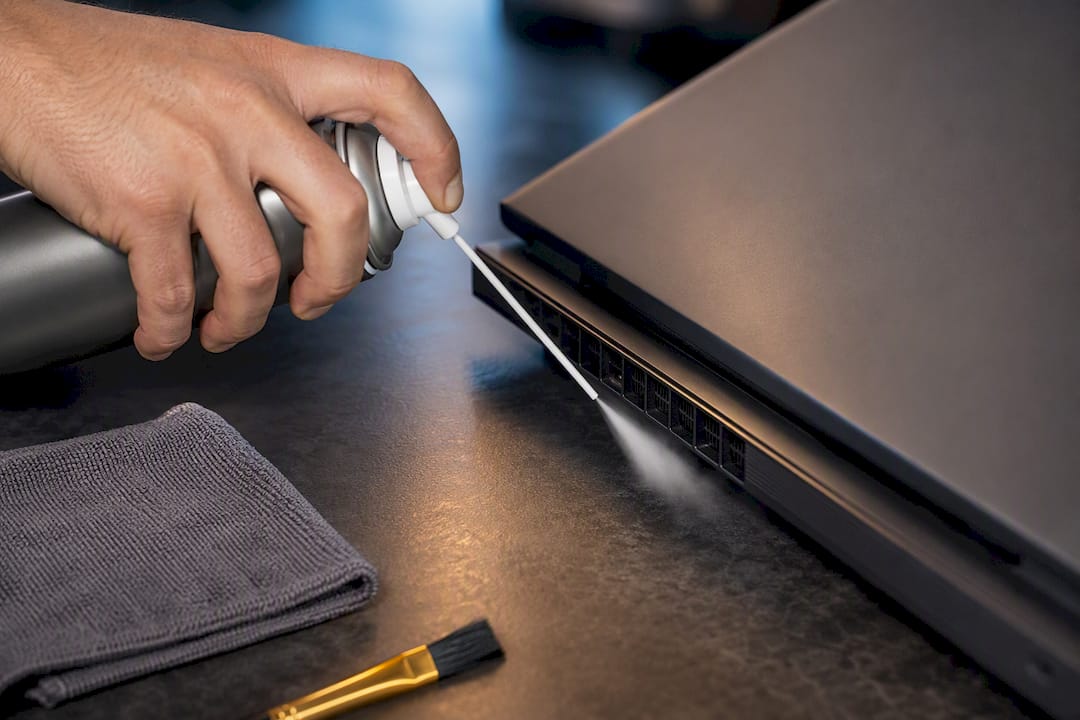
- Hit the vents with air. Shut the laptop down first, then use short bursts of compressed air on the exterior intake and exhaust vents while holding the laptop upright.
- Let it breathe. Point a desk fan at the vents, or set it on a cooling pad, and give the chassis 10 to 15 minutes before pushing it hard again.
That combination handles the vast majority of overheating complaints without opening the case.
Cleaning, Stands, and Thermal Paste: The Hardware Fixes That Matter
Dust is the quiet killer of laptop cooling. It packs into heatsink fins and fan blades until airflow drops to a trickle, and a machine that ran cool for two years suddenly throttles under normal use.
External cleaning is the easy win. Short bursts of compressed air aimed at the intake and exhaust vents, done every three to six months (more often if you have pets or live somewhere dusty), can lower idle temperatures by 5 to 15°C. It takes two minutes and requires zero tools beyond a can of air.
Internal cleaning and repasting are the bigger job, and they're warranted once a laptop is three to five years old or running hot despite clean vents. Thermal paste dries out and loses its ability to transfer heat from the chip to the heatsink over that timeframe. Opening the chassis, cleaning the fan and fins directly, and applying fresh paste can drop sustained load temperatures by 15 to 25°C, which is often the difference between a laptop that throttles constantly and one that runs full speed.
Cooling pads and stands are situational. Their benefit depends entirely on whether the pad's fans actually align with your laptop's intake grille. A well-matched sealed or gasketed pad can produce a double-digit temperature drop under gaming loads, while a generic flat pad often just tilts the laptop and adds a couple of degrees at best, sometimes only acting as an elevated stand. Tests on several popular cooling pads found results ranging from 3°C to 20°C depending entirely on fit.
- Never use a household vacuum to clean vents. The suction can generate static discharge that damages internal components.
- Hold the fan hub still with a finger or cotton swab while blasting air through vents, since compressed air can spin blades far past their rated RPM and wreck the bearings.
- Clean externally every 3 to 6 months. Reserve internal cleaning and repasting for every 3 to 5 years, or sooner if temps climb despite clean vents.
Pro Tip: If you're not comfortable opening the chassis yourself, ask a repair shop specifically for a "clean and repaste" service. It's usually a fraction of the cost of a full diagnostic and solves most persistent overheating on laptops over three years old.
Software Settings and Monitoring: Cutting Heat Without a Screwdriver
Heat is a byproduct of work the processor is doing, so the least invasive way to cool a laptop is to make it do less work. In Windows, open power plan settings and set the maximum processor state to something like 75% instead of 100%. That single change caps how hard the CPU can push, which caps how much heat it generates, and most users never notice the performance difference outside of heavy rendering or gaming.
A few other software levers worth pulling:
- Cap game frame rates at 60 instead of letting them run uncapped, and drop graphics settings a notch when your laptop is on your lap instead of a desk.
- Open Task Manager and sort by CPU or GPU usage to spot background apps quietly running at high load. Browser extensions, cloud sync clients, and update checkers are frequent offenders.
- Microsoft's own guidance confirms that closing background tasks and adjusting power plans are among the most reliable ways to cut thermal load without touching hardware.
Monitoring matters because you can't fix what you can't see. Tools like HWMonitor, HWiNFO, or the built-in Windows Task Manager and Resource Monitor let you watch CPU and GPU temperatures in real time. As a rough guide, idle temps in the 40s and 50s (Celsius) are normal, load temps in the 70s and 80s are typical for most laptops, and sustained readings near 90 to 95°C usually mean thermal throttling is kicking in to protect the chip. Our guide to monitoring CPU temperature on Windows walks through setup step by step.
For readers comfortable going further, undervolting, reducing the voltage sent to the CPU, can lower heat noticeably with little to no performance loss on many Intel mobile chips. It requires careful, small-step testing for stability, since pushing the offset too far causes crashes rather than savings.
What Tempered Checks Before You Touch a Screwdriver
Plenty of heat comes from software doing work you never asked for. Tempered scans a Windows 10 or 11 system for background processes eating CPU cycles, unnecessary startup items slowing every boot, and settings quietly working against you. Every fix it proposes comes with a plain-language explanation and one-click undo, so nothing changes without your approval.
That matters for cooling specifically because:
- Killing rogue background processes reduces sustained CPU load, which reduces heat generation directly.
- Trimming startup items means less simultaneous load right when a laptop's fans are still ramping up.
- Every suggested tweak is reversible, so there's no risk of breaking something while chasing lower temperatures.
It's a software-first companion to the manual steps above, not a replacement for cleaning or repasting.
When DIY Isn't Enough: Signs You Need a Repair
Some laptops are past the point where cleaning and settings fix the problem. Watch for these red flags:
- Sustained CPU or GPU temperatures above roughly 90 to 95°C under normal gaming or work loads, not just brief spikes.
- Idle temperatures sitting above 60°C even after a full cleaning and power plan adjustment.
- Repeated unexpected shutdowns, or a fan that grinds loudly instead of spinning smoothly.
Before paying for service, run a quick diagnostic: check fan RPM in a monitoring tool, retest temperatures right after an external cleaning, and look for a fan self-test option in your BIOS or UEFI menu. If temps stay high after all that, the likely culprits are dried thermal paste, blocked heatsink fins, or a fan nearing failure. A professional repaste and heatsink clean often brings sustained load temperatures down by 15 to 25°C, similar to the DIY numbers above, but with less risk to warranty coverage than opening the case yourself on a machine still under warranty.
Why Direct Sunlight and Hot Rooms Undo Everything Else
You can clean every vent and cap every setting, and a laptop sitting in direct sunlight will still run hot, because ambient heat changes the baseline your cooling system is fighting against. A laptop's fans and heatsink are designed to move heat from the components into the surrounding air. When that air is already warm, there's less of a temperature gap to work with, and the whole system loses efficiency.
Direct sunlight adds a second problem: it heats the outer casing and the screen directly, independent of what's happening inside. Dark-colored laptop lids absorb even more of that heat. Leave a laptop on a car seat, a patio table, or a sunny windowsill for twenty minutes and the plastic and metal shell can climb well past comfortable room temperature before you've even opened the lid.
Practical habits that help:
- Work indoors, out of direct sun, whenever you're running anything demanding, gaming sessions, video exports, compiling code.
- Never leave a laptop in a parked car, even briefly. Cabin temperatures on a warm day can climb dramatically higher than outside air.
- If you're working outdoors, keep the laptop in shade and elevated off hot surfaces like concrete or metal patio furniture, both of which radiate stored heat back up into the chassis.
- Give a laptop that's been in a hot environment a few minutes at room temperature before pushing it into heavy use. Cold-starting a hot chassis into a demanding task just compounds the thermal load.
Ambient temperature is the one variable no amount of internal cleaning or software tuning can fully offset.
Battery Habits That Keep Temperatures in Check
A battery under stress generates its own heat, separate from whatever the CPU and GPU are doing, and poor battery habits quietly add to a laptop's total thermal load. Charging while gaming is the biggest offender: the battery is accepting charge and discharging to power demanding components simultaneously, which pushes it warmer than either activity alone would.
A few habits make a real difference. Avoid keeping a laptop plugged in and running at full charge for extended stretches when you're not actively using it. Most modern laptops handle this reasonably well with built-in charge management, but running demanding tasks while plugged in still adds heat the battery has to dissipate. Unplugging during lighter tasks and only charging fully before a heavy session, rather than mid-session, keeps the battery's contribution to overall heat lower.
Keep vents near the battery compartment clear too, since many laptops route battery heat through the same channels as CPU and GPU exhaust. A battery that runs consistently hot also degrades faster, which means shorter runtime and, eventually, a battery that swells or fails, both of which can make heat problems worse rather than better. If your laptop feels unusually warm near the palm rest even when idle, that's often the battery working harder than it should, worth a check in your battery health settings before you assume it's a fan or paste problem.
Priorities That Actually Make Sense
Clean the vents and fix your power settings before you spend a dollar on a cooling pad. Most overheating complaints trace back to dust and bad software habits, not a chassis that needs a $40 accessory. Pads help in specific setups, but they add noise for a modest gain in plenty of cases. Software has a real ceiling. Once a chassis is thermally maxed out, no undervolt or power plan saves it, and a worn-out laptop sometimes just needs replacing.
— Ian
Try Tempered Before You Reach for a Screwdriver
There are software-first options that fit right between the quick fixes in this guide and anything requiring a repair shop, scanning Windows 10 or 11 systems to flag background processes and startup items loading the CPU, and proposing specific, reversible tweaks instead of vague "optimize now" buttons that hide what actually changed.

That puts it after the cleaning and power-setting steps above, not instead of them. Software optimizers won't replace dried thermal paste or fix a dying fan bearing, but they can stop wasted CPU cycles from adding heat you never needed in the first place, and changes often come with an undo option if you don't like the result. If your laptop still runs warm after a good cleaning, scan your system with Tempered and see what's actually running in the background.
Where to Read More
- Sony's cooling guide covers manufacturer-approved surface and elevation advice.
- Dell's fan-cleaning walkthrough details safe compressed-air technique.
- Wired's cooling pad tests show why pad fit matters more than price.
Sources
- Sony support: How to cool down your laptop
- Dell blog: How to clean a laptop fan safely
- ASUS ROG: How to keep a gaming laptop cool
- Wired: best laptop cooling pad tests
FAQ
What Is the Most Efficient Way to Cool a Laptop?
Move it to a hard, elevated surface and close CPU or GPU heavy apps first. That single combination can cut idle temperatures by 8 to 12°C before you touch any hardware.
How Can I Cool Down My Laptop Right Now?
Elevate the rear, switch to Balanced or Power Saver mode, close background tasks, and let a desk fan or cooling pad run for 10 to 15 minutes. If vents look dusty, a quick burst of compressed air on the exterior grilles helps immediately.
Is 70 Degrees Celsius Hot for a Laptop While Gaming?
No. 70°C under a gaming load is well within normal range for most laptops; concern starts closer to sustained readings near 90 to 95°C, where thermal throttling typically kicks in.
Is 80°C Too Hot for a Laptop CPU?
Not necessarily. Many CPUs run comfortably at 80°C under heavy load, but if it climbs toward 90°C or higher and stays there, that's when performance starts dropping and cleaning or repasting is worth investigating.
Are Laptop Cooling Pads Worth Buying?
Only if the pad's fans line up with your laptop's actual intake vents. A well matched, sealed pad can drop temperatures by double digits, but a generic pad that doesn't align often just acts as a stand.