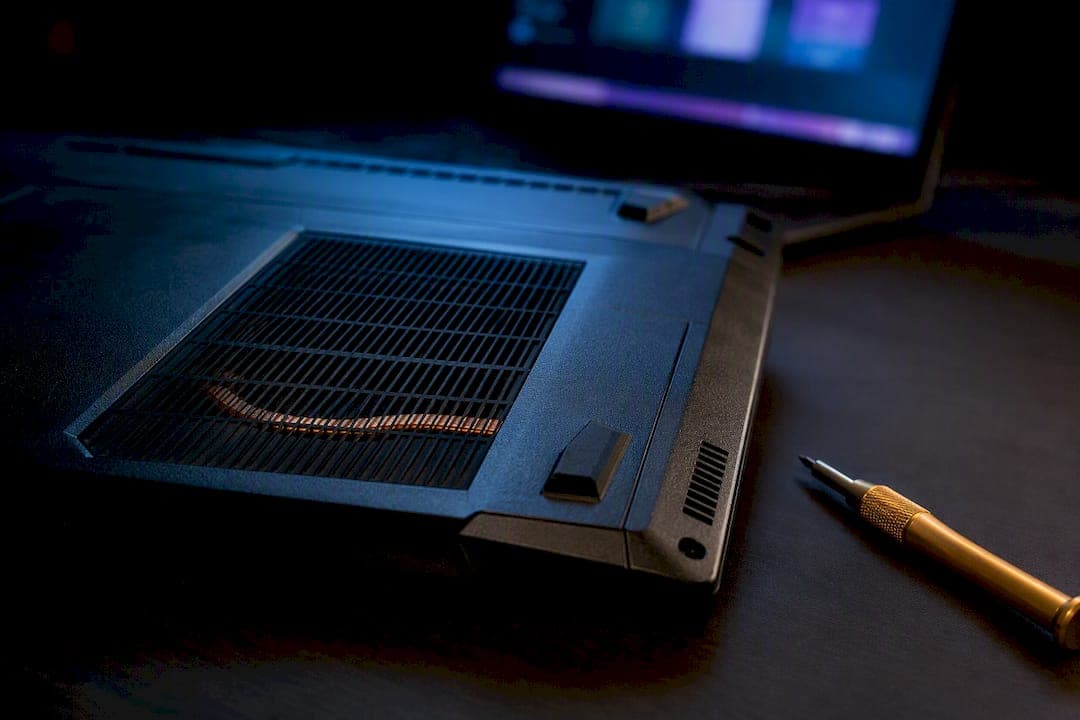
Plug in your original charger, switch Windows to High Performance or your manufacturer's Game Mode, set the fan profile to Performance, and cap your frame rate at your display's refresh rate. Move the laptop to a hard, flat surface with the rear edge slightly raised, and close any background apps or overlays eating CPU cycles. These five changes cost nothing, take under ten minutes, and fix the majority of overheating cases before you ever touch a screwdriver.
TL;DR:
- Using the original charger, setting Windows to High Performance mode, and capping frame rate can significantly reduce overheating in under ten minutes.
- Regular cleaning of vents, moving the laptop to a hard surface, and delaying repasting are key physical maintenance steps to prevent long-term thermal issues.
- Updating GPU drivers, limiting FPS, and undervolting components are effective software tweaks to lower component heat during gaming sessions.
- Monitoring temperature and clock speeds with tools like HWiNFO64 ensures that thermal throttling is identified before hardware damage occurs.
- Avoid troubleshooting alone if temperatures remain above 95°C with symptoms like shutdowns, burning smells, or hardware anomalies, and seek professional help when needed.
Table of Contents
- Why Laptops Run Hot During Gaming: The Root Causes
- High-Impact Quick Fixes You Can Do in 5 to 15 Minutes
- Software Changes That Cut Heat at the Source
- How to Monitor Temperatures and Know What's Normal
- Cleaning and Advanced Hardware Fixes
- When to Stop Troubleshooting Yourself
- My Take: Test in This Order, and Don't Skip Steps
- Sources
Why Laptops Run Hot During Gaming: The Root Causes
A gaming laptop crams desktop-class silicon into a chassis a fraction of the size, sharing a handful of thin heatpipes between the CPU and GPU instead of the roomy air paths a desktop tower gets for free. That's the structural problem. Everything else you'll read below is a variation on that same squeeze.
The most common culprits are mechanical, not electrical:
- Dust-clogged vents and heatsink fins restrict airflow gradually, so the slowdown often feels like it "just started happening" even though it built up over months. Cleaning the vents resolves a large share of chronic overheating complaints on its own.
- Soft surfaces (beds, couches, laps) block bottom-intake vents entirely, starving the fans of fresh air no matter how clean the heatsink is.
- Degraded thermal paste loses its ability to transfer heat from the die to the heat spreader as it dries out and cracks over one to three years of use, especially under sustained gaming loads.
- Wrong power mode or an underpowered charger. Running on battery, or on a third-party charger that can't deliver full wattage, forces the system to throttle performance to match available power. Microsoft's own troubleshooting guidance flags power plan settings as a frequent, overlooked contributor to heat complaints.
- Ambient room temperature. A laptop that runs fine in a 68°F room can throttle hard in a stuffy bedroom in July.
Two less obvious causes trip up even experienced users. VRM overheating (the voltage regulation modules that feed power to the CPU and GPU) can cause clock drops and stutters even when your CPU and GPU core temperature readings look completely normal, because most consumer monitoring software doesn't expose VRM sensors directly. And GPU switching problems with Optimus or MUX-switch setups can leave the discrete GPU active and generating heat even during light desktop use, quietly cooking the system before a game even launches.
High-Impact Quick Fixes You Can Do in 5 to 15 Minutes
Work through these in order. Each one takes a couple of minutes, and testing them sequentially tells you which fix actually mattered instead of guessing.
- Plug in the original charger. Third-party or underpowered chargers cap performance and push components to work harder for the same output, generating more heat in the process.
- Confirm your power plan is set to High Performance or your manufacturer's Game Mode, not Balanced or Power Saver. On Windows, this is buried in Settings under Power and Battery.
- Move the laptop to a hard, flat surface and prop up the rear edge by an inch or two with a book, stand, or cooling pad. This restores airflow to bottom-mounted intake and exhaust vents that a bed or lap blanket blocks completely.
- Cap your frame rate to your monitor's refresh rate using the in-game limiter or your GPU control panel. A laptop pushing 140 fps on a 60Hz screen is burning heat for frames you never see.
- Close background apps and overlays. Discord overlays, browser tabs with video, and RGB lighting software all pull CPU and GPU cycles you'd rather spend on cooling headroom.
- Switch the fan profile to Performance or Turbo in your manufacturer's control app (Armoury Crate, MSI Center, Omen Gaming Hub, and similar tools all expose this).
Pro Tip: Change one variable at a time, then play for 15 minutes while logging temps. This stepwise testing method is the only reliable way to know which fix actually moved the needle, instead of stacking five changes and guessing which one worked.
Software Changes That Cut Heat at the Source
Physical fixes address airflow. Software fixes reduce the actual heat your components generate, which is often the bigger lever.
Start with the boring stuff that's easy to skip: outdated GPU drivers and stale Windows updates both leave performance and thermal management on the table. Updating your GPU drivers regularly closes efficiency gaps that manufacturers patch quietly, and running the latest Windows build ensures power management features work as intended.
From there, three changes do most of the work:
- Cap FPS through the in-game limiter or your GPU's control panel, and turn on DLSS or FSR upscaling in supported titles. Rendering fewer or smaller-resolution frames directly cuts GPU workload and heat output.
- Undervolt your CPU and GPU. This reduces the voltage delivered at a given clock speed, which cuts heat without necessarily cutting performance. Undervolting and FPS limiting rank among the highest-impact software fixes for laptop thermals when done conservatively. Start with a small offset, test 15 to 30 minutes of gameplay for stability, then step down further if it holds. Revert immediately at the first crash or blue screen, and note that some BIOS versions lock voltage control entirely.
- Disable overlays and unnecessary startup programs. Every overlay running in the background is a small, constant tax on your CPU and GPU that adds up during long sessions. A guide to disabling overlays walks through the worst offenders.
For a fuller walkthrough of Windows-specific settings, from Game Mode toggles to background process management, see this breakdown of optimizing Windows 11 for gaming.
How to Monitor Temperatures and Know What's Normal
Guessing whether your laptop is "too hot" is pointless without numbers. Three free tools cover almost everyone's needs: HWiNFO64 (run in Sensors-only mode for a clean, lightweight readout), HWMonitor, and Core Temp. All three show live CPU package temperature, GPU junction temperature, and clock speeds side by side.
Here's what the numbers actually mean:
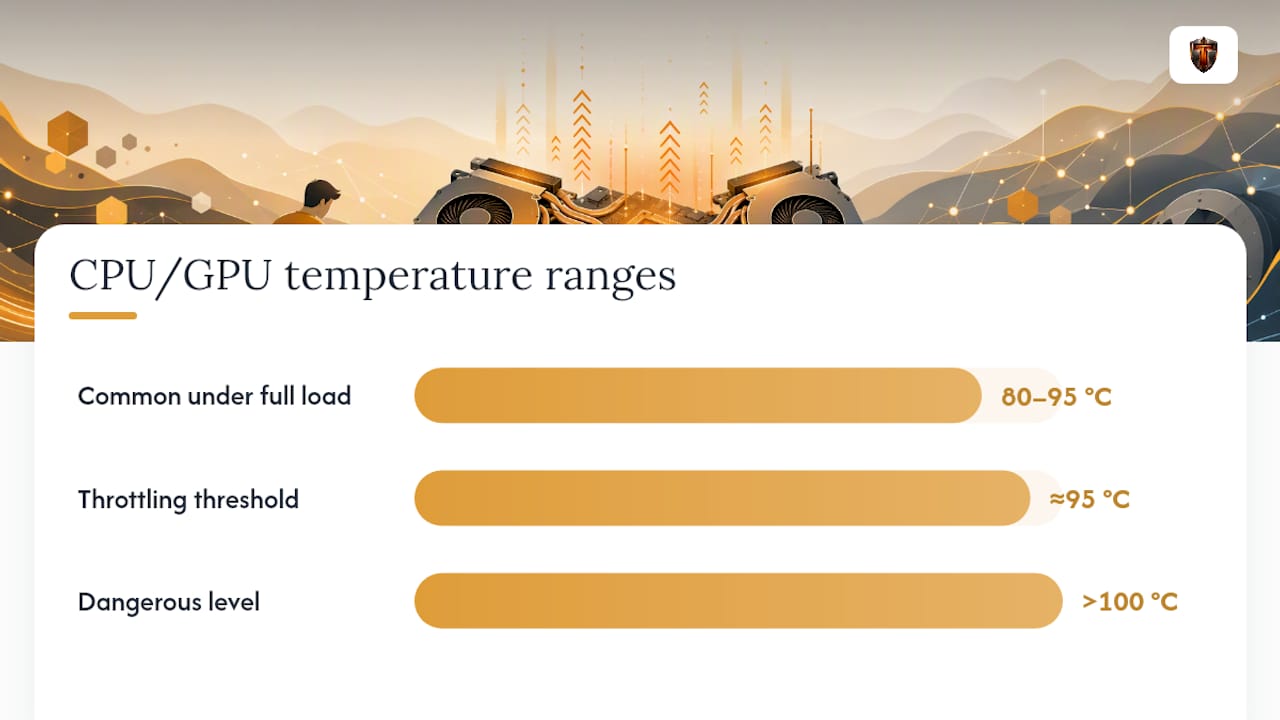
- 80 to 95°C under full gaming load is common and generally not a problem for modern CPUs and GPUs designed to run hot.
- Sustained temps above roughly 95°C commonly trigger thermal throttling, a deliberate safety mechanism that cuts clock speeds to prevent damage. This is what causes the sudden FPS drops mid-match that feel like a stutter but are actually your chip protecting itself.
- Sustained temps above 100°C cross into dangerous territory and warrant stopping the session immediately.
The clearest sign of throttling isn't the temperature reading, it's watching clock speed fall while temperature climbs during the same play session. Run a 15 to 20 minute session with a monitoring tool logging in the background. If clocks drop as heat rises, you've confirmed throttling rather than a random performance bug. For a full walkthrough on setup, check this guide to monitoring PC temps, or dig deeper into what counts as a safe CPU temp for gaming and normal GPU temperature ranges for your specific hardware.
Cleaning and Advanced Hardware Fixes
Software and positioning fixes buy you time. Eventually, dust and aging thermal paste catch up with every gaming laptop, and that's when maintenance becomes necessary rather than optional.
- Clean external vents with compressed air every three to six months, holding the fan blades still with a toothpick or thin object while you blast air through the exhaust to prevent the fan from spinning too fast and damaging its bearings.
- Leave internal cleaning to a service center unless you're comfortable disassembling the chassis. Getting to the heatsink fins directly usually means removing the keyboard deck and several component layers.
- Repasting delivers the single biggest hardware-level temperature improvement available, often dropping load temps meaningfully once old, cracked paste is replaced with fresh compound. It's most worth doing on laptops two or more years old that have never been opened. The catch: repasting almost always voids remaining manufacturer warranty, so weigh the timing carefully. If your machine is still covered, an authorized cooling guide from ASUS ROG recommends using manufacturer fan and performance profiles before any invasive fix, and that advice holds regardless of brand.
- Watch for hardware failure signs: fans that spin erratically or not at all, grinding noises, or VRM temperatures that stay elevated even when CPU and GPU readings look fine. VRM issues are notoriously hard to diagnose with consumer software and usually need a technician's tools.
When to Stop Troubleshooting Yourself
Some symptoms mean it's time to hand the laptop to a professional instead of trying one more fix.
Stop immediately and seek service if you notice repeated shutdowns during gameplay, any burning smell, visible smoke, or temperatures that stay above 95°C even after a thorough cleaning and every software fix above. Those aren't quirks to tune around, they're warnings.
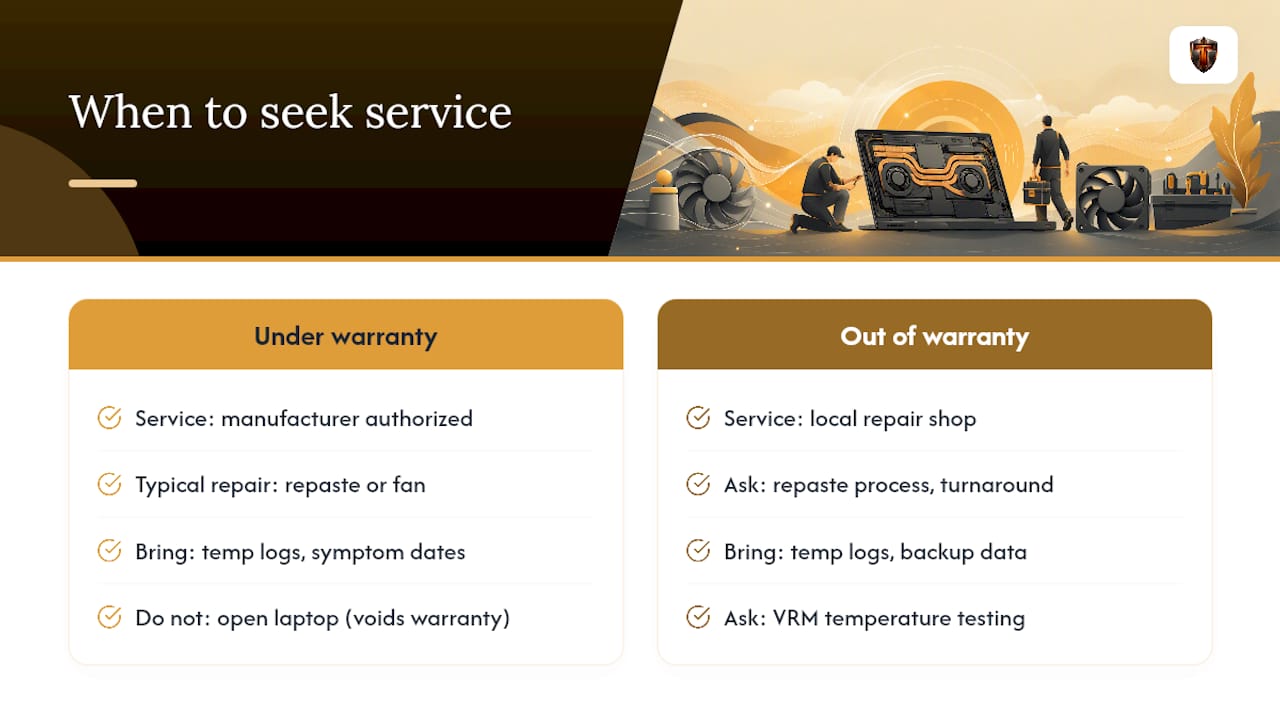
If the laptop is still under warranty, go through the manufacturer's authorized service channel for a repaste or fan replacement rather than opening it yourself, since DIY work often voids remaining coverage. Bring your temperature logs and a clear description of when the symptoms started; it speeds up diagnosis considerably. If you're out of warranty, ask any repair shop directly about their repaste process, turnaround time, and whether they test VRM temperatures specifically, since that's the failure mode generalist shops sometimes miss. Back up your data first, just in case.
My Take: Test in This Order, and Don't Skip Steps
If you take one thing from this article, take the order. Power and surface fixes first, since they're free and instant. Then a basic cleaning pass. Then software: driver updates, FPS caps, a conservative undervolt. Repasting comes last, not because it doesn't work, but because it's irreversible and warranty-sensitive in a way nothing above it is.
Most people skip straight to "I need new thermal paste" when the real problem is a charger left at home or a fan profile stuck on Balanced. Test one change at a time and actually log the results, because your memory of "it felt cooler" is unreliable and your temperature monitor isn't. If you want an easier way to track what's actually happening under the hood without juggling three separate monitoring apps, Tempered reads live CPU, GPU, and system metrics and flags real constraints in plain language, with an undo path if any tweak doesn't work out.
— Ian
Sources
- How to prevent your gaming laptop from overheating? | ROG
- What is thermal throttling? Causes, prevention & tips | ROG
- Gamerhardware
- I solved my laptop’s CPU throttling in under an hour and it runs cooler now | MakeUseOf