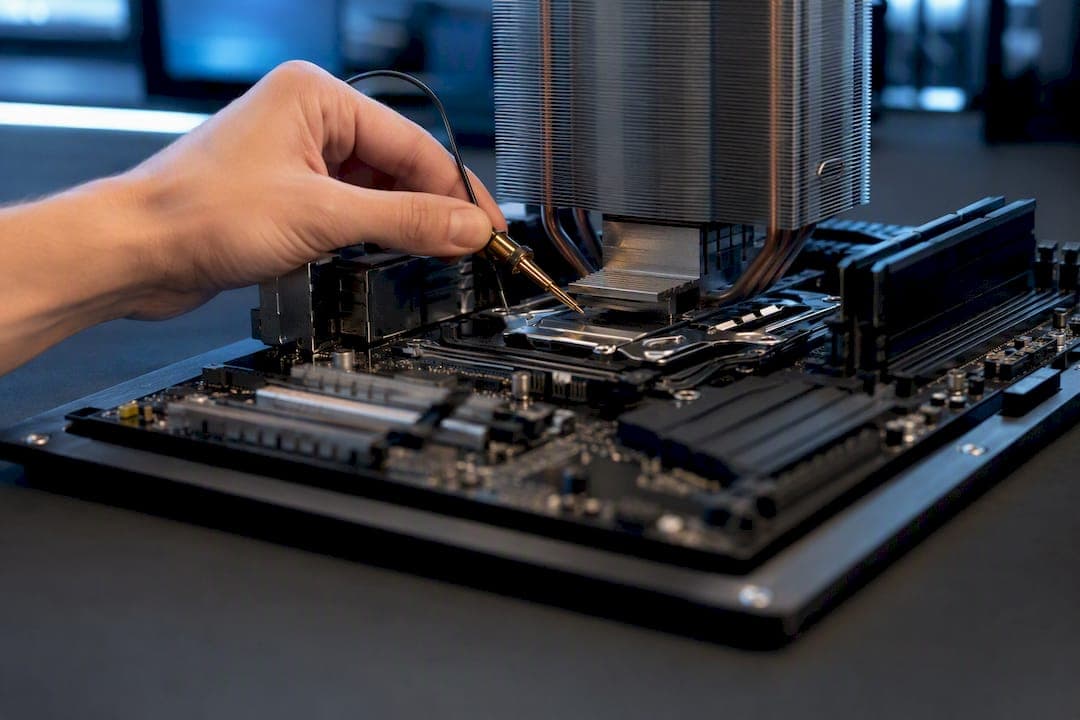
CPU thermal throttling happens when your processor cuts its own clock speed to avoid overheating near its TjMax limit, usually somewhere around 90 to 100°C depending on the chip. It's a protective response, not a malfunction. The fastest way to confirm it's happening on your machine is to run HWiNFO64 in sensors-only mode during a real workload and check whether the "Thermal Throttling" flag activates.
TL;DR:
- Temperatures above 95°C during sustained load usually indicate a cooling problem rather than normal throttling.
- Regular cleaning and repasting can lower CPU temperatures by 5 to 15°C, often resolving thermal throttling issues caused by dust or degraded thermal paste.
- Power-limit drops from BIOS or CPU settings can cause clock speed reductions without high temperatures, requiring monitoring of power draw and BIOS adjustments.
- Undervolting a CPU in small increments can significantly reduce peak temperatures without sacrificing performance, but stability must be verified after each change.
- Persistent throttling despite cleaning and cooling upgrades suggests undersized heatsinks or motherboard power delivery problems, warranting hardware repairs or upgrades.
Table of Contents
- What Is CPU Thermal Throttling and When Does It Start?
- How Do You Confirm Thermal Throttling Is Actually Happening?
- What Actually Causes CPU Overheating Issues?
- What Are the Fastest Fixes for Thermal Throttling?
- Is It Power Limits, Not Heat, Causing the Drop?
- Can Undervolting and Software Settings Reduce Heat?
- When Should You Repair or Replace Hardware Instead?
- How Tempered Fits Into a Throttling Fix
- A One-Hour Workflow to Diagnose and Fix Throttling
- Sources
What Is CPU Thermal Throttling and When Does It Start?
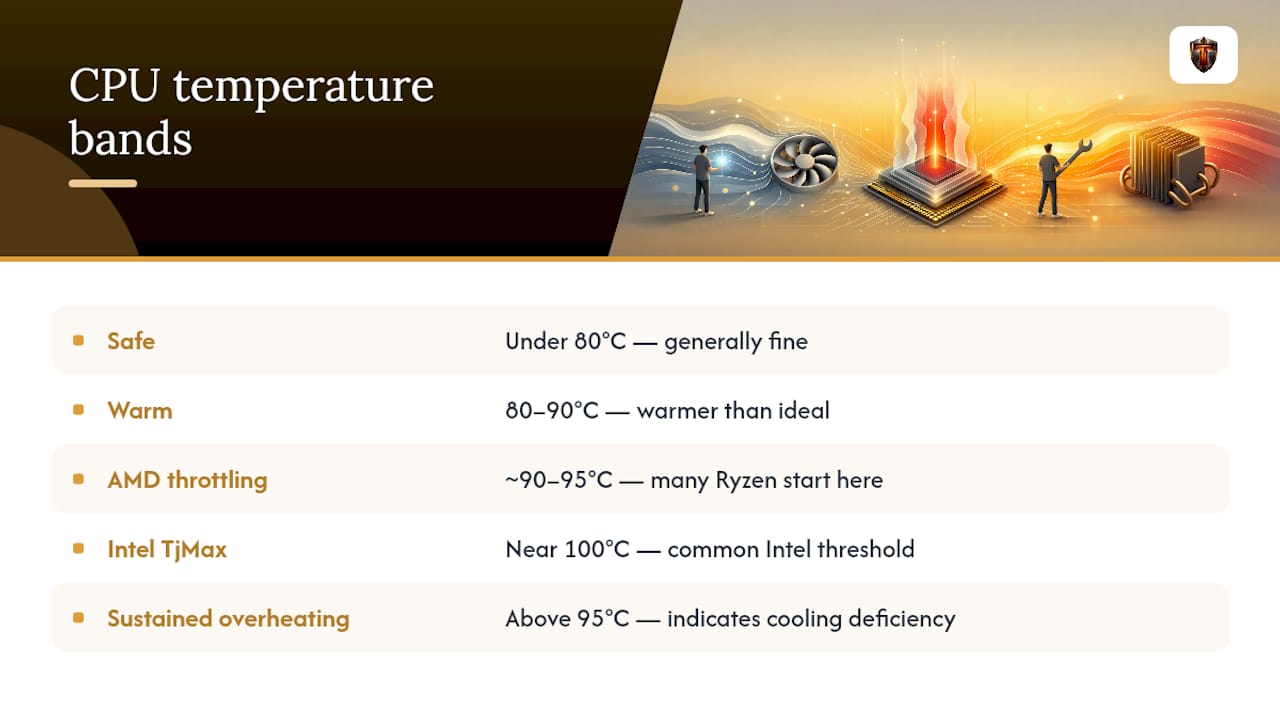
Thermal throttling is a built-in safety mechanism. When a CPU's core temperature climbs toward its maximum junction temperature, or TjMax, the processor automatically drops its clock speed and voltage to pull heat generation back down. Many modern Intel chips carry a TjMax near 100°C, while a lot of AMD Ryzen processors start throttling closer to 90 to 95°C. Neither number is universal. Check your specific model before assuming a threshold.
Temperatures under 80°C during gaming are generally fine. The 80 to 90°C range is warmer than ideal but not alarming on its own. Sustained readings above 95°C are where you should start treating the situation as a cooling deficiency rather than normal operation. Throttling itself isn't a defect. A CPU that throttles occasionally under a heavy stress test is doing exactly what it's designed to do. The problem is a CPU that throttles constantly during ordinary gaming or rendering, because that points to something wrong with the cooling setup or system configuration, not the silicon itself.
For a deeper breakdown of what counts as a safe range for your specific setup, see this guide on safe CPU temperatures for gaming.
How Do You Confirm Thermal Throttling Is Actually Happening?
Guessing wastes time. You want a log file that shows temperature, clock speed, and power draw all lined up on the same timeline, because that's the only way to tell thermal throttling apart from a power-limit cap or a VRM issue.
- Download and run HWiNFO64 in sensors-only mode, then open the sensor panel and dock it on screen.
- Launch a demanding game or run Cinebench for 15 to 20 minutes to force sustained load.
- Watch four readings simultaneously: CPU core temperatures, CPU clock speed, CPU Package Power, and the dedicated Thermal Throttling status flag.
- Also track VRM temperature if your motherboard exposes it. A spike there points to a different problem entirely.
- Save the log as a CSV file when the run finishes, since a raw timeline is far easier to interpret than a memory of what you saw scroll by.
The pattern tells the story. If temperatures climb steadily and clock speed drops the moment they cross into the 90s, that's thermal throttling in action. If clock speed drops while temperatures stay comfortably low, you're looking at a power limit or a BIOS cap, not heat. If VRM temperatures spike independently of the CPU die, the motherboard's power delivery is the bottleneck, not the processor. MSI Afterburner with an RTSS overlay can give you a live in-game readout of the same data if you'd rather watch it during actual play instead of a synthetic benchmark.
Pro Tip: Keep the HWiNFO log even after you fix the problem. If throttling comes back in six months, comparing the new trace against the old one shows you exactly what changed.
For a full walkthrough of setting this up on Windows, check this guide to monitoring CPU temperature.
What Actually Causes CPU Overheating Issues?
Most throttling traces back to something mundane. Dust buildup and a clogged heatsink can quietly cost you 5 to 15°C of headroom, and it happens gradually enough that most people never notice until performance craters. Dried thermal paste is the other usual suspect. Paste that's been baking for two or three years loses its ability to transfer heat efficiently, which raises resistance between the die and the heatsink even when the fans are spinning fine.
- Dust-clogged heatsink fins and fan blades, especially in homes with pets
- Dried or degraded thermal paste on CPUs older than two years
- Poor case airflow from mismatched intake and exhaust fan placement
- An undersized cooler paired with a high-wattage CPU
- BIOS power limits (PL1/PL2) or VRM heating that mimics thermal throttling
Desktops are forgiving here since cleaning and repasting are user-serviceable jobs. Laptops are a different story: opening one during the warranty period can void coverage, so check your manufacturer's policy first. A lot of users blame the CPU when poor case airflow or a BIOS power cap is the actual root cause, which leads to unnecessary part swaps that never fix anything.
What Are the Fastest Fixes for Thermal Throttling?
Start with the changes that cost nothing and take the least time. Cleaning and airflow fixes typically deliver the biggest temperature drops for the least effort, so do these first before spending money on new hardware.
- Power down, unplug, and blast compressed air through the heatsink fins and fan blades, holding fan blades still so they don't spin past their rated RPM.
- Work on a hard, flat surface. Never do this on carpet or bedding, since static buildup is a real risk.
- Check your fan orientation. Front and bottom fans should pull air in, rear and top fans should push it out, and a case where every fan points the same direction is fighting itself.
- If you're comfortable opening the case, repaste the CPU on a desktop older than two years. Skip this step entirely on a laptop still under warranty.
- Cap your frame rate in-game or through your graphics driver. An unrestrained 240 FPS in an old esports title generates heat for no real benefit.
- Switch your Windows power plan away from any "performance" preset that keeps clocks pinned high at idle.
- Update your chipset and graphics drivers, since older ones sometimes mismanage power states.
- For laptops, a cooling pad helps marginally, though it won't match what an internal cleaning does.
Pro Tip: After any single change, rerun the same 20 minute HWiNFO test you used to diagnose the problem. Changing three things at once means you'll never know which one actually worked.
A guide on low-effort fixes for Windows walks through this same sequence with more screenshots if you want a visual reference.
Is It Power Limits, Not Heat, Causing the Drop?
Not every performance dip is thermal. Intel processors run on a two-tier power budget: PL1 is the sustained limit, PL2 is a higher short-term boost, and the Tau window determines how long PL2 lasts before the chip settles back to PL1. Some motherboards ship with a conservative PL1 to protect budget VRMs, and once that window closes, you'll see clock speed drop even though temperatures never got close to TjMax.
- Watch CPU Package Power in HWiNFO. A hard ceiling that lines up with a clock drop, while temps stay moderate, signals a power limit, not heat.
- Open your BIOS and locate the Turbo Power Limits or Long/Short Duration Power Limit fields, usually under an overclocking or performance menu.
- Don't raise PL1 to match PL2 until you've confirmed your cooler can handle the extra sustained heat. Otherwise, you just trade one throttling problem for another.
- If your BIOS hides these options, Intel XTU or your motherboard vendor's tuning utility offers the same controls with an easier undo path.
Can Undervolting and Software Settings Reduce Heat?
Undervolting lowers the voltage your CPU requests at a given clock speed, which cuts heat output without touching performance in most everyday tasks. Applied carefully in small increments, it can shave 5 to 15°C off peak temperatures, and its worst failure mode is a crash, not damage.
- Use ThrottleStop or Intel XTU on Intel systems, or Ryzen Master's Curve Optimizer on AMD systems.
- Drop voltage in small steps, running a stress test after each one to confirm stability before going further.
- If the system crashes, back off the last step. That's the entire recovery process; nothing is at risk.
- Log an HWiNFO trace before and after each change so you have real numbers, not a vague sense that things feel cooler.
- Update chipset drivers and firmware, since outdated ones occasionally cause early throttling that has nothing to do with your cooler at all.
Pro Tip: Treat undervolting like tuning a guitar string. Small turns, frequent checks. Cranking it down five steps at once just means you won't know which step broke stability.
When Should You Repair or Replace Hardware Instead?
If temperatures still sit above 95°C under load after cleaning and repasting, the cooler itself is probably undersized for the chip, and it's time to look at a bigger heatsink or better case airflow instead of more tweaking. On laptops, an internal repaste often needs an authorized service center while under warranty, and a cooling pad is only a stopgap in the meantime. Recurring VRM temperature spikes or a motherboard that won't hold stable power delivery are signs to consult a technician. Bring your saved HWiNFO log; it turns a vague complaint into evidence a repair shop can act on immediately.
How Tempered Fits Into a Throttling Fix
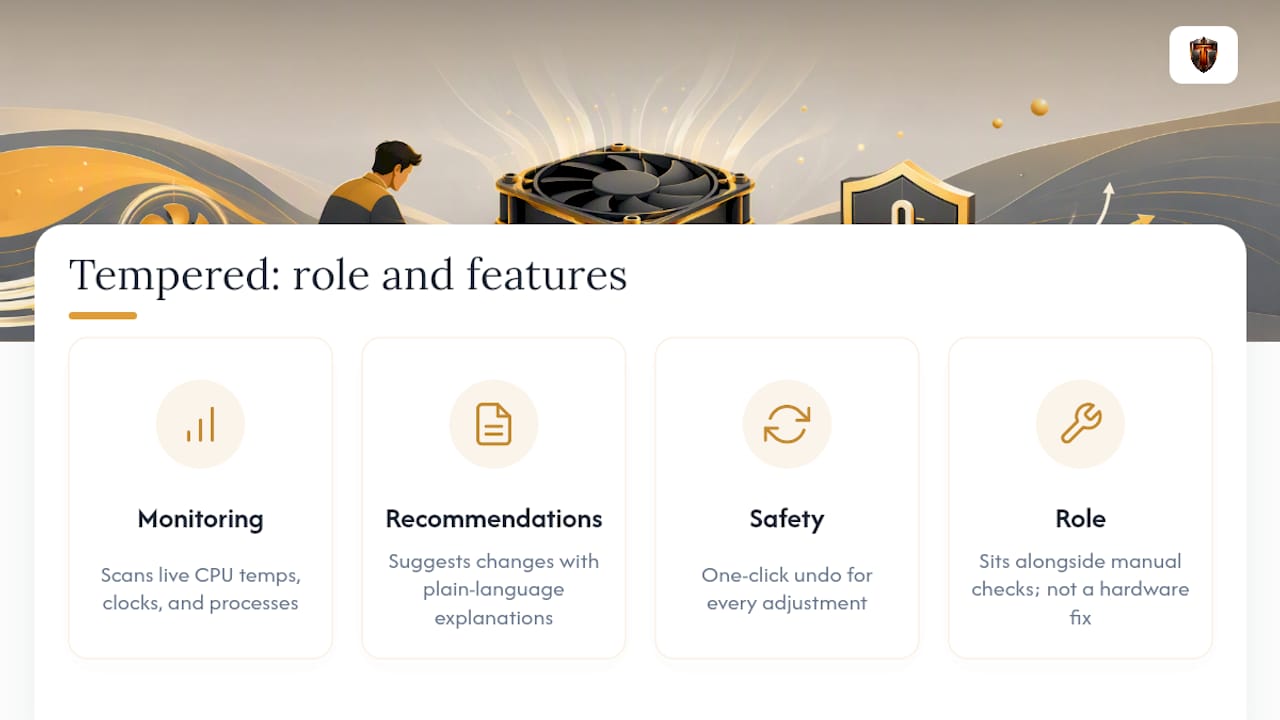
Manual diagnostics get you the full picture, but not everyone wants to dig through BIOS menus or run twenty-minute stress tests by hand. The tool scans live CPU temperature, clock behavior, and background processes on Windows systems, then proposes specific changes with plain-language explanations of what each one does and why. Every adjustment includes a one-click undo, so nothing gets applied without your approval and nothing sticks around if it doesn't help. It's built to sit alongside the manual checks above, not replace a repaste or a new cooler when your hardware genuinely needs one. For more on the monitoring side of this, a guide to PC temperature tracking covers the setup in more detail.
If your machine is showing overheating symptoms during ordinary use, running a game or two while sharing a room with an active social gathering can push cooling systems harder than solo play. For general system upkeep during long sessions, this gaming community hardware guide covers airflow and settings habits worth adopting.
A One-Hour Workflow to Diagnose and Fix Throttling
Run HWiNFO64 sensors-only while gaming for 20 minutes and confirm whether the Thermal Throttling flag actually trips. If it does, clean the fans and heatsink first, since that single step resolves more cases than anything else on this list. Try one small undervolt step or a power-plan change, then retest under the same conditions. Still throttling after that? Repaste or step up to a better cooler. Whatever the outcome, keep the log. A repair tech can read a CSV file faster than they can read your description of "it feels hot."
— Ian
Sources
- What Is Thermal Throttling and How to Tell If Your PC Is Doing It — Digital Citizen
- Your CPU is throttling itself, and one BIOS toggle will fix it — MakeUseOf
- What is thermal throttling? — Digital Trends