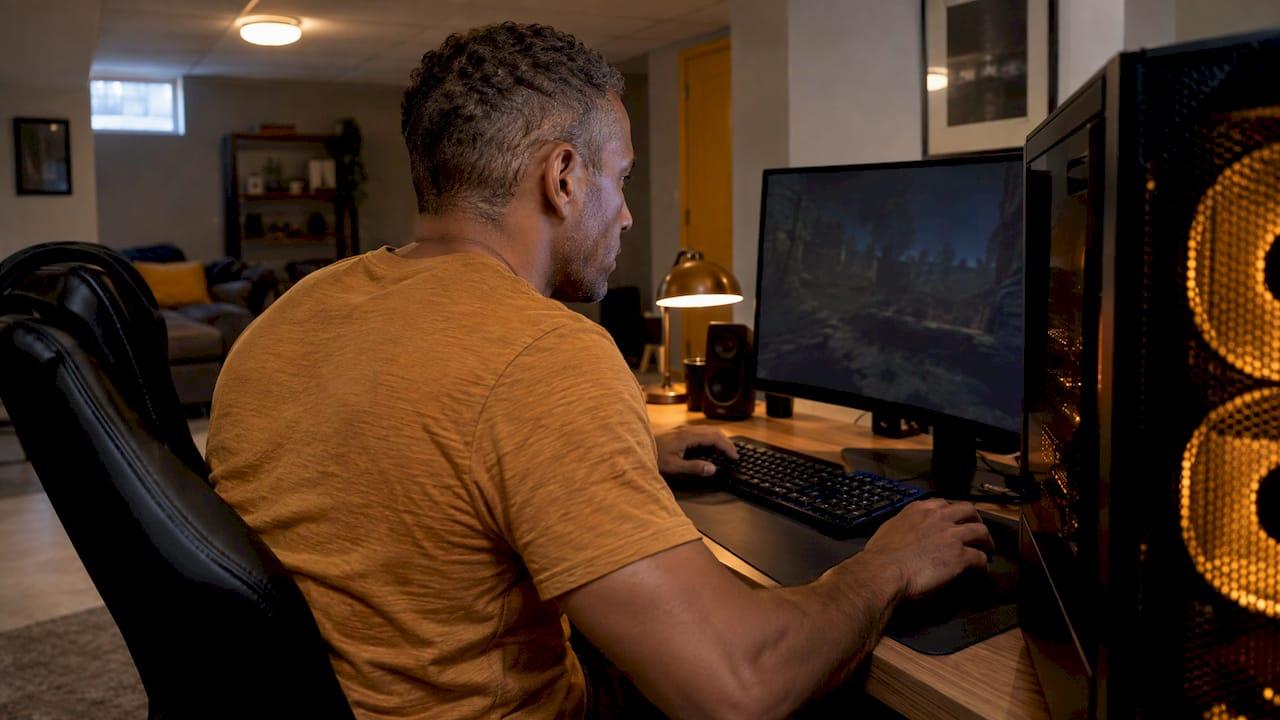
A CPU bottleneck means your processor cannot prepare frames as fast as your graphics card can draw them, so the GPU sits partly idle and your frame rate stops climbing. You can confirm it in about ten minutes by watching GPU usage while you play, and in many cases you can reduce it with settings and background-process changes before you consider new hardware. Tempered shows your live CPU, RAM, GPU and disk load in one place and explains what it finds in plain language, so you are working from measurements instead of a guess.
TL;DR
- A CPU bottleneck shows up as a GPU that stays well below full load while your frame rate is lower than you want, or as stutter even when the average FPS looks fine.
- As a rough rule, GPU usage at or above 95% points to a GPU limit, and usage below that points to a CPU limit, with 80% or less being a strong sign.
- Rule out other causes first: shader compilation, too little RAM and too little video memory can look the same.
- A bottleneck is only a problem if the game feels bad. If you are happy with your frame rate, there is nothing to fix.
- Try CPU-heavy settings and background load before buying a new processor, and never trust a bottleneck percentage from a website over your own measurements.
Table of Contents
- What a CPU bottleneck actually is
- How to tell if your CPU is bottlenecking your games
- Rule out the look-alikes before blaming the CPU
- Is a CPU bottleneck bad?
- How to reduce a CPU bottleneck without new hardware
- Why bottleneck calculators are only a starting point
- When an upgrade makes sense
- Measure first with Tempered
- Our perspective
- FAQ
- Sources
What a CPU bottleneck actually is
Every frame has two jobs. The CPU works out what is happening in the game (physics, AI, where objects are) and hands the GPU a list of instructions. The GPU then draws the picture. Microsoft's DirectX team describes a CPU-bound game as one where the CPU generates rendering instructions too slowly, leaving the GPU idle and limiting the frame rate.
Some part of your system is always the slowest, so in a strict sense every PC has a bottleneck. Intel makes the same point: a bottleneck is simply one component limiting another because their maximum capabilities differ, and the right balance depends on the game and what else you are running, such as a live stream.
That is why the question is never "do I have a bottleneck?" but "is it costing me something I care about?"

Which games lean on the CPU
The same PC can be GPU-bound in one game and CPU-bound in another. According to the DirectX team, open-world and real-time strategy games can be CPU-intensive, because they simulate many characters, units and objects at once. Competitive shooters running at very high frame rates on low settings also push the CPU hard, since each frame leaves the processor less time to finish its work.
Resolution matters too. Raising it adds work for the GPU and leaves the CPU's job unchanged, which is why a bottleneck that is obvious at 1080p can disappear at 4K.
How to tell if your CPU is bottlenecking your games
You need two things on screen while you play: CPU usage and GPU usage. Tempered reads live metrics for CPU, RAM, GPU, disk and uptime on Windows 10 and 11, so you can see them side by side without building a monitoring setup. Any overlay that shows GPU usage works for the test itself.
Step 1: Play the demanding part of the game
Test where it hurts: a busy city, a big firefight, a late-game map. Menus and empty corridors tell you little. Play for a few minutes so temperatures and clocks settle.
Step 2: Read GPU usage first
PCWorld's rule of thumb is that GPU utilization at or above 95% usually indicates a GPU limit, while below 95% suggests a CPU limit, and 80% or less is a strong CPU limit. Another guide puts the suspicion line a little lower: GPU use well below 90% and almost no gain from lowering resolution or settings suggests a CPU or platform limit.
| What you see | Most likely meaning |
|---|---|
| GPU at 95% or higher, frame rate below target | GPU-bound. Lower graphics settings or resolution. |
| GPU below 80%, frame rate below target | Strong sign of a CPU limit. |
| GPU 80% to 95%, frame rate fine | Normal. Nothing to fix. |
| GPU low, one CPU core pinned while others idle | The game relies on one heavy thread. |
| GPU usage dips exactly when stutter happens | Likely CPU or data-feed trouble. |
Step 3: Do not trust the overall CPU percentage
A game that leans on one or two threads can choke a processor while the total CPU figure reads 30%. Look at per-core usage. If one core is near 100% and the rest are quiet, the CPU is the limiter even though the headline number looks relaxed. The reverse also happens: a high overall figure does not prove a bottleneck if the GPU is fully loaded.
Step 4: Run the resolution test
Drop the game to 1080p with Low or Medium settings. If the frame rate barely moves, you have found the ceiling your CPU and RAM can deliver in that game, because lowering resolution exposes the maximum frame rate the CPU and memory can handle. If the frame rate jumps, the GPU was the limit all along.
Step 5: Watch the lows, not just the average
Stutter is often a CPU symptom that averages hide. How-To Geek notes that a CPU bottleneck can produce a high average FPS but poor 1% and 0.1% lows, which you feel as hitching because the GPU is not fed game data on time. If your counter says 120 FPS but the game feels uneven, the lows are the number to look at.
For a deeper walkthrough of the method, our guide to a CPU and GPU bottleneck check covers how to separate the two, and the article on finding PC bottlenecks on Windows 10 and 11 widens the search to RAM and disk.
Rule out the look-alikes before blaming the CPU
Several other problems produce the same symptoms. How-To Geek lists shader compilation, too little system RAM, and too little video memory with demanding textures or ray tracing as common causes of stutter that people wrongly pin on the processor.
A quick way to sort them:
- Stutter only the first time you visit an area: often shader compilation. It fades as the game caches shaders.
- RAM near full while gaming: close browsers and launchers, then test again. Memory pressure forces Windows to swap to disk and the game hitches.
- Stutter that appears when you raise texture quality: suspect video memory, not the CPU.
- GPU low and CPU low at the same time: something else is waiting, such as a slow disk or a frame cap. Our article on low GPU usage in games walks through those causes.
- Hot CPU: thermal throttling lowers clocks and mimics a weak processor. See what the numbers mean in our guide to safe CPU temperatures for gaming.
Is a CPU bottleneck bad?
Only when you can feel it. How-To Geek's position is that a CPU bottleneck is acceptable when it does not keep you below your desired frame rate or cause distracting stutter, and that you do not need to upgrade if you are satisfied, even when GPU utilization looks lower than ideal.
It becomes noticeable in three situations: a CPU-heavy game that will not reach your monitor's refresh rate, high-refresh play at low settings, and persistent stutter with poor 1% and 0.1% lows.
That also answers the question about small percentages. A figure like 3% or 10% on a website is not a problem in itself. Whether it matters depends on whether your games run the way you want.
How to reduce a CPU bottleneck without new hardware
Work through these in order. Each costs nothing and each is reversible.
1. Turn down the settings that load the CPU
The GPU-heavy settings (texture quality, anti-aliasing, resolution) will not help. The CPU-heavy ones will. According to one hardware guide, crowd density, draw and view distance, NPC and AI density, and simulation quality should be reduced to relieve CPU load. Change one at a time and watch the 1% lows, not only the average.
2. Give the GPU more to do
If your frame rate is already above what your display can show, a CPU limit costs you nothing. If you want better visuals, PCWorld suggests choosing a higher resolution if possible, which shifts the work onto the GPU and lets it use the capacity it had idle. Raising resolution or enabling heavier effects is effectively free when the CPU is the limit.
3. Cut background load
Every launcher, overlay, browser tab and updater that runs while you play takes CPU time from the game. This is where many casual users find the easiest gain, and where blind "boost" tools do the most harm by killing things they should not.
Tempered handles this in a way you control: it manages background processes and startup options, explains in plain language what each suggested change does and what to expect, and applies nothing without your approval. Every change it makes is tracked, with a one-click Undo. It also offers a Game Mode and is anti-cheat safe for gamers.
4. Cap the frame rate when stutter is the problem
If the CPU can deliver 90 FPS on average but dips to 50 in busy scenes, a cap just under the steady rate makes the game feel smoother. A consistent 80 beats a swinging 50 to 110. Lower the cap until the stutter stops. Our guides to ending game stutter with PresentMon traces and stopping FPS drops on Windows 11 with frametime traces show how to measure whether it worked.
5. Keep drivers and settings measured, not assumed
Driver updates can change performance in either direction, so check with a repeatable test. Our walkthrough on measuring driver FPS gains shows how, and the notes on NVIDIA performance settings cover what is worth changing. For the full Windows side of gaming setup, see our guide to optimizing Windows 11 for gaming.
Why bottleneck calculators are only a starting point
The top search results are mostly websites that pair a CPU with a GPU and print a percentage. They are fine for a rough sanity check before a build, but they are not predictors. How-To Geek explains that these tools use synthetic benchmark scores and leave out factors such as RAM frequency, storage, overclocking and PCIe versions, and that the games and resolution you use change the answer.
A calculator cannot see your game, your settings, your background tasks or your frame times. Your own PC can. So if a website tells you that you have an 87% bottleneck, treat it as a prompt to measure, then use the usage test above to see what actually happens in the games you play.
When an upgrade makes sense
Upgrade the CPU only when all three are true: the CPU is demonstrably the limiter, the result is unsatisfying, and settings changes did not fix it. How-To Geek's principle is that a measured bottleneck is not itself a reason to spend money, and that you should check benchmarks for the games you play.
If you do buy, judge by evidence for your workload. Tom's Hardware advises using real benchmarks rather than model numbers alone, noting that performance does not scale linearly through a product line. Compatibility deserves as much attention as speed. TechRadar tells buyers to check motherboard socket and chipset compatibility, and TechSpot adds memory type, cooler compatibility and power-supply capability for a new socket or a much hotter chip.
Business users on a workstation follow the same logic: if the machine is responsive for your work, a bottleneck reading does not need action.

Measure first with Tempered
The cheapest upgrade is the one you find you do not need. Tempered is an AI-powered diagnostic and optimization tool for Windows 10 and 11. It reads live CPU, RAM, GPU, disk and uptime metrics, tells you in plain language what is limiting your PC, and proposes specific changes for you to approve, each with an explanation, an expected outcome and an undo path. It needs no technical expertise and no AI API key.
There is a Free plan with limited AI scans. Torque starts at $5.99 per month and Torque Max at $12.99 per month, with higher scan limits and premium features. You can compare them on the Tempered pricing page.
If you would rather see your own numbers first, Tempered is a quick way to start.
Our perspective
Most advice about bottlenecks ends in a shopping list. We think that is backwards. A bottleneck reading is a clue, not a verdict, and the first question is always whether it costs you anything you can feel.
Optimization tools earn their bad reputation by guessing. They report problems you cannot see, clean a registry that was never the issue, and change things without telling you. That is why Tempered works differently: it looks at real constraints, recommends only measured and reversible changes, explains each one, and does nothing until you approve it.
For a gamer with a CPU-limited game, that means seeing which background load is competing with the game, trying Game Mode, and keeping an Undo for every step. For a casual or business user, it means a clear answer in plain words instead of a wall of graphs. If a hardware upgrade really is the answer, you will know it, because you will have the measurements to prove it.
Ian
FAQ
How do I know if my CPU is bottlenecking my GPU?
Play a demanding scene while watching GPU usage. If it sits well below 95% and your frame rate is lower than you want, the CPU is the likely limiter, and 80% or below is a strong sign. Confirm by lowering the resolution: if the frame rate barely changes, the CPU is the ceiling.
Is it okay to have a CPU bottleneck?
Yes, if you are happy with your frame rate and the game is smooth. Every PC has some component that limits another. It matters only when it keeps you under your target frame rate or causes visible stutter and poor 1% lows.
How do I fix a CPU bottleneck without buying a new processor?
Lower CPU-heavy settings such as crowd density, view distance and NPC density, and close background apps while you play. Raising the resolution moves more work onto the GPU, and a slightly lower frame cap can smooth out stutter. Make one change at a time so you can see what helped.
Is a 3% bottleneck bad?
No. A small percentage from a calculator is not a measurement of your games. Calculators leave out many real factors, so judge by how your own games perform and what your GPU usage shows while you play.
Sources
- CPU- and GPU-boundedness, DirectX Developer Blog
- What Is Bottlenecking My PC?, Intel
- PC bottlenecks: How to know if your CPU or GPU is limiting, PCWorld
- CPU or GPU Bottleneck? How to Diagnose What's Really Limiting Your Gaming Performance, Wccftech
- How to Tell When Your Gaming PC Needs a CPU Upgrade, How-To Geek
- Bottleneck Calculators Aren't Accurate, How-To Geek
- How to choose a CPU, Tom's Hardware
- How to choose a CPU, TechRadar
- Guide to Choosing a New CPU, TechSpot