
The NVIDIA settings that matter most for performance are a current driver, per-game 3D settings, Low Latency Mode, Texture Filtering Quality, a sensible frame cap, and, on RTX cards, DLSS and Reflex inside the games that support them. Most other toggles do little or trade image quality for gains you will not notice. Below you will find what each setting does, when to use it, and how to test it so you keep only what helps.
TL;DR
- Update the driver first, then change settings per game rather than globally.
- Texture Filtering Quality set to High Performance and a sensible Max Frame Rate are the safest Control Panel changes for frame rate and latency.
- Prefer maximum performance is a troubleshooting setting for one game, not a universal switch.
- Keep DSR off globally, and use DLSS and Reflex in games that support them.
- Measure before and after with the same scene, and keep an undo path for every change.
Table of Contents
- Start with the driver and the right app
- Global settings versus per-game profiles
- The 3D settings worth your time
- Should you set Prefer maximum performance?
- DSR: on or off?
- G-SYNC, Reflex and DLSS
- What should you set the power limit to?
- Laptops and everyday workstations
- How to test whether a change helped
- Put the Windows side under the same discipline
- FAQ
- Sources
Start with the driver and the right app
Before touching any toggle, make sure the software underneath is current. NVIDIA recommends keeping your system on the latest driver for performance and bug fixes. A stale driver can cause problems that no setting will fix, and it is the easiest win on this list.
There are two places to manage settings. The NVIDIA App is NVIDIA's unified software for driver updates and GPU settings for gamers and creators. The classic NVIDIA Control Panel is still where the detailed 3D options live, and it is what most guides mean when they talk about performance tweaks. Use the app for driver updates and per-game overrides, and the Control Panel for the options below.
One caution applies to both. Reviewers of the app point out that overrides such as DLSS presets are best managed per game, because a blanket change may not suit every title. That principle runs through everything that follows.
Global settings versus per-game profiles
In the Control Panel, open Manage 3D Settings. You will see a Global Settings tab and a Program Settings tab. NVIDIA's reference explains that Manage 3D Settings lets you set up a unique set of 3D configurations for a particular game or application.
A practical rule:
- Global: only settings you are happy to apply to every program, including your browser and video editor.
- Program: anything that changes behavior, power draw or image quality for one game.
This keeps a tweak that helps a competitive shooter from quietly raising the power draw of a spreadsheet or a video call.
The 3D settings worth your time
NVIDIA's own reference describes what these options do. Here is how they translate into decisions.
| Setting | What it does | Suggested use |
|---|---|---|
| Low Latency Mode | Limits how many frames the CPU prepares ahead of the GPU, which reduces input lag | Try On in GPU-bound games; leave Off if a game offers Reflex |
| Power management mode | Controls how readily the GPU drops to lower power states | Leave at default; use Prefer maximum performance per game only if needed |
| Max Frame Rate | Caps FPS, which can extend battery life or reduce latency | Set just under your monitor's refresh rate, per game |
| Texture filtering - Quality | Trades texture filtering quality for speed | High performance for the highest frame rate |
| DSR factors | Renders at a higher resolution and scales down | Off globally |
The descriptions of Low Latency Mode, Power management mode, Max Frame Rate and Texture Filtering Quality come from NVIDIA's Manage 3D Settings reference. The Suggested use column is our reading of those descriptions, not an NVIDIA guarantee, so treat it as a starting point and test it.
Low Latency Mode and Max Frame Rate
Low Latency Mode limits the number of frames the CPU queues for the GPU. A shorter queue means your inputs reach the screen sooner. The effect is largest when the GPU is the bottleneck. If your CPU is the limit, a shorter queue does little.
Max Frame Rate does a related job. Capping the frame rate keeps the GPU from running flat out for frames your monitor cannot show, which lowers heat and can reduce latency. Set the cap per game, a few frames under your refresh rate, instead of globally.
If input lag is your main concern, our walkthrough on cutting input lag in five minutes covers the Windows side of the same problem.
Texture Filtering Quality
Set to High Performance, this option gives the highest frame rate at the cost of some filtering quality, according to NVIDIA's reference. On a modern card the visual difference is often small, but look at distant, angled textures such as roads and floors before deciding it is worth it.
Should you set Prefer maximum performance?
Usually not globally. Power management mode decides how aggressively the GPU lowers its clocks when load is light. NVIDIA's support article says to choose Prefer Maximum Performance when an application is incorrectly throttling clock speeds and producing low FPS. That makes it a fix for a specific symptom, not a standing recommendation.
The tradeoff is power. Reviewers note that it can prevent aggressive power-state reductions during lighter and CPU-bound workloads, which increases power consumption. So the sensible approach is:
- Leave the default and play normally.
- If one game shows clock speeds dropping and frame rate sagging while GPU usage is low, open Program Settings for that game.
- Set Prefer maximum performance for that game only.
- Retest. If nothing improved, set it back.
DSR: on or off?
Dynamic Super Resolution renders a game at a higher resolution, then scales it to your display. It improves image quality and costs frame rate. The guidance from reviewers is to keep it off globally and use it per game when you have spare GPU headroom, typically in older or less demanding titles. If your goal is performance, DSR is the wrong tool for modern, demanding games.
G-SYNC, Reflex and DLSS
Three features sit outside the classic 3D list but affect smoothness more than most toggles.
G-SYNC. On a compatible monitor, G-SYNC matches the display's refresh rate to the GPU's frame rate, which reduces tearing, stutter and input lag. NVIDIA also notes that when G-SYNC is enabled, some driver settings such as Preferred Refresh Rate and Stereo Enabled are adjusted or disabled automatically, so do not be surprised if an option is grayed out.
Reflex. NVIDIA Reflex is a suite of technologies that reduces system latency, with support in over 50 games and optional On + Boost modes. You enable it inside the game's settings menu, not the Control Panel. Where a game supports it, use that instead of stacking Low Latency Mode on top.
DLSS. DLSS is AI-powered rendering that raises frame rates using the dedicated Tensor Cores on GeForce RTX GPUs. If you own an RTX card and a game offers DLSS, it is often the largest single performance lever available, larger than anything in the Control Panel. Choose the mode per game, then look at the image for shimmer or softness.
Resolution matters less for latency than many players assume. NVIDIA says that gaming at 1440p and 360Hz does not inherently add latency compared with 1080p, as long as your hardware sustains the needed frame rates.

What should you set the power limit to?
People searching for performance limits usually mean the GPU power limit, a ceiling in watts. NVIDIA's documentation says the limit is a maximum power ceiling, and that power management can reduce clocks below the requested level when the GPU hits it. Any value you set must fall within the minimum and maximum your card reports through the nvidia-smi tool.
Lower limits can make sense for heat and noise. In Tom's Hardware's 2022 tests on an RTX 4090 Founders Edition, an 80% limit cut average gaming power from 402.3 W to 353.8 W for about a 2.3% performance loss. A 70% limit was about 5% slower and 60% about 10% slower. Their conclusion was that the efficiency sweet spot sat near 80%, and that results varied by workload and card.

PCWorld's guidance points the same direction: lower the limit step by step from the default 100% toward 80% or 60% for cooler operation, while raising it to 110 to 130% adds power use, heat and noise.
Limits are model-specific. The Asus RTX 4060 Dual OC that Tom's Hardware tested had a power limit of roughly 130 W against a 115 W nominal TGP, so a number from someone else's card is not a number for yours. Read your own card's range first, change in small steps, and retest.
Laptops and everyday workstations
On a laptop the goal shifts from raw frame rate to balance: performance, battery, fan noise and heat. Frame caps matter more here, since NVIDIA notes that capping FPS can extend battery life or reduce latency. Avoid applying Prefer maximum performance globally on a notebook, because it keeps the GPU out of low-power states.
Drivers need extra care on notebooks. NVIDIA's driver notes stress that manufacturer-certified drivers should be checked alongside the official NVIDIA release so they match your specific hardware.
Workstation users running professional software should also match the GPU to what the application needs. If you are weighing graphics memory and RAM for design software, this breakdown of GPU requirements for AutoCAD 2026 helps you decide what hardware to buy before you tune anything.
Settings only go so far if the rest of Windows is crowded. Background apps and startup programs compete for the same CPU and memory your game wants, which is why our guide to optimizing Windows 11 for gaming pairs well with the driver-side changes above.
How to test whether a change helped
A setting that feels faster is not always faster. A simple method keeps you honest. One guide on optimizing NVIDIA and AMD software suggests using the same scene or benchmark, resolution, preset, upscaling mode and frame cap, and repeating the run several times.
Here is a routine you can follow:
- Pick a repeatable scene, such as a built-in benchmark or a fixed route.
- Record average FPS, the low-percentile FPS, and frame time. Add temperature and power if your overlay shows them.
- Change one setting only.
- Run the same scene at least three times and compare averages.
- Look at the picture. Watch for flicker, shimmer or new stutter.
- Keep the change if the numbers and the image both hold up. Otherwise revert it.
Changing one thing at a time is the part people skip, and it is the reason most online settings lists cannot be trusted as a package. Your CPU, monitor, game and driver version all shift the result.
If you see stutter after a driver update, do not rush to wipe caches. Our piece on why to wait a few launches before clearing the NVIDIA shader cache explains why the first launches after a change can look worse than the steady state.
Our take on NVIDIA tuning
Most NVIDIA settings advice fails for the same reason: it hands you a list of toggles and asks you to trust it. We think a change should be measured, explained and reversible. If you cannot say what a setting does, what you expect it to do, and how to put it back, you should not apply it.
That is how we built Tempered. It reads live CPU, RAM, GPU, disk and uptime metrics, points to what is actually constraining your PC, and describes each suggested change in plain language. Nothing is applied without your approval, and every change is tracked with a one-click Undo. We do not clean the registry or invent problems to look busy, and our approach is designed to be anti-cheat safe for gamers.
The driver-side settings in this article are one half of the picture. The other half is what Windows is doing in the background while you play, and that is where we focus.
Ian
Put the Windows side under the same discipline
Once your NVIDIA settings are sorted, the next gains usually come from what is running alongside your game. Tempered analyzes live hardware metrics, manages background processes, enables Game Mode, customizes startup options and applies safe performance tweaks, each with an explanation and an undo path. It does not require technical expertise or an AI API key.
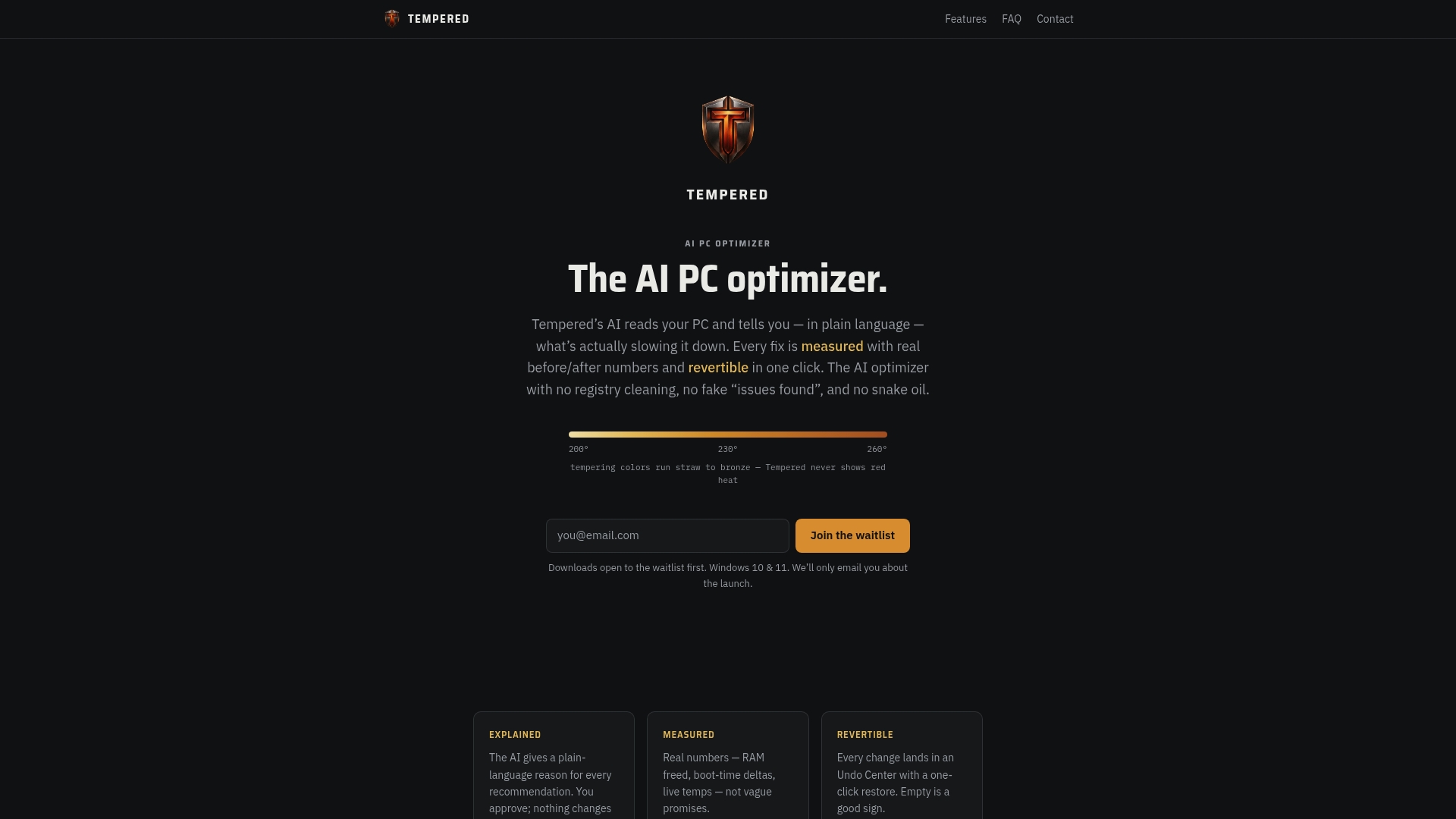
There is a Free plan with limited AI scans. Paid plans start at $5.99 per month for Torque and $12.99 per month for Torque Max, with higher scan limits and premium features. See the Tempered plans or learn more on the Tempered homepage.
FAQ
How do I set NVIDIA for best performance?
Update your driver, then open Manage 3D Settings and work per game. Set Texture Filtering Quality to High Performance, cap the frame rate just under your refresh rate, and enable DLSS and Reflex in the game's own menu where supported. Test each change on its own.
What should I set my NVIDIA performance limits to?
Stay inside the minimum and maximum power limit your card reports through nvidia-smi. In Tom's Hardware's RTX 4090 testing, an 80% limit cost about 2.3% in performance while cutting power use. Results differ by card, so lower the limit in small steps and retest.
Should DSR be on or off?
Keep it off globally. DSR trades frame rate for sharper images, so it only makes sense in a specific game where you have GPU headroom to spare, such as an older or lightly demanding title.
Should I set NVIDIA to prefer maximum performance?
Only for a game where the GPU is throttling its clocks and frame rate is low. NVIDIA's support article frames it as a fix for that situation. Apply it in Program Settings for that game, since it can increase power consumption.
Sources
- NVIDIA App for gamers and creators
- NVIDIA GeForce Game Ready driver 610.62
- NVIDIA GeForce Game Ready driver 610.47
- NVIDIA App Ultimate Guide, Wccftech
- Manage 3D Settings (reference), NVIDIA
- NVIDIA G-SYNC, Control Panel help
- NVIDIA Reflex and DLSS in Warzone
- NVIDIA on 1440p 360Hz monitors and Reflex
- nvidia-smi documentation
- Improving RTX 4090 efficiency through power limiting, Tom's Hardware
- Adjusting graphics card power limits, PCWorld
- Nvidia RTX 4060 power, clocks, temps and noise, Tom's Hardware
- NVIDIA support: Power management mode
- How to optimize NVIDIA Control Panel settings
- GPU requirements for AutoCAD 2026