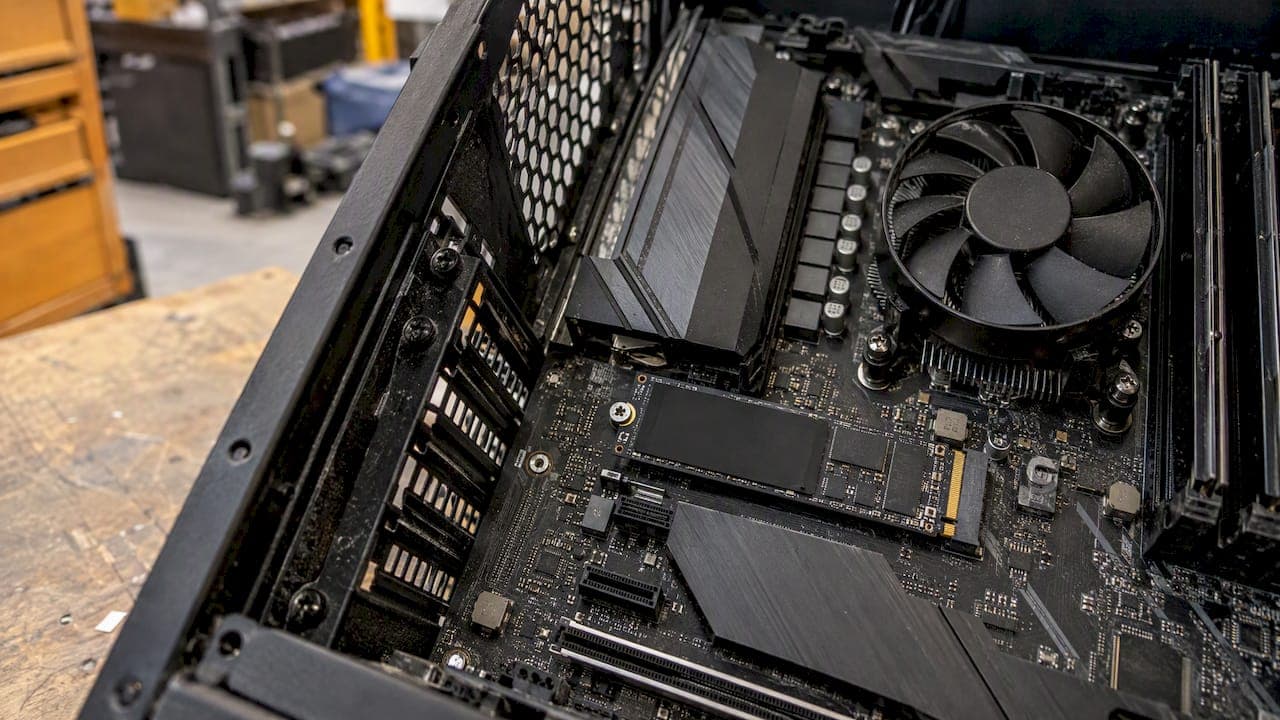
Most of the work is already done for you. Windows trims your SSD on a schedule, and the three things that keep it fast are confirming that TRIM is working, keeping a healthy amount of free space and leaving the drive alone otherwise. Most of the "SSD tweaks" still passed around online are outdated, and some of them shorten the life of the drive. This guide shows what to check, how to check it and what to skip.
TL;DR
- "Optimize" on an SSD means TRIM, not defragmentation. Windows runs it weekly by default, and you can run it by hand.
- Check that TRIM is on with one command:
fsutil behavior query DisableDeleteNotify. A result of 0 means it is working. - Keep at least 20% of the drive free so the controller has room for cleanup and wear-leveling.
- Skip manual defragmentation, and do not turn off hibernation or System Restore for the sake of the SSD.
- If the drive still feels slow, check its health and what is using it before blaming the hardware.
Table of Contents
- What "optimizing" an SSD actually does
- Windows already optimizes your SSD
- How to check TRIM and run it manually
- Keep free space on the drive
- Check whether the drive is healthy
- Outdated SSD advice to ignore
- A simple monthly routine
- Our perspective
- Let Tempered check what is really slowing you down
- FAQ
- Sources
What "optimizing" an SSD actually does
The word is confusing because the Windows tool is called Defragment and Optimize Drives, and it handles two very different kinds of drive. On a hard disk it rearranges fragmented files. On an SSD it does something else. According to Microsoft's drive optimization guide, Windows trims an SSD, which tells the drive where it can safely do cleanup work while it is not busy saving or loading files.
That matters because of how flash storage works. When you delete a file, the SSD does not automatically know those blocks are free. TRIM is the notice that says so. Guides that describe it note that it lets the drive clear unused blocks during idle time, which helps maintain write performance and supports the drive's longevity.
Set your expectations accordingly. Optimizing an SSD is maintenance, not a boost. A drive that is already trimmed, has free space and is healthy will not get faster from more tweaking. What you gain is avoiding the slowdown that comes from a neglected drive: write speeds that sag, a drive that stays busy during simple tasks and long pauses when you save large files.
Windows already optimizes your SSD
Both Windows 10 and Windows 11 optimize drives automatically. Microsoft states that the default is once a week, and that you can change the schedule to daily, weekly or monthly, or turn it off.
For most people the right move is to leave it on. There is one situation where it is worth a look: a laptop that is powered off most of the time. A weekly job cannot run on a machine that is never awake at the scheduled time, so TRIM may fall behind. If that sounds like your setup, check that scheduled optimization is enabled and that the machine is on and idle long enough for it to run.
To look at the schedule:
- Open the Start menu and search for Defragment and Optimize Drives.
- Find your SSD in the list. The media type column says "Solid state drive."
- Check the status and the date of the last run.
- Select Change settings to confirm that scheduled optimization is on and set to weekly.
The tool is safe to open and use on an SSD. It does not shuffle your files around the way it would on a hard disk. The reason people worry about it comes from the old days, which we cover below.
How to check TRIM and run it manually
There are three ways to check or trigger TRIM, from simplest to most technical.

Through the Optimize Drives window
Open Defragment and Optimize Drives, select the SSD and click Optimize. Windows trims SSDs as part of that operation. The same job is available from the command line with defrag C: /L, which forces a retrim of the C: drive. Run it from an administrator prompt.
Through the command prompt
To confirm that TRIM is enabled at the system level, open a command prompt as administrator and run:
fsutil behavior query DisableDeleteNotify
The answer for NTFS volumes reads like this: a value of 0 means TRIM is on. That feels backwards, and Microsoft's own fsutil documentation explains why: the setting is named for disabling the notifications, so 0 means the disable switch is off and TRIM is active.
If the value is 1, TRIM is disabled. One guide says you can turn it back on with fsutil behavior set DisableDeleteNotify 0. Run that only from an administrator prompt, and restart afterward. A disabled value on a modern internal SSD is unusual, so if you see it, think about whether an older tool or a third-party utility changed it.
Through PowerShell
For a verbose view of what is happening, advanced users can run Optimize-Volume -DriveLetter C -ReTrim -Verbose. This forces a retrim and prints progress as it goes. Change the drive letter if your SSD is not C:.
You only need to do any of this once, to confirm things are healthy. After that, the weekly schedule does the work.
Keep free space on the drive
The most useful habit for a fast SSD costs nothing: do not fill it. A full drive leaves the controller little room to shuffle data around for wear-leveling and background cleanup. One guide recommends at least 20% free space, and ideally closer to 50%. Treat 20% as a practical floor. Treat the 50% figure as an aspiration for people who can afford the capacity, not a rule.
To see where you stand, open Settings > System > Storage. Microsoft says this page lets you review what is using your storage, and that Storage Sense can free space by removing items such as temporary files.
A quick order of operations when the drive is more than about 80% full:
- Look at the category breakdown and find the largest one. It is usually Apps and features, Temporary files or Other.
- Turn on Storage Sense so temporary files are cleared without you thinking about it.
- Uninstall programs and games you no longer use.
- Move large media, such as video projects or game libraries you rarely touch, to a second drive or external storage.
If you want a walkthrough of the hunt, we wrote one on finding what is eating a low-space SSD, and another on using Disk Cleanup on Windows 11.
Check whether the drive is healthy
When an SSD feels slow, the first question is whether the drive itself is in trouble. Solid state drives report their condition through S.M.A.R.T. You can read a basic status from a command prompt: type WMIC, then diskdrive get status. According to Tom's Hardware, the result is either "OK" or "Pred Fail." The same guide notes that free SMART viewers and manufacturer utilities can show more detail, including write endurance, and that some manufacturer tools include a performance benchmark.
There is a limit to what Windows watches for you. Microsoft says it monitors NVMe drives for critical warnings, but not SATA SSDs or hard disks. If a warning does appear, Microsoft directs you to Settings > System > Storage > Advanced storage settings > Disks & volumes to open the properties of the disk in question. That is also the moment to back up anything you care about.
If you own a SATA drive, that gap is a good reason to check its status yourself every few months. Our guide to checking SSD health covers the options in more detail.
When the drive is fine but the PC is slow
A healthy drive can still look overloaded. If Task Manager shows the disk pinned near 100% while you are doing nothing, the cause is usually software, not the SSD: a background indexer, an update, an antivirus scan or a misbehaving service. We walk through the causes in fixing 100% disk usage. Slow startup is another symptom that tends to blame the drive unfairly, and the fix is often in the startup list, as in our piece on speeding up boot on Windows 11.
Outdated SSD advice to ignore
A lot of SSD tuning advice dates from the early years of the technology and now does more harm than good. The most common items:
| Old advice | What to do instead |
|---|---|
| Defragment the SSD regularly | Don't. Without moving parts there is nothing to gain, and traditional defragmentation can use up write cycles for no benefit. |
| Turn off hibernation and System Restore to protect the drive | Leave them on. The same source says to avoid disabling them because Windows handles SSD optimization itself. |
| Turn off scheduled optimization | Leave it on, since it is the TRIM job. |
| Apply a long list of registry or service tweaks | Skip them. Current guidance favors keeping free space, keeping TRIM enabled and avoiding random Windows tweaks. |
The confusion about defragmenting is understandable, because the tool still carries the word. Running Optimize on an SSD does the TRIM operation and is fine. The danger is in third-party "SSD booster" tools that claim to rearrange or rewrite data. If you want the longer explanation, see our piece on whether to defrag an SSD on Windows 11.
A simple monthly routine
You do not need a schedule that takes more than five minutes. This is enough for almost everyone:
- Glance at Settings > System > Storage and confirm there is still at least 20% free.
- Open Defragment and Optimize Drives and confirm the last run was recent.
- Every few months, check the drive status and read its health numbers.
- Keep Windows and your drive's firmware current. Firmware updates come from the drive maker, and one SATA guide lists regular firmware updates among its recommendations.
- Install new programs deliberately and review what starts with Windows.
Our perspective
The honest truth about SSD optimization is that there is very little to do, and most of what you read online is trying to sell you something you do not need. A utility that promises to "boost" your SSD with automatic tweaks and registry cleaning is solving a problem that Windows already handles.
That is why we built Tempered around measurement. It reads live CPU, RAM, GPU, disk and uptime metrics, finds the constraint that is actually holding your PC back, and explains it in plain language. If it recommends a change, you see what it is, why it helps and what to expect, and nothing happens without your approval. Every change is tracked, with a one-click Undo.
We do not clean the registry or invent issues to make a scan look impressive. If your SSD is fine and the real problem is a startup program or a runaway background process, we say so. That is the kind of advice we would want from someone who knew the machine.
Ian
Let Tempered check what is really slowing you down
If you have done the steps above and the PC still drags, the cause is probably not the drive. Tempered scans your Windows 10 or 11 machine, shows the measured constraint and proposes specific changes you approve one at a time, such as managing background processes, trimming startup items or turning on Game Mode. It does not require technical expertise or an AI API key.

There is a Free plan with limited AI scans. Paid plans start at $5.99 per month for Torque and $12.99 per month for Torque Max, with higher scan limits and premium features. See the plans on the pricing page, or learn more about Tempered.
FAQ
Should I run Optimize Drives on my SSD?
Yes, it is safe, and it is what Windows does for you every week anyway. On an SSD the tool trims the drive rather than defragmenting it. You only need to run it by hand if you want to confirm it works or if a laptop that is rarely on has missed its scheduled run.
How do I know if TRIM is enabled on Windows 11?
Open a command prompt as administrator and run fsutil behavior query DisableDeleteNotify. A value of 0 for NTFS means TRIM is active, because the setting is named for disabling it. If it shows 1, TRIM is off and can be re-enabled with fsutil behavior set DisableDeleteNotify 0.
Does a nearly full SSD run slower?
It can. The controller needs free blocks to do wear-leveling and background cleanup, and a full drive leaves it little room. A practical target is to keep at least 20% of the drive free.
Is it worth turning off hibernation or System Restore to save SSD wear?
No. Advice to disable them for the SSD's sake is outdated, and Windows handles SSD optimization automatically. Turning them off removes useful recovery features without a meaningful benefit.
Why does my SSD show 100% usage in Task Manager?
Usually a process is busy reading or writing, such as an update, an indexer or a scan, and the drive is not at fault. Look at which process is generating the activity before you consider replacing hardware.
Sources
- Defragment / optimize your data drives in Windows, Microsoft Support
- Storage settings in Windows, Microsoft Support
- What to do about a critical warning for a storage device, Microsoft Support
- fsutil behavior, Microsoft Learn
- How to Check SSD Health in Windows 10 and Windows 11, Tom's Hardware
- Should You Really Optimize Your SSD?, MakeUseOf
- Windows 11 SSD Lifespan Guide, Medium
- Speed Up SSDs on Windows 11 With TRIM in 3 Steps, ToolNerdy
- How to Defragment and Optimise Drives in Windows 11, Serverman
- How to securely erase the free space on an SSD in Windows, Security Stack Exchange