A disk usage reading pinned at 100% means Windows sees your storage drive's request queue saturated, and on most machines the cause is one of five things: SysMain (Superfetch), the Windows Search indexer, a Microsoft Defender scan, a stuck update or Delivery Optimization download, or a drive that's physically struggling. Here is the fast way to confirm it before you touch anything.
Open Task Manager (Ctrl+Shift+Esc), click the Disk column header to sort by activity, and just watch for a minute or two. If the number stays very high while nothing is running, open Resource Monitor → Disk and check which files and processes are generating bytes per second. That view tells you what Task Manager can't: exactly which file, database, or pagefile is getting hammered.
- Success looks like this: disk usage drops into single digits within a minute or two of closing the offending process, or a scheduled task simply finishes and the number falls on its own.
- If it stays stuck at 100% for more than a few minutes with no visible app running, you're looking at a background service, a driver conflict, or early drive failure, not a one-time spike.
Key Takeaways
| Point | Details |
|---|---|
| Diagnose before fixing | Sort Task Manager by Disk, watch for two minutes idle, then confirm with Resource Monitor's file view. |
| Try reversible fixes first | Stop SysMain, set Search to Manual, and throttle Defender scans before touching the registry. |
| Watch for Event ID 129 | Repeated resets in Event Viewer point to a storahci.sys MSI-mode conflict, not a workload issue. |
| Match the fix to the drive | HDDs hit 100% easily under light load; SSDs at 100% usually mean a driver fault or failing flash. |
| Use Tempered for ongoing monitoring | Tempered tracks live disk, CPU, and RAM metrics and proposes reversible, explained changes instead of blind automatic tweaks. |
Table of Contents
- How to Identify What's Causing 100% Disk Usage
- Quick, Reversible Fixes Worth Trying First
- When You Need Deeper Repairs Like CHKDSK
- HDD vs. SSD: When Hardware Is the Real Problem
- What Tempered's Diagnostics and Ian's Guides Cover
- Clearing System Logs and Temp Files to Ease Disk Load
- Why Reversibility Should Drive Every Fix You Try
- Get Ongoing Disk Monitoring Without the Guesswork
- Frequently Asked Questions About 100% Disk Usage
- Sources
How to Identify What's Causing 100% Disk Usage
Diagnosis comes before any fix, and skipping this step is why so many "solutions" people try online don't actually help their machine.
- Open Task Manager, go to Processes, and click the Disk column to sort high to low. Watch for two full minutes without touching your keyboard.
- If Service Host: SysMain or SearchIndexer sits at the top, you're dealing with background maintenance tasks, not a hardware problem.
- If Antimalware Service Executable dominates the list, Microsoft Defender is mid-scan. Check its schedule before assuming something's broken.
- If the System process itself is eating disk time, open Event Viewer and look for Event ID 129, a signature tied to storage controller resets rather than a normal workload.
- Switch to Resource Monitor → Disk and look at the "File" column. It'll show you the exact database, log, or pagefile the top process is touching, which narrows the fix considerably.
A two-minute idle observation is the single most reliable heuristic here: if the number stays high while your PC is doing nothing you asked it to do, the cause is almost always a background service or a driver issue, not a "heavy" task you're imagining.
If Resource Monitor points to a third-party app you can't identify, boot into Safe Mode or run a clean boot (msconfig → Services → disable all non-Microsoft entries) to see if the disk usage disappears. That isolates whether the problem is Windows itself or something a vendor installed.
Pro Tip: Note the exact process name and file path before you change anything. If a fix doesn't work, you'll want to know exactly what you were troubleshooting instead of guessing again from scratch.
Quick, Reversible Fixes Worth Trying First
Most disk usage 100% problems on Windows 10 and Windows 11 clear up with changes you can undo in thirty seconds. Background services like SysMain, Windows Search, and antivirus scans account for the majority of idle disk saturation cases, so start here before anything more invasive.
SysMain (Superfetch):
- Open services.msc, find SysMain, right-click and select Stop.
- Watch Task Manager's Disk column for five minutes. If usage drops noticeably, set SysMain's startup type to Disabled for a longer test.
- To revert, just set it back to Automatic and start the service again. Nothing is lost.
Windows Search indexer:
- In services.msc, set Windows Search to Manual instead of disabling it outright.
- If search results feel slow afterward, rebuild the index later through Settings → Search → Searching Windows.
Microsoft Defender:
- Open PowerShell as administrator and check current scan behavior. You can throttle scheduled scans with
Set-MpPreference -ScanScheduleQuickScanTime. - Add exclusions for large, trusted folders (game libraries, video project folders) that Defender rescans unnecessarily.
- Push full scans to overnight hours when you're not using the machine.
Delivery Optimization and OneDrive:
- Go to Windows Update → Advanced options → Delivery Optimization and turn it off if you don't need peer-to-peer update sharing.
- Set OneDrive to Files On-Demand and mark large folders Online-only to stop constant local sync activity.
- Open Task Manager's Startup apps tab and disable anything that isn't essential, especially update checkers and cloud sync clients that fire at login.
Pro Tip: Change one thing at a time. If you disable SysMain, Search, and Defender scheduling all in the same five minutes, you won't know which one actually fixed it, and you'll have three things to second-guess later.
When You Need Deeper Repairs Like CHKDSK
If the quick fixes above don't move the needle, the problem is likely structural: a damaged file system, a driver conflict, or memory pressure forcing constant paging. These fixes take longer and carry more risk, so back up your files first.
- Open Command Prompt as administrator and run
chkdsk C: /R. This scans for corrupted file-system sectors and attempts to relocate data off failing ones. On a large drive expect this to run for several hours, sometimes overnight, since it has to touch every sector. - After the restart, open Event Viewer and check the Wininit log for the Chkdsk report. Repeated bad-sector warnings here often mean the drive itself, not Windows, is the real problem.
- Open Device Manager and check your storage controller. If it's using the inbox storahci.sys driver and Event Viewer shows repeated Event ID 129 resets, MSI mode interrupt handling can cause I/O requests to hang, which reads as sustained 100% disk activity even though nothing is actually being processed.
- Create a system restore point, then work through Dell's documented MSI-mode workaround, which sets
MSISupportedto 0 for the affected controller in the registry. This toggle only applies to systems running the storahci.sys driver, so confirm that first in Device Manager. - Open Advanced system settings → Performance → Advanced → Virtual memory and set a fixed pagefile size if you suspect memory pressure is forcing constant disk writes. If paging happens constantly even after this, more RAM is the real fix, not a pagefile tweak.
- Check your motherboard or SSD vendor's site for updated storage and chipset drivers. Install one at a time and restart between each so you can tell which update actually helped.
Windows repeatedly attempting resets on a storahci.sys-driven controller can look identical to a legitimate heavy workload in Task Manager. The distinguishing clue is Event ID 129 in the System log, which points at the storage stack itself rather than any application you're running.
HDD vs. SSD: When Hardware Is the Real Problem
Mechanical hard drives hit 100% far more easily than solid-state drives because a spinning platter can only service one request at a time. A handful of small, random reads is enough to fill that queue and pin the meter, even when actual throughput in bytes per second is modest. That's normal HDD behavior under certain workloads, not necessarily a failure.
SSDs are different. They handle many simultaneous requests, so a persistent 100% reading on an SSD usually points to a driver conflict (like the storahci.sys issue above) or the drive itself failing, not routine indexing.
- Run CrystalDiskInfo or your manufacturer's tool (Samsung Magician, WD Dashboard) and check SMART attributes for reallocated sectors, pending sectors, or wear-leveling counts creeping toward their limits.
- If SMART shows warning-level attributes, back up your data immediately. Don't wait for the drive to fail completely.
- Cloning an aging HDD to an SSD is often the single most effective long-term fix for chronic disk-100% complaints, since it removes the mechanical bottleneck entirely rather than just easing the symptoms around it.
What Tempered's Diagnostics and Ian's Guides Cover
Tempered's approach to performance issues starts with live hardware metrics, not guesswork: it reads your CPU, RAM, GPU, and disk activity directly, then proposes specific changes with plain-language explanations of what each one does and an undo path if you change your mind. That matters most with disk troubleshooting, where half the "fixes" floating around forums are either outdated or risky without a rollback plan.
Ian's writing on the Tempered blog covers several pieces of this puzzle in more depth than a single article can:
- Disk cleanup on Windows 11 walks through safe temporary-file removal with screenshots.
- Finding CPU and disk hogs expands on the Task Manager and Resource Monitor steps above.
- Checking RAM usage on Windows is worth reading before you touch pagefile settings, since memory pressure and disk thrashing are often the same problem wearing two hats.
Before any registry edit or CHKDSK /R run, set a system restore point and back up anything irreplaceable. That single habit turns a risky repair into a reversible experiment.
| What it is | Where to read more |
|---|---|
| Registry edits (storahci MSI mode) | Set a restore point first, always |
| Drive repairs (CHKDSK /R, cloning) | Back up files before running |
| Startup and RAM tuning | See linked Tempered guides above |
Clearing System Logs and Temp Files to Ease Disk Load
Windows accumulates junk constantly: Windows Update leftovers, crash dumps, browser caches, and old system logs that nobody ever reviews. None of this causes the acute 100% spikes covered above, but a drive that's nearly full runs its file system less efficiently and gives background services less room to work without fighting your active files for space.
Open Settings → System → Storage and run the built-in Storage Sense tool, which clears temporary files, empties the recycle bin on a schedule, and flags old Windows Update caches you no longer need. For a deeper pass, Disk Cleanup (search "cleanmgr" in the Start menu) has a "Clean up system files" option that removes prior Windows installation folders after an upgrade, which can free up tens of gigabytes on machines that have been through a few feature updates.

Event Viewer logs themselves rarely take up meaningful space, but if you've enabled verbose logging for a diagnostic session, remember to turn it back off. Verbose logs write constantly and add small, steady disk writes that show up as background I/O in Resource Monitor.
Clearing this clutter won't fix a stuck SysMain process or a failing drive, but it removes one more variable competing for disk access, and it's zero-risk maintenance you should be doing every few months regardless of whether you're troubleshooting anything. Tempered's guide to Windows 11 debloating covers a broader cleanup routine if you want to go further than the built-in tools.
Why Reversibility Should Drive Every Fix You Try
Most cases resolve with a service stop that takes ten seconds to undo. Reaching for CHKDSK /R or an MSI-mode registry change before you've ruled out SysMain and Defender is like replacing a car's transmission because the check-engine light came on.
What gets underestimated is how often the "fix" itself introduces a new problem. Disabling Windows Search entirely instead of setting it to Manual breaks search functionality for weeks. Running CHKDSK /R on a drive that's actually failing can force hours of relocation work on a disk you were about to replace anyway. The diagnostic order matters as much as the fixes themselves: cheap, reversible checks first, invasive repairs only when Event Viewer or SMART data actually points there.
That's the philosophy behind treating every change as something you should be able to undo without a system reinstall. If a fix can't be reversed in under a minute, it belongs at the bottom of your list, not the top.
Get Ongoing Disk Monitoring Without the Guesswork
Manually running Task Manager, Resource Monitor, and Event Viewer every time your disk spikes gets old fast, especially if the cause keeps shifting between SysMain, Defender, and background sync apps. Tempered watches your CPU, RAM, GPU, and disk metrics continuously and flags the actual process or service driving a spike, then explains in plain language what it wants to change and what result to expect.

Every suggested change comes with a one-click undo, so you're never stuck wondering what got altered on your machine. That matters more with disk troubleshooting than almost any other performance issue, since the fixes above range from a thirty-second service stop to registry edits you'd rather not make blind. Tempered's free tier includes limited AI scans if you want to see what it flags on your own PC before committing to anything. Head to Tempered and run a scan to see what's actually driving your disk usage right now.
Frequently Asked Questions About 100% Disk Usage
Sort Task Manager's Disk column and watch for two minutes to confirm which one it is.
Does disabling SysMain actually help with high disk usage? Often, yes, especially on machines with a mechanical hard drive rather than an SSD. Stop the service through services.msc and watch Task Manager for five minutes; if usage drops, set it to Disabled for a longer test, and revert to Automatic anytime if you notice slower app launches.
No. On HDDs it's often just how Task Manager reports normal queue saturation from background tasks.
How long does CHKDSK /R take to fix disk usage 100 percent problems? It depends on drive size and how many bad sectors it finds, but expect several hours on a large drive since every sector gets scanned. Run it overnight and check the Wininit log in Event Viewer afterward for the results.
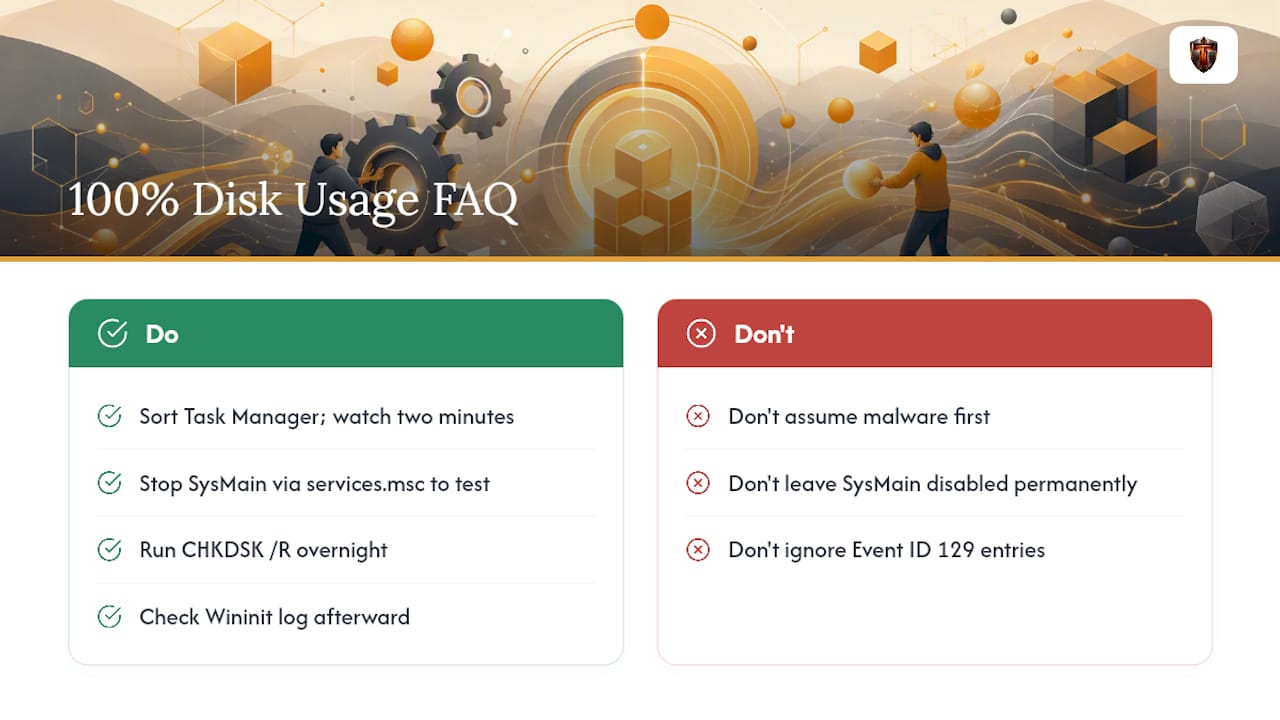
What is Event ID 129 and why does it matter for disk usage? It's a Windows System log entry indicating a storage controller reset, frequently tied to the storahci.sys driver running in MSI mode. Repeated Event ID 129 entries alongside sustained disk activity point toward the registry workaround rather than a service or malware issue.