No, you should not run traditional defragmentation on an SSD in Windows 11. The OS already handles SSD maintenance automatically through its built-in Optimize Drives tool, which sends a TRIM command rather than moving data blocks around. Running a legacy defragmenter on an SSD adds unnecessary write cycles without any performance gain.
The short version:
- Traditional defrag is for spinning hard drives, not SSDs.
- Windows 11 runs TRIM-based optimization on your SSD regularly by default.
- You don't need to do anything manually for routine maintenance.
- Open Defragment and Optimize Drives (search "defrag" in the Start menu) to confirm your drive is detected as an SSD and that the last optimization ran recently.
Key Takeaways
Windows 11 handles SSD optimization automatically through TRIM, and traditional defragmentation is unnecessary and harmful for solid-state drives.
| Point | Details |
|---|---|
| Don't defrag SSDs | Traditional defrag increases write amplification and shortens SSD lifespan with no performance benefit. |
| Windows Trim runs weekly | Windows 11 schedules a TRIM-based optimization weekly by default; leave that schedule enabled. |
| Confirm TRIM is active | Run fsutil behavior query DisableDeleteNotify in PowerShell; a return of 0 means TRIM is on. |
| Keep free space above 85% full | A free-space buffer lets wear-leveling and garbage collection work efficiently. |
| Tempered for diagnostics | Tempered identifies real disk and system constraints with user-approved, reversible recommendations. |
Table of Contents
- Should you defrag an SSD on Windows 11, or use TRIM instead?
- How Windows 11 manages your SSD automatically
- When does running Optimize manually actually make sense?
- What NVMe users should know
- How to verify TRIM is active and check SSD health
- Troubleshooting when Windows keeps optimizing or performance drops
- Tempered's approach to SSD diagnostics and safe optimization
- Tempered gives you a clearer picture of what's actually slowing your PC
- Sources
Should you defrag an SSD on Windows 11, or use TRIM instead?
HDDs store files in physical sectors spread across a spinning platter. When a file gets fragmented, the read head has to jump between sectors to reassemble it, which slows things down. Defragmentation consolidates those scattered pieces so the head travels less. That's genuinely useful for a spinning drive.
SSDs work differently. There's no read head, no platter, and no seek time penalty for fragmented data. The controller reads any cell in roughly the same time regardless of location. So fragmentation on an SSD barely affects read speed at all.
What SSDs do need is TRIM. When you delete a file, the OS marks those blocks as available, but the SSD's firmware doesn't immediately know they're free. TRIM tells the drive which blocks are no longer in use so the controller can wipe them during idle time, a process called garbage collection. That keeps write performance consistent.
Defragmenting an SSD increases write amplification and shortens drive lifespan without delivering any performance benefit. TRIM is the correct maintenance operation for SSDs.
Every SSD has a finite number of program/erase cycles per cell. Defragmentation forces the controller to rewrite data that didn't need moving, burning through those cycles for nothing. Wear-leveling firmware distributes writes across cells to extend lifespan, but it can't compensate for avoidable rewrites.
That buffer gives the wear-leveling algorithm room to work and helps garbage collection run efficiently, which reduces write amplification over time. Use disk cleanup on Windows 11 or Storage Sense to reclaim space regularly.*
How Windows 11 manages your SSD automatically
Windows 11 detects whether a drive is an SSD or HDD and applies the right operation automatically. According to Microsoft, the OS schedules a TRIM-style optimization weekly by default, which is the right cadence for most users. You don't need to change that schedule.
Opening Optimize Drives step by step
- Press Windows + S and type defrag.
- Click Defragment and Optimize Drives from the results.
- Select your SSD in the drive list.
- Check the Media type column to confirm it reads Solid State Drive.
- Review Current status and Last run to confirm recent optimization.
- Click Optimize only if you want to trigger a manual TRIM pass.
Pro Tip: If the Media type column shows "Unknown," your drive may not be reporting its type correctly to Windows. Check for a firmware update using your drive manufacturer's utility before doing anything else.
What the Optimize Drives status messages mean
| UI Field | What it shows | What to do |
|---|---|---|
| Media type: Solid State Drive | Windows correctly identified your SSD | No action needed |
| Current status: OK | TRIM ran successfully; drive is healthy | Leave the schedule as-is |
| Current status: Needs optimization | TRIM hasn't run recently or was interrupted | Click Optimize once |
| Operation not supported on this volume | Drive or partition type doesn't support TRIM | Check firmware; consult vendor docs |
| Last run: Never | Scheduled optimization may be disabled | Re-enable the schedule |
Windows' Optimize Drives tool has detected drive types and applied TRIM for SSDs since Windows 8. On Windows 11, that behavior is mature and reliable.
When does running Optimize manually actually make sense?
Rarely. The weekly schedule covers almost every scenario. A few situations do justify a manual pass:
- After cloning a drive or restoring a disk image: The clone process may leave the SSD unaware of which blocks are free. Running Optimize sends a fresh TRIM pass.
- After deleting a large batch of files: If you cleared tens of gigabytes at once, a manual TRIM pass helps the controller reclaim those blocks sooner rather than waiting for the next scheduled run.
- On an external SSD: Scheduled optimization doesn't always apply to removable drives. Run it manually when you notice sluggish write speeds.
- Troubleshooting slow sequential writes: If write performance has dropped noticeably, a manual TRIM pass is a safe first step before deeper investigation.
What to do before running any manual optimization
- Back up your data. Not because Optimize is dangerous, but because any maintenance session is a good prompt to confirm your backup is current.
- Check free space. If the drive is above 85% full, clear temp files first to give the controller room to work.
- Confirm TRIM is active (see the next section).
- Run Optimize once via the built-in tool. Do not use a third-party defragmenter that forces block moves.
Never run a legacy defragmenter like an older third-party tool that doesn't detect SSDs. Those tools move data blocks physically, which is exactly the unnecessary write amplification that shortens drive life.
What NVMe users should know
NVMe SSDs are faster than SATA SSDs, but the maintenance model is identical. Windows 11 sends TRIM to NVMe drives the same way it does to SATA SSDs. There's no separate defrag requirement, no special schedule to configure, and no NVMe-specific optimization utility you need to run routinely.
Where NVMe drives differ is in the depth of diagnostics available through vendor utilities. Samsung Magician, Western Digital Dashboard, Crucial Storage Executive, and similar tools expose SMART attributes, temperature readings, and firmware update options that Windows doesn't surface in the standard UI.
Safe routine actions for NVMe drives:
- Check for firmware updates in your vendor's utility every few months.
- Monitor drive temperature, especially in compact laptops where airflow is limited.
- Use the vendor tool for secure erase if you're repurposing or selling the drive.
- Avoid any third-party tool that advertises "SSD defrag" as a feature.
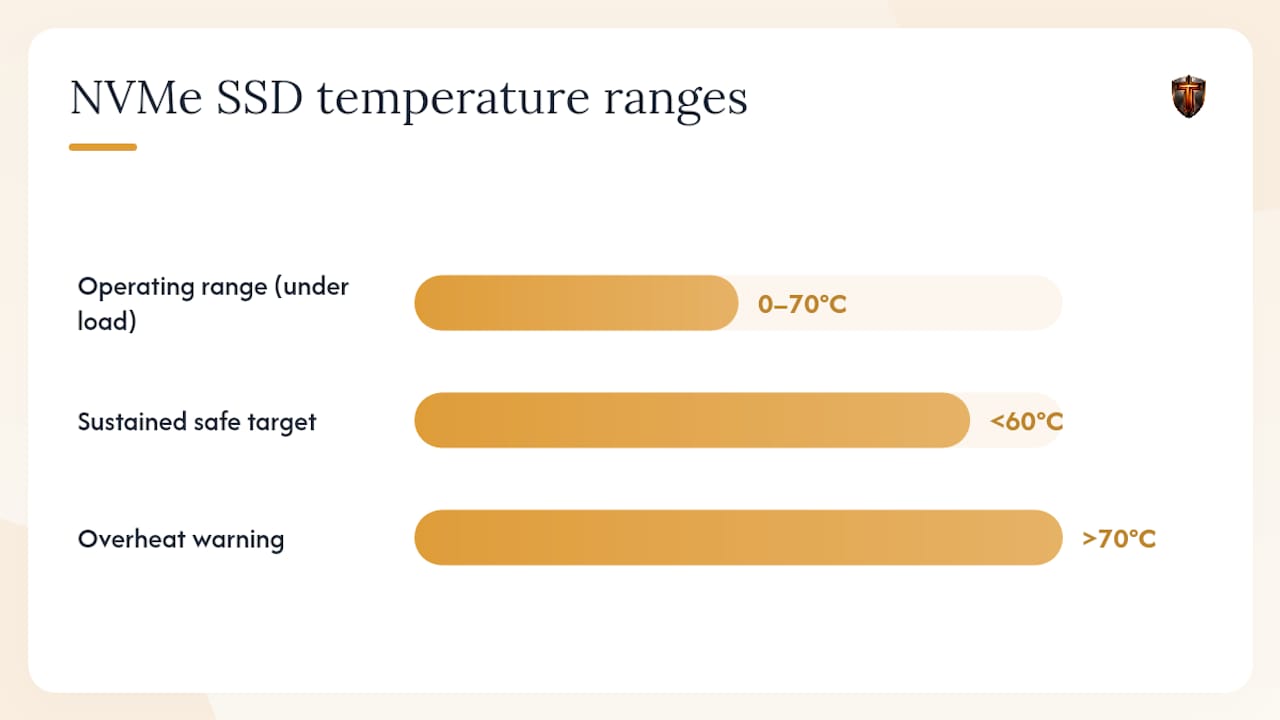
Normal SSD operating temperature sits between roughly 0°C and 70°C under load, with most drives targeting a safe SSD temperature range below 60°C during sustained workloads. If your NVMe drive regularly exceeds 70°C, check thermal paste on the heatspreader and case airflow before assuming a drive problem. An SSD overheating fix often starts with better case ventilation rather than software.
How to verify TRIM is active and check SSD health
Before running any manual maintenance, confirm TRIM is actually enabled. Open PowerShell as Administrator and run:
fsutil behavior query DisableDeleteNotify
A return value of 0 means TRIM is enabled. A value of 1 means it's disabled. To re-enable it:
fsutil behavior set DisableDeleteNotify 0
You can also trigger an Optimize pass from the command line. Open an elevated Command Prompt and run:
defrag C: /U /V
The /U flag shows progress; /V gives verbose output including the operation type. For an SSD, the output will confirm a retrim operation rather than a defragmentation pass.
Recommended tools for SMART and health checks
| Tool | What it checks | When to use it |
|---|---|---|
| CrystalDiskInfo | SMART attributes, reallocated sectors, temperature | Routine health monitoring |
| Vendor utility (Samsung Magician, WD Dashboard, etc.) | Firmware version, secure erase, deep diagnostics | Firmware updates, pre-sale wipe |
| Windows Optimize Drives | TRIM status, last run, drive type | Everyday maintenance confirmation |
Watch for these SMART warning signs: reallocated sectors above zero, growing uncorrectable error counts, or a "Caution" or "Bad" health status in CrystalDiskInfo. Any of those is a signal to back up immediately, not to run more optimization passes.
Troubleshooting when Windows keeps optimizing or performance drops
If Windows seems to be running optimization constantly, or your SSD's write performance has degraded, work through these steps in order.
- Check the Optimize Drives schedule. Open the tool, click Change settings, and confirm the frequency is set to Weekly. If it's set to Daily, that's excessive for an SSD.
- Verify TRIM is active using the
fsutilcommand above. - Run a SMART check in CrystalDiskInfo. Look specifically at reallocated sector count and uncorrectable error count.
- Check free space. If the drive is over 85% full, remove bloatware and clear temporary files to restore the write buffer.
- Update your NVMe controller driver. Open Device Manager, expand Disk drives, right-click your SSD, and check for driver updates. For Intel-based systems, check whether Intel Rapid Storage Technology (RST) needs an update.
- Run CHKDSK to rule out file-system corruption: open an elevated Command Prompt and run
chkdsk C: /f /r. This requires a restart.
Red flags that mean back up now and plan for replacement:
- Reallocated sectors increasing over consecutive checks
- SMART status showing "Caution" or "Bad" in CrystalDiskInfo
- Windows reporting drive errors during normal use
- The drive disappearing from Device Manager intermittently
If you're seeing any of those, check the laptop repair before replacement checklist before spending on a new drive. Sometimes the issue is a loose connector or a controller driver, not the SSD itself.
Reducing write amplification during troubleshooting also helps preserve whatever lifespan remains. Avoid large file operations, disable hibernation temporarily (which writes several gigabytes to the SSD on every sleep cycle), and increase virtual memory only if RAM is genuinely constrained.
Tempered's approach to SSD diagnostics and safe optimization
Most PC optimizers run automatic tweaks without telling you what changed or why. Tempered works differently. It analyzes live hardware metrics including disk activity, CPU load, RAM usage, and uptime, then surfaces specific recommendations with plain-language explanations of what each change does and what outcome to expect. Every adjustment requires your approval, and every change logs an undo path so you can reverse it with one click.
For SSD maintenance specifically, Tempered doesn't push aggressive defragmentation or unnecessary write operations. It focuses on the diagnostics that actually matter: flagging low free space, identifying background processes generating excessive disk writes, and surfacing performance constraints you can act on safely.
- Transparent recommendations with expected outcomes before you approve anything
- One-click undo for every change applied
- Live disk metrics to catch write-heavy background processes
- Compatible with Windows 10 and Windows 11, including NVMe and SATA SSDs
- No technical expertise required to read the diagnostics
For low-level operations like firmware updates or secure erase, Tempered defers to your drive manufacturer's utility, which is the right call. The goal is safe, user-controlled optimization, not aggressive automation that trades drive lifespan for a benchmark number.
An editorial perspective on SSD maintenance
The advice to "never defrag your SSD" is correct, but it sometimes leaves users feeling like they have nothing useful to do. That's not quite right either. OS-managed TRIM handles the core maintenance, but monitoring free space, checking SMART attributes a few times a year, and keeping firmware current are genuinely worthwhile habits. The mistake most people make isn't running defrag once. It's either doing nothing and missing early SMART warnings, or installing an aggressive third-party optimizer that runs constant background writes in the name of "keeping the drive clean." Both extremes cost you lifespan. That's it.
Tempered gives you a clearer picture of what's actually slowing your PC
If your SSD feels sluggish and you're not sure whether it's a disk issue, a RAM bottleneck, or a background process eating CPU, Tempered cuts through the guesswork. It scans your live system metrics, identifies the real constraint, and tells you exactly what to change and why, without touching anything until you say so.

Every recommendation comes with a plain-language explanation and a one-click undo, so you stay in control. There's a free tier to start with, and paid plans unlock unlimited scans and premium diagnostics. If you want to check SSD health and get a full picture of what's affecting your system's performance, Tempered is worth running before you start changing settings manually.