
How to run Disk Cleanup on Windows 11
Disk Cleanup is a built-in Windows utility that removes temporary files, cached thumbnails, Recycle Bin contents, and other files your system no longer needs. On Windows 11, it takes about two minutes to run and can recover anywhere from a few hundred megabytes to several gigabytes, depending on how long it has been since your last cleanup.
Here is how to launch it:
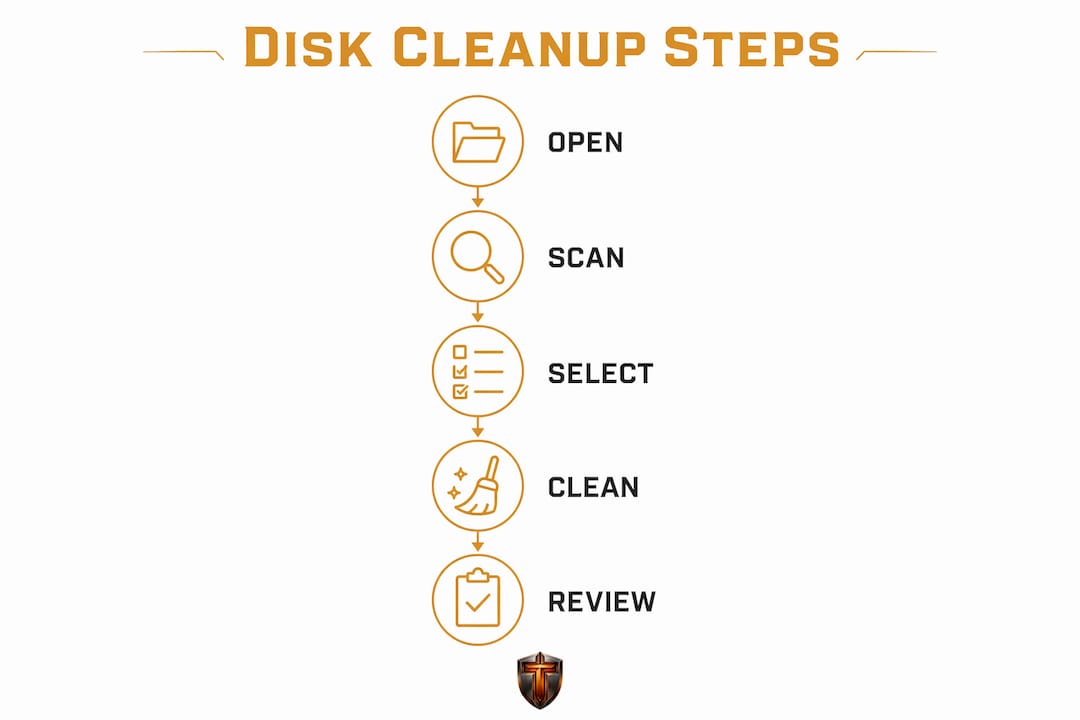
- Press the Windows key, type Disk Cleanup, and hit Enter.
- Select the drive you want to clean (usually C:) and click OK.
- Wait while the tool scans and calculates how much space it can recover.
- Check the file categories you want to remove.
- Click OK, then Delete Files to confirm.
The categories you can safely remove in a standard run include:
- Temporary Internet Files — cached browser data from Internet Explorer and Edge legacy
- Recycle Bin — files you have already deleted but not permanently removed
- Temporary files — leftover data from app installs and system processes
- Thumbnails — image previews Windows regenerates automatically when needed
- Downloaded Program Files — old ActiveX controls and Java applets rarely used today
Running this process monthly keeps your drive from quietly filling up with files that serve no purpose. Most users are surprised by how much space thumbnails and temp files consume over time.
Pro Tip: Before you delete anything, hover over each category in the Disk Cleanup window. A short description appears at the bottom explaining exactly what those files are, so you can make an informed choice rather than guessing.

How to unlock advanced Disk Cleanup features on Windows 11
The standard Disk Cleanup run only touches user-level files. To access system files, including Windows Update packages and old installation data, you need to run the tool with administrator privileges. Running without admin rights limits cleanup to the Recycle Bin and basic temp files, leaving the largest space hogs completely untouched.
To access the full cleanup:
- Press the Windows key, type Disk Cleanup, then right-click the result and select Run as administrator.
- Select your C: drive and click OK.
- Once the tool opens, click Clean up system files near the bottom of the window.
- The tool rescans and now shows additional categories, including Windows Update Cleanup and Previous Windows installations.
- Check the categories you want to remove, click OK, then Delete Files.
Windows Update Cleanup can recover significant disk space depending on how frequently your system has updated recently. That is often the single largest category available.
A word on Windows.old: this folder stores your previous Windows installation and lets you roll back if something goes wrong after an upgrade. Deleting it permanently removes that rollback option. Windows automatically deletes Windows.old after 10 days, so if you are past that window and confident your system is stable, removing it manually is safe and frees substantial space.
Pro Tip: You can automate Disk Cleanup using the command line. Run cleanmgr /sageset:1 to open a settings dialog where you select which file categories to include, then save that profile. Later, run cleanmgr /sagerun:1 to execute the cleanup silently with those saved settings. Pair this with Windows Task Scheduler to run it on a weekly or monthly basis without lifting a finger.
One known issue worth flagging: Windows 11 version 24H2 has a bug where Disk Cleanup may misreport the size of Windows Update Cleanup or show the option as missing. Installing cumulative update KB5044384 resolves this. If your cleanup results look wrong or the Windows Update Cleanup category does not appear, check Settings > Windows Update before assuming the tool is broken.
What Storage Sense does that Disk Cleanup cannot
Storage Sense is the modern alternative to Disk Cleanup, built directly into Windows 11 Settings. Where Disk Cleanup requires you to open it manually and make selections each time, Storage Sense runs automatically on a schedule you define, or whenever your disk space drops below a threshold.
To enable and configure it:
- Go to Settings > System > Storage.
- Toggle Storage Sense to On.
- Click Storage Sense to open its configuration options.
- Set how often it runs: daily, weekly, monthly, or only when disk space is low.
- Configure how long files sit in the Recycle Bin before automatic deletion (options range from 1 day to 60 days).
- Set a threshold for files in your Downloads folder that have not been opened recently.
The key difference between the two tools comes down to control versus convenience. Disk Cleanup gives you a manual, category-by-category review every time you run it. Storage Sense handles routine maintenance in the background without prompting you. Neither replaces the other entirely.
Windows 11 also includes Cleanup Recommendations under Settings > System > Storage, which surfaces large files, unused apps, and files synced to OneDrive that you can review and remove. This is worth checking a few times a year, especially if you install and uninstall software regularly.
When to use each:
- Storage Sense: for hands-off, recurring cleanup of temp files and Recycle Bin contents
- Disk Cleanup (admin mode): when you need to remove Windows Update packages or Windows.old after a major OS upgrade
- Cleanup Recommendations: for one-off reviews of large or redundant files you may have forgotten about
Best practices for keeping your disk healthy on Windows 11
Disk cleanup tools fix the symptom. Good habits prevent the problem from building up in the first place.
Keep at least 10–20% of your drive free. Experts link performance issues to low free disk space rather than just junk accumulation. On a 500 GB SSD, that means keeping at least 50 GB available at all times. SSDs slow down noticeably when they approach capacity because the controller has less room to manage writes efficiently.

Schedule regular cleanups. Running Disk Cleanup or Storage Sense once a month takes two minutes and prevents the kind of gradual slowdown that sneaks up on you over six months. If you use the cleanmgr /sageset and /sagerun approach mentioned earlier, Task Scheduler can handle this automatically.
Additional habits that protect your disk health:
- Move large media libraries (photos, videos, game installs) to a secondary drive or external storage when your primary drive fills up.
- Uninstall apps you have not opened in three months. Windows 11's Cleanup Recommendations flags these automatically.
- Clear your browser cache periodically. Chrome, Firefox, and Edge all accumulate cache data that Disk Cleanup does not always catch.
- Avoid letting your Recycle Bin accumulate for months. Set Storage Sense to auto-empty it after 30 days.
One thing people overlook: disk space issues often reflect storage habits more than any single file type. A drive that fills up every few weeks usually has a root cause, whether that is a download folder that never gets reviewed, a backup tool writing redundant copies, or a game platform caching data aggressively. Finding and fixing the source beats running cleanup tools every week.
How to safely choose which files to delete in Disk Cleanup
Not every category in Disk Cleanup carries the same risk level. The tool only presents files it considers safe to remove, but some categories have implications worth understanding before you check the box.
Step-by-step guide to a safe cleanup:
- Open Disk Cleanup as administrator (right-click > Run as administrator, select C:, then click Clean up system files).
- Review each category. Click on a category name to read the description at the bottom of the window before selecting it.
- Check these categories without hesitation: Temporary files, Thumbnails, Recycle Bin, Temporary Internet Files, and Downloaded Program Files.
- Pause before checking Windows Update Cleanup. This removes old update packages. Once deleted, you cannot uninstall those specific updates, though your system remains fully functional.
- Pause before checking Previous Windows installations (Windows.old). As covered earlier, this removes your OS rollback option permanently.
- Leave Device driver packages unchecked unless you are certain you will not need to roll back a recent driver.
- Click OK, review the confirmation dialog, then click Delete Files.
Files to approach carefully:
- Windows Update Cleanup: safe to delete if your system has been stable for a few weeks after the last update
- Windows.old: safe after 10 days, but only if you have confirmed everything works correctly on the current Windows version
- Device driver packages: skip these unless you have a specific reason to remove them
The categories you should never worry about are thumbnails, temp files, and Recycle Bin contents. Windows regenerates thumbnails on demand, temp files are by definition disposable, and anything in the Recycle Bin you have already chosen to delete.
How Tempered complements Disk Cleanup on Windows 11
Disk Cleanup handles files. What it does not do is tell you why your PC feels slow, which background processes are eating your CPU, or whether your RAM is being monopolized by something that launched at startup. That is where an AI-powered tool like Tempered fills the gap.
Tempered analyzes live hardware metrics including CPU load, RAM usage, GPU temperature, disk activity, and system uptime, then delivers plain-language recommendations based on what it actually finds on your machine. No guesswork, no generic advice.
Key things Tempered does that Disk Cleanup cannot:
- Identifies background processes draining CPU and RAM, and lets you disable them without digging through Task Manager
- Manages startup programs so your PC boots faster without you manually auditing the startup list
- Applies safe performance tweaks tailored to your specific hardware configuration
- Tracks every change through a one-click Undo Center, so nothing is permanent if you change your mind
- Enables Game Mode to prioritize resources during demanding sessions
For a deeper look at speeding up Windows 11 beyond just file cleanup, Tempered's approach covers the hardware and process layer that Disk Cleanup never touches.
Pro Tip: Run Disk Cleanup first to clear out file-level clutter, then use Tempered to scan your hardware metrics and background processes. The two together cover both the storage layer and the performance layer, which is the combination most users miss.

Tempered is free to start, with a freemium model that gives you limited AI scans on the free tier and full access on paid plans. For users who want their PC running at its best without becoming a system administrator, it is the practical next step after a Disk Cleanup run.
Key Takeaways
Running Disk Cleanup as administrator on Windows 11 unlocks system file removal, including Windows Update packages, which is the step most users skip and the one that frees the most space.
| Point | Details |
|---|---|
| Admin mode is required | Standard Disk Cleanup skips system files; right-click and run as administrator to access Windows Update Cleanup. |
| Windows.old has a deadline | Windows deletes this folder automatically after 10 days; remove it manually only if you are confident in your current OS version. |
| Storage Sense automates routine cleanup | Enable it in Settings > System > Storage to handle temp files and Recycle Bin contents on a schedule. |
| Keep 10–20% of your drive free | SSDs perform better with headroom; on a 500 GB drive, that means keeping at least 50 GB available. |
| AI tools cover what Disk Cleanup misses | Tempered monitors live CPU, RAM, and disk metrics to address performance issues that file deletion alone cannot fix. |