To stop overlays right now, toggle off the in-game overlay in each app (Steam, NVIDIA GeForce Experience, Discord, AMD Radeon Software, Xbox Game Bar), then open Task Manager and kill any lingering overlay processes. That handles the current session. For a permanent fix, disable the overlay toggle in each app's settings, clear the hotkeys, and remove overlay components from your startup entries.
Here's the fastest path if you're mid-session and just need them gone:
- Immediate kill: Press Ctrl+Shift+Esc, go to Details or Processes, and end processes like
NVIDIA Share,nvcontainer.exe, or Discord's overlay renderer. Overlays disappear until the next reboot. - Permanent disable: Turn off each app's overlay toggle in its settings (steps below), then remove startup entries via Task Manager's Startup tab.
- Hotkey accidents: Clear overlay keybindings in each app so you stop triggering them mid-match.
- Nuclear option: Uninstall the launcher entirely, or disable overlay services in
services.msc— but read the warnings first.
Overlays can consume system resources and occasionally conflict with anti-cheat systems, so disabling non-essential ones is one of the first things worth doing when you're chasing performance.
Table of Contents
- How to disable the Steam overlay (global and per-game)
- How to disable NVIDIA GeForce Experience overlays
- How to disable Discord's in-game overlay
- How to disable the AMD Radeon overlay and remove its hotkey
- How to disable Xbox Game Bar on Windows 10 and 11
- Generic fixes: kill processes, remove hotkeys, disable startup entries, or uninstall
- Why overlays keep coming back after updates
- What to do when overlays still appear after you've toggled them off
- How Tempered helps manage overlay processes safely
- Key Takeaways
- The case for changing hotkeys instead of nuking everything
- Tempered keeps your overlay settings from drifting after every update
- Useful sources and further reading
How to disable the Steam overlay (global and per-game)
Steam's overlay is one of the most common culprits for accidental pop-ups during gameplay. Fortunately, it offers both a global kill switch and per-game control.
- Open Steam and click Steam in the top-left menu.
- Select Settings, then click In-Game in the left panel.
- Uncheck "Enable the Steam Overlay while in-game."
- Click OK and restart Steam.
For a single game without touching the global setting:
- Go to your Library, right-click the game, and select Properties.
- Under the General tab, toggle off "Enable the Steam Overlay while in-game."
- Close the window and relaunch the game.
One thing worth knowing: changing overlay settings while a game is running won't unload the overlay mid-session. You need to restart the game, and sometimes the Steam client itself, for the change to fully take effect.
Also, per-game toggles don't apply to non-Steam games launched outside the client. If you're running a game through a different launcher, use the global switch or simply launch the game with Steam closed.

Pro Tip: If you still see the Steam overlay after toggling it off, check whether Big Picture Mode or Steam Input is active — both can keep overlay hooks alive even when the main toggle is off.
How to disable NVIDIA GeForce Experience overlays
NVIDIA's overlay suite includes the Share panel (Alt+Z), the performance overlay (Alt+R), and the in-game FPS counter. All of them run through GeForce Experience or the newer NVIDIA App.
To disable the in-game overlay:
- Open GeForce Experience (or the NVIDIA App).
- Click the gear icon to open Settings.
- Under General (or Features), find In-Game Overlay and toggle it off.
- Close GeForce Experience.
To remove or change the hotkeys (Alt+Z / Alt+R):
- Press Alt+Z to open the overlay panel (if it's still active).
- Go to Settings → Keyboard Shortcuts.
- Click each binding and either delete it or reassign it to a chord you won't hit accidentally.
If the overlay stays visible after toggling it off:
- Open Task Manager (Ctrl+Shift+Esc) and end NVIDIA Share or nvcontainer.exe under the Processes or Details tab.
- Killing these processes removes the overlay immediately, though they'll restart on reboot unless you also disable the startup entry.
The service-level disable (last resort only):
- Open Run (Win+R), type
services.msc, and press Enter. - Locate NVIDIA Display Container LS and NVIDIA LocalSystem Container.
- Right-click each, select Properties, set Startup type to Disabled, and stop the service.
- This is effective but can break driver-related features — only go here if the toggle genuinely won't stick.
Pro Tip: Before touching services, try disabling GeForce Experience from your startup apps (Task Manager → Startup tab). That alone stops the overlay from loading at boot without touching any driver services.
How to disable Discord's in-game overlay
Discord's overlay shows active speakers and DMs in the corner of your screen. It's useful in casual sessions but distracting in competitive play. You can kill it globally or just for specific games.
Global disable:
- Open Discord and click the gear icon next to your username (bottom-left).
- Scroll down to Activity Settings and select Game Overlay.
- Toggle "Enable in-game overlay" to off.
That's it. Discord's overlay settings apply immediately in most cases, so you don't need to restart the app.
Per-game disable:
- In the same Game Overlay settings page, click the arrow next to the toggle.
- You'll see a list under Registered Games showing every game Discord has detected.
- Click the monitor icon next to any title to disable the overlay for that game only.
If the overlay persists after toggling it off, close Discord completely from the system tray and reopen it. In rare cases, the overlay renderer process stays active until the app fully restarts.

How to disable the AMD Radeon overlay and remove its hotkey
AMD Radeon Software includes a performance overlay that shows GPU temperature, frame rate, and utilization. It's handy for benchmarking but easy to trigger accidentally.
- Open AMD Radeon Software (right-click the desktop or find it in the Start menu).
- Click the gear icon to open Settings.
- Go to Preferences → General.
- Toggle "In-Game Overlay" to off.
To remove the overlay hotkey:
- Still in Settings, find Toggle Radeon Overlay Hotkey.
- Click the binding field and press Delete to set it to None.
- Confirm and close.
Disabling the AMD overlay can improve performance slightly in some systems, which is most noticeable on mid-range hardware running GPU-limited titles. It won't transform your frame rate, but in a tight competitive match, every frame counts.
How to disable Xbox Game Bar on Windows 10 and 11
Xbox Game Bar is baked into Windows itself, which makes it slightly different from third-party overlays. The toggle lives in Windows Settings, not in a separate app.
Via Windows Settings:
- Press Win+I to open Settings.
- Go to Gaming → Xbox Game Bar.
- Toggle off "Record game clips, screenshots, and broadcast using Game Bar."
Alternative path: Type "Game bar settings" directly into the Windows search bar and it takes you straight there.
A few things to know before you disable it:
- Turning off Game Bar also disables the built-in Win+G recording shortcut and the performance widget.
- If you're on Windows 11 Pro or Enterprise, Group Policy (gpedit.msc) offers a more permanent block under Computer Configuration → Administrative Templates → Windows Components → Windows Game Recording and Broadcasting.
- Avoid PowerShell commands or registry edits to remove Game Bar unless you know exactly what you're doing. Some scripts floating around online break unrelated Windows features.
To undo: Return to the same Settings path and toggle Game Bar back on. No restart required.
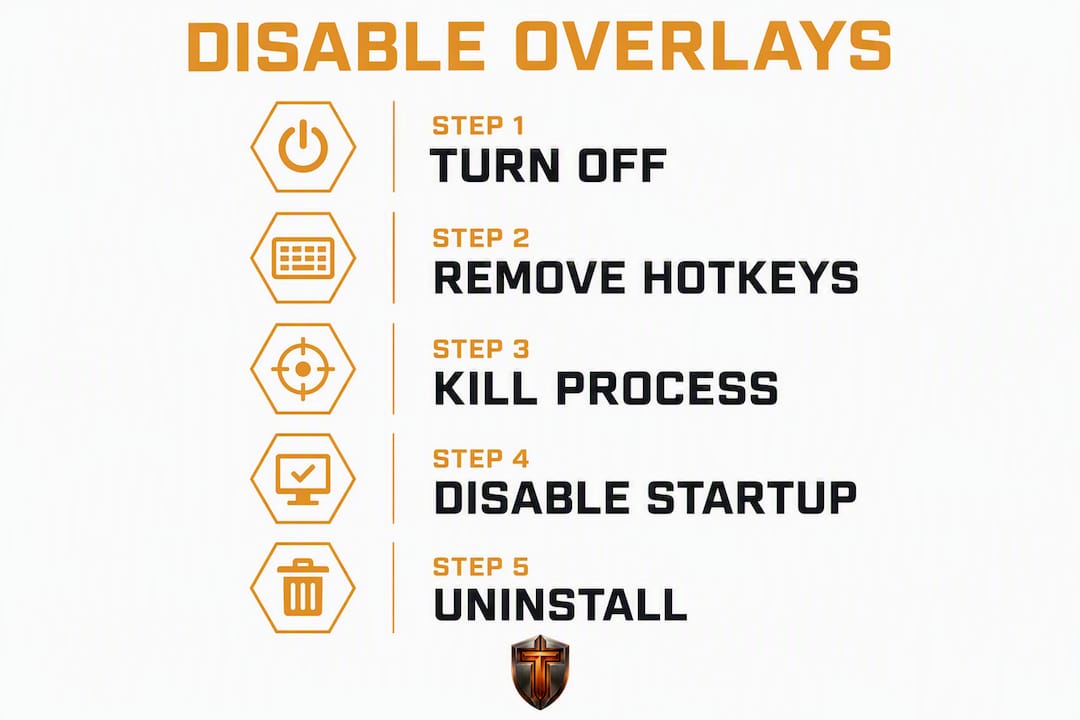
Generic fixes: kill processes, remove hotkeys, disable startup entries, or uninstall
Sometimes the in-app toggle doesn't stick. Here's the escalation ladder.
- Clear hotkeys first. Go into each app's keybinding settings and delete or reassign overlay shortcuts. Accidental triggers are the most common reason overlays keep "reappearing."
- Kill the process in Task Manager. Press Ctrl+Shift+Esc, click the Details tab, and end any of these:
NVIDIA Share,nvcontainer.exe,EpicWebHelper.exe, or Discord's overlay renderer. This gives you an immediate fix for the current session, but the processes return on reboot. - Disable startup entries. Open Task Manager → Startup tab. Disable GeForce Experience, Discord, AMD Software, or any overlay-related launcher so they don't load at boot.
- Use services.msc for persistent cases. Open Run (Win+R), type
services.msc, and disable the relevant service. This is powerful but carries risk — document what you change before you change it. - Uninstall the launcher. When nothing else works, uninstalling GeForce Experience or AMD Radeon Software removes the overlay entirely. You lose automatic driver updates and recording features, but the overlay is gone for good.
| Method | Persists after reboot? | Restart required? | Risk level |
|---|---|---|---|
| Kill process in Task Manager | No | No | Low |
| Disable in-app overlay toggle | Yes | Game restart | Low |
| Disable startup entry | Yes | Reboot | Low |
| Disable service in services.msc | Yes | Reboot | Medium |
| Uninstall the app | Yes | Reboot | Low (feature loss) |
Why overlays keep coming back after updates
Software updates are the most common reason a disabled overlay reappears. Developers frequently reset new features to "on" by default when they push a major release. This is a known pattern across Discord, NVIDIA, and AMD software — you turn something off, an update ships, and it's back.
Post-update checklist:
- Re-verify the overlay toggle in each app (Steam, NVIDIA, Discord, AMD, Xbox Game Bar).
- Check that your hotkey bindings are still cleared or reassigned.
- Open Task Manager's Startup tab and confirm overlay-related apps are still disabled there.
- Launch a game briefly to confirm nothing reappeared.
Pro Tip: Tempered monitors background processes and can flag when a newly updated app re-enables a service you previously turned off — giving you a one-click way to reapply your approved settings without hunting through each app manually.
What to do when overlays still appear after you've toggled them off
If you've followed the per-app steps and something is still showing up, work through this escalation list.
- Restart the game and the client. Overlay hooks often stay active until both the game and the launcher (Steam, GeForce Experience) fully close and reopen.
- Run a clean boot. Open Run (Win+R), type
msconfig, go to Services, check "Hide all Microsoft services," then disable everything remaining. Reboot and test. If the overlay is gone, re-enable services in batches to find the culprit. - Reinstall the driver or app. Uninstall GeForce Experience or AMD Radeon Software, download the latest version from NVIDIA or AMD directly, and reinstall with a reboot. Corrupted installs sometimes ignore toggle states.
- Check for service conflicts. In
services.msc, look for NVIDIA Display Container LS or AMD External Events Utility running despite your toggle being off. Set them to Manual or Disabled if the overlay toggle alone isn't enough. - Isolate anti-cheat conflicts. If an overlay is causing crashes or triggering anti-cheat flags, disable overlays one at a time and test each game launch. Update your GPU drivers before assuming the overlay itself is the root cause.
How Tempered helps manage overlay processes safely
Manually hunting through five different apps' settings after every update gets old fast. Tempered takes a different approach: it scans your live system metrics, identifies background processes (including overlay components) that are consuming CPU or RAM, and recommends specific changes with plain-language explanations of what each one does.
- Automated detection: Tempered flags overlay-related processes that are running at startup or consuming resources, so you don't have to cross-reference Task Manager manually.
- One-click undo: Every change Tempered recommends is logged. If you disable a process and later realize you need it for recording or streaming, you reverse it in one click.
- Safe for non-technical users: No registry edits, no PowerShell scripts. Tempered proposes changes and waits for your approval before applying anything.
- Ongoing monitoring: After an app update re-enables an overlay service, Tempered can surface that change and let you reapply your preferred settings without starting from scratch.
For gamers who want a lightweight approach to optimizing Windows 11 for gaming without memorizing service names or risking a broken driver install, Tempered handles the diagnostic work and keeps a clear record of every change.
Key Takeaways
Disabling overlays permanently requires toggling off each app's in-game overlay setting, clearing hotkeys, and removing overlay components from startup — not just killing the process once.
| Point | Details |
|---|---|
| Toggle off in every app | Disable the overlay in Steam, NVIDIA, Discord, AMD, and Xbox Game Bar settings separately. |
| Kill processes for instant relief | End NVIDIA Share, nvcontainer.exe, or Discord's overlay renderer in Task Manager for an immediate fix. |
| Clear hotkeys | Delete or reassign overlay keybindings in each app to stop accidental mid-game triggers. |
| Re-check after updates | App updates often reset overlay toggles to on — run a quick verification after any major update. |
| Use Tempered for automation | Tempered detects overlay processes, recommends safe disables, and logs every change with one-click undo. |
The case for changing hotkeys instead of nuking everything
Most guides tell you to disable overlays completely. That's often the right call. But there's a middle path worth considering: keep the overlay available and just change the hotkey to something you'll never hit accidentally.
Alt+Z is a terrible default. It's close to common gaming shortcuts, easy to fat-finger, and it yanks you out of a match at the worst moment. But the NVIDIA overlay itself — the ability to clip a highlight or check GPU temps — has real value. Same with Discord's overlay if you're coordinating with teammates.
The smarter move is to reassign these to a chord like Ctrl+Alt+Shift+F12. You'll never hit it by accident. The feature stays available when you actually want it. And you skip the post-update scramble of re-enabling things you disabled too aggressively.
Test any hotkey changes in a practice match or a low-stakes session before you rely on them in ranked play. Overlay processes can behave differently depending on whether a game runs in fullscreen, borderless, or windowed mode — what works in the menu might not work mid-game.
Tempered keeps your overlay settings from drifting after every update
Every time NVIDIA or Discord ships an update, there's a real chance your carefully disabled overlays come back on. Doing the rounds manually across five apps is tedious, and one missed toggle means you're back to accidental Alt+Z presses during a ranked match.

Tempered scans your Windows 10/11 system, identifies which overlay-related background processes are active, and walks you through disabling them with full explanations of what each change does. Nothing happens without your approval, and every change is logged so you can reverse it in one click if you ever want recording or streaming features back. The free tier gives you an immediate diagnostic scan. Paid plans on Tempered or Torque Max add ongoing monitoring so regressions get caught before they cost you a match.
Run a free scan with Tempered and see exactly which overlay processes are running on your system right now.
Useful sources and further reading
- How to disable the Steam overlay (global and per-game) — covers Steam, Xbox Game Bar, and general overlay performance impact
- Steam community thread: per-game overlay limits and restart behavior — useful for understanding why changes don't apply mid-session
- How to disable NVIDIA overlays: complete guide — covers GeForce Experience toggle, process kills, and service-level disables
- How to disable NVIDIA overlays: 4 methods (wikiHow) — step-by-step with screenshots for each method
- How to turn off Discord overlay (GeeksforGeeks) — global and per-game Discord overlay steps
- How to disable the Discord Game Overlay on PC (Bethesda Support) — concise official-style walkthrough
- How to disable AMD Radeon performance overlay — Radeon Software toggle and hotkey removal steps
- Why Discord overlay reappears after updates (HowToGeek) — explains update reset behavior and post-update verification