
Open Task Manager (Ctrl+Shift+Esc), sort by CPU and Memory, and end the obvious offenders first. Then disable unneeded startup apps and set rarely used Store apps to "Never" under background permissions. Before touching anything else, audit your services list with "Hide all Microsoft services" turned on. Ending a task is temporary; changes to Startup, Services, or Settings stick until you undo them. If you'd rather skip the manual audit, Tempered handles the same work with one-click, reversible fixes.
TL;DR:
- Limiting high-impact startup and background apps can significantly improve system performance without requiring extensive changes.
- Focus on disabling resource-heavy processes and third-party services while carefully verifying their necessity before making permanent adjustments.
- Use tools like Task Manager, Resource Monitor, and msconfig's "Hide all Microsoft services" feature to identify and safely disable unnecessary background activities.
- Regularly create restore points and test changes with clean boots to avoid disrupting critical Windows functions or device features.
- Automating cleanup with a tool like Tempered provides a reversible, user-friendly way to optimize performance without manual audits.
Table of Contents
- Five quick actions you can take in 5 to 10 minutes
- How do you find the processes that actually matter?
- How do you stop background apps in Windows Settings?
- How do you disable startup apps for good?
- How do you audit Windows services without breaking anything?
- Which Windows services are commonly safe to disable?
- What's the difference between temporary and persistent fixes?
- How do you keep background clutter from coming back?
- What actually moves the needle here?
- Want the same results without the manual audit?
- Where to verify these steps yourself
- Sources
Five quick actions you can take in 5 to 10 minutes
You don't need an hour to make a dent. Work through these in order and you'll likely feel the difference before you finish your coffee:
- Open Task Manager and sort the Processes tab by CPU, then Memory, to spot anything eating resources it shouldn't.
- End task on obvious offenders, like a browser tab that's frozen or an app that crashed but never closed.
- Go to Task Manager → Startup and disable anything marked "High" impact that you don't need running the second you log in.
- Set background permissions to "Never" for apps you open once a week, under Settings → Apps → Installed apps → Advanced options.
- Open msconfig, check "Hide all Microsoft services," and disable any leftover third-party service from software you already uninstalled.
Throw in a quick malware scan while you're at it. Hidden miners and adware are notorious for masquerading as generic background tasks.
How do you find the processes that actually matter?
Process count is a red herring. A healthy Windows 11 machine can run 200+ background processes at idle without breaking a sweat, because most of them sip a fraction of a percent of CPU. What matters is impact, not headcount.
Start in Task Manager's Processes tab and expand any grouped entries (the little arrows next to "Google Chrome" or "Microsoft Edge") to see which specific tab or extension is the actual drag. Then switch to Resource Monitor, accessible from the Performance tab, for a clearer picture of disk and network hotspots that Task Manager glosses over.
- Watch CPU and Memory columns for anything sitting above 5 to 10% at idle.
- Check the Disk tab in Resource Monitor if your machine feels sluggish opening files.
- Look at Network activity if a "background" app is quietly uploading or syncing.
- Confirm you've found the culprit by closing the suspected app and watching whether usage actually drops.
A step-by-step CPU hog walkthrough can help if you want a slower, more guided pass through this same process.
Pro Tip: Sort by Memory instead of CPU if your PC feels slow specifically when switching apps. Memory hogs cause more stutter than CPU hogs on most modern machines.
How do you stop background apps in Windows Settings?
Windows 11 gives you real, granular control here, and it's worth learning the exact path instead of relying on generic "boost" buttons. Head to Settings → Apps → Installed apps, click the three dots next to an app, and choose Advanced options. Under background app permissions, you'll find three settings: Always, Power optimized, and Never.
- Always lets the app run and refresh in the background whenever it wants.
- Power optimized is the middle ground Microsoft recommends. It throttles background activity based on your battery and usage patterns.
- Never kills background activity completely but also kills notifications and live updates from that app.
For a broader view, check Settings → System → Power & battery → Battery usage, which ranks apps by how much background activity they're actually generating. There's also a global Background apps switch under Privacy, but it only touches Store apps. Desktop programs like Discord or Dropbox ignore it entirely and need their own in-app settings instead. After making changes, go back through advanced options and confirm they held, then watch Task Manager for a minute to see if the app actually quieted down.
How do you disable startup apps for good?
Ending a task in Task Manager only fixes things until your next reboot. If an app keeps coming back, the fix lives in Startup, not Processes.
- Open Task Manager → Startup tab and sort by the Startup impact column.
- Right-click and disable anything marked High or Medium that you don't need the moment Windows boots.
- Check the app's own settings for a "launch at startup" or "minimize to tray" toggle, since some apps re-add themselves even after you disable them in Task Manager.
- Look in the Startup folder (type
shell:startupinto File Explorer's address bar) and in Task Scheduler for autostart entries that never show up in Task Manager at all.
That last step catches more than people expect. Plenty of installers quietly register a scheduled task instead of a normal startup entry, which is exactly why it never appears where you'd look first.
How do you audit Windows services without breaking anything?
Services are where people get nervous, and rightly so. Disabling the wrong one can knock out printing, networking, or Windows Update. The fix isn't avoiding services entirely. It's auditing them with a method instead of guessing.
Open Services.msc and read the Description column for every service before you touch it. If a description is vague or you don't recognize the name, look it up before disabling it rather than assuming it's junk. A faster path for beginners is System Configuration, better known as msconfig: open it, go to the Services tab, and check "Hide all Microsoft services." That single checkbox filters your view down to third-party entries only, which dramatically shrinks your risk of disabling something Windows actually needs.
When you're unsure whether a service is safe to kill entirely, set it to Manual instead of Disabled. Manual lets Windows start the service only when something actually calls on it, giving you most of the performance benefit with almost none of the risk of breaking a dependent feature.
Before doing any bulk edits, create a system restore point. It takes thirty seconds and it's the cheapest insurance you'll find. Then test your changes with a clean boot, which starts Windows with a minimal set of drivers and startup programs so you can isolate whether a specific service or app was actually the problem.
- Read every service Description before disabling it.
- Enable "Hide all Microsoft services" in msconfig to isolate third-party clutter.
- Default to Manual over Disabled when a service's purpose is unclear.
- Create a restore point and test with a clean boot before committing to changes.
Pro Tip: Keep a plain text file listing every service you touch and the date you changed it. Six months from now, when something acts strange, that log saves you from a guessing game.
Which Windows services are commonly safe to disable?
A handful of services show up on nearly every "reduce background processes" list, and each comes with its own caveat worth knowing before you flip the switch.
- SysMain (Superfetch): preloads frequently used apps into RAM to speed launches. On an SSD or NVMe drive, the benefit is often marginal, and disabling it can free up both CPU and disk activity. On an older HDD with limited RAM, it may still help, so test both states rather than assuming.
- Connected User Experiences and Telemetry: sends diagnostic data to Microsoft. Disabling it is mostly a privacy call with a small performance upside.
- Windows Error Reporting: stops automatic crash report uploads. Fine to disable, but you lose Microsoft's automated fix suggestions for app crashes.
- Delivery Optimization: shares downloaded updates with other PCs on your network or the internet. Safe to disable unless you're intentionally distributing updates across multiple machines on the same LAN.
- Windows Search: handles file indexing. Disabling it kills fast Start menu search but can help on machines with limited RAM or disk speed.
- Windows Biometric Service: only matters if you use fingerprint or facial recognition sign-in. Skip it entirely if you don't use Windows Hello.
What's the difference between temporary and persistent fixes?
Ending a task in Task Manager is a band-aid. It frees resources right now, but the process comes right back the next time you open the app or restart your PC. Real, lasting change happens in three places: Startup, Services, and Settings.
- Temporary: End task, closing an app window, killing a process from Task Manager.
- Persistent: disabling a Startup entry, changing a Service's startup type, setting background permissions to Never.
- Undo path: re-enable the Startup entry, flip a Service back to Automatic, or restore from the checkpoint you created before making changes.
Test any persistent change with a clean boot first, and watch for quieter side effects like missing notifications or apps that stop syncing in the background. If something breaks, your restore point or change log gets you back in minutes. Tempered's one-click undo works the same way, but it tracks every change automatically so you're never digging through settings menus trying to remember what you flipped.
Pro Tip: Wait 24 to 48 hours after a persistent change before deciding it's safe. Some sync and notification issues only show up after a full day of normal use.
How do you keep background clutter from coming back?
Reducing background processes once is easy. Keeping your PC lean six months later is where most people slip. A little routine maintenance prevents the slow creep back to a bloated startup list.
- Uninstall apps you haven't opened in the last month, especially anything that came preinstalled.
- Run a scheduled malware scan monthly and keep the apps you do use updated.
- Use Storage Sense or Disk Cleanup periodically, and check your startup list again after any major Windows update, since updates sometimes re-enable defaults.
- On older hardware, dial back visual effects and switch to a Balanced or Power Saver plan to reduce background overhead further.
A bloatware removal guide walks through identifying preinstalled junk that tends to reappear after resets or major updates.
What actually moves the needle here?
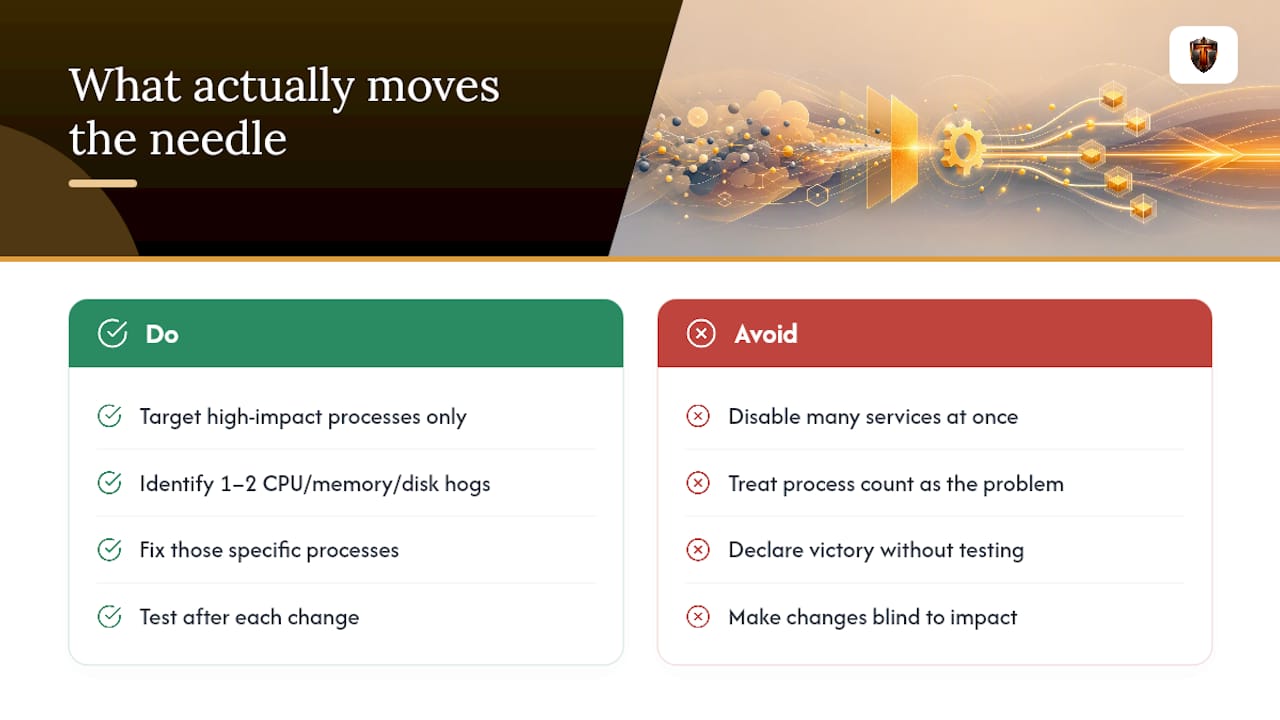
I've watched people spend an hour disabling forty services and see almost no change, then watch someone else disable three things and cut their boot time in half. The difference is never the number of changes. It's whether you targeted something with real resource impact.
Process count is noise. Find the one or two things actually pulling CPU, memory, or disk, fix those, and test before you declare victory. For deeper walkthroughs on specific services and startup cleanup, the Tempered blog has case-by-case breakdowns worth bookmarking.
— Ian
Want the same results without the manual audit?
Tempered scans your live hardware metrics, CPU, RAM, GPU, disk, and uptime, and turns what it finds into plain-language recommendations instead of a wall of toggles you have to interpret yourself. Every suggested change comes with an expected outcome and a one-click undo, so you're never stuck guessing what a setting actually did to your system.

That matters most for background process cleanup specifically, since the risk isn't finding the settings, it's knowing which service or startup entry is safe to touch. Tempered handles Store app background permissions, startup management, and Game Mode from one dashboard, and it never applies a change without your approval first. If a fix doesn't help, you undo it in one click instead of hunting through msconfig trying to remember what you changed. Nontechnical users get the exact benefit of a manual audit without needing to read a single service description. Try Tempered's free tier and run your first scan today.
Where to verify these steps yourself
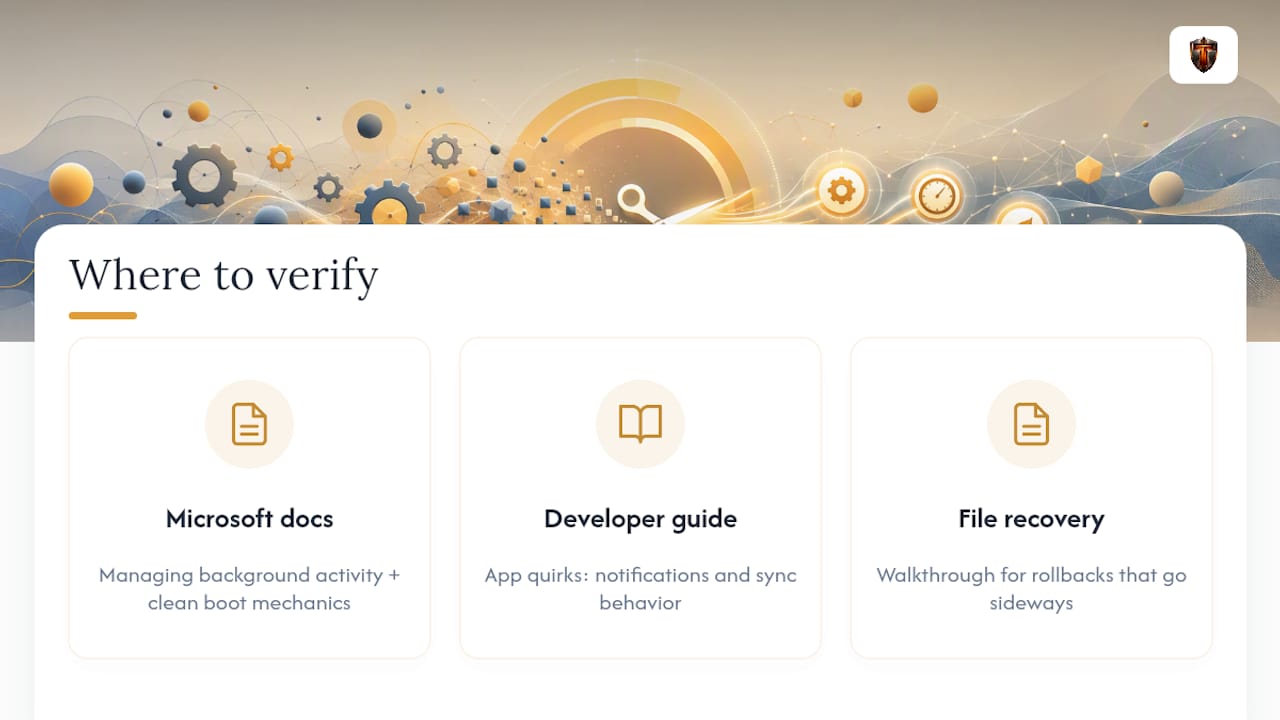
For the settings paths and service audits covered here, Microsoft's own documentation on managing background activity and performing a clean boot covers the official mechanics. For app-specific quirks around notifications and sync behavior, this developer guide on background activity adds useful context, and if a rollback ever goes sideways, this file recovery walkthrough is worth bookmarking.
Sources
- Manage background activity for apps in Windows | Microsoft Support
- How do I disable all non-Microsoft services and st? | Microsoft Q&A
- Stop These 6 Windows Background Processes to Reclaim Your PC's Performance | How-To Geek