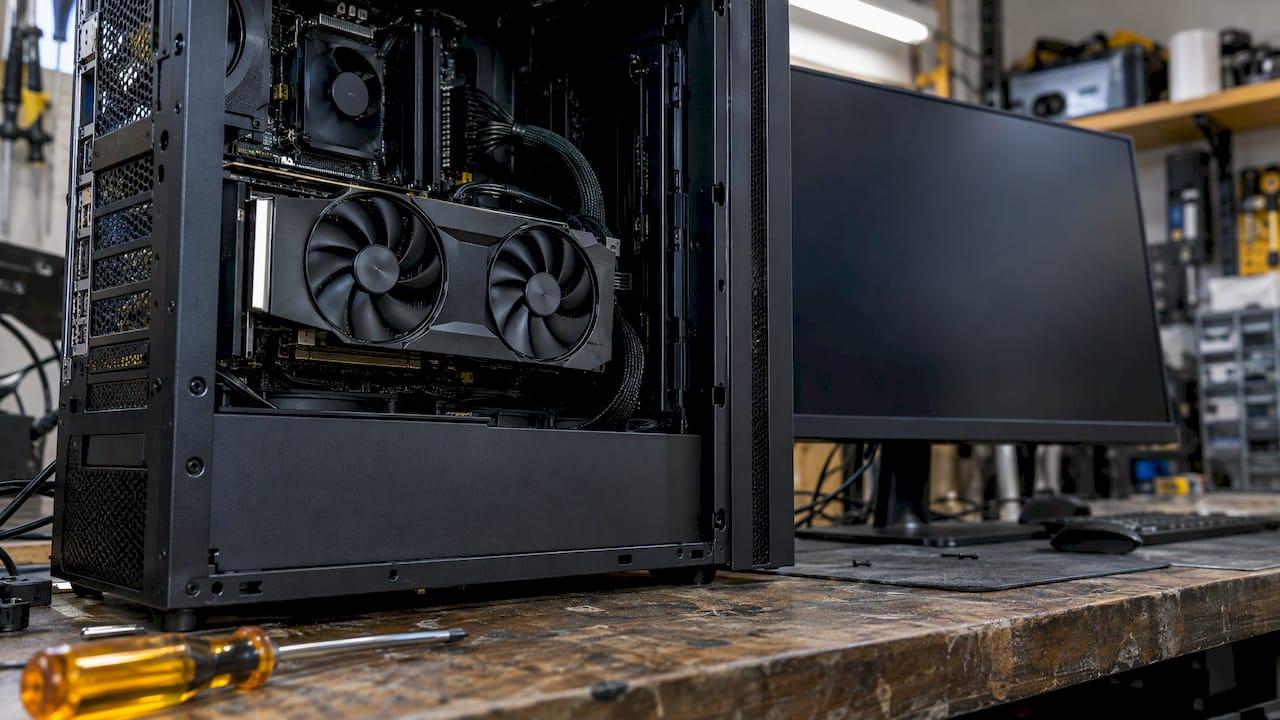
VIDEO_TDR_FAILURE is a blue screen that appears when your graphics driver or GPU stops responding and Windows cannot recover it. Most of the time the fix is a clean graphics driver update. If that does not work, the cause is usually heat, power, an unstable overclock or a failing component. This guide takes the checks in the order that saves you the most time, including what to do when Windows will not boot.
TL;DR
- VIDEO_TDR_FAILURE (stop code 0x116) means Windows tried to reset a frozen graphics driver and the reset failed.
- Start with the cheap, reversible checks: Event Viewer, the faulting file name, then a graphics driver update or rollback.
- If the driver is not the cause, look at temperatures, power delivery, overclocks, memory and cable connections.
- If Windows will not start, use Safe Mode from Advanced startup to get in and make changes.
- Change one thing at a time and note it, so you know what actually fixed the crash.
Table of Contents
- What VIDEOTDRFAILURE actually means
- Common causes
- Step 1: Read the evidence first
- Step 2: Get into Windows if it will not boot
- Step 3: Update, roll back or reinstall the graphics driver
- Step 4: Undo anything that pushes the GPU too hard
- Step 5: Check heat and power
- Step 6: Test memory and system health
- Step 7: Suspect hardware only after the rest
- Last resort: restore Windows
- Where Tempered fits
- FAQ
- Sources
What VIDEO_TDR_FAILURE actually means
Windows has a safety net called Timeout Detection and Recovery (TDR). When a graphics operation takes too long, Windows resets the graphics card so the whole system does not lock up. When that works, you see a flicker and a notice that the display driver stopped responding and recovered, plus an entry in Event Viewer.
The blue screen happens when the safety net fails. Microsoft identifies the stop code as 0x00000116 and says the normal TDR timeout is two seconds. Windows can also issue the same bug check after more than five TDR events within one minute.
The file name on the blue screen tells you where to look:
| File name on the screen | Usually points to |
|---|---|
| nvlddmkm.sys | NVIDIA display driver |
| igdkmnd64.sys | Intel graphics driver |
| atikmpag.sys or amdkmdag.sys | AMD display driver |
Microsoft lists nvlddmkm.sys as an example faulting image name. The file name names the driver that was active, not always the root cause. A driver can time out because of heat, power or hardware faults underneath it.
Common causes
Microsoft says display driver updates may be needed for proper TDR support. It also lists overclocking, incompatible settings, inadequate cooling or power, defective parts and heavy visual or background workload as possible causes.
In practice, these are the suspects, from most to least likely:
- An outdated, corrupted or mismatched graphics driver, often after a Windows update.
- A GPU or CPU overclock, or a factory overclock that is unstable under your workload.
- Overheating from dust, blocked vents or failing fans.
- A power supply that cannot deliver enough under load, or loose power connectors.
- Faulty memory, a failing GPU or a motherboard problem.
- On some Intel systems, an outdated BIOS. Intel documents a VIDEO_TDR_FAILURE startup case with igdkmnd64.sys and lists a BIOS update as a step because the cause may not be the driver.
Step 1: Read the evidence first
Two minutes of looking beats an hour of guessing.
- Write down the file name on the blue screen, if you saw it.
- Open Event Viewer, go to Windows Logs, then System. Microsoft advises looking for errors that may identify the responsible device or driver. Look for Display events and Kernel-Power entries near the crash time.
- Think about what changed before the first crash: a new game, a driver update, a Windows update, new hardware or a new overclock profile.
Reliability Monitor shows crashes on a timeline and makes patterns easier to see. Our guide to reading Reliability Monitor in Windows 11 walks through it.
If you recently added hardware, remove it. Microsoft Support recommends removing newly added hardware and checking Device Manager for devices marked with an exclamation point when stop-code crashes recur.
Step 2: Get into Windows if it will not boot
If the PC crashes before you reach the desktop, use Safe Mode. Safe Mode loads only the minimum required drivers and services, which usually keeps the failing graphics driver out of the picture.
- Force the PC off with the power button after it fails to start two or three times. Windows should then open the recovery screen.
- Choose Troubleshoot, then Advanced options, then Startup Settings, then Restart.
- Press 4, 5 or 6 to pick a Safe Mode option. Option 5 includes networking, which helps if you need to download a driver.
From Safe Mode you can uninstall the graphics driver, roll it back or check Event Viewer.
Step 3: Update, roll back or reinstall the graphics driver
This is the fix that works most often, so do it properly.
Update first
Microsoft Support recommends updating a marked device in Device Manager. For graphics, the better source is the GPU maker's own site, which usually carries a newer driver than Windows Update. Tom's Hardware suggests trying the current display driver first.
Roll back if the crashes began after an update
In Device Manager, expand Display adapters, right-click your GPU, open Properties, then the Driver tab. If Roll Back Driver is available, use it. Tom's Hardware notes that rolling back to a known-good version can be appropriate, particularly for older video devices.
Reinstall cleanly if neither helps
Microsoft Support says that if updating does not help, try disabling or uninstalling the device. Uninstall the display adapter in Device Manager, restart, then install the driver you downloaded from the manufacturer. Windows will load a basic display driver in the meantime, so a low resolution screen is expected.
If you only need to restart a stuck driver without rebooting, see our walkthrough on how to restart the graphics driver.
Step 4: Undo anything that pushes the GPU too hard
Overclocking is on Microsoft's list of causes. Return the GPU, memory and CPU to stock speeds, including any vendor tuning profile or XMP/EXPO memory profile you enabled. If the crashes stop, reintroduce changes one at a time with a lower target.
Also check in-game settings. A heavy workload can trigger a timeout on a marginal system. Lower the frame rate cap, turn off ray tracing or drop texture quality for a test session. If VRAM is maxing out, our VRAM stutter diagnostic gives a repeatable test.
If the desktop itself drives GPU load, DWM.exe GPU spikes are worth ruling out before changing a driver again.
Step 5: Check heat and power
When a driver swap does not resolve the crash, Tom's Hardware recommends checking fans, dust, blocked vents, temperatures and power-supply capacity.
- Watch GPU and CPU temperatures while you play or run a stress load. A steady climb followed by a crash points to cooling.
- Clean dust from fans, heatsinks and filters with compressed air, with the PC powered off and unplugged.
- Reseat the PCIe power cables at both ends and make sure each connector is fully clicked in. Several forum fixes ranking for this error come down to simply reseating cables.
- Check that your power supply wattage meets your graphics card maker's recommendation.
A laptop adds its own wrinkle: vents blocked by soft surfaces cause the same pattern. Use a hard surface and clean the intake.
Step 6: Test memory and system health
Bad RAM can look like a graphics failure. Run Windows Memory Diagnostics, then, after the restart, check Event Viewer's System log for MemoryDiagnostics-Results.
Also check free space on your system drive. Microsoft Support recommends keeping about 10% to 15% free disk space because Windows and apps need room for swap files and other operations. Our Disk Cleanup guide for Windows 11 shows safe ways to reclaim it.
If you suspect Intel graphics or a BIOS-related cause, check your PC or motherboard maker's support page for a BIOS update, and follow its instructions exactly, since an interrupted update can leave a PC unbootable.
Step 7: Suspect hardware only after the rest
If defective parts are possible, Tom's Hardware advises working from the outside in: video cable, display, GPU, then CPU or motherboard. Try a different cable and port, a different monitor, and if you have one, another graphics card or the integrated graphics output. Microsoft also recommends running the hardware maker's diagnostics.

If the PC still crashes with a known-good cable and monitor at stock speeds, the card, PSU or motherboard is the likely culprit, and a repair shop or warranty claim is the next move.
Last resort: restore Windows
If basic troubleshooting fails, Microsoft says Windows 11 can be restored using a system restore point or another option on its Recovery options page. A restore point from before the crashes started is the least disruptive choice. If a recent update seems to be the trigger, our piece on Windows 11 running slow after an update covers what to check.
What we think about TDR crashes
A blue screen is a bad moment to start guessing. The usual advice online is a pile of tweaks applied at once: registry edits, permission changes, power plan swaps. When the crash stops, nobody knows which change did it, and nobody can cleanly reverse the ones that did nothing.
We build Tempered around the opposite habit. Look at measured data first: GPU, CPU, RAM, disk and uptime. Propose one specific change with a plain explanation and an expected outcome. Apply it only with approval, and keep a one-click undo for it. We do not clean the registry or invent problems, and every change is logged.
That discipline matters most for a crash like this one, where the cause may be a driver, heat, power or hardware. Changing one thing at a time, and knowing exactly what you changed, is how you find the real cause.
Ian
Where Tempered fits
Tempered can't repair a failing graphics card or a weak power supply. What it does is help you rule out the software side without risky guesswork. It reads live CPU, RAM, GPU, disk and uptime metrics, explains in plain language what is limiting your PC, manages background processes, turns on Game Mode and tracks each change with a one-click undo. It is built for Windows 10 and 11 and does not need an AI API key.
The Free plan includes limited AI scans. Torque starts at $5.99 per month and Torque Max at $12.99 per month, and you can compare them on the Tempered pricing page.
If you want a measured starting point after the crash is fixed, try Tempered and see what your PC is actually constrained by. Our Windows 11 startup guide is a good companion read.
FAQ
Is VIDEO_TDR_FAILURE caused by a bad GPU?
Sometimes, but a driver problem is more common. Microsoft lists defective parts alongside drivers, overclocking, heat and power as possible causes. Rule out the driver, stock clocks, cooling and cables before you replace a card.
What does nvlddmkm.sys mean in this error?
It is the file name of an NVIDIA display driver component, and Microsoft shows it as an example of a faulting image. It tells you which driver was running when the timeout failed. Start with a clean driver install, then check heat and power.
Can I fix it if Windows keeps crashing at startup?
Yes, in most cases. Reach the recovery screen by interrupting startup a few times, then boot into Safe Mode with option 4, 5 or 6. From there, remove or roll back the graphics driver and review Event Viewer.
Does Fast Startup matter here?
It can, because a shutdown that is not a full restart can carry a faulty driver state into the next session. Do a full restart from the Start menu when testing. Our guide to Fast Startup in Windows 11 explains how to check its effect first.
Sources
- Bug Check 0x116 VIDEO_TDR_FAILURE, Microsoft Learn
- WDDM Support for Timeout Detection and Recovery, Microsoft Learn
- Troubleshooting Windows unexpected restarts and stop code errors, Microsoft Support
- Blue Screen Error: VIDEO TDR FAILURE with Intel Graphics, Intel Support
- How to Fix VIDEO_TDR_FAILURE BSODs, Tom's Hardware