To cut input lag most reliably, fix your display path first (max refresh rate plus VRR), enable GPU low-latency features like NVIDIA Reflex or AMD Anti-Lag, and stop render-queue buildup with a proper FPS cap. Do those three things and most players see a real, felt drop in delay within minutes. Layer in Windows tweaks like HAGS afterward, or let a tool like Tempered flag which of these actually apply to your rig.
TL;DR:
- Setting your monitor to its full refresh rate, enabling G-Sync or FreeSync, and turning on monitor's low-latency modes can significantly reduce display-related input lag.
- Limiting your frame rate a few frames below your monitor's maximum prevents render queues from forming, decreasing system latency in GPU-bound scenarios.
- Disabling V-Sync and enabling GPU low-latency features like NVIDIA Reflex or AMD Anti-Lag can cut latency within minutes, especially when combined with a proper FPS cap.
- Using a 240Hz or higher monitor reduces display wait time to around 4 milliseconds, vastly improving responsiveness over 60Hz screens.
- Optimizing Windows settings such as hardware-accelerated GPU scheduling and high-performance power plans can shave additional milliseconds off input delay.
Table of Contents
- How Do I Fix Input Lag Right Now?
- Why Your Monitor Might Be the Real Problem
- Does a Higher FPS Cap Always Mean Less Lag?
- Is Your Mouse or Keyboard Actually the Problem?
- What Windows Settings Actually Reduce Input Lag?
- How Do You Know a Tweak Actually Worked?
- Why Trust This Diagnostic Order
- What Should You Prioritize Based on How You Play?
- Get Guided Diagnostics Instead of Guessing
- Sources
- FAQ
How Do I Fix Input Lag Right Now?
Work through this in order. Each tier builds on the last, and testing between changes tells you what's actually helping versus what just feels different.
Tier 1: Do this in the next five minutes.
- Turn off traditional V-Sync in both the game and your GPU control panel.
- Turn on NVIDIA Reflex or AMD Anti-Lag in any game that supports it.
- Set your monitor to its full rated refresh rate and switch on its Game Mode or low-latency picture setting.
- Enable Hardware-accelerated GPU Scheduling (HAGS) in Windows graphics settings.
- Consider disabling Virtualization-Based Security (VBS) on a personal gaming PC, as it can add input lag, but keep it enabled on work or enterprise machines for security.
Tier 2: Do this over the next week.
- Set your mouse to 1000Hz polling and confirm raw input is on in-game.
- Plug your mouse or wireless receiver into a rear motherboard USB port.
- Cap your frame rate a few frames below your monitor's max refresh.
- Disable fullscreen optimizations for competitive titles.
- Close background apps eating CPU cycles (browsers with dozens of tabs are the usual culprit).
Combined, VRR plus Reflex plus a sane FPS cap can push a well-tuned competitive setup into single-digit millisecond system latency in supported titles. Change one thing, play a few rounds, then move to the next. Stacking five tweaks at once tells you nothing about which one worked.
Why Your Monitor Might Be the Real Problem
Most people chase mouse settings and driver tweaks while ignoring the biggest lever in the whole chain: the display itself. A 60Hz monitor holds each frame on screen for about 16.67 milliseconds before it can show the next one. Bump that to 240Hz and the wait drops to roughly 4.17 milliseconds, a 12.5ms cut from refresh rate alone, before you've touched a single software setting.
Getting the refresh right takes more than buying a fast panel:
- Set Windows and your GPU control panel to match the monitor's advertised refresh rate exactly.
- Turn on the monitor's Game Mode or "fast" response setting in its on-screen display and disable motion smoothing or interpolation, since those add processing frames.
- Use DisplayPort over HDMI where both are available. It handles higher refresh and adaptive sync more reliably on PC monitors.
- Turn on Variable Refresh Rate (G-Sync or FreeSync explained) instead of classic V-Sync.
That last point matters more than most guides admit. Traditional V-Sync forces the GPU to queue up finished frames rather than showing them immediately, and that queuing can add one to three frames of latency. Adaptive sync eliminates screen tearing without that queuing penalty, which is why it's the better option in nearly every case. If you're unsure when to flip VRR on inside Windows, this walkthrough covers the specific settings that matter.
Does a Higher FPS Cap Always Mean Less Lag?
Not automatically. This is the part that trips up a lot of players who assume "more frames" is always the answer. When your GPU renders frames faster than your monitor or your game engine can display them, those extra frames pile up in a render queue. Each queued frame is a full frame of latency sitting between your mouse click and what shows up on screen, even though your FPS counter looks great.
Two features exist specifically to fix this:
- NVIDIA Reflex and AMD Anti-Lag work by aligning CPU and GPU workloads so the GPU never gets too far ahead, cutting render-queue latency without dropping visual quality.
- A proper FPS cap does a similar job manually: set your frame rate limit a few frames below your monitor's max refresh (240Hz monitor, cap around 237 FPS) and you prevent the queue from forming in the first place while keeping GPU usage high.
If your GPU driver offers a low-latency mode with an "On" and "Boost" or "Ultra" tier, start with the standard "On" setting. Boost forces the GPU clock higher to shrink queue time further, which helps in CPU-bound games but adds power draw for a marginal return in GPU-bound ones.
Pro Tip: After enabling Reflex or Anti-Lag, play the same map or test scene you used before the change. If the game doesn't feel noticeably snappier within the first few minutes, double check the setting actually applied. Some games reset GPU-level overrides after driver updates.
Is Your Mouse or Keyboard Actually the Problem?
Peripherals get blamed for lag constantly, and most of the time the real cause is one of four things: wireless interference or a low battery, a CPU too busy to process input fast, a polling rate set too low, or a mouse surface the sensor can't read cleanly. Rule these out before you assume your $150 mouse is broken.
- Set polling rate to 1000Hz as a baseline. It's the floor for competitive play; going higher only helps if your CPU has headroom to spare.
- Turn on raw input inside your game's settings and disable "Enhance pointer precision" in Windows mouse settings, since that setting adds acceleration curves that fight consistent aim.
- Plug your mouse or its wireless receiver directly into a rear motherboard USB port rather than a front-panel hub or a keyboard passthrough port.
- If your receiver includes a USB extension dongle, use it. Getting the antenna closer to your hand cuts dropped packets that read as stutter.
- To isolate the problem, test the same peripheral on another PC. If the lag follows the device, it's the device; if it doesn't, look at your system.
Wireless interference and low polling rates cause the vast majority of reported "mouse lag," and nearly all of it is fixable in under ten minutes.
What Windows Settings Actually Reduce Input Lag?
Windows itself adds latency you can claw back without touching a single game setting. Hardware-accelerated GPU Scheduling lets the GPU manage its own memory scheduling instead of relying on the Windows kernel, and it typically shaves off a few milliseconds while smoothing frame times.
Virtualization-Based Security and Memory Integrity are the bigger catch. They're valuable on a work laptop but on a dedicated gaming PC, disabling them commonly recovers 5 to 15 milliseconds of system latency. That's a real security tradeoff, not a free lunch. Skip this one on any machine handling sensitive work or financial data.
- Set your power plan to High Performance or Ultimate Performance so the CPU doesn't downclock mid match.
- Disable USB selective suspend for your mouse and keyboard so they don't sleep between inputs.
- Trim startup programs that quietly eat CPU cycles you need during gameplay.
Pro Tip: Change VBS, HAGS, and your power plan one at a time, not all in one sitting. If something breaks or a game crashes, you want to know exactly which toggle caused it. A tool that logs each change with a one-click undo can make this kind of testing far less risky.
How Do You Know a Tweak Actually Worked?
Feel is unreliable. Test properly instead.
- Change exactly one setting, then play the same map, scene, or aim trainer routine for a few minutes before judging anything.
- Pull up an in-game FPS counter or frame timing overlay, and where the game supports it, check Reflex's built-in latency readout for a direct before-and-after number.
- Compare against the ranges in this guide: expect a noticeable feel change from Tier 1 fixes, smaller incremental gains from Tier 2, and confirmation that a well-tuned setup with VRR, Reflex, and a proper cap can land in the single-digit millisecond range in supported titles.
If a change makes no felt or measured difference after two or three test sessions, revert it and move to the next item on the list.
Why Trust This Diagnostic Order
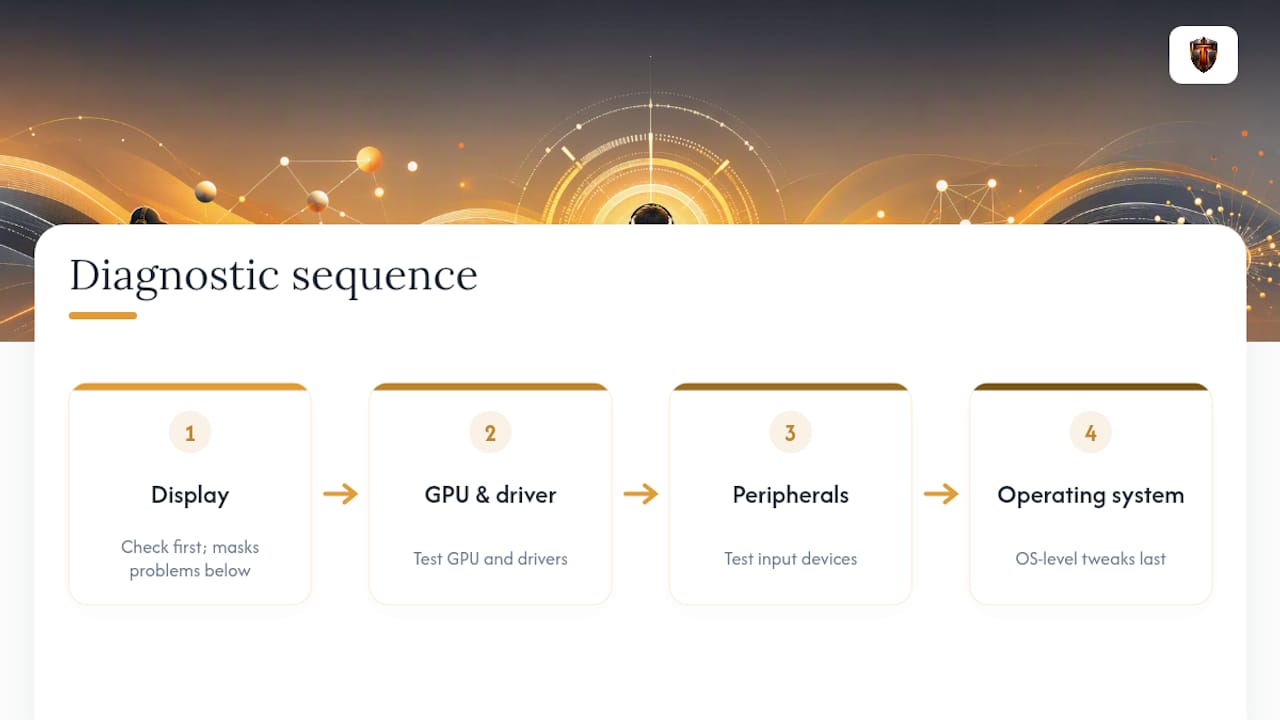
This order (display, then GPU and driver, then peripherals, then OS-level tweaks) follows the same diagnostic sequence most experienced tuners use, because each layer can mask problems in the one below it. Tempered was built around that same logic: it identifies real, measurable constraints on your specific PC and proposes clear, undoable changes instead of blind automatic tweaks. For deeper reading on specific pieces, Tempered's own guides cover fullscreen versus windowed mode and how to spot a CPU or GPU bottleneck. None of this is magic. Every tweak here has a tradeoff, and testing one change at a time is still the only honest way to know what worked.
What Should You Prioritize Based on How You Play?
If you're playing competitively, prioritize display refresh, Reflex or Anti-Lag, a tight FPS cap, and mouse polling rate, in that order. Casual players get more mileage from stable FPS and comfortable settings than from chasing every millisecond. Manual tuning works fine if you enjoy it; a diagnostic tool earns its keep once you'd rather just know what's actually wrong.
— Ian
Get Guided Diagnostics Instead of Guessing
Working through display settings, driver panels, and Windows toggles one at a time works, but it takes patience most people don't have on a Friday night. A diagnostic tool that analyzes your specific hardware and live system metrics can indicate which fixes actually matter on your machine, instead of handing you a generic checklist that half applies.

It's not a black box. Good diagnostic tools provide explanations for suggested changes and include features like one-click undo to ensure safe rollback; users retain control over what changes to approve. If you'd rather see your own bottlenecks laid out than hunt through five different settings menus, check your PC's diagnostics with Tempered and see what's actually costing you milliseconds.
Sources
- How to Fix Input Lag
- How To Reduce Lag - A Guide To Better System Latency
- How to Fix Mouse Lag and Stutter in Games | Geared Gaming
- How to Reduce Input Lag in PC Gaming 2026 — Mouse, Monitor, System | Build PC Guide
FAQ
How Can I Fix Input Lag?
Start with your display: max refresh rate, Game Mode on, and adaptive sync enabled instead of V-Sync. Then turn on Reflex or Anti-Lag, cap your FPS a few frames under your monitor's refresh, and check your mouse polling rate and USB connection.
Does 240Hz Reduce Input Lag?
Yes. A 240Hz monitor displays frames roughly every 4.17 milliseconds compared to about 16.67 milliseconds at 60Hz, cutting the display-side wait by 12.5 milliseconds before any other setting comes into play.
Is 100ms Input Delay Bad?
For competitive gaming, yes. Well-tuned setups pairing high refresh rates with Reflex or Anti-Lag can reach single-digit millisecond system latency, so latency far above what a properly configured PC should produce.
Why Does My PC Have So Much Input Lag?
The most common causes stack together: V-Sync forcing frame queuing, a monitor not set to its full refresh rate, a low mouse polling rate, wireless interference, or background processes competing for CPU time. Running a scan with a tool like Tempered can pinpoint which of these is actually the bottleneck on your system.
What's the Difference Between HAGS and VBS for Gaming?
HAGS (Hardware-accelerated GPU Scheduling) lets your GPU manage its own memory scheduling and typically shaves a few milliseconds off latency with no real downside. VBS (Virtualization-Based Security) protects against certain exploits but can add 5 to 15 milliseconds of lag, so it's worth disabling on a personal gaming PC, not a work device.