Enable variable refresh rate for fullscreen gaming and anything with fast, unpredictable motion. Leave it off, or toggle it temporarily, if you notice stutter on the desktop or in windowed apps.
VRR syncs your monitor's refresh rate to whatever frame rate your GPU is actually producing, which kills screen tearing without the input lag penalty of V-Sync. The tradeoff is close to nothing when it works right: VRR typically adds very little latency compared to traditional V-Sync, which adds significantly more delay. The catch is that Windows applies this system-wide by default, and a handful of desktop apps and browsers don't handle rapid refresh-rate switching gracefully.
If you just want the fast path:
- Go to Settings > System > Display > Graphics > Advanced graphics settings
- Flip the Variable refresh rate toggle on
- If your cursor starts hitching outside games, turn it off and test again
Key Takeaways
Variable refresh rate eliminates screen tearing with minimal latency cost, but it works best when limited to fullscreen games rather than left running unchecked across every desktop app.
| Point | Details |
|---|---|
| Enable for gaming, not everywhere | Turn on VRR for fullscreen games and motion-heavy work; watch for desktop cursor stutter. |
| VRR beats V-Sync on latency | VRR adds roughly 1ms of delay versus V-Sync's 15 to 30ms while still killing tearing. |
| DRR is a separate feature | Dynamic Refresh Rate needs 120Hz and VRR support, and it saves power, not tearing. |
| Vendor settings come first | Configure G-SYNC or FreeSync in the GPU control panel before relying on the Windows toggle. |
| Rule out background interference | Check power mode and background processes before assuming a stutter is a VRR bug. |
Table of Contents
- What Variable Refresh Rate Windows Support Actually Does
- When You Should Flip the Toggle On (and When You Shouldn't)
- How to Enable Variable Refresh Rate in Windows 11 and Windows 10
- How G-SYNC, FreeSync, and Windows VRR Work Together
- Fixing Common VRR Problems: Stutter, Flicker, and Missing Toggles
- Monitor and Cable Compatibility Checklist
- Confirming VRR Is Actually Working
- The Tempered Take on Frame-Pacing Stability
- What Most VRR Advice Gets Wrong
- Sources
What Variable Refresh Rate Windows Support Actually Does
Variable refresh rate lets your monitor's refresh cycle track your GPU's frame output in real time, instead of locking to a fixed rate like 60Hz or 144Hz. When the GPU renders 87 frames in a second, the display refreshes 87 times to match. No tearing, no forced frame pacing.
That's fundamentally different from V-Sync, which holds frames in a buffer until the monitor's fixed refresh cycle is ready for them. V-Sync eliminates tearing too, but it does it by making the GPU wait, and that wait is where the extra 15 to 30ms of latency comes from. VRR skips the queue entirely.
Dynamic Refresh Rate, or DRR, is a separate Windows 11 feature that gets confused with VRR constantly. DRR automatically switches your display between a base rate and a boosted rate, say 60Hz jumping to 120Hz, to save battery power while still allowing snappier response when you need it. According to Microsoft's own documentation, DRR requires a VRR-capable display and generally needs a high refresh rate minimum to function.
The two features work at different levels, too. VRR in Windows lives in the OS layer through WDDM (Windows Display Driver Model) and DirectX, while your GPU vendor runs its own separate implementation underneath.
- VRR = matches refresh to frame rate, reduces tearing
- V-Sync = matches frame rate to refresh, adds latency
- DRR = switches between two fixed rates for power savings
When You Should Flip the Toggle On (and When You Shouldn't)
Context decides this more than personal preference does. Here's how to think through it:
- Fullscreen exclusive games are the clearest case. VRR was built for this, and the latency savings are most noticeable in fast-paced shooters or racing titles where frame rate swings constantly.
- Motion-heavy creative work, like scrubbing through 4K video timelines or panning large design canvases, benefits from the same tear-free smoothness.
- Windowed games and productivity apps are where things get shaky. If your cursor starts stuttering while you're browsing or typing in a document, VRR's refresh-rate switching is often the culprit.
If you only want VRR active during games, check your GPU vendor's control panel for per-application VRR rules rather than relying on the global Windows switch alone.
Pro Tip: Keep VRR enabled globally first and only disable it if you actually notice a problem. Most people never see desktop hitching, and preemptively turning it off just means missing the benefit in games that would use it.
How to Enable Variable Refresh Rate in Windows 11 and Windows 10
The setting lives in the same place on both Windows 11 and current Windows 10 builds, assuming your GPU driver supports it.
- Open Settings and go to System
- Click Display, then scroll down to Graphics
- Select Advanced graphics settings
- Find the Variable refresh rate toggle and switch it on
- Restart any open game or app to apply the change
Before you do any of this, confirm your display actually supports VRR. In the same Display settings menu, click Advanced display to check the refresh rate options listed for your monitor. If you only see a single fixed refresh rate with no range, your monitor likely doesn't support adaptive sync, and no software toggle will fix that.
If the VRR toggle is missing entirely from Advanced graphics settings, work through this checklist:
- Update your GPU drivers. Outdated drivers are the most common reason the option disappears. Our guide on updating GPU drivers walks through doing this safely.
- Enable VRR in your GPU's own control panel first. NVIDIA and AMD both gate the Windows-level toggle behind their own settings being active.
- Check your WDDM driver version. Older WDDM revisions don't expose the OS-level VRR API at all, according to Microsoft's adaptive refresh documentation.
- Try a different cable or port. VRR signaling requires DisplayPort or a properly rated HDMI cable; older or passive cables silently drop the feature.
- Advanced users can attempt a registry-based workaround when Settings won't expose the toggle, though this carries more risk and isn't necessary for most setups.
How G-SYNC, FreeSync, and Windows VRR Work Together
The Windows toggle doesn't replace NVIDIA G-SYNC or AMD FreeSync. It exists alongside them. Microsoft's DirectX developer blog explains that OS-level VRR was built as a compatibility layer, mainly to extend adaptive sync to older DirectX 11 fullscreen titles that wouldn't otherwise trigger vendor-level VRR at all.
In practice, that means your GPU vendor's control panel should be your primary configuration point, not Windows Settings. Set VRR up there first, then treat the Windows toggle as a fallback for the occasional game that doesn't play nice with vendor-level activation.
A quick vendor-side checklist:
- Confirm G-SYNC or FreeSync is enabled in the NVIDIA Control Panel or AMD Software respectively
- Look for the on-screen display indicator most monitors show when adaptive sync is actively engaged
- For titles with erratic frame pacing, try forcing exclusive fullscreen mode instead of borderless windowed
- Keep VESA Adaptive-Sync enabled at the monitor level too, since some displays require it toggled on independently in the OSD menu
Fixing Common VRR Problems: Stutter, Flicker, and Missing Toggles
Most VRR complaints fall into a small number of buckets, and you can triage them fast if you work through them in order.
- Reproduce it deliberately. Note exactly when the stutter or flicker happens: desktop only, one specific game, or everywhere.
- Toggle VRR off and retest. If the problem disappears, you've confirmed VRR's refresh-switching behavior is the trigger, not something else entirely.
- Force exclusive fullscreen in the affected game. Borderless windowed mode interacts poorly with VRR far more often than true fullscreen does.
- Try a different cable and port. A marginal DisplayPort cable can cause exactly the kind of flicker people mistake for a software bug.
On the driver side, update your GPU driver fully, and if problems persist, do a clean reinstall rather than an update over the existing one. Confirmation your WDDM version supports the VRR features you're trying to use is worth checking too, especially on older laptops that haven't seen a driver refresh in a while.
For desktop-specific hitching, disable hardware acceleration in your browser as a test, since Chrome and Edge both interact with refresh-rate switching in ways that can cause visible cursor stutter. Community troubleshooting consistently points to this as one of the fastest ways to isolate whether the issue is VRR itself or an app fighting with it. Also worth checking: your current power mode and whatever's running in the background, since both affect how consistently your GPU can hit the frame rates VRR depends on.
Pro Tip: If none of this resolves it, gather your GPU driver version, monitor model, and a short screen recording of the issue before contacting vendor support. That single package of information cuts most support tickets from a week down to a day.
Monitor and Cable Compatibility Checklist
Before you spend an evening troubleshooting, confirm the hardware side actually supports what you're asking of it.
- Your monitor needs explicit VRR or Adaptive-Sync support listed in its spec sheet, along with a defined refresh range (like 48 to 144Hz)
- If you want DRR specifically, your display needs to hit 120Hz minimum on top of VRR support
- Use DisplayPort where possible, or an HDMI cable explicitly rated for high refresh rates. Skip passive adapters for anything above 60Hz
- Confirm your GPU and its driver meet the WDDM level required, and check your monitor's OSD menu to make sure Adaptive Sync is enabled at the hardware level, not just assumed
Confirming VRR Is Actually Working
Don't take the toggle's word for it. A few ways to check that VRR is genuinely doing something:
- Check your GPU vendor's on-screen overlay, which usually shows a live indicator when VRR or G-SYNC/FreeSync is actively engaged
- Load a game with variable, unstable frame rates and watch for tearing during camera pans. If it's gone with VRR on and reappears with it off, that's your confirmation
- Use a frame-timing tool like PresentMon or RTSS to watch for consistent pacing versus spikes, which reveals driver-level hitching that visual checks alone can miss
- Simply toggle VRR on and off during the same in-game scene and compare. The difference is usually obvious within seconds
The Tempered Take on Frame-Pacing Stability
VRR fixes tearing, but it can't fix a system that's fighting itself in the background. A frame-pacing hiccup that looks like a VRR bug is often a background process eating GPU cycles, or a power mode quietly throttling your card mid-session.
That's the part most people skip. Before chasing driver reinstalls, it's worth identifying what's actually competing for resources while you game. Tempered scans for exactly this: background tasks, power-mode conflicts, and startup bloat that interferes with consistent frame delivery, then proposes specific changes with a plain-language explanation and a one-click undo if something doesn't help.
Practical first steps before you touch a single registry key:
- Update GPU drivers and confirm they installed cleanly
- Toggle VRR per-app rather than globally if only one program misbehaves
- Check your active power mode, since Balanced or Power Saver profiles throttle GPU boost clocks
- Audit what's running at startup and in the background using Windows Game Mode alongside a resource check
Pro Tip: Run a background-process check right after a fresh boot, then again mid-session. If GPU usage from unrelated apps climbs the longer you play, that's your frame-pacing culprit, not VRR.
What Most VRR Advice Gets Wrong
Most guides treat VRR as a simple on switch: flip it, forget it, enjoy smoother frames. That advice holds up fine for gaming rigs with a single dedicated GPU and a single monitor. It falls apart the moment someone's running a laptop with hybrid graphics, three background apps, and a browser that hasn't been restarted in a week.
The conventional wisdom undersells how much frame-pacing problems come from resource conflicts that have nothing to do with the VRR toggle itself. People blame the feature when the real issue is a power profile silently capping GPU boost clocks, or a browser tab hogging hardware acceleration cycles it doesn't need.
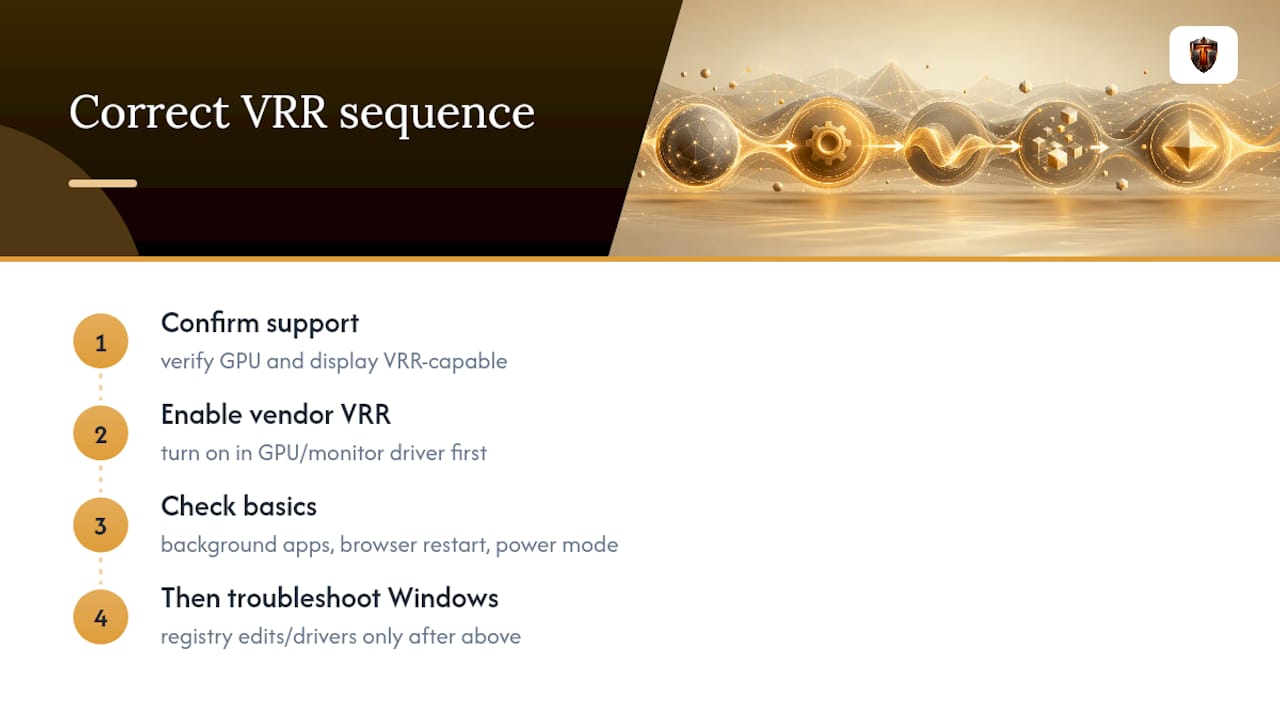
If there's one thing worth prioritizing here, it's sequencing. Confirm your hardware actually supports VRR, enable it at the vendor level first, and only then troubleshoot Windows-specific quirks. Skipping straight to registry edits or driver reinstalls before ruling out the boring stuff, background load and power mode, wastes more time than the actual fix usually takes.
— Ian