
Hardware accelerated GPU scheduling (HAGS) is defined as a Windows feature that transfers GPU task scheduling from the CPU to a dedicated processor built into the GPU itself. Before HAGS, your CPU managed every scheduling decision for the GPU, creating a bottleneck that added latency and wasted CPU cycles. With HAGS active, the GPU handles its own workload queue, freeing the CPU for other tasks and delivering more consistent frame timing. The feature requires Windows 10 version 2004 or later (including Windows 11) and WDDM 2.7 or newer drivers. For PC gamers chasing lower input latency and smoother frame delivery, understanding HAGS is no longer optional.
How does hardware accelerated GPU scheduling work?
HAGS offloads high-frequency scheduling tasks from the CPU to the GPU's own dedicated hardware scheduler. In the traditional model, the CPU acts as a middleman: it receives rendering commands, schedules them, and hands them to the GPU. That round-trip adds latency at every frame.
With HAGS, the GPU's dedicated scheduling processor takes over that job directly. The GPU receives the command queue and decides the execution order itself, without waiting on the CPU. The result is tighter frame pacing and lower input latency, which matters most in fast-paced games where every millisecond counts.

The benefit is most visible in CPU-bound scenarios. If your CPU is already running hot managing game logic, physics, and AI, the added burden of GPU scheduling pushes it further. HAGS removes that burden. Systems with older or mid-range CPUs paired with modern GPUs see the clearest gains.
The technical term for this feature in Microsoft's documentation is Hardware Accelerated GPU Scheduling, often abbreviated as HAGS. Both terms refer to the same Windows Display Driver Model (WDDM) feature introduced with WDDM 2.7.
- Reduced input latency: The GPU processes its own queue without CPU round-trips.
- Better frame pacing: Scheduling decisions happen closer to the hardware, reducing frame time variance.
- Lower CPU overhead: CPU cycles previously spent on GPU scheduling become available for game logic.
- CPU bottleneck relief: Systems where the CPU is the limiting factor benefit most from this shift.
Pro Tip: If you play competitive shooters like Valorant or CS2 at high refresh rates, HAGS is worth enabling. The latency reduction is most noticeable above 144Hz where frame timing inconsistencies become perceptible.
What are the hardware and software requirements for HAGS?
HAGS has specific eligibility requirements, and your system must meet all of them before the toggle appears in Windows Settings. Missing even one condition causes the option to stay hidden or grayed out.
The hardware requirements are straightforward. Supported GPUs include NVIDIA GeForce GTX 1000 series or newer, AMD Radeon RX 5600/5700 series or newer, and Intel integrated GPUs from the Haswell generation onward. On the software side, you need Windows 10 version 2004 or later, or Windows 11, plus WDDM 2.7 or newer GPU drivers installed.
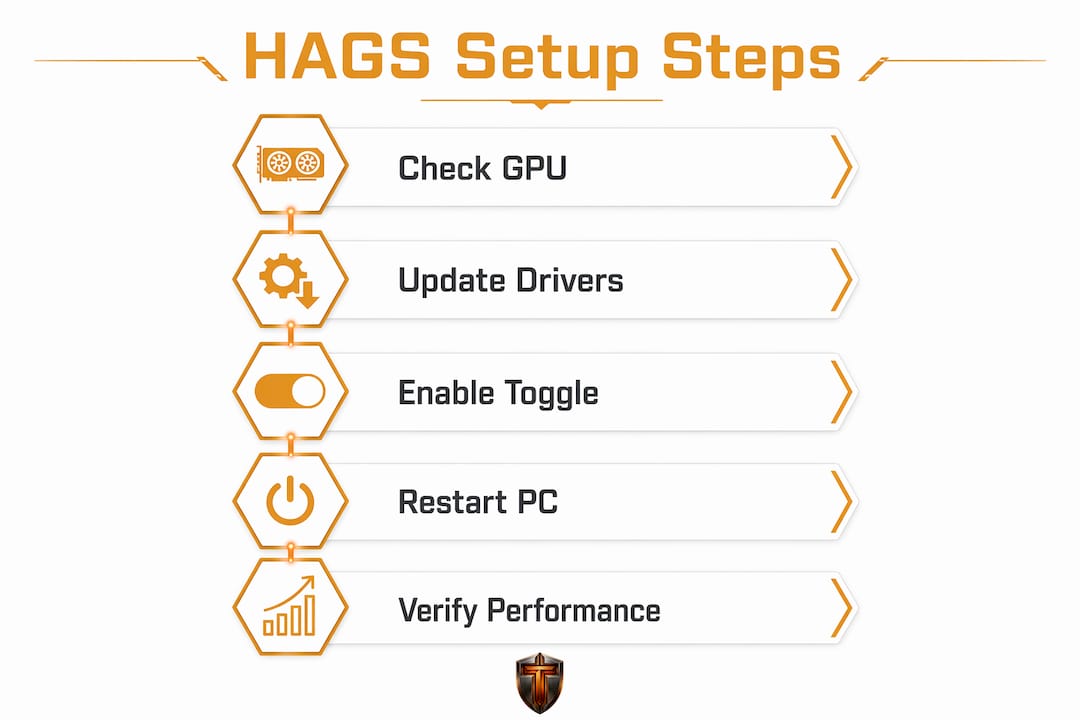
Driver version is the most commonly overlooked requirement. Many gamers run GPUs that support HAGS but have not updated their drivers in months. Outdated drivers block the feature entirely. Keeping your drivers current through NVIDIA's official site or AMD's Radeon Software is the first step before troubleshooting anything else. A guide on updating GPU drivers covers the full process if you need a walkthrough.
The HAGS toggle also disappears when the GPU is not actively rendering the Windows display output. Common causes include:
- Monitor connected to the motherboard instead of the GPU's output ports.
- Remote desktop sessions, where the GPU is not driving the display directly.
- Virtualization environments such as Hyper-V, which intercept GPU rendering.
- Outdated or incompatible drivers that do not expose the WDDM 2.7 scheduling interface.
If your toggle is grayed out, check your monitor cable first. Plug it directly into your GPU's HDMI or DisplayPort output, not the motherboard's port. Then update your drivers and recheck.
How to enable or disable GPU scheduling on Windows 10 and 11
Enabling HAGS takes under two minutes. The path is the same on Windows 10 version 2004 and all Windows 11 releases.
- Open Settings (Win + I).
- Go to System, then select Display.
- Scroll down and click Graphics.
- Click Change default graphics settings.
- Toggle Hardware-accelerated GPU Scheduling to On.
- Click Confirm if prompted.
- Restart your PC fully. Do not log out or use sleep mode.
The restart step is non-negotiable. A full system reboot is required because Windows needs to reinitialize the GPU driver stack under the new scheduling mode. A simple sign-out or sleep cycle does not apply the change. After rebooting, return to the same settings path to confirm the toggle shows "On."
To disable hardware accelerated GPU scheduling, follow the same steps and toggle it off, then reboot again. The process is fully reversible with no risk to your system.
Pro Tip: Advanced users can also toggle HAGS via the Windows Registry at HKEY_LOCAL_MACHINE\SYSTEM\CurrentControlSet\Control\GraphicsDrivers. Set the HwSchMode value to 2 to enable or 1 to disable. Always back up the registry before editing it.
After rebooting, you can verify HAGS is active by opening Task Manager, going to the Performance tab, and selecting your GPU. Windows 11 displays the scheduling mode directly in that panel.
What performance impacts can you expect from HAGS?
The raw FPS impact typically ranges between -2% and +3%, which means HAGS is not a dramatic frame rate booster. What it does improve is frame delivery consistency, which translates to a smoother feel even when average FPS stays the same.
The gains are most noticeable in specific scenarios. VR gaming benefits significantly because headsets demand extremely consistent frame timing to prevent motion sickness. High-refresh-rate gaming at 165Hz or above also shows clearer improvements, since frame pacing irregularities become more visible at those speeds. CPU-bound systems, where the processor is the performance ceiling, see the most meaningful FPS gains from HAGS removing scheduling overhead.
As of may 2026, HAGS is mandatory for NVIDIA RTX 40 and 50 series GPUs to use DLSS Frame Generation. That single fact makes HAGS non-optional for anyone running a modern NVIDIA card who wants access to AI-driven frame interpolation.
Not every system benefits equally. Users with 8GB or less VRAM may experience micro-stuttering because HAGS shifts GPU memory management in ways that stress limited VRAM budgets. Monitoring VRAM usage with a tool like GPU-Z helps identify whether this is affecting your system.
Professional software workloads such as video editing and 3D rendering can see performance regressions with HAGS active. The memory queue management changes that help gaming can interfere with how rendering applications handle GPU resources. Content creators who also game should test both states and decide based on their primary workload.
The right approach is to benchmark your own system with HAGS on and off. Driver and game compatibility vary enough that general recommendations only go so far. Run your most-played titles with a frame time capture tool and compare the results directly.
| Scenario | Expected HAGS impact |
|---|---|
| CPU-bound gaming | Positive: reduced CPU overhead, better FPS |
| High-refresh-rate gaming (165Hz+) | Positive: improved frame pacing |
| VR gaming | Positive: more consistent frame timing |
| Limited VRAM (8GB or less) | Negative: potential micro-stuttering |
| Professional rendering/video editing | Negative: possible performance regression |
| GPU-bound gaming with fast CPU | Neutral: minimal measurable change |
Key Takeaways
Hardware accelerated GPU scheduling delivers the clearest benefits in CPU-bound gaming and high-refresh-rate scenarios, while systems with limited VRAM or professional rendering workloads should test carefully before committing.
| Point | Details |
|---|---|
| HAGS definition | Transfers GPU task scheduling from the CPU to the GPU's own dedicated processor. |
| System requirements | Needs Windows 10 version 2004 or later, WDDM 2.7 drivers, and a supported GPU. |
| FPS impact range | Raw FPS change is typically -2% to +3%, but frame pacing consistency improves. |
| DLSS Frame Generation | HAGS is mandatory for NVIDIA RTX 40 and 50 series to use DLSS Frame Generation. |
| Reboot required | A full system restart is required after toggling HAGS; log-out or sleep does not apply changes. |
My honest read on HAGS after years of testing
HAGS is one of those features that sounds transformative on paper but plays out more subtly in practice. I have tested it across a wide range of systems, from budget builds with older CPUs to high-end rigs with RTX 4090s, and the results are genuinely hardware-dependent.
The clearest wins come from CPU-bound setups. If your CPU is the bottleneck, HAGS gives it breathing room, and you feel it in frame consistency rather than raw FPS numbers. That distinction matters. A smoother 120 FPS feels better than a spiky 130 FPS.
Where I see gamers go wrong is treating HAGS as a guaranteed upgrade. If you have 8GB of VRAM and play modern titles that push memory limits, enabling HAGS can introduce stutters that were not there before. The fix is simple: disable it and move on. No permanent damage, no drama.
The one area where HAGS is now truly non-negotiable is DLSS Frame Generation on RTX 40 and 50 series cards. If you bought a modern NVIDIA GPU and want that feature, HAGS must be on. Full stop. Pairing HAGS with a Windows 11 debloat routine also compounds the CPU overhead reduction, since fewer background processes compete for the cycles HAGS is already freeing up.
My recommendation: enable it, run your usual games for a session, and monitor frame times. If things feel better or the same, keep it on. If you notice stutters, disable it and check your VRAM usage first before blaming the feature.
— Ian
How Tempered can take GPU scheduling further
Getting HAGS enabled is one step. Keeping your drivers current, managing background processes, and monitoring GPU temperatures are what actually sustain the performance gains over time.

Tempered's AI PC optimizer handles the ongoing work automatically. It monitors your GPU and CPU metrics in real time, flags driver updates before they become compatibility problems, and identifies background processes that eat into the CPU headroom HAGS is designed to free up. The Undo Center means every change is reversible, so you can experiment with settings like HAGS without worrying about breaking anything. For gamers who want the performance without the manual upkeep, Tempered removes the friction from PC tuning entirely.
FAQ
What is hardware accelerated GPU scheduling?
Hardware accelerated GPU scheduling is a Windows feature that moves GPU task scheduling from the CPU to a dedicated processor on the GPU itself. This reduces CPU overhead and input latency, particularly in graphics-intensive workloads.
How do I enable HAGS on Windows 11?
Go to Settings > System > Display > Graphics > Change default graphics settings, then toggle Hardware-accelerated GPU Scheduling on and restart your PC fully to apply the change.
Should I enable or disable hardware accelerated GPU scheduling?
Enable it if you have a supported GPU and run CPU-bound games or use DLSS Frame Generation on an RTX 40 or 50 series card. Disable it if you have 8GB or less VRAM and notice micro-stuttering after enabling.
Why is my HAGS toggle missing or grayed out?
The toggle disappears when the GPU is not rendering the Windows display directly. Check that your monitor is plugged into the GPU's output port, not the motherboard, and that your GPU drivers are fully updated to WDDM 2.7 or newer.
Does HAGS improve FPS significantly?
The raw FPS change is typically between -2% and +3%, so the gain is modest. The real benefit is improved frame pacing and reduced input latency, which makes gameplay feel smoother even when average FPS stays similar.