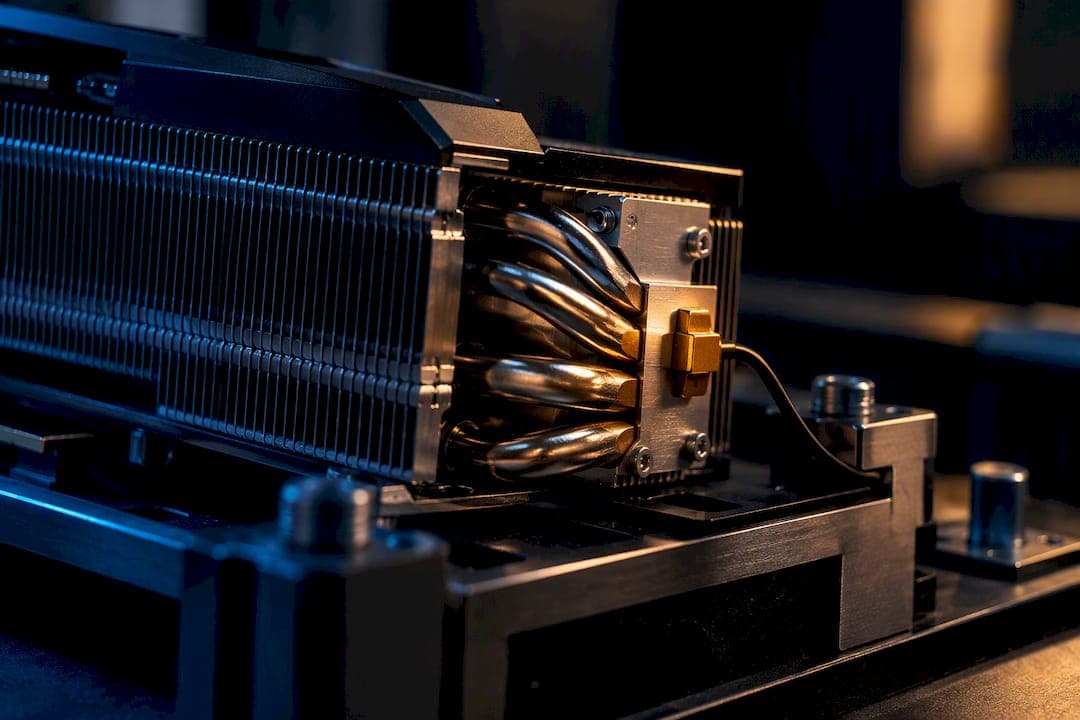
Keep your GPU under about 80 degrees Celsius under load and you're in safe territory for daily gaming, according to manufacturer spec sheets and independent thermal testing. Manufacturers set maximum temperatures somewhat higher, typically in the high 80s to low 90s Celsius range depending on the card, to serve as protection points that trigger throttling rather than as targets. If your card sits at 90°C or higher consistently or you notice stuttering under load, it's time to check your cooling setup.
TL;DR:
- Temperatures consistently at or above 90°C indicate potential cooling issues and warrant investigation, especially if the card remains at that level during prolonged gaming sessions.
- Most desktop GPUs idle between 30°C and 50°C, with gaming temperatures ideally staying under 80°C, though high-power cards can operate acceptably up to around 85°C.
- The manufacturer maximum temperature is a protection threshold, not a target, with most cards throttling or shutting down before reaching that limit, which varies by model.
- The hotspot or junction temperature reflects the actual stress point on the GPU die, often running 10 to 15°C higher than the core temperature, and should be prioritized during monitoring.
- Improving airflow, cleaning dust, updating drivers, and adjusting fan curves usually resolve high temperatures faster than hardware replacements.
Table of Contents
- What is a good GPU temperature target for idle and gaming?
- What does the manufacturer maximum temperature actually mean?
- Why does your GPU show different temperatures for core, edge, and hotspot?
- How do you monitor GPU temperature reliably during gaming?
- What causes high GPU temperatures and what fixes them fast?
- How do you set a GPU temperature target and build a fan curve?
- Do sustained high GPU temperatures shorten hardware lifespan?
- How Tempered's diagnostics fit into GPU thermal troubleshooting
- What I'd actually run on my own rig
- A software-first check before you touch your cooling setup
- Sources
- FAQ
What is a good GPU temperature target for idle and gaming?
Desktop GPUs typically idle between 30°C and 50°C, and many modern cards use zero RPM fan modes that stop spinning entirely below a certain temperature threshold. That silence at idle is normal and not a sign of a broken fan. Once you load up a game, temperatures climb fast and settle into a range that depends heavily on the card, the case, and the ambient room temperature.
For gaming loads, the sweet spot sits under roughly 80°C where practical. High-power cards, especially flagship models with dense coolers and higher wattage draws, often run a bit warmer, and staying under 85°C is still considered acceptable for those. The numbers matter less than the pattern: a card that climbs steadily and plateaus is behaving normally, while one that keeps climbing without settling is a warning sign.
Generally accepted reference points include:
- Idle temperatures typically between 30 and 50 degrees Celsius, often with fans off entirely.
- A 'sweet spot' under about 80 degrees Celsius for gaming load on most mainstream cards.
- Acceptable ceilings up to around 85 degrees Celsius for gaming load on high-power flagship cards.
- An action threshold at sustained temperatures near 90 degrees Celsius or when visible frame drops and clock speed dips occur.
None of these numbers are hard rules. They're benchmarks for deciding whether your setup needs attention or whether you're chasing a problem that doesn't exist. A card running at 82°C in a small mini-ITX case during a heat wave in August isn't necessarily broken, but a card running at 82°C in a well-ventilated case in a cool room might be worth a closer look.
What does the manufacturer maximum temperature actually mean?
Every GPU has a published maximum operating temperature, and it's easy to mistake that number for a target instead of what it actually is: a protection threshold. According to NVIDIA's own support guidance, cards are designed to run reliably right up to that published maximum. Hit it, and the driver throttles clock speeds to bring temperatures back down. Keep climbing past that point, and the card can force a shutdown to protect itself.
The maximum isn't a fixed number across all GPUs. It varies by family and even by specific model within a generation. As one example, NVIDIA's spec table for the RTX 5050 lists a maximum GPU temperature of 87°C, a figure specific to that card rather than a universal rule for every 50-series GPU. Older RTX 30-series cards and newer 40 or 50-series cards can carry different published limits, so checking the spec sheet for your exact model beats relying on a number you saw quoted for a different card.
AMD approaches reporting a bit differently. Radeon cards typically expose both an edge temperature and a junction, or hotspot, temperature, and AMD's own product documentation notes that the junction sensor is designed to tolerate higher local die temperatures than the edge sensor. Junction temperature limits on some AMD cards can be as high as about 110°C by design, reflecting different sensor placement compared to NVIDIA's core temperature measurements.
The practical takeaway:
- Look up your specific card's maximum operating temperature on the manufacturer's spec page rather than assuming a generic number.
- Treat that maximum as the point where throttling or shutdown occurs, not as something to aim for during normal use.
- Expect AMD junction temps to run higher than NVIDIA core temps as a function of sensor placement, not necessarily worse cooling.
Why does your GPU show different temperatures for core, edge, and hotspot?
Modern monitoring software throws several numbers at you at once, and mixing them up leads to bad conclusions. The core, or edge, temperature reflects an average reading across the GPU die. The hotspot, also called junction temperature, measures the single warmest point on that die, which is almost always higher than the average.
That gap between core and hotspot typically runs 10 to 15 degrees Celsius on many NVIDIA cards, though the exact delta depends on the cooler design and how evenly it spreads contact pressure across the die. A card reporting 75°C on its core sensor might be hitting 88°C at the hotspot, and that hotspot number is the one closer to the card's actual thermal limit. AMD reports a similar edge-versus-junction split, just under different labels in monitoring tools.

For a deeper breakdown of exactly how this delta behaves across different GPU generations, Tempered's guide on GPU hotspot temperature walks through what a healthy gap looks like versus one that signals a cooling problem, like poor contact between the die and the cooler.
Laptops complicate this further. Cramped chassis, shared cooling between CPU and GPU, and thinner heat pipes mean laptop GPUs often run warmer at idle and hit their throttle points sooner. Manufacturers account for this by setting more conservative thermal limits on mobile parts, so a laptop GPU sitting at 85°C under load isn't automatically in trouble the way a desktop card at that temperature might be.
When deciding whether to act, prioritize the hotspot or junction reading over the core or edge number. It's the figure closest to where the silicon is actually stressed, and it's the one manufacturers use internally to trigger throttling.
How do you monitor GPU temperature reliably during gaming?
Guessing at temperatures from memory doesn't work. You need a tool running in the background or as an in-game overlay that shows core temperature, hotspot or junction temperature, and fan RPM at the same time, ideally alongside clock speed.
The NVAPI thermal documentation confirms that NVIDIA hardware exposes multiple distinct thermal targets, including GPU core, memory, and board sensors, which is why different monitoring tools sometimes show slightly different numbers depending on which sensor they're reading. Picking a tool that clearly labels each sensor avoids confusion later.
To capture a useful test session, run a demanding game or benchmark for at least 15 to 20 minutes, long enough for temperatures to plateau rather than just spike briefly. Watch for three things during that run: a steady clock speed that doesn't dip repeatedly, frame times that stay consistent rather than stuttering, and a hotspot reading that settles below the card's published maximum with some margin to spare. If clock speeds drop every time the hotspot approaches the low 90s, that's throttling in action.
A quick checklist worth recording during any thermal test:
- Ambient room temperature, since a hot room shifts every other number upward.
- Fan RPM at idle and under sustained load, checked against the card's rated maximum.
- Core and hotspot temperature side by side, noting the delta between them.
- Clock speed stability over the full test run, not just a snapshot.
Tempered's own guide on how to monitor CPU temperature on Windows PCs covers a similar workflow that applies just as well once you swap the sensor focus from CPU to GPU. A separate write-up on monitoring PC temps more broadly covers picking an overlay tool and reading it without getting overwhelmed by numbers that don't matter for your specific decision.
What causes high GPU temperatures and what fixes them fast?
Most GPU overheating problems trace back to airflow, not the GPU itself. Before assuming you need new hardware, work through the cheap fixes first.
- Check dust buildup and case airflow. A GPU cooler packed with dust loses a meaningful chunk of its cooling capacity, and a case with unbalanced intake and exhaust fans traps warm air right where the GPU needs cool air.
- Verify fan direction and curve settings. Fans installed backward or a fan curve that ramps too slowly both leave the card running hotter than the cooler is capable of.
- Close heavy background processes. Browser tabs running hardware-accelerated video, background recording software, or overlay apps can quietly load the GPU even when you're not gaming.
- Update your graphics driver. Driver updates occasionally include power and thermal management improvements that shift how aggressively the card manages its own clocks.
- Confirm the cooler is seated properly. A cooler that's shifted slightly or has aging thermal paste transfers heat less efficiently, even if every fan is spinning correctly.
If those steps don't bring temperatures down enough, the next tier of fixes gets more involved: undervolting the GPU to reduce heat output at the same performance level, replacing thermal paste or pads on an older card, adding case fans to improve overall airflow, or moving to an aftermarket cooler on cards that support it. Tempered's guide on lowering GPU temperature walks through the undervolting process in more detail for readers ready to go past basic airflow fixes.
Pro Tip: Before touching hardware, run a clean gaming session with every unnecessary background app closed. It's the single fastest way to rule out a software-side cause of high temps.
How do you set a GPU temperature target and build a fan curve?

There's a common mix-up worth clearing up first. The software "target temperature" in tools like MSI Afterburner or manufacturer control panels is a fan control setpoint, meaning it tells the fans how hard to work to hold a certain temperature. It's not the same as the hardware's absolute throttle limit, which is a fixed protection threshold set by the manufacturer. A developer forum discussion on NVIDIA's platform covers exactly this confusion, where users conflate the adjustable software target with the hardware ceiling that triggers throttling.
Setting your own target and fan curve is a straightforward process:
- Measure your baseline first. Run a 15 to 20 minute gaming session with stock fan settings and record the core, hotspot, and fan RPM numbers you get.
- Pick a target in the 75 to 80 degree Celsius range. That gives you headroom below most cards' throttle points while keeping fan noise reasonable.
- Build a fan curve that ramps earlier rather than later. A curve that starts increasing fan speed at 50°C instead of 65°C keeps the card from ever spiking hard, even if it means slightly more noise at moderate loads.
- Test the new curve under the same load you used for your baseline. Compare temperatures and listen for fan noise that's become distracting rather than just present.
- Adjust in small increments. Move the curve five degrees at a time until you find the balance between quiet operation and the temperatures you're comfortable with.
A couple of safety notes before making changes. Some manufacturers void warranty coverage on physical hardware modifications like thermal paste swaps, so check your card's warranty terms first. If you play competitive games with anti-cheat software, stick to fan curve and voltage adjustments through vendor-supported tools rather than third-party utilities that touch the driver in unusual ways. And always note your original settings before changing anything, so you have something to revert to if a new curve makes things worse instead of better.
Do sustained high GPU temperatures shorten hardware lifespan?
Occasional spikes into the high 80s during a demanding game aren't the same as running there for hours every day for years. The distinction matters because components age differently depending on how much sustained heat they see.
Thermal paste and pads between the die and the cooler degrade faster at sustained temperatures above roughly 90°C, losing some of their heat transfer efficiency over time and creating a slow feedback loop where temperatures creep upward year over year. Capacitors and other board components also age faster under prolonged heat exposure, which is part of why cards used for mining or constant rendering workloads sometimes show more wear than gaming cards with similar total hours.
Thermal throttling exists specifically to prevent this kind of damage. When a card throttles, it's sacrificing performance to stay within a safe operating window rather than pushing through and risking permanent harm. That's a feature working as intended, not a defect. The real warning sign is repeated, frequent throttling during normal use, which suggests the cooling setup can't keep pace with the card's heat output and a fix is overdue rather than optional.
How Tempered's diagnostics fit into GPU thermal troubleshooting
Not every heat problem lives inside the GPU itself. A background process silently loading the GPU, an aggressive startup task competing for resources, or a driver setting fighting your fan curve can all show up looking like a cooling failure when the real cause is software.
Tempered's diagnostic approach focuses on measured, reversible changes rather than guessing. It flags things like unusual background GPU load, boot-time tasks competing for system resources, and the delta between reported temperatures and hotspot readings, then explains each finding in plain language before suggesting any fix. Every suggested change comes with an undo path, so nothing gets applied without your approval first.
For readers who want to go deeper on specific pieces of this puzzle, Tempered's blog covers lowering GPU temperature through undervolting and airflow changes, a detailed look at hotspot temperature behavior across GPU generations, and general guidance on monitoring PC temps without getting lost in sensor noise.
What I'd actually run on my own rig
For everyday gaming, I'd target the high 70s under load and treat the mid-80s as a ceiling worth paying attention to, not panicking over. Workstation builds doing sustained rendering deserve a bit more fan noise tolerance in exchange for lower average temperatures over long sessions. Chasing the lowest possible number usually costs you sleep, patience, and a louder room.
— Ian
A software-first check before you touch your cooling setup
Before you open your case or reach for a new cooler, it's worth ruling out whether something on your system is quietly working against your GPU's cooling. Performance optimization tools can scan your PC's live hardware metrics, including background GPU load and startup tasks that might be competing for resources, and explain findings in plain language before suggesting actions.

Every suggested change comes with a clear explanation of what it does and a one-click undo path, so you're never left guessing what changed or how to reverse it. That transparency is the whole point: no registry cleaning, no invented issues, nothing applied without your say. If a software cause is adding heat to your GPU's workload, Tempered's free tier is enough to find out, and the Torque and Torque Max plans unlock unlimited scans if you want ongoing monitoring built in.
Sources
FAQ
Is 90 degrees Celsius too hot for a GPU?
Sustained readings at or above 90°C are generally treated as a signal to investigate your cooling, since sustained temperatures above this range accelerate long-term component wear. A brief spike during a demanding scene isn't the same concern as a card that plateaus there for entire gaming sessions.
What should I set my GPU temperature target to?
A target in the 75°C to 80°C range works well for most gaming setups, balancing fan noise against thermal headroom. Remember that this software target controls your fan curve, not the hardware's actual throttle point, which is set by the manufacturer.
Is 78°C too hot for a GPU?
No, temperatures around the mid-70s Celsius sit comfortably within the normal gaming load range for most desktop cards. These values are close to the low end of the recommended sweet spot rather than a cause for concern.
Is 80°C too hot for a GPU?
80°C is generally considered the upper edge of the ideal sweet spot for gaming loads on mainstream cards, and still acceptable on higher-power flagship models. It only becomes a concern if it keeps climbing past this point or if you notice throttling alongside it.