Leave Windows Game Mode on. That is the right default for almost every gamer running Windows 10 or Windows 11, because modern scheduler updates have ironed out the stutter bugs that gave the feature a bad reputation a few years back.
Keep it enabled if you run an 8GB or mid-range CPU system, multitask with Discord and browser tabs open, or stream and record while playing, as explained in this gaming network guide that covers related performance considerations. Test turning it off only if you notice new stutter after a Windows update or if one specific competitive title regresses after a patch. Either way, run the quick 10-minute test later in this article before you decide anything based on a hunch.
Key Takeaways
| Point | Details |
|---|---|
| Default recommendation | Keep Game Mode enabled unless you have a specific, reproducible reason to test it off. |
| Focus on 1% lows | Average FPS barely shifts; frame-time consistency is where Game Mode's benefit actually shows up. |
| Best fit for multitaskers | Streaming, Discord, and background browser tabs are the scenarios where Game Mode helps most. |
| Troubleshoot in order | Update GPU drivers and disable overlays before blaming Game Mode for any stutter. |
| Complementary tool | Tempered finds the specific background processes causing frame drops that Game Mode's broad scheduling can't isolate. |
Table of Contents
- What Windows Game Mode Actually Does
- How to Turn Game Mode on or off
- What Benchmarks Show About Game Mode's Real Impact
- When Game Mode Helps and When to Turn It Off
- The 3-Step Test to Check Your Own PC
- What Most Guides Get Wrong About Game Mode
- Let Tempered Handle the Background Noise Game Mode Can't See
- Where to Read More
- Frequently Asked Questions
- Sources
What Windows Game Mode Actually Does
Game Mode is a traffic cop, not a turbocharger. It shifts CPU scheduling priority toward your active game's threads and pulls resources away from background tasks that would otherwise steal cycles at the wrong moment. Digital Citizen's breakdown of Game Mode confirms it also delays interruptions like Windows Update notifications and background driver installs while you're mid session, so you're less likely to see a surprise reboot prompt during a ranked match.
What it doesn't do matters just as much:
- It does not overclock your CPU or GPU, and it doesn't raise power limits or clock speeds.
- It won't fix a thermal-throttling laptop or a genuinely underpowered graphics card.
- It doesn't install anything or change your hardware's maximum capability in any way.
On the technical side, Microsoft Learn's Game Mode API documentation shows developers can query functions like HasExpandedResources and request exclusive CPU sets for their game process. That's the plumbing behind the scenes: Game Mode exposes real scheduling controls to software, it just doesn't touch your silicon.
How to Turn Game Mode on or off
Toggling it takes under a minute. Here's the path:
- Press Win + I to open Settings, then go to Gaming → Game Mode, and flip the switch.
- If Windows doesn't automatically detect an older or unusual title as a game, open the Xbox Game Bar overlay (Win + G) while the app is running and select "Remember this is a game" so Game Mode applies to it going forward.
- Registry edits exist for forcing Game Mode behavior on stubborn setups, but treat that as a last resort. Digital Citizen's guide to enabling Game Mode notes that modern Windows applies the feature system-wide by default, so most people never need to touch the registry at all.
Pro Tip: After toggling Game Mode, fully restart the game rather than just alt-tabbing back in. Log a short play session and check your 1% lows with a tool like CapFrameX. That single number tells you more than watching the FPS counter bounce around.
What Benchmarks Show About Game Mode's Real Impact
Average FPS barely moves with Game Mode on or off. That's the finding from month-long, hands-on testing, and it surprises people who expect a dramatic frame-rate jump. The real story is in the 1% lows, which measure your worst frame times rather than your best ones. In one test scenario running Forza Horizon 5 with background apps open, 1% lows improved significantly, illustrating a smoother experience with Game Mode enabled. That's the difference between a smooth lap and a visible hitch right before a corner.
A few caveats keep this honest:
- GPU-bound titles on powerful systems tend to show negligible gains either way, since the graphics card is already the bottleneck.
- Earlier Windows builds had scheduler bugs that caused mixed or even negative results on hybrid CPU architectures, but Thread Director and related scheduler improvements have quieted most of those complaints.
- If you're already maxing out your GPU at 4K on a high-end rig, don't expect Game Mode to be the thing that saves your frame times.
Think of Game Mode as raising the floor, not the ceiling. It protects consistency rather than chasing peak numbers, which is exactly why it shows up more in frame-time graphs than in average FPS counters.
When Game Mode Helps and When to Turn It Off
Game Mode earns its keep on systems where background noise competes for CPU time. If you're running 8GB of RAM or a mid-range processor, streaming with OBS in the background, or keeping Discord and a dozen browser tabs open while you play, Game Mode is quietly doing real work reducing frame-time spikes.
Consider testing it off in narrower situations:
- You updated Windows and started seeing new micro-stutters that weren't there before.
- One specific competitive title regressed after a patch, and disabling Game Mode fixes it.
- You're doing precise frame-rate benchmarking and want to eliminate every variable.
Before blaming Game Mode for anything, run through this troubleshooting order first: update your GPU drivers, disable any overlays (including third-party FPS counters), and test without background recording software running. MakeUseOf's testing methodology found that skipping this sequence is the most common reason people misdiagnose a driver problem as a Game Mode problem. If you're also cleaning up startup clutter, a Windows 11 debloat pass tackles a different but related source of background drag.
The 3-Step Test to Check Your Own PC
Run this before making any permanent decision:
- Pick a repeatable in-game scene or benchmark run and record average FPS and 1% lows with Game Mode on, using a tool like CapFrameX or your game's built-in benchmark.
- Restart the game, disable Game Mode in Settings, and run the exact same scene again, recording the same two numbers.
- Compare the 1% lows and note any visible stutter, not just the average FPS.
Weight your decision toward frame-time consistency.
What Most Guides Get Wrong About Game Mode
Most advice treats Game Mode as an all-or-nothing performance switch worth agonizing over. It isn't. Check your GPU drivers and close obvious background hogs before you ever touch this toggle, since driver issues cause far more stutter complaints than scheduling ever does. For a broader gaming setup pass, see optimizing Windows 11 for gaming.
Let Tempered Handle the Background Noise Game Mode Can't See
Game Mode manages scheduling priority, but it can't tell you which specific background process is eating your CPU or why your frame times spike at minute twelve of a session. Tempered scans your live hardware metrics, from CPU and RAM load to disk activity, and flags the exact background conflicts causing those drops, then proposes a specific fix with a plain-language explanation and a one-click undo if you change your mind.

It doesn't replace Windows defaults like Game Mode; it works alongside them, automating the process of finding and safely resolving what Game Mode alone can't touch, like a runaway update service or a memory-hungry browser tab you forgot was open. If you want to see what's actually competing with your game for resources right now, run a free scan with Tempered and get a clear read on what's slowing your PC down.
Where to Read More
- Microsoft Learn's Game Mode API docs for developer-level detail.
- Microsoft's official support page for the Settings walkthrough.
- MakeUseOf's month-long benchmark test for real frame-time data.
- Use the Xbox Game Bar and CapFrameX to run your own comparison.
Frequently Asked Questions
Is Game Mode good for gaming performance? Yes, for most setups.
Should I turn Game Mode on or off? Leave it on as your baseline. Only test disabling it if a specific title regresses or you notice new stutter tied to a recent Windows update.
How do I enable Game Mode in Windows 11? Open Settings with Win + I, go to Gaming, then toggle Game Mode on. It applies system-wide rather than per game on modern Windows builds.
Does disabling Game Mode fix stutter? Sometimes, but check GPU drivers and background recording software first. Testing shows most stutter complaints trace back to drivers or overlays, not Game Mode itself.
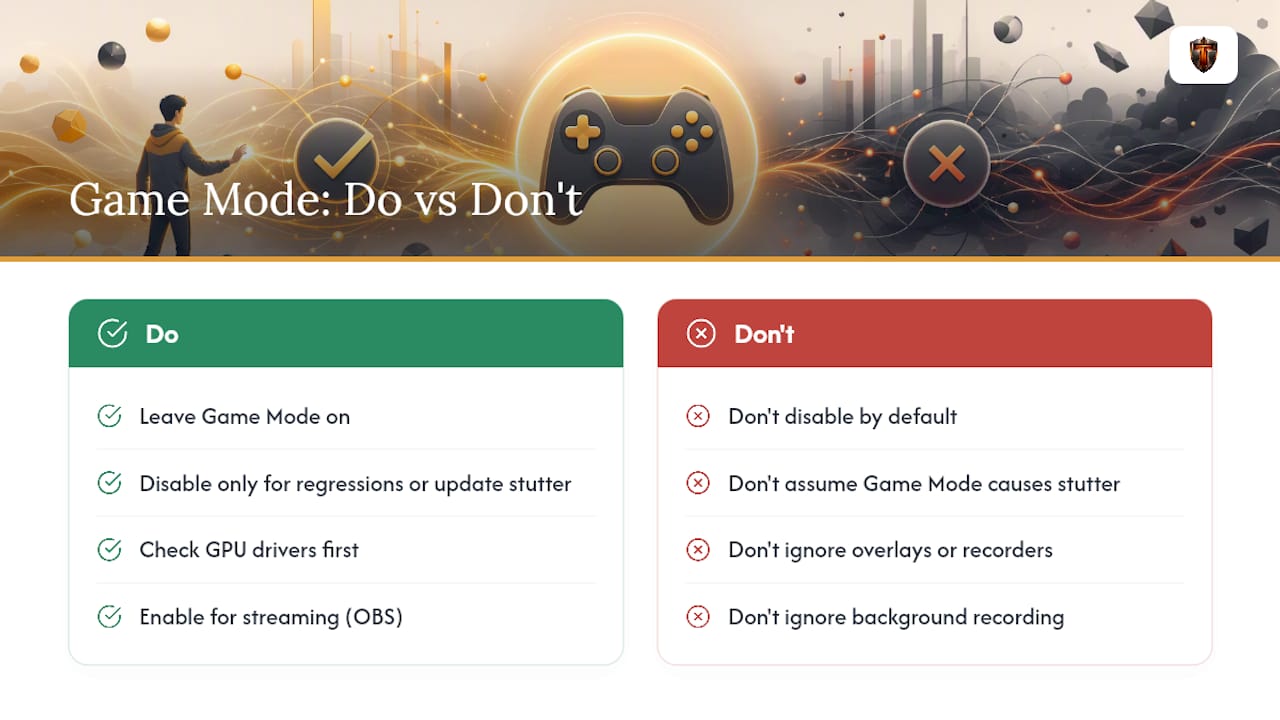
Does Game Mode work with streaming software like OBS? Yes, and that's actually where it helps most.