
The fastest way to turn off Widgets in Windows 11 is a single toggle: right-click the taskbar, open Taskbar settings, and switch Widgets to Off. That removes the button. If you want the board blocked entirely, or you want to know whether it is still using memory in the background, there are two more levels below, and every one of them can be reversed. The safest approach is to change one thing at a time, see what it did, and keep a way back. That is also how we built Tempered: it shows measured changes with plain explanations and a one-click Undo, so nothing happens to your PC without your approval.
TL;DR
- Hide the button: right-click the taskbar > Taskbar settings > Widgets Off. It takes about ten seconds.
- The board is not gone: Windows + W can still open it after the toggle, according to Microsoft.
- Block it fully: on Pro, Education and Enterprise, use the Group Policy setting. On Home, use a registry value.
- Uninstalling is optional: a winget command removes the Windows Web Experience Pack, and a Store reinstall brings it back.
- Measure first: the memory Widgets uses is modest, so check your own numbers before you decide how far to go.
Table of Contents
- What Widgets are and what turning them off does
- Method 1: Turn off the Widgets button in Settings
- Method 2: Block the board with Group Policy (Pro, Education, Enterprise)
- Method 3: Block the board with the registry (Home)
- Method 4: Uninstall the Widgets package
- Quick comparison
- Does turning off Widgets speed up your PC?
- If the button or the board still shows up
- Do it with a record of every change
- Our view on Widgets
- FAQ
- Sources
What Widgets are and what turning them off does
Widgets is the panel that slides in from the left of the screen with weather, sports, stocks, news and other small cards. Microsoft describes it as a set of interactive elements showing dynamic content that refreshes through the day, and the weather readout on the taskbar is part of it. In its developer documentation, Microsoft calls the panel the Widgets Board, a Windows 11 system component that overlays the desktop when you click the icon, press Windows + W, or swipe in from the left edge.
That last detail explains most of the confusion. Switching the taskbar item off removes the button. It does not remove the board, so a stray Windows + W or a swipe on a touchscreen can still bring it up. If you only wanted a cleaner taskbar, the toggle is enough. If you want the board to stay shut, keep reading.
Method 1: Turn off the Widgets button in Settings
This is the route Microsoft documents, and it works on every edition of Windows 11, Home included.
- Right-click an empty area of the taskbar.
- Choose Taskbar settings.
- Under Taskbar items, switch Widgets to Off.
The path is also Settings > Personalization > Taskbar. The button and the weather readout disappear right away, with no restart. Microsoft's taskbar guide confirms the board can still be opened with the Windows key + W, or by swiping from the side of the screen when the taskbar is centered.
To undo it, flip the same switch back On.
Where this goes wrong
- The toggle is missing or greyed out. On a PC managed by an employer, an administrator policy can control it. Ask your IT team rather than working around it.
- The button comes back after an update. Feature updates sometimes reset taskbar items. Repeat the toggle.
- You still see widgets-related processes in Task Manager. That is covered in the performance section below.
Method 2: Block the board with Group Policy (Pro, Education, Enterprise)
Group Policy is a Windows setting panel that lets you apply a rule system-wide. It is available only on Pro, Education and Enterprise editions. How-To Geek's walkthrough uses it like this:
- Press Windows + R, type
gpedit.mscand press Enter. - Go to Computer Configuration > Administrative Templates > Windows Components > Widgets.
- Set Allow widgets to Disabled.
- Optionally set Disable Widgets Board to Enabled, and use the lock screen policy if you also want lock screen widgets gone.
- Restart.
Digital Citizen reports that disabling this policy removes the taskbar icon, blocks Windows + W and removes lock screen widgets. It also notes that Widgets cannot be fully removed from Windows 11, only turned off, so the code stays in the OS but sits inactive.
To reverse it, set the policies back to Not configured and restart.
This is the method worth using on a shared or business workstation, where you want the setting to hold no matter who signs in. If the goal is to lock a machine down even further for a single purpose, kiosk mode in Windows 11 limits what a user can open at all.
Method 3: Block the board with the registry (Home)
Windows 11 Home has no Group Policy Editor, so the equivalent is a registry value. The registry is the database where Windows stores its settings, and a wrong edit can cause real problems, so create a restore point first. Both XDA Developers and Pureinfotech say to back up before touching it.
The policy value, as Digital Citizen and XDA describe it:
- Open Registry Editor as administrator.
- Go to
HKEY_LOCAL_MACHINE\SOFTWARE\Policies\Microsoft. - Create a new key named
Dsh. - Inside it, create a DWORD (32-bit) value named
AllowNewsAndInterestsand leave it at0. - Restart.
To undo it, delete the value or the key and restart.
A lighter registry option only hides the icon. Pureinfotech gives the TaskbarDa DWORD under HKEY_CURRENT_USER\Software\Microsoft\Windows\CurrentVersion\Explorer\Advanced: set it to 0 to remove the icon, back to 1 to restore it. That does the same job as Method 1, so most people have no reason to use it.
Method 4: Uninstall the Widgets package
Widgets ships as part of the Windows Web Experience Pack. TheWindowsClub says running winget uninstall "windows web experience pack" removes it, and reinstalling the pack from the Microsoft Store brings Widgets back. How-To Geek adds that after the uninstall, no widget-related services show up in Task Manager. Run the command in an elevated Command Prompt (right-click Command Prompt, Run as administrator).
To reverse it, reinstall the pack from the Microsoft Store and turn the Widgets toggle back on in Settings.
This is the most drastic of the four methods, and it is rarely necessary. The Settings toggle and the policy cover what most people want, and both are simple to switch back. Treat the uninstall as a last step, after you have measured what Widgets actually costs on your machine.
Quick comparison
| Method | Editions | What it does | How to undo |
|---|---|---|---|
| Taskbar toggle | All | Hides the button, board still opens with Windows + W | Toggle On |
| Group Policy | Pro, Education, Enterprise | Removes the icon, blocks Windows + W, removes lock screen widgets | Set to Not configured |
| Registry policy value | All, used mainly on Home | Same effect as the policy | Delete the value |
| Package uninstall | All | Removes the Web Experience Pack | Reinstall from the Store |
Does turning off Widgets speed up your PC?
A little, and it depends on the machine. The numbers published so far are small.
DellOne2One's testing on a Ryzen 5 5600 with 16 GB of RAM found the widget service holding about 127 MB after 30 minutes idle, rising to 218 MB during news feed refreshes. CPU averaged 4.2% on performance cores during those refreshes. On an 8 GB system that works out to roughly 1.5 to 2.7% of total memory. Its gaming gains showed up mostly in 1% lows, the slowest frames, rather than in average frame rate.

How-To Geek reports a related detail: the Settings toggle only removes the panel from the taskbar, and the widget-related services can keep running. Ending them in Task Manager is a one-time fix, since they restart at the next boot. In a November 2026 piece, its writer saw Widgets using several hundred MB, and after switching it off under Settings > Personalization > Taskbar the process stayed gone from Task Manager until he opened Widgets again.
So the honest picture is this: on a 16 GB desktop you will not feel a difference from Widgets alone. On an 8 GB laptop, or a game that is already near the edge of your RAM, a few hundred MB matters more. Widgets are one small item among many background tasks. If your PC feels slow, the cause is usually something bigger, and finding it means looking at what is really using your CPU, memory and disk. Our guides on finding a CPU hog in Windows 11 and cutting background processes safely walk through that.
For gamers
If you are chasing stutter, Widgets is a cheap thing to switch off, but it is rarely the main cause of dropped frames. Capture a frametime trace before and after so you know which change did what. Our walkthrough on stopping FPS drops with frametime traces shows how, and the Windows 11 gaming optimization guide covers the next settings to look at.
If the button or the board still shows up
A few things commonly cause this:
- The board opens from a shortcut. Windows + W and the left-edge swipe still work after Method 1. Use Method 2 or 3 to block them.
- The toggle won't stay off. A feature update may have reset it. Toggle again, or apply the policy so it holds.
- The panel is blank or won't open when you want it. TheGeekPage says Widgets rely on the Microsoft Edge WebView2 Runtime to render content. If that is missing, the panel opens empty or not at all. Repair or install it from Settings > Apps > Installed apps, then restart. The same source lists toggling Widgets Off and On, ending a stuck Windows Widgets process in Task Manager and reinstalling the pack as other fixes.
One more point for the lock screen. Lock screen widgets are controlled separately, and the policy in Method 2 includes a setting for them.
Do it with a record of every change

Turning off Widgets is a good example of a tweak that should be reversible and explained. Each method above has a clear way back, but you have to remember what you changed and where. Across a dozen small tweaks, that gets hard to keep track of.
Tempered is built for exactly that. It reads live CPU, RAM, GPU, disk and uptime metrics on Windows 10 and 11, explains in plain language what is holding performance back, and proposes specific changes you approve one by one. Every change is tracked and has a one-click Undo. It manages background processes and startup options, and it does not require technical expertise or an AI API key. The Free plan gives you limited AI scans, Torque starts at $5.99 per month, and Torque Max starts at $12.99 per month. You can compare them on the pricing page, or look at the Tempered homepage first.
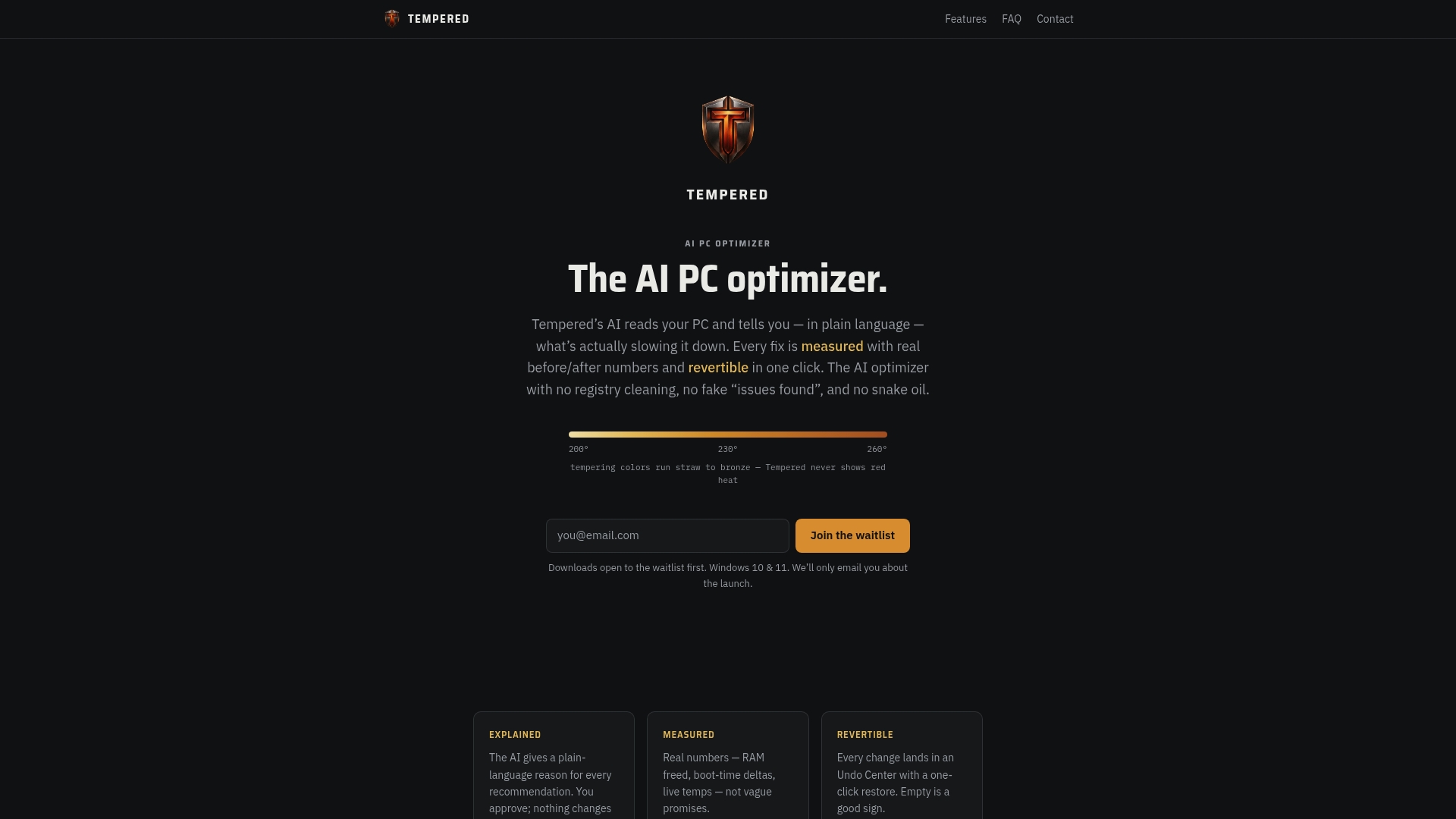
If Widgets turns out to be a small part of a larger slowdown, our article on removing bloatware in Windows 11 and the guide to ending background processes safely are the next reads.
Our view on Widgets
Most advice about Widgets treats it as an all-or-nothing choice: leave it, or rip it out. We think that framing misses the point. The question is what is actually costing you performance on your PC, and whether you can see and reverse each change you make.
Widgets is a small, honest example. The Settings toggle is reversible in ten seconds. The policy is reversible with a restart. The package uninstall is reversible through the Store. When a change has a clear way back, you can try it, look at the result and keep it or not.
That is the standard we hold Tempered to. It recommends only measured, explained and reversible changes, it does not apply registry cleaning or invent issues, and no change happens without your explicit approval. Every action has an undo path, and it is designed to be anti-cheat safe for gamers. A taskbar button is easy to judge for yourself. The harder question is which of the dozens of background items really matters, and that is where we think a plain-language diagnosis helps most.
Ian
FAQ
Can I completely remove Widgets from Windows 11?
Not as part of the operating system: Windows keeps the code and simply leaves it inactive when you turn Widgets off or block it by policy. What you can do is remove the Windows Web Experience Pack with a winget command, which stops the widget services from running. Reinstalling the pack from the Microsoft Store restores everything.
Why does Windows + W still open Widgets after I turned the button off?
The taskbar toggle only hides the button. Microsoft notes that the board remains reachable with Windows + W or a swipe from the side of the screen. To block those shortcuts, use the Allow widgets policy in Group Policy, or the matching registry value on Home.
Does turning off Widgets work on Windows 11 Home?
Yes. The taskbar toggle is available on every edition, and the registry value covers the full block. Only the Group Policy Editor is limited to Pro, Education and Enterprise.
Will turning off Widgets free up RAM?
A little. In one published test the widget service held 127 MB at idle and 218 MB during feed refreshes, and another reviewer saw several hundred MB. The gain is most noticeable on PCs with 8 GB of RAM or less. Check Task Manager before and after to see your own number.
Sources
- Stay up to date with Widgets in Windows | Microsoft Support
- Windows Widgets | Microsoft Learn
- Customize the Taskbar in Windows | Microsoft Support
- How to disable the Widgets in Windows 11 | Digital Citizen
- Hate the Windows 11 Widgets Panel? | How-To Geek
- 11 Registry Editor tweaks for Windows 11 | XDA Developers
- How to remove Widgets icon from Taskbar on Windows 11 | Pureinfotech
- How to Uninstall or Reinstall Widgets in Windows 11 | TheWindowsClub
- Turn Off Widgets in Windows 11 | DellOne2One
- I turned off 5 Windows 11 features | How-To Geek
- The Widget Panel Is Missing in Windows 11 | TheGeekPage