Turn off background recording in Settings under Gaming → Captures to stop Game DVR immediately. If that toggle is grayed out, use the Xbox Game Bar overlay (Win+G) or fall back to a registry edit or Group Policy change. Doing this cuts the background CPU and GPU load Game DVR creates while you play, without touching anything else on your system.
TL;DR:
- Disabling background recording stops CPU and GPU load from Game DVR, which can improve gaming performance, especially on single-use gaming PCs.
- If the Settings toggle is unresponsive, registry edits or group policy changes provide a permanent solution but require caution and proper backups.
- Conflicting overlays from third-party programs like NVIDIA or OBS can still record or show indicators even after disabling Game DVR in settings.
- Disabling the Game Bar's overlay and background recording is different from stopping all recording sources, which may involve other background apps or hardware overlays.
- Using system optimization tools that analyze hardware constraints can help identify actual bottlenecks beyond just disabling Game DVR, avoiding overly risky manual registry edits.
Table of Contents
- Three Fastest Ways to Turn Off Game DVR
- How to Turn Off Game Bar and Background Recording
- Registry Edits and Group Policy for a Permanent Block
- Fixing Toggles That Won't Stay Off
- Should You Disable Recording or Remove Game Bar Entirely?
- Where Tempered Fits Into Windows Performance Tuning
- Why the Registry-First Advice You'll Find Online Is Backwards
- Try a Safer Way to Find What's Actually Slowing Your Games
- Sources
- FAQ
Three Fastest Ways to Turn Off Game DVR
You don't need to read a manual to get this done. Pick whichever route your version of Windows lets you access first.
- Settings app: open Settings → Gaming → Captures, then turn off "Record in the background while I'm playing a game." This is the most direct fix for stopping background Game DVR recording.
- Xbox Game Bar overlay: press Win+G, open the Capture widget, and disable "Record what happened" or the background recording toggle directly from the overlay.
- Registry or Group Policy fallback: if the Settings toggle won't respond or reverts on its own, a policy key or registry edit forces the change at the system level. This matters most on managed or shared PCs where a group policy overrides the individual toggle.
Most gamers only need step one. The other two exist for the minority of setups where something else, usually IT policy or a corrupted user profile, is fighting back.
How to Turn Off Game Bar and Background Recording
The path differs slightly between Windows 10 and Windows 11, but the logic is identical: separate the overlay from the recording engine, then kill the recording engine.
On Windows 10:
- Go to Settings → Gaming → Game Bar and toggle off "Record game clips, screenshots, and broadcast using Game Bar" to disable the overlay entirely.
- Go to Settings → Gaming → Captures and turn off "Record in the background while I'm playing a game."
- Confirm both toggles show as off, then relaunch a game to check for the overlay flashing on startup.
On Windows 11:
- Settings has moved slightly, but the same two panes exist under Settings → Gaming → Xbox Game Bar and Settings → Gaming → Captures.
- Press Win+G to open the overlay directly instead of digging through menus, then use the gear icon inside Game Bar to reach Capture settings without leaving your game.
- Verify the change by reopening Game Bar and checking that the Capture widget shows recording as disabled.
Some controllers and third-party mice have programmable buttons mapped to Win+G by default, which can silently reopen Game Bar mid-session and confuse you into thinking a setting reverted. Check your peripheral software if the overlay keeps reappearing.
Pro Tip: Take a screenshot of your Settings toggles before you change anything. If a game update or Windows patch resets them, you'll know exactly what to flip back instead of guessing.
Registry Edits and Group Policy for a Permanent Block
Settings toggles are per-user and can get reset by updates. Registry and policy changes stick, which is why IT admins and power users prefer them for machines that need a permanent block.
Two user-level keys control the behavior:
AppCaptureEnabled(DWORD) atHKEY_CURRENT_USER\SOFTWARE\Microsoft\Windows\CurrentVersion\GameDVR. Set it to0to disable capture at the user level.GameDVR_Enabled(DWORD) atHKEY_CURRENT_USER\System\GameConfigStore. Set it to0as well.
For system-wide enforcement, the policy-level key lives at HKLM\SOFTWARE\Policies\Microsoft\Windows\GameDVR, where setting AllowGameDVR to 0 locks the setting for every account on the machine. The Group Policy equivalent sits under Computer Configuration → Administrative Templates → Windows Components → Windows Game Recording and Broadcasting, set to Disabled.
Setting the HKLM policy key doesn't just disable recording. It also grays out the Capture toggles in Settings entirely, which is exactly what admins want on shared or managed machines where a user shouldn't be able to turn recording back on.
Before touching the registry, export the GameDVR key and create a system restore point. Always run regedit as an administrator, and never paste in registry values from a forum post you can't verify against Microsoft's own documentation.
Fixing Toggles That Won't Stay Off
If a Settings toggle is grayed out, check for a policy key under HKLM\SOFTWARE\Policies\Microsoft\Windows\GameDVR first. A leftover AllowGameDVR value from a previous debloating attempt or IT policy will lock the UI even after you remove it manually elsewhere.
Trying to disable Game DVR by changing the properties of the GameDVR or Broadcast User Service directly often backfires. Microsoft's own support threads document users hitting a "parameter is incorrect" error when they attempt this, because those service configurations are protected. Registry and policy edits are the safer route.
If the overlay is gone but a recording indicator still flickers on screen, a third-party tool like an NVIDIA or AMD capture utility, or OBS running in the background, is likely the actual source. Check that program's own overlay settings rather than assuming Windows is misbehaving.
Community debloating scripts promise a one-click fix for exactly this kind of problem. In practice, testing on real machines has shown these tools can break services or strip out components you still need. A five-minute manual registry edit beats a script you can't fully read.
Should You Disable Recording or Remove Game Bar Entirely?
Not everyone needs the nuclear option. The right call depends on whether you actually use any Game Bar features beyond the background recording nobody asked for.
- Disable background recording only if you still want the ability to manually capture a screenshot or clip on demand, or if you like the FPS and performance widgets Game Bar offers.
- Keep Game Bar but turn off background recording when you rely on its overlay for monitoring temps or frame rate during long sessions.
- Remove Game Bar entirely if the overlay itself keeps popping up uninvited, interrupting fullscreen games, or if you've switched to dedicated recording software and have zero use for the built-in tools.
Disabling background recording alone removes the constantly running rolling buffer that eats resources in the background, while leaving manual capture available if you ever want it. That's the setup most gamers should start with before going further.
Where Tempered Fits Into Windows Performance Tuning
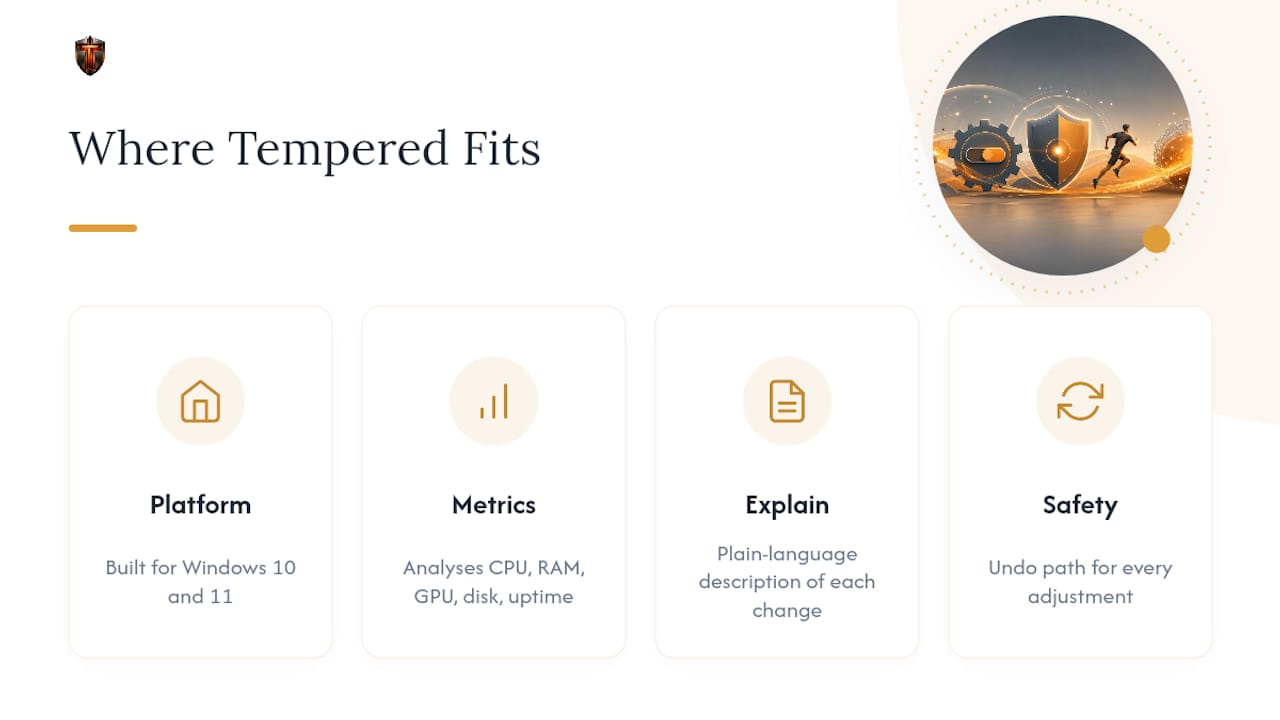
Turning off Game DVR is one fix among dozens that affect how a Windows PC actually runs. Tempered was built specifically for Windows 10 and 11 users who want to find those fixes without guessing which registry key or background service is actually the problem.
Some optimization tools analyze live hardware metrics, including CPU, RAM, GPU, disk, and uptime, to identify specific constraints slowing your machine down, explain each proposed change in plain language before you approve it, and provide an undo path for every adjustment, so nothing changes without your say-so.
For a deeper walkthrough of the exact steps covered above, Ian's Xbox Game Bar guide on the Tempered blog covers screenshots and edge cases this article didn't have room for, alongside related posts on optimizing gaming performance in Windows 11.
Why the Registry-First Advice You'll Find Online Is Backwards
Most guides on this topic lead with the registry edit, as if flipping AllowGameDVR to 0 is the "real" fix and the Settings toggle is for beginners. That's backwards. The Settings toggle and the Game Bar overlay control the same underlying capture engine, and for the overwhelming majority of single-user gaming PCs, that's all you need.
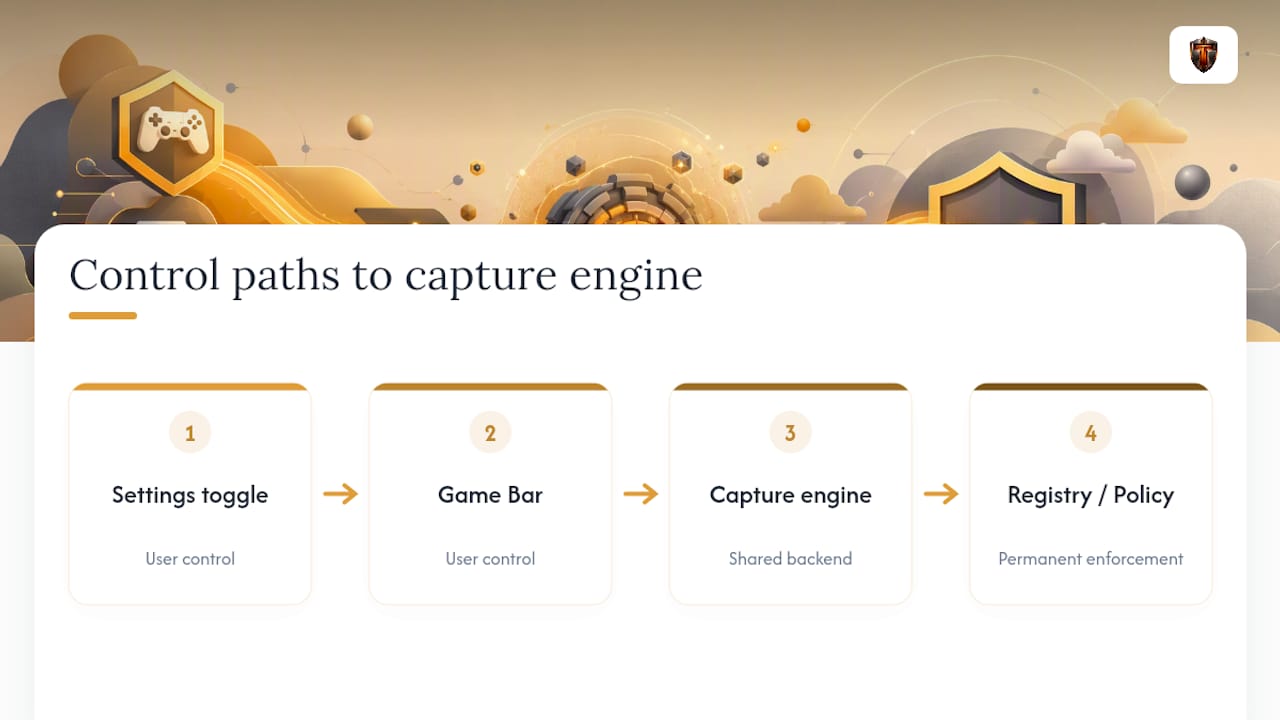
Registry and Group Policy exist to solve a different problem: enforcement across accounts, or getting past a UI that's already locked by policy. If your Settings toggle works, use it. Save the registry for when it doesn't.
The other place conventional advice falls short is treating Game DVR as the only villain. Plenty of gamers disable Game DVR, see no improvement, and never check whether an NVIDIA overlay or a leftover OBS process is still doing the same job in the background. Diagnosing the actual bottleneck, not just following a checklist, is the part most tutorials skip.
— Ian
Try a Safer Way to Find What's Actually Slowing Your Games
Some tools offer an alternative to blind registry edits and random debloating scripts by scanning your machine, reporting in plain language what's constraining performance, whether that's Game DVR, a bloated startup list, or background processes, and letting you approve or undo every change yourself.

That matters if you've ever run a script from a forum and had no idea what it actually touched. Some optimization tools do not apply changes without user approval and provide a clear undo path for every tweak, reducing anxiety about breaking something you can't get back. The Free plan gets you started with limited scans; Torque and Torque Max unlock unlimited scans and deeper recommendations if you want ongoing tuning instead of a one-time fix. Check the pricing page and run your first scan to see exactly what's eating your frame rate.
Sources
- How to stop Windows 10's Game DVR from slowing down your PC gameplay — HowToGeek
- How to modify game Dvr — Microsoft Q&A
- I put 4 Windows debloating tools to the test — PCMag
FAQ
Is It Good to Disable Game DVR?
Yes, if you're not actively using its recording or broadcast features. Turning it off removes a background recording buffer that consumes CPU and GPU resources while you play, with no downside for players who don't rely on automatic clip capture.
How Do I Turn Off Game DVR in Windows 11?
Open Settings → Gaming → Captures and disable "Record in the background while I'm playing a game," or press Win+G and turn it off directly from the Game Bar overlay's Capture widget.
What Happens if I Disable the Game Bar?
Disabling Game Bar entirely removes the overlay, including manual screenshot and clip tools, FPS counters, and quick-access widgets, while background recording (Game DVR) stops as well since it depends on the same engine.
How Do I Disable the Game DVR and Broadcast User Service on Windows 10?
Don't try to disable those services directly. Microsoft's own support documentation notes that changing their properties often throws a "parameter is incorrect" error because the services are protected; use the Settings toggles or the registry keys under HKCU\SOFTWARE\Microsoft\Windows\CurrentVersion\GameDVR instead.
What Does Tempered Cost If I Want Ongoing Optimization?
Tempered offers a Free plan with limited scans, plus Torque starting from $5.99 per month and Torque Max starting from $12.99 per month for unlimited scans and deeper recommendations, both listed on the pricing page.