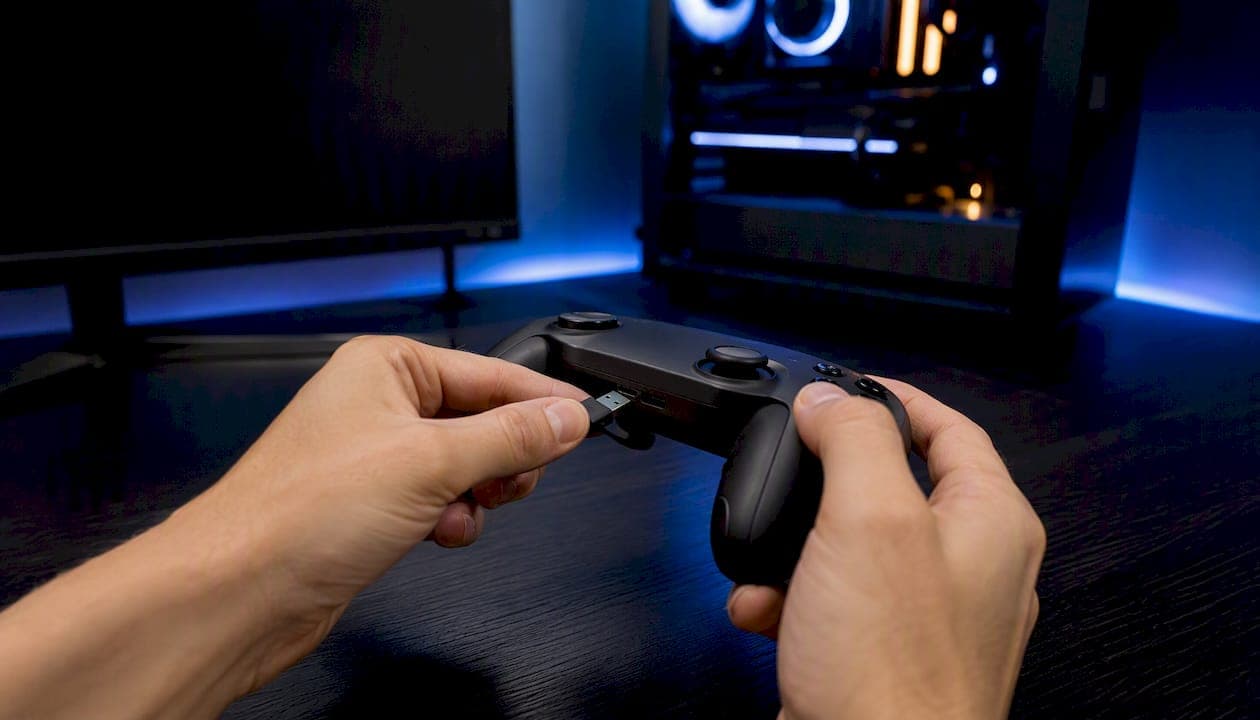
Turn off Xbox Game Bar right now: press Win+I, go to Gaming → Xbox Game Bar, and flip the toggle to Off. That stops the overlay from launching. To confirm it worked, press Win+G — nothing should happen. If you plug in a controller and the overlay still pops up, you have one more toggle to kill (covered in Section 4).
When to go further:
- Background recording still running? Disable it separately under Gaming → Captures — the main toggle doesn't touch it.
- Overlay keeps coming back after updates? Use PowerShell to remove the provisioned package.
- Never use Game Bar at all? Uninstall it cleanly via Apps & Features or PowerShell.
Key Takeaways
Disabling Game Bar's background recording (Captures) removes the most common source of background disk I/O, while the overlay toggle stops accidental pop-ups — together they cover most performance complaints without touching PowerShell.
| Point | Details |
|---|---|
| Settings toggle first | Go to Settings → Gaming → Xbox Game Bar and flip the toggle Off; takes under a minute. |
| Disable Captures separately | Turn off "Record in the background" under Gaming → Captures — the main toggle doesn't stop this. |
| PowerShell for full removal | Run Get-AppxPackage Microsoft.XboxGamingOverlay | Remove-AppxPackage; remove the provisioned package to block auto-reinstall. |
| Measure before and after | Compare frame-time variance, not just FPS, to confirm whether Game Bar was actually the bottleneck. |
| Tempered for diagnostics | Tempered scans live hardware metrics and flags only the services causing measurable impact, with one-click undo on every fix. |
Table of Contents
- How to disable Xbox Game Bar in Settings (Windows 10 vs. Windows 11)
- How to stop background recording and Game DVR (Captures)
- How to stop Win+G and controller buttons from opening Game Bar
- How to uninstall Xbox Game Bar with Apps & Features or PowerShell
- Troubleshooting when Game Bar won't turn off or keeps coming back
- Will disabling Xbox Game Bar actually improve your gaming performance?
- Tempered's view: measure first, then disable what actually matters
- Tempered scans what's actually slowing your PC before you remove anything
- Sources
How to disable Xbox Game Bar in Settings (Windows 10 vs. Windows 11)
The Settings path is slightly different depending on your Windows version, but both take under a minute.
Windows 10
- Press Win+I to open Settings.
- Go to Gaming → Xbox Game Bar.
- Toggle "Enable Xbox Game Bar for things like recording game clips, chatting with friends, and receiving game invites" to Off.
- Close Settings.
- Press Win+G to verify — no overlay should appear.
Windows 11
- Press Win+I to open Settings.
- Go to Gaming → Xbox Game Bar.
- Toggle "Open Xbox Game Bar using this button on a controller" and the main enable switch to Off.
- Optionally, go to Apps → Installed apps, search for Xbox Game Bar, select Advanced options, and set Background app permissions to Never.
- Press Win+G to confirm the overlay is gone.
On Windows 11, the Advanced options step matters more than it did on Windows 10 because the app can still run background tasks even when the overlay toggle is off. How-To Geek confirms that turning off the Game Bar toggle stops the overlay from appearing, but the background recording feature is a separate switch entirely.
How to stop background recording and Game DVR (Captures)
Disabling the overlay doesn't stop the "record what happened" buffer. That runs independently under Gaming → Captures and quietly writes to disk while you play. Epic Games specifically recommends disabling Captures alongside Game Bar when troubleshooting game performance.
- Press Win+I and go to Gaming → Captures.
- Under Background recording, toggle "Record in the background while I'm playing a game" to Off.
- Toggle "Record audio when I record a game" to Off if it's still on.
- Set "Recorded audio quality" to the lowest option if you're leaving any recording features enabled.
- Close Settings.
The immediate effect: Windows stops the instant-replay buffer, which was continuously writing short video clips to your drive. On systems with slower HDDs or NVMe drives under heavy load, that background I/O is often more noticeable than any CPU overhead from the overlay itself.
Pro Tip: On most modern PCs with a mid-range or better GPU, disabling captures alone tends to reduce background disk writes more than it moves the FPS needle. If your frame rate doesn't change after this step, your bottleneck is almost certainly elsewhere — check GPU drivers or monitor system resources before making more changes.
How to stop Win+G and controller buttons from opening Game Bar
Even with the main toggle off, a controller button or a third-party app calling the ms-gamingoverlay URI can still trigger the overlay on some Windows builds. Here's how to shut down those launch paths:
- Keyboard shortcut (Win+G): Disabling the main Game Bar toggle in Settings also disables the Win+G shortcut. If it still fires, confirm the toggle is actually saved — sometimes a quick Settings restart is needed.
- Controller button: In Settings → Gaming → Xbox Game Bar, uncheck "Open Xbox Game Bar using this button on a controller" (the Xbox button on your gamepad).
- Background app permissions: In Apps → Installed apps → Xbox Game Bar → Advanced options, set background permissions to Never so the app can't wake itself.
- App-triggered launches: Some games or launchers call the
ms-gamingoverlayURI directly. If you've uninstalled Game Bar and see a "You'll need a new app to open ms-gamingoverlay" prompt, that's the calling app looking for the handler — it's harmless, and you can dismiss it.
Avoid remapping the Win+G key at the registry level or deleting the ms-gamingoverlay protocol handler unless you're comfortable with registry work. Those approaches are rarely necessary and can cause unexpected behavior in other Xbox-integrated apps.
How to uninstall Xbox Game Bar with Apps & Features or PowerShell
Sometimes the Settings toggle isn't enough — you want the app gone. Windows occasionally prevents a normal uninstall through Apps & Features because Game Bar is treated as a system component. PowerShell is the reliable path.
Via Apps & Features (try this first)
- Press Win+I → Apps → Installed apps.
- Search for Xbox Game Bar.
- Click the three-dot menu and select Uninstall. If the button is grayed out, skip to PowerShell.
Via PowerShell (current user)
- Right-click Start and select Windows PowerShell (Admin) or Terminal (Admin).
- Run:
Get-AppxPackage Microsoft.XboxGamingOverlay | Remove-AppxPackage - Restart your PC.
Via PowerShell (all users on the machine)
- Open PowerShell as Administrator.
- Run:
Get-AppxPackage -AllUsers Microsoft.XboxGamingOverlay | Remove-AppxPackage - To also remove the provisioned package so Windows Update doesn't reinstall it:
Get-AppxProvisionedPackage -Online | Where-Object DisplayName -like "*XboxGamingOverlay*" | Remove-AppxProvisionedPackage -Online - Restart.
Community guides on Steam and Stack Exchange document these commands as the standard removal approach, with the provisioned-package step being the one most people miss.
To reinstall: Open the Xbox Game Bar page on the Microsoft Store and click Get. It restores in under a minute.
Pro Tip: Before running the provisioned-package removal, create a System Restore point. Go to Control Panel → System → System Protection → Create. That gives you a clean rollback if something downstream breaks.
| Method | What it stops | Reversible? |
|---|---|---|
| Settings toggle Off | Overlay, Win+G shortcut | Yes — toggle back On |
| Disable Captures | Background recording, instant replay | Yes — toggle back On |
| Disable controller button | Xbox button launch | Yes — toggle back On |
| PowerShell (current user) | App for your account | Yes — reinstall from Store |
| PowerShell (all users + provisioned) | App for all users, blocks auto-reinstall | Yes — reinstall from Store |
Troubleshooting when Game Bar won't turn off or keeps coming back
The most common reason toggles don't stick: the provisioned package is still installed, so Windows Update re-provisions the app on the next feature update. The second most common reason: you're on a managed device (work or school account) where a Group Policy or MDM policy overrides your Settings changes.
- Toggles revert after restart: Run the provisioned-package PowerShell command above. That's almost always the fix.
- Settings option is grayed out or missing: Your device is likely managed. Check with your IT admin — a Group Policy Object (GPO) or Intune policy is controlling the setting. Don't fight it with registry edits on a work machine.
- Game Bar reinstalls after a Windows Update: The provisioned package was not removed. Re-run the
Remove-AppxProvisionedPackagecommand after the update. - Toggle is available but doesn't save: Try running Settings as Administrator (search "Settings" → right-click → Run as administrator). Microsoft community threads confirm that account-scoped vs. machine-scoped settings conflicts are a documented cause of this behavior.
- DISM repair: If the Store or app infrastructure seems broken, run
DISM /Online /Cleanup-Image /RestoreHealthin an elevated Command Prompt, then retry.
Pro Tip: Before touching the registry to force-disable Game Bar, create that System Restore point. Registry edits that target HKLM\SOFTWARE\Policies\Microsoft\Windows\GameDVR can affect other Xbox-integrated features. The PowerShell route is safer and fully reversible via the Store.
Will disabling Xbox Game Bar actually improve your gaming performance?
Honestly, it depends on your hardware. XDA Developers notes that disabling the Game Bar removes overlay interruptions and stops background capture buffering, but modern PCs with adequate CPU and RAM rarely see large FPS gains from the toggle alone. The bigger wins usually come from elsewhere.
That said, the impact is real in specific scenarios:
- Older or budget hardware: Less CPU headroom means the overlay's background threads compete more visibly with your game.
- Slow storage: The background recording buffer writes continuously to disk. On an HDD or a nearly-full SSD, that I/O shows up as frame-time spikes rather than raw FPS drops.
- Accidental pop-ups: The overlay firing mid-game is a guaranteed frame hitch. Eliminating that alone is worth the two-minute toggle.
How to measure it properly
- Run your game for 5 minutes with Game Bar enabled and record average FPS and frame-time variance using Task Manager's GPU graph or a built-in FPS counter.
- Disable Game Bar and Captures, restart, and run the same scenario.
- Compare frame-time variance, not just average FPS — stutters show up there first.
- If you see no change, check GPU driver updates and broader Windows 11 gaming optimizations before removing more system components.
Pro Tip: Frame-time variance is the metric that matches what you feel. A game averaging 60 FPS with 40ms frame-time spikes feels worse than one averaging 55 FPS with consistent 18ms frames. Use Task Manager's Performance tab or a lightweight overlay tool to capture both numbers before and after any change.
If you want a diagnostic-first approach to identifying slow PC causes before removing built-in features, that's the smarter starting point for most users.
Tempered's view: measure first, then disable what actually matters
The instinct to uninstall Game Bar the moment performance feels off is understandable, but it's usually the wrong first move. Game Bar is rarely the primary bottleneck on a modern Windows PC. The background recording buffer is a more likely culprit than the overlay itself, and even that is often secondary to driver issues, thermal throttling, or a fragmented drive.
My recommendation: start with the Captures toggle, not the uninstall. Disable background recording, run your measurement scenario, and check whether anything changed. If it did, you found your fix. If it didn't, you still have Game Bar available for clipping highlights, and you haven't burned time on an unnecessary removal.
Uninstall makes sense in two situations: you're on a low-resource machine where every background process counts, or you simply never use the feature and want zero chance of an accidental pop-up. For managed workstations, neither the toggle nor PowerShell is the right tool — policy-based disables through Group Policy or Intune are the correct path, and that's a conversation for your IT team.
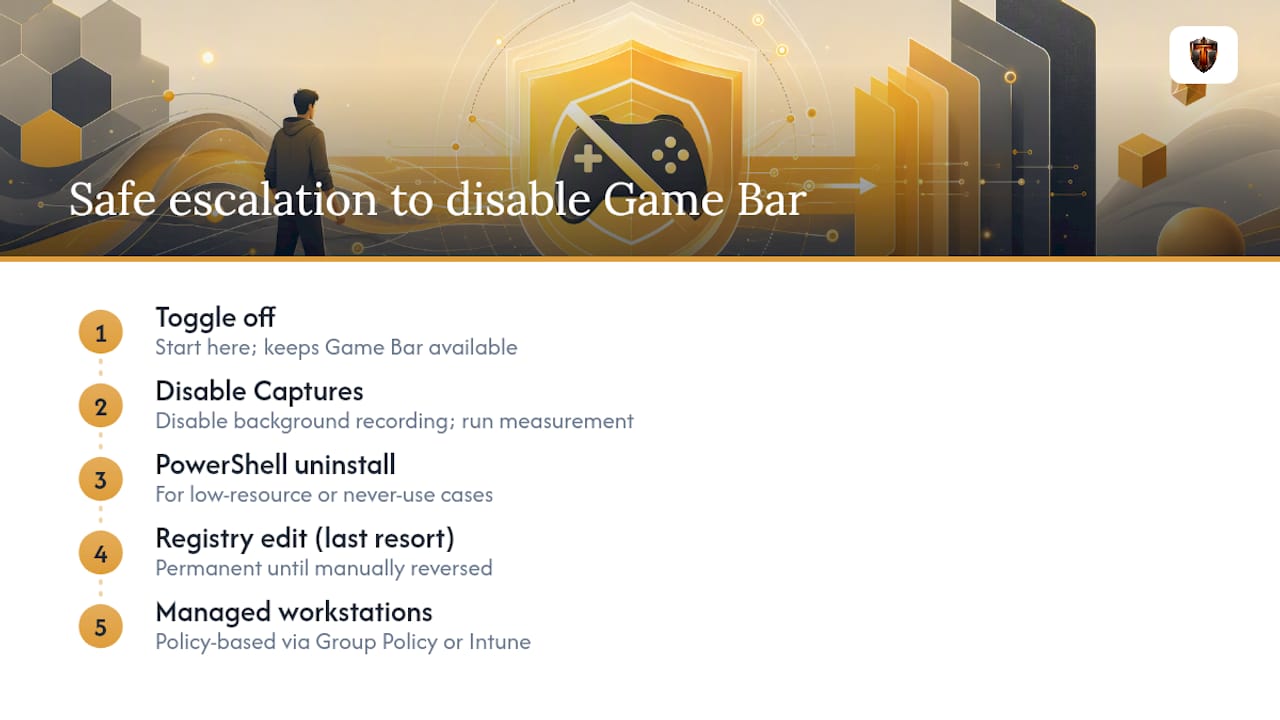
Registry edits should be a last resort. They're permanent until manually reversed, they don't survive clean installs, and they can break Xbox integration in ways that are annoying to diagnose later. The safe escalation order is: toggle off → disable captures → PowerShell uninstall → registry only if nothing else works.
Tempered scans what's actually slowing your PC before you remove anything
Disabling Game Bar is a two-minute fix. Knowing whether it's actually the problem is where most users get stuck.

Tempered's AI diagnostic scans your live CPU, RAM, GPU, and disk metrics and tells you in plain language which background services are measurably affecting your system. If Game Bar or its capture buffer shows up as a real resource consumer, Tempered flags it with a specific, user-approved fix. If it doesn't, you skip the removal entirely and focus on what's actually costing you performance. Every change Tempered suggests comes with a one-click undo path, so nothing is permanent.
No technical expertise needed, no guesswork, and no blanket uninstalls that leave you wondering what broke. Run a free scan with Tempered and see exactly what's slowing your PC down before you start removing things.