
You can cut Windows telemetry down to a trickle using built-in tools, though full removal depends on your edition. Start with the Settings toggle for a quick, low-risk win, then move to the registry or Group Policy for enforcement that sticks. Feature updates can quietly reset these changes, so plan to check them again after every major update.
TL;DR:
- Setting the telemetry toggle in Windows disables only optional diagnostic data, but required telemetry continues on Home and Pro unless registry or group policies are applied.
- Registry edits setting AllowTelemetry to zero can reduce or eliminate telemetry on Enterprise and Education editions, but may be reset after updates without proper enforcement.
- Group Policy allows system-wide enforcement of telemetry settings, offering a clearer record of controls and easier immediate application through gpupdate /force.
- Disabling the DiagTrack service cuts some diagnostic data transmission but does not prevent other Windows components from phoning home independently.
- Blocking telemetry domains through hosts file or network rules provides an extra layer of traffic filtering but may require ongoing updates due to shifting endpoints.
Table of Contents
- How do you disable Windows telemetry in Settings?
- How do you enforce the lowest telemetry level with registry edits?
- Can Group Policy limit telemetry on Pro, Enterprise, and Education?
- Should you stop DiagTrack and other telemetry services?
- How do you block telemetry endpoints at the network level?
- Are third-party telemetry scripts safe to use?
- How do you verify telemetry changes actually took effect?
- A safer performance-first alternative to disabling telemetry
- Why limit telemetry while keeping essential diagnostics intact?
- Sources
How do you disable Windows telemetry in Settings?
The fastest way to cut back telemetry is through Settings → Privacy & security → Diagnostics & feedback. This is where most people should start, since it takes 30 seconds and carries almost no risk of breaking anything.
Here's what you're actually controlling:
- Send optional diagnostic data: turn this off first. It governs the richer telemetry, things like app usage patterns, browsing history in Edge, and advanced error reports.
- Improve inking and typing: separate toggle, unrelated to core diagnostics, safe to disable.
- Tailored experiences: controls whether Microsoft uses your diagnostic data to personalize tips and ads inside Windows.
What this toggle can't touch is required diagnostic data, the baseline telemetry Microsoft says it needs to keep Windows secure and updating properly. On Home and Pro editions, that baseline keeps flowing no matter what you do here. If you want it gone or locked down harder, you need the registry or Group Policy.
How do you enforce the lowest telemetry level with registry edits?
Windows tracks its telemetry level with an AllowTelemetry DWORD value, and setting it manually forces a lower level than the Settings app allows on its own. This is where you go if the toggle above isn't cutting it.
There are two registry paths worth setting, because the policy path takes precedence but not every version reads it consistently:
- Open Registry Editor (
regedit) as an administrator. - Navigate to
HKEY_LOCAL_MACHINE\SOFTWARE\Policies\Microsoft\Windows\DataCollectionand create or edit a DWORD namedAllowTelemetry, setting it to0. - Do the same at
HKEY_LOCAL_MACHINE\SOFTWARE\Microsoft\Windows\CurrentVersion\Policies\DataCollection. - Restart the PC for the change to take effect.
You can skip the manual clicking with a couple of reg add commands run from an elevated Command Prompt:
reg add "HKLM\SOFTWARE\Policies\Microsoft\Windows\DataCollection" /v AllowTelemetry /t REG_DWORD /d 0 /f
reg add "HKLM\SOFTWARE\Microsoft\Windows\CurrentVersion\Policies\DataCollection" /v AllowTelemetry /t REG_DWORD /d 0 /f
This registry edit will gray out the Settings toggle once applied, which is actually a good sign. It means policy is now overriding the user-facing switch. On Home and Pro, a value of 0 still permits some required diagnostic traffic. Enterprise and Education editions can genuinely reach a security level of zero, since Microsoft designed those editions for organizations that need full telemetry control.
Pro Tip: Export the DataCollection key before touching it (right-click the key, choose Export) and create a system restore point. Registry mistakes rarely brick a PC outright, but a bad edit can still cause odd Windows Update behavior that's a pain to diagnose later.
Can Group Policy limit telemetry on Pro, Enterprise, and Education?
If you're on Pro, Enterprise, or Education, Group Policy is often the cleaner path, since it's built for exactly this kind of system-wide enforcement and doesn't require you to hand-edit binary registry values.
Open the Local Group Policy Editor (gpedit.msc) and go to:
- Computer Configuration → Administrative Templates → Windows Components → Data Collection and Preview Builds
- Enable the policy named Allow Diagnostic Data
- Select the lowest option your edition permits, usually Diagnostic data off or Required diagnostic data
Policy changes normally wait for a scheduled background refresh, so run gpupdate /force from an elevated prompt to apply them immediately. Group Policy has one advantage over raw registry edits: it's self-documenting. Anyone auditing the system later can see exactly what's enforced without hunting through regedit.
Should you stop DiagTrack and other telemetry services?
The Connected User Experiences and Telemetry service, known by its internal name DiagTrack, is the main pipe that carries diagnostic data off your machine. Stopping it closes that pipe, but it's a supplement to registry and policy changes, not a replacement.
To disable it:
- Open Services (
services.msc), find "Connected User Experiences and Telemetry." - Right-click, choose Stop, then open Properties and set Startup type to Disabled.
- Repeat for the dmwappushservice if you want to trim push-notification-based diagnostic channels too.
Stopping DiagTrack halts one major transmission mechanism, but other Windows components can still phone home independently of that service. Disabling it also removes the Feedback Hub's ability to collect logs, so troubleshooting a future problem gets harder.
Pro Tip: If your PC ever behaves strangely after a Windows Update, temporarily re-enable DiagTrack before contacting support. Microsoft's diagnostic tools lean on this service, and having it disabled can make remote troubleshooting slower.
How do you block telemetry endpoints at the network level?
Blocking Microsoft's telemetry domains at the network level catches traffic that slips past service and registry changes, since some components reach out directly regardless of local settings.
- Open Notepad as administrator and load
C:\Windows\System32\drivers\etc\hosts. - Add lines like
0.0.0.0 vortex.data.microsoft.comand0.0.0.0 settings-win.data.microsoft.comto redirect those endpoints to nothing. - Save the file, then flush the DNS cache with
ipconfig /flushdns. - Test the block by running
ping vortex.data.microsoft.com. A response that resolves to0.0.0.0confirms it's working.
Hosts-file entries are simple but brittle, since Microsoft periodically shifts telemetry endpoints, and hosts blocking can fall out of date faster than you'd expect. For anything beyond a single PC, a Windows Firewall outbound rule targeting the same domains, or a router-level block, holds up better across multiple devices.
Are third-party telemetry scripts safe to use?
Plenty of scripts on GitHub automate everything covered above in one run, tweaking registry keys, stopping services, and editing the hosts file in a single pass. Projects like Windows-Telemetry-Disabler bundle PowerShell and batch files that do exactly that, and they require elevated privileges to work.
That's also exactly why you should be careful with them:
- Read through the script before running it. If you can't tell what a line does, don't run it blindly.
- Test in a virtual machine first if you're not confident reading PowerShell or batch syntax.
- Back up the registry keys the script touches before execution, not after.
- Only grant administrator rights when the script explicitly needs them for a step you've already reviewed.
Pro Tip: If you manage more than a handful of machines, skip the ad hoc script route entirely and use a proper management tool. Deploying the same registry change through Group Policy or an endpoint manager beats manually rerunning a script on twenty different laptops.
How do you verify telemetry changes actually took effect?
Making a change and confirming it worked are two different things, and skipping verification is how people end up thinking they're protected when they're not.
- Reopen Settings → Privacy & security → Diagnostics & feedback. If the toggle is grayed out, your registry or policy setting is being enforced.
- Check
services.mscto confirm DiagTrack's Startup type still reads Disabled, since some updates silently flip it back on. - Open Resource Monitor or Task Manager's network tab and watch for outbound connections to Microsoft telemetry domains during idle time.
- Rerun your
pingornslookuptest against blocked domains after any hosts file edit.
Feature updates are notorious for resetting these settings, so treat verification as a recurring task, not a one-time fix. A scheduled task that reruns your reg add commands after each update cycle, or reapplying Group Policy through gpupdate /force, keeps enforcement consistent without you having to remember to check manually.
A safer performance-first alternative to disabling telemetry
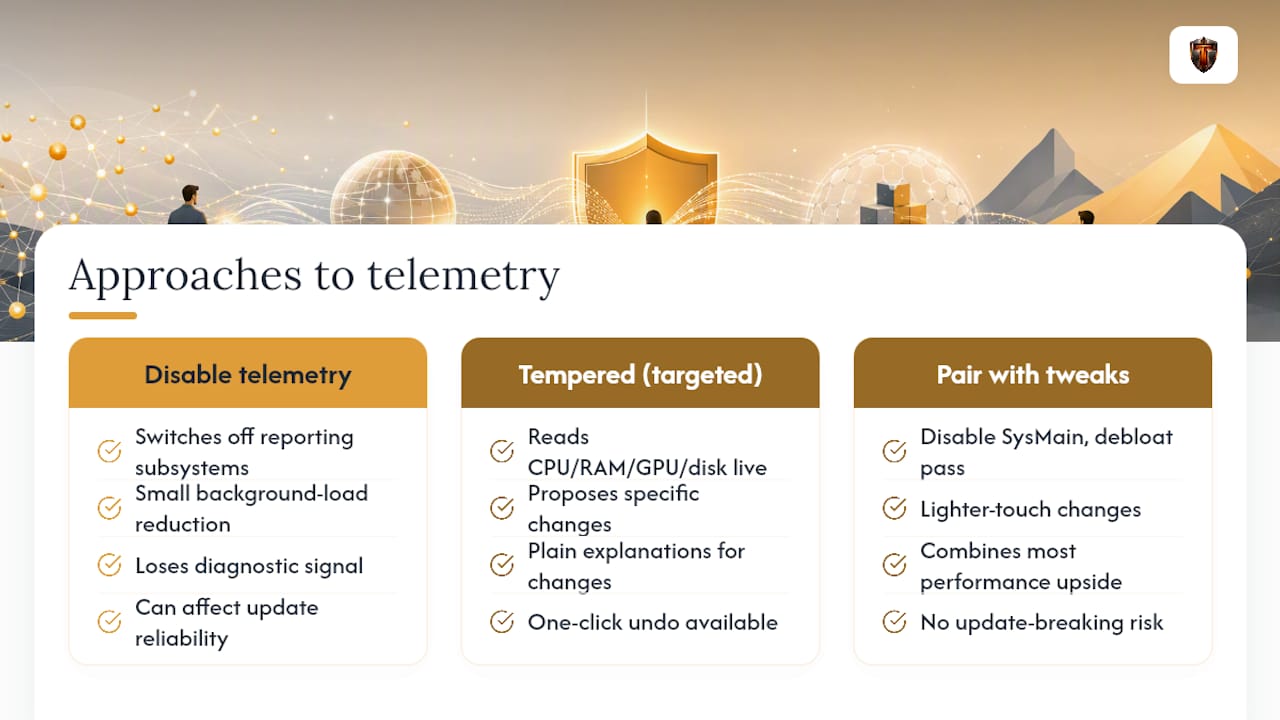
Telemetry reduction can shave a little background load off your PC, but it's a blunt instrument. You lose diagnostic signal that sometimes helps Microsoft, and occasionally you, catch problems early.
Tempered takes a narrower approach. Instead of switching off entire reporting subsystems, it reads live CPU, RAM, GPU, and disk metrics, then proposes specific changes with plain explanations of what each one does and a one-click undo if you don't like the result. If your real goal is a faster, more responsive PC rather than a privacy audit, that targeted approach gets you there without touching Windows Update's diagnostic backbone.
Pair it with lighter-touch changes like disabling SysMain or a Windows 11 debloat pass, and you get most of the performance upside with none of the update-breaking risk.
Why limit telemetry while keeping essential diagnostics intact?
Privacy and troubleshooting pull in opposite directions, and pretending otherwise does readers a disservice; understanding the dangers of data breaches and leaks emphasizes why reducing telemetry fits into a broader privacy strategy. Cutting optional telemetry is close to a free win. Killing required diagnostic data on an Enterprise box or nuking DiagTrack on a machine you rely on for work is a different risk calculation entirely, and it's worth treating it that way instead of chasing zero as a badge of honor. If your actual complaint is a sluggish PC rather than a privacy concern, a tool like Tempered solves that problem more directly than any registry key will.
— Ian
Sources
- This registry edit actually reduces what Windows 11 sends back to Microsoft
- How to disable Windows telemetry - PDQ
- How to Disable Windows 11 Telemetry and Diagnostic Data Collection - 9to5Windows