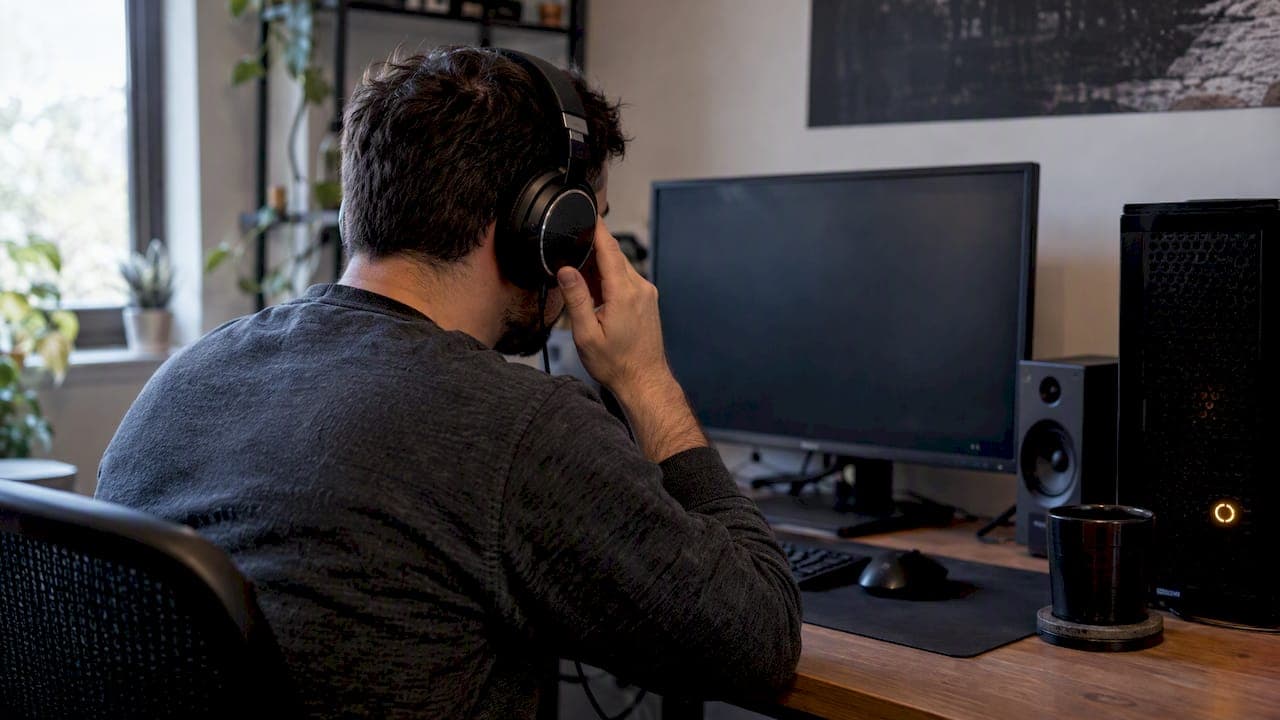
Crackling audio in Windows 11 usually comes from one of four places: audio enhancements, an unsuitable sound format, a faulty or generic driver, or a stopped audio service. A fifth cause is easy to miss: the PC is too busy to feed the sound card on time. Work through the fixes below in order, test after each one, and you will find the cause without installing anything you don't need.
TL;DR
- Start with the free, quick fixes in Settings > System > Sound: turn audio enhancements off, then try a different default format.
- If that fails, install the audio driver from your PC or motherboard maker, not just the generic one Windows picked.
- Test the same audio on a second output (speakers, wired headphones, Bluetooth, USB). One device crackling points at that device. All of them crackling points at Windows.
- Crackling only during games, streaming or heavy multitasking is usually a timing problem, not broken speakers.
- Change one thing at a time and skip registry cleaners. You can't tell what worked if you change five things at once.
Table of Contents
- Why Windows 11 audio crackles
- Before you change anything: three-minute checks
- Fix 1: Turn off audio enhancements
- Fix 2: Try a different default format
- Fix 3: Update or reinstall the audio driver
- Fix 4: Restart the Windows audio services
- Crackling only in games or under load
- If it's Bluetooth only
- Our order of attack, summarized
- Our perspective: diagnose, then change
- Check what your PC is doing when it crackles
- When it's probably hardware
- FAQ
- Sources
Why Windows 11 audio crackles
Sound on a PC is a stream. The system has to hand small chunks of audio to the sound device on a strict schedule. When a chunk arrives late, is processed badly, or is in a format the device doesn't like, you hear a click, pop, crackle or static.
Microsoft's own guidance for distorted or crackling audio groups the fixes into four categories: audio enhancements, the default format, drivers, and Windows audio services. It does not claim any single fix works on every device, which is why a fixed order matters.
That also explains a common surprise. Sound that "suddenly" turns terrible is often a compatibility problem in the processing chain, not dead hardware. Enhancements and an unsuitable format can distort output even when the speakers and sound chip are perfectly healthy.
Before you change anything: three-minute checks
These sound too basic to matter, but they rule out cheap causes and give you a baseline.
- Restart the PC. A full restart (not just sleep) clears stuck audio sessions and half-loaded drivers.
- Confirm the right output is selected. Go to Settings > System > Sound and check the output device. Microsoft's no-sound guidance notes that the wrong output, a mute state, enhancements and driver failure can all produce audio symptoms, so it is worth a look even when you hear sound rather than silence.
- Run the audio troubleshooter. Open the Get Help app, search for the audio troubleshooter and follow its prompts. It rarely solves crackling alone, but it can flag a stopped service or a missing driver.
Isolate the device first
Before you reinstall anything, play the same track through a different path: built-in speakers, wired headphones, a USB headset, Bluetooth. MSI's troubleshooting FAQ stresses this cross-check because it separates a Windows-wide fault from a single bad cable, jack or headset.
| What you hear | What it suggests | Where to look |
|---|---|---|
| Only one device crackles | That device or its connection | Cable, jack, firmware, that device's driver |
| Every output crackles | Windows, drivers, services or system load | The steps in the next sections |
| Only Bluetooth crackles | Wireless link quality or Bluetooth driver | Distance, interference, Bluetooth settings |
| Only during games or streaming | A timing problem under load | The load section further down |
Fix 1: Turn off audio enhancements
This is the fix Microsoft lists first, and it takes under a minute.
- Open Settings > System > Sound.
- Under Output, select your speakers or headphones.
- Find Audio enhancements and switch it Off.
- Play the same audio that was crackling.
If the problem disappears, leave enhancements off. If the option isn't there for your device, the driver may handle processing itself, such as a manufacturer control panel with its own effects. Turn off effects there too.
This step also helps outside Windows' own player. iZotope's Windows 11 support instructions direct users to disable enhancements in the playback device's Advanced properties when audio sounds thin, crackling or distorted in audio software.
Fix 2: Try a different default format
Every output device has a default format: a bit depth and a sample rate, such as 16-bit at 48,000 Hz. If the device or its driver handles the chosen format poorly, you get distortion or pops.
- In Settings > System > Sound, select your output device.
- Open the Advanced section and find Format (Default format).
- Pick a different option from the list, for example a 16-bit, 48,000 Hz entry if you are on a higher setting, or the reverse.
- Use the test button, then play the problem audio.
Change one value at a time and test each. A very high setting is not automatically better. Microsoft's community forums include a long-running case of popping that began after an update when the device was set to 96,000 Hz and 24-bit, a reminder that the format your hardware tolerates and the format you like on paper can differ.
If you also use an app in "exclusive mode" (common in music and recording software), that app can hold the device in its own format and conflict with Windows. Closing it while you test rules it out.
Fix 3: Update or reinstall the audio driver
If enhancements and format don't help, move to the driver. Microsoft says updating the audio driver can fix no sound, distorted audio, crackling, and microphone or headset problems.
The order Microsoft describes:
- Check Windows Update first.
- If that doesn't help, download the Windows 11 driver for your exact PC, motherboard or audio-device model from its manufacturer.
- Install it and restart.
Why does this work when Device Manager says the device is "working"? Because the right package may come from the PC or audio-device maker, and a reinstall can repair a corrupted or incomplete installation. This matters most after a Windows upgrade or when the generic driver hasn't helped.
Realtek audio crackling
Most desktop motherboards and many laptops use Realtek audio, so this is the most common version of the problem. Microsoft and manufacturer guidance both point to the same sequence: disable enhancements, test another format, and only then update or reinstall the exact Realtek package for your system. Grab it from your laptop or motherboard maker's support page, using your exact model name. A random driver from a third-party download site is the wrong move.
If a new driver made it worse
Open Device Manager, expand Sound, video and game controllers, right-click the audio device and choose Properties. On the Driver tab, Roll Back Driver is available only if a previous version exists. Use it if crackling began right after an update, then pause that driver update until the maker releases a fix.
Fix 4: Restart the Windows audio services
If audio glitches come and go, the services behind it may have stalled.
- Press Win + R, type
services.mscand press Enter. - Find Windows Audio, right-click and choose Restart.
- Do the same for Windows Audio Endpoint Builder.
- Play your audio again.
Microsoft includes this as the last step in its sequence. If services refuse to start or keep stopping, you may have a deeper configuration problem. Our guide on resetting Windows services safely covers how to do that without reinstalling Windows.
Crackling only in games or under load
If your sound is clean on the desktop and crackles when you launch a game, start a stream, or run a video call with a dozen tabs open, you are probably looking at a timing problem rather than a settings problem.
Real-time audio needs the system to service its stream promptly. Microsoft Q&A threads on audio DPC latency associate clicks and pops with buffer underruns and long DPC/ISR activity, including from network and graphics drivers. These are individual cases, not proof that a particular driver is guilty on your PC, but they show the pattern: a driver that is not the audio driver can still be the reason audio stutters. Another Microsoft Q&A case describes the same kind of failure, with graphics drivers, hard page faults and power management in the mix.

A controlled comparison
Don't guess. Run three tests:
- Game closed. Play music or a video. Clean?
- Game running. Play the same audio while the game is open. Crackles now?
- Different output. Repeat step 2 on another device, such as a wired headset instead of a wireless one.
If it crackles only in step 2, look at what changed recently: GPU driver, network driver, chipset driver, audio driver, or a power plan. If a wireless USB headset buzzes only in one game, as in this reported Apex Legends case, a different output tells you whether the headset path is involved.
Avoid the reflex of dropping graphics settings or pasting registry tweaks from a forum. Lower graphics may reduce load, but it doesn't tell you why audio missed its deadline.
What to check on a loaded PC
- A process eating the CPU. A background app pinned at high usage can starve the audio thread. Our guide to finding a CPU hog in Windows 11 shows how to spot it.
- Power management. Aggressive power saving on USB ports, the CPU, or storage can delay audio. MSI's guidance for one Windows 11 case, shared on its forum, involved hard drive idle timing and processor idle thresholds. Read our piece on Windows 11 power throttling before you disable anything, so you diagnose first.
- General game stutter. If frames hitch at the same moment audio does, trace it with PresentMon rather than guessing.
- Background apps. Chat and overlay apps can spike usage. Here is how to handle Discord high CPU.
If it's Bluetooth only
When only Bluetooth headphones crackle and wired or USB audio is clean, stop changing global Windows audio settings. Microsoft recommends starting with the automated Bluetooth troubleshooter in the Get Help app, then checking Bluetooth settings and drivers, and it names outdated or incompatible drivers as a common cause in its Bluetooth guide.
Practical extras: move closer to the PC, remove obstructions, and check for other 2.4 GHz traffic such as Wi-Fi routers, USB 3 hubs and other wireless devices near the adapter.
Our order of attack, summarized
| Step | Action | Time |
|---|---|---|
| 1 | Restart, confirm output, run the troubleshooter | 3 min |
| 2 | Test another output device | 2 min |
| 3 | Turn off audio enhancements | 1 min |
| 4 | Try another default format | 3 min |
| 5 | Update or reinstall the exact driver | 10 to 20 min |
| 6 | Restart Windows Audio and Endpoint Builder | 2 min |
| 7 | Compare with and without load | 10 min |
Test after every step. If the fault is gone after step 3, you have your answer and the rest is unnecessary.
Our perspective: diagnose, then change
Audio problems are where "PC cleaner" culture does the most damage. A crackle has a short list of documented causes, and nearly all of them are visible if you look at the right thing: a setting, a driver version, a service state, or a process hogging the CPU. None of them are fixed by cleaning the registry or applying a bundle of unexplained tweaks.
That's the principle we build Tempered around. We look at live measurements (CPU, RAM, GPU, disk and uptime), identify the real constraint, and propose a specific change with a plain-language explanation and an expected outcome. Nothing is applied without your approval, and every change is tracked with a one-click Undo. We don't invent issues to make a scan look impressive.

For crackling, that mindset has a practical meaning. Change one thing, test, and keep a way back. If a fix doesn't help, you should be able to undo it, not wonder which of ten tweaks broke something else. If you are a gamer, this also means no mystery changes to your system. We design Tempered to be anti-cheat safe.
We won't claim a tool can repair a cracked cable or replace the right driver from your manufacturer. What we can do is show you whether the PC is under pressure when the crackle happens, and help you trim what is causing it.
— Ian
Check what your PC is doing when it crackles
If your crackling shows up only under load, the evidence you want is what the CPU, RAM, GPU and disk are doing at that moment. Tempered shows those live metrics, explains in plain language what is holding the PC back, and lets you approve each suggested change with an Undo path. There is a Free plan with limited AI scans, Torque from $5.99 per month, and Torque Max from $12.99 per month; see the pricing page for what each includes, or learn more on the Tempered homepage.
When it's probably hardware
If every software step is done and the crackle stays, think physical:
- Loose or damaged cables. Wiggle the 3.5 mm plug while audio plays. Crackle that changes as you touch it is a connector fault.
- Front panel versus rear jack. Try the other jack on a desktop.
- USB path. Move a USB headset or DAC to a different port, ideally directly on the motherboard rather than through a hub.
- Another PC. Plug the same speakers or headset into a different computer. If the crackle follows, the device is the culprit.
If the crackle follows the device to another computer, replace or repair the device. If it stays on this PC through every output, go back to drivers and system load, and consider asking your PC or motherboard manufacturer's support, with the steps you have already tried in hand.
FAQ
Why is my audio crackling all of a sudden?
Sudden crackling usually follows a change: a Windows update, a new driver, a new app that uses audio, or a changed setting. Check enhancements and the default format first, then look at the driver version and roll back if the timing matches an update. If it only happens under load, see the section on timing problems above.
Why does my audio sound terrible in Windows 11 even though my speakers work?
The speakers may be fine while the processing chain in front of them is not. Per Microsoft's guidance, enhancements and an unsuitable default format can distort sound on working hardware. Turn enhancements off and test other formats before assuming anything is broken.
How do I fix Realtek audio crackling?
Follow the same order: disable enhancements, test another format, then install the exact Realtek package for your PC or motherboard from its manufacturer. Generic Windows drivers work for many systems but not all. If the crackle started after a Windows upgrade, the manufacturer's driver is the most likely fix.
Can a PC optimizer fix crackling audio?
Only if it finds a real cause, such as a process hogging the CPU or a power setting that you then confirm with testing. Registry cleaners and automatic tweaks have no documented role in fixing crackling. Whatever tool you use, it should explain each change and let you undo it.
Should I roll back the audio driver?
Yes, if crackling began right after a driver update and the Roll Back Driver button is available. If it isn't, reinstall the previous version from your manufacturer's site, and hold off on updating again until a newer release is out.
Sources
- Fix distorted or crackling audio in Windows, Microsoft Support
- Update audio drivers in Windows, Microsoft Support
- Fix audio issues when no sound plays, Microsoft Support
- Fix Bluetooth problems in Windows, Microsoft Support
- Troubleshooting RX Audio Issues (Windows), iZotope Support
- Audio Crackling Sound troubleshooting, MSI FAQ
- Audio crackling, popping and stutter on Windows 11 Pro, MSI forum
- Audio DPC latency and performance issues, Microsoft Q&A
- DPC latency issues, audio popping and crackling, Microsoft Q&A
- Audio popping when set to 96000Hz 24bit, Microsoft Q&A
- Buzzing sound through wireless USB headset in Apex Legends, Microsoft Q&A