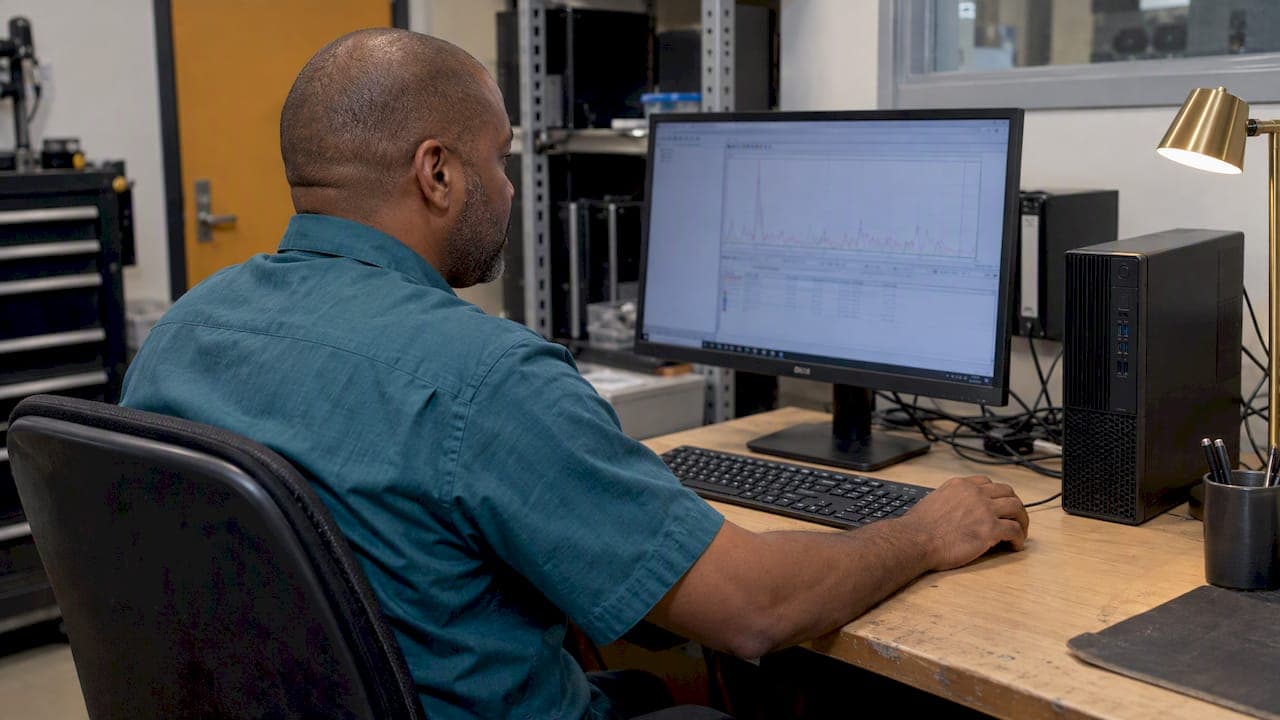
Performance Monitor (perfmon) is the built-in Windows tool for recording how your CPU, memory, disk and network behave over time. To open it, press Win+R, type perfmon and press Enter. Add a few counters, let it run while the slowdown happens, and you have evidence instead of guesses. This guide covers the counters worth watching, how to log them to a file, and how to run the powercfg /energy report.
TL;DR
- Open Performance Monitor with
perfmonfrom the Run dialog, or find it under Computer Management. - Define the symptom first (slow boot, laggy apps, stutter in games), then pick only the counters that match it.
- For anything that happens when you are not watching, log to a Data Collector Set and open the file later.
- Run
powercfg /energyon an idle PC to catch power and battery problems. - Treat every reading as a clue. Measure, change one thing, then measure again.
Table of Contents
- How to open Performance Monitor in Windows 11
- What Performance Monitor measures, and how it differs from Task Manager
- Start with the symptom, then choose counters
- Log it: creating a Data Collector Set
- Where the results are saved and how to read them
- Run a one-minute diagnostics report
- The powercfg energy report
- Our perspective: measure first, change second
- Skip the manual work with Tempered
- FAQ
- Sources
How to open Performance Monitor in Windows 11
There are three quick ways in:
- Press Win+R, type
perfmon, press Enter. - Right-click the Start button, choose Computer Management, then open Performance under System Tools.
- Search "Performance Monitor" from Start.
The tool is an MMC snap-in that has shipped with Windows for a long time, and Microsoft describes it as a way to monitor system usage and a range of performance metrics. The left pane has Performance Monitor (the live graph), Data Collector Sets (saved logging jobs) and Reports (the results).
The first screen is a sparse graph showing only one counter. Nothing is wrong. You have to add the counters yourself, and that is where the tool becomes useful.
What Performance Monitor measures, and how it differs from Task Manager
Task Manager answers "which app is using resources right now?" Performance Monitor answers "what were the system-level numbers over the last hour, and did they cross a line?" One commentator puts it this way: Performance Monitor shows system metrics, while Task Manager is friendlier for per-app CPU, memory, disk and network use.
A few practical differences:
- History. Task Manager's graphs cover about a minute of recent activity. Performance Monitor can log for hours or days and save the result.
- Depth. Performance Monitor exposes hundreds of counters, such as queue lengths, interrupt time and hard page faults, that Task Manager never shows.
- Limits. Microsoft notes that Performance Monitor has no access to the kernel and does not log kernel information. For deep kernel tracing you need other tooling.
- Different numbers. The two tools can disagree. A SuperUser answer explains that Task Manager tabs can use different counters, including % Processor Utility and % Processor Time, so the percentages do not always match. Compare readings within one tool, not across them.
Use Task Manager to spot the culprit app. Use Performance Monitor to prove a pattern.
Start with the symptom, then choose counters
The most common mistake is adding forty counters and staring at a tangle of colored lines. Study guides for the CompTIA A+ exam make the same point: define the symptom, such as slow boot or sluggish apps, before collecting data, because it decides what you monitor.
To add a counter, click the green plus in the graph toolbar, pick a counter group, select the counter and instance, and click Add. Keep the list to five or six at a time.
CPU counters
For high CPU, Microsoft's troubleshooting page lists these to watch:
- Processor: % Processor Time, % User Time, % Privileged Time and % Interrupt Time
- System: Processor Queue Length, System Calls/sec and Context Switches/sec
- Process: Thread Count and Handle Count
The same page states that sustained CPU utilization above 85% indicates a CPU bottleneck. The word "sustained" matters. A spike to 100% while an app launches is normal. A flat line near the top for many minutes is a lead.
If the high-usage pattern points to one process, our walkthroughs on finding a CPU hog in Windows 11 and high CPU usage in Windows 11 pick up where the counters leave off.
CPU load is also a daily concern for people who run audio and video projects, where one overloaded core can cause dropouts. This write-up on audio production CPU problems shows the same logic: find what is saturating the processor before you change settings.
Memory counters
For memory, the useful signals are low available RAM and a high hard fault rate, which point to memory stress. Add Memory: Available MBytes and Memory: Pages/sec as a starting pair. A high "percent used" figure alone says little, because Windows deliberately caches data in spare RAM. We explain that in detail in our guide to high memory usage in Windows 11.
Disk counters
Add PhysicalDisk: Avg. Disk sec/Read and Avg. Disk sec/Write for latency, plus Current Disk Queue Length. One IT blog suggests that latency above 20 ms on a system SSD is abnormal and worth investigating, for example with a disk check. Treat that as a rule of thumb rather than a hard limit, and confirm it appears repeatedly before acting.
A starter set
| Symptom | Counters to add | What a problem looks like |
|---|---|---|
| Sluggish everything | Processor: % Processor Time, System: Processor Queue Length | CPU above 85% for a sustained stretch, queue length growing |
| Apps freeze when many are open | Memory: Available MBytes, Memory: Pages/sec | Available RAM shrinking, hard faults rising |
| Slow boots, slow file opens | PhysicalDisk: Avg. Disk sec/Read, Current Disk Queue Length | Latency repeatedly spiking, queue backing up |
| Fans loud, one core pinned | Processor: % Interrupt Time, % Privileged Time | Interrupt or privileged time far above user time |
These thresholds come from the sources above and are starting points. Your baseline on a healthy day is the best reference.
Log it: creating a Data Collector Set
The live graph is useless for a stutter that happens once an hour. A Data Collector Set records counters to a file while you work. Microsoft notes that these sets store performance counter data and can be created through the GUI or with the logman.exe command.
Using the GUI
- In Performance Monitor, expand Data Collector Sets, right-click User Defined, and choose New, then Data Collector Set.
- Name it after the symptom, for example "Game stutter", and pick Create manually (Advanced).
- Choose Performance counter, then add the counters from the table above.
- Set the sample interval. Fifteen seconds is a sensible default for long sessions.
- Pick a save location, finish the wizard, then right-click the set and choose Start.
- Reproduce the problem, then right-click and choose Stop.
Using logman
In an elevated Command Prompt, logman creates and controls the set with logman start and logman stop. A minimal example:
logman create counter SlowPC -c "\Processor(_Total)\% Processor Time" "\Memory\Available MBytes" "\PhysicalDisk(_Total)\Avg. Disk sec/Read" -si 00:00:15 -o C:\PerfLogs\SlowPC
logman start SlowPC
logman stop SlowPC
Why 15 seconds
There is a reason beyond habit. Microsoft explains that Performance Monitor shows at most 1,000 data points per graph, and past that it summarizes and combines points, which can make the numbers inaccurate. At 15 seconds, 1,000 points covers a little over four hours. For a longer capture, raise the interval; for a short, sharp problem, lower it.

Once running, the same page says the set's impact should be under 1%, so it is safe to leave on during normal use.
Where the results are saved and how to read them
A Data Collector Set writes a .blg log, which can be saved under C:\PERFLOGS and reopened later in Performance Monitor. Open Performance Monitor, click the View Log Data icon (the cylinder on the toolbar), add the file under Source, and then add counters from it.
When reading the graph:
- Look for shape, not single points. A line that climbs steadily and never falls is more telling than a jagged one.
- Line up the counters. If disk latency spikes at the same moment CPU drops, the processor is waiting on storage.
- Hunt for leaks. Microsoft's debugging team showed that adding Pool Nonpaged Bytes and Pool Paged Bytes can reveal a steadily increasing pool leak, usually tied to a driver.
- Change one thing at a time. Record a baseline, make one change, record again.
Run a one-minute diagnostics report
If you want a summary without building anything, run perfmon /report from the Run dialog. It collects performance and configuration data and produces a System Diagnostics report with warnings and suggested checks. It is a good first pass before you commit to a long log.
The powercfg energy report
If the symptom is a draining battery, a laptop that runs hot, or a PC that will not sleep properly, Performance Monitor is the wrong tool. Use powercfg /energy.
Per Microsoft's documentation, the command analyzes common energy-efficiency and battery-life problems, should run while the computer is idle with no open programs or documents, and writes an HTML report to the current path unless you give it an output path.
- Close everything and leave the PC alone.
- Open Terminal (Admin).
- Run
powercfg /energy /output C:\energyreport.html. - Wait for the trace to finish, then open the HTML file in a browser.
Specifying a path is also the fix suggested in a Microsoft Q&A thread when the command seems to do nothing. The report groups findings as errors, warnings and informational items. Start with errors, which often name a device or setting that blocks sleep or keeps the processor from idling. If you suspect the OS is deliberately slowing apps to save power, read our piece on Windows 11 power throttling before disabling anything.
Our perspective: measure first, change second
We build Tempered because most PC tuning advice does the opposite of what Performance Monitor teaches. It tells you to run a cleaner, flip a dozen settings and hope. Performance Monitor is the discipline of finding the real constraint first.

The tool is also honest about how much work that is. Picking counters, logging, reading .blg files and cross-checking numbers takes patience, and many people just want the machine to feel faster. That is the gap we designed Tempered around. It reads live CPU, RAM, GPU, disk and uptime metrics, explains what it sees in plain language, and proposes specific changes. Nothing is applied without your approval. Every change is tracked with a one-click Undo, and we do not use registry cleaning or invent problems to look busy. For gamers, our approach is built to be anti-cheat safe.
Our advice, whichever tool you use: keep a before-and-after record. If a tweak did not move a measured number, it was not a fix. And if you do want to dig into crashes rather than speed, Windows also has Reliability Monitor, which we cover separately.
— Ian
Skip the manual work with Tempered
If you would rather not build counter sets by hand, Tempered does the diagnosis for you on Windows 10 and 11, and shows its reasoning for every suggestion. You can start on the Free plan, which includes limited AI scans. Paid plans on the pricing page start at $5.99 per month for Torque and $12.99 per month for Torque Max, with higher scan limits and premium features. No AI API key or technical background is required.

If you want to see what a scan finds on your own machine, you can try Tempered, the AI PC optimizer, then compare its findings with your own Performance Monitor logs.
FAQ
Is Performance Monitor the same as Resource Monitor?
No. Resource Monitor is a live view of CPU, memory, disk and network use by process, much like a deeper Task Manager. Performance Monitor works with counters and can log them over time to a file. Use Resource Monitor for "what is busy now" and Performance Monitor for "what happened over the last few hours."
Does running Performance Monitor slow down my PC?
Very little. Microsoft states that a started Data Collector Set should have an impact of less than 1%. Keep the counter list short and the interval reasonable, such as 15 seconds, and you can log during normal use or gameplay.
Where do I find my Performance Monitor logs?
That depends on the output folder you chose when creating the Data Collector Set. A common location is C:\PERFLOGS, per Microsoft's guidance. Open the .blg file by using the View Log Data option in Performance Monitor.
What CPU percentage is too high?
Microsoft says sustained use above 85% indicates a CPU bottleneck. Short bursts to 100% during app launches are normal. Look at how long the load lasts and which process drives it before changing anything.
Sources
- Troubleshoot issues using Performance Monitor, Microsoft Learn
- Troubleshoot performance problems in Windows, Microsoft Learn
- Troubleshooting Pool Leaks Part 1, Microsoft NTDebugging blog
- Powercfg command-line options, Microsoft Learn
- powercfg /energy not working, Microsoft Q&A
- How to Run a PC Diagnostics Report in Windows
- Comparison of the three performance monitors in Windows 11
- Task Manager vs. Performance Monitor: CPU usage, SuperUser
- Windows Performance Monitor 220-1102 Study Guide
- Ableton Live 11 CPU en Performance problemen