
Windows 11 debloat is the process of removing built-in apps, disabling background services, and cutting telemetry that drain your system resources without your permission. A fresh Windows 11 install ships with Candy Crush, Xbox Game Bar, Microsoft Teams, and dozens of OEM bundles that run silently in the background. The result is slower startup times, wasted RAM, and a cluttered disk. The good news: targeted debloating methods, from setup-time regional tricks to open-source scripts, can recover meaningful performance without breaking your system.
What tools and methods are available for Windows 11 debloat?
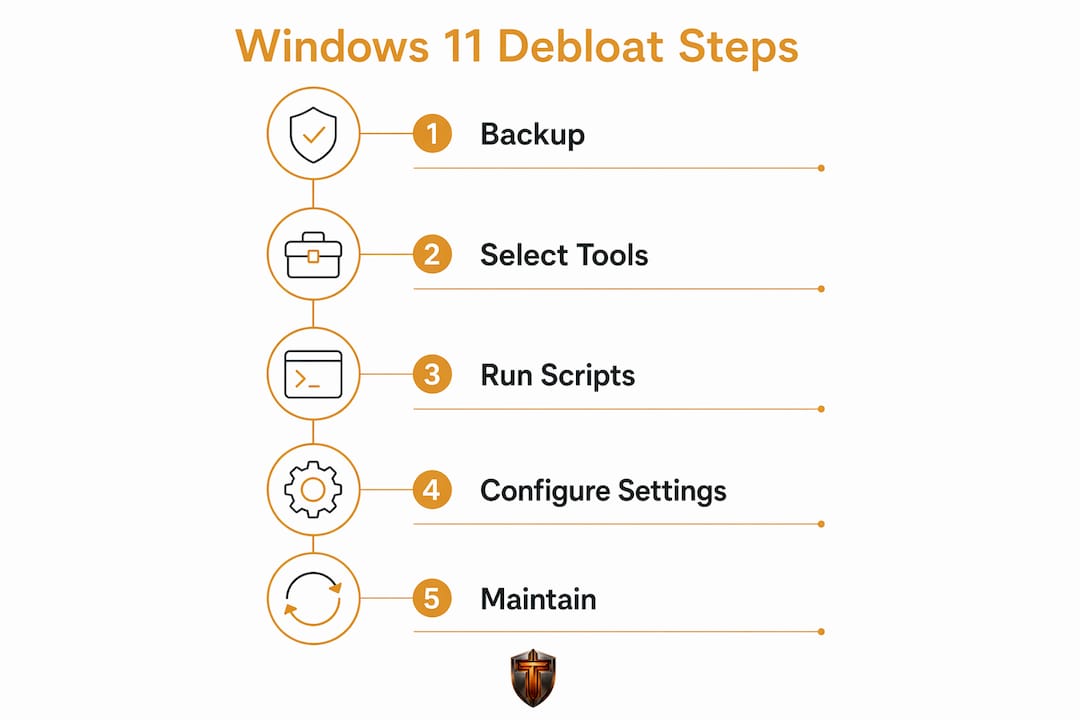
The best debloat method depends on your skill level. Scripts give power users granular control, Group Policy works better for cautious users, and setup-time tweaks suit beginners who want to prevent bloat before it installs.
Script-based tools
Open-source scripts like Win11Debloat, FlyOOBE, and Debloat11-GUI are the most thorough options for removing unnecessary apps from Windows 11. Win11Debloat runs from PowerShell and lets you pick exactly which apps and telemetry services to remove. FlyOOBE guides you through a post-install cleanup with a simple menu interface. Debloat11-GUI wraps similar functionality in a graphical window, which lowers the barrier for users who are uncomfortable with the command line.

One critical warning applies to all script-based tools: debloat scripts can trigger antivirus false positives because they make system-level changes. Always read the source code or download from the official GitHub repository before running anything with administrator privileges.
Native Windows 11 methods
Windows 11 includes built-in options that require no third-party software. Group Policy Editor (available on Pro and Enterprise editions) contains a setting called "Remove Default Microsoft Store packages" that prevents bloat for new users without touching core system files. The Settings app also lets you disable telemetry, turn off advertising IDs, and manage startup programs directly. These native methods are slower and less thorough than scripts, but they carry far less risk of breaking something.
Pro Tip: Before choosing a tool, check whether your Windows 11 edition is Home or Pro. Group Policy Editor is not available on Home, so Home users must rely on scripts or the Settings app.
How to debloat Windows 11 during installation
The cleanest way to reduce bloatware is to prevent it from installing in the first place. Windows 11 reads your regional settings during setup and uses them to decide which promotional apps to preload.
- Start the Windows 11 installer and proceed to the "Time & Currency format" screen.
- Change the region to "English (World)" or "English (Europe)" instead of your local region. This reduces promotional apps that Windows installs based on your market.
- Create a local account instead of signing in with a Microsoft account. A local account reduces the number of Microsoft services that activate automatically on first boot.
- Disconnect your internet cable or turn off Wi-Fi before reaching the privacy settings screens. Staying offline during setup prevents Windows from downloading additional feature updates and telemetry components during the first boot.
- Complete setup, then reconnect to the internet and change your region back to your actual location in Settings if needed for correct time zone and language behavior.
This approach works best on a clean install. If you are setting up a new PC with OEM software already baked in, you will still need a script or manual removal afterward, because OEM bundles bypass the regional setting filter entirely.
Pro Tip: After setup, go to Settings > Apps > Startup and disable every app you do not recognize. Many apps re-enable themselves after updates, so check this list monthly.
Step-by-step guide to using debloat tools on an existing install
If Windows 11 is already installed, scripts are the fastest path to a leaner system. Users who have debloated thoroughly recover between 5GB and 20GB of disk space, depending on how many OEM apps shipped with their device.
Running Win11Debloat
- Create a system restore point before you start. Open the Start menu, search "Create a restore point," and click "Create." This gives you a one-click rollback if something breaks.
- Download Win11Debloat from its official GitHub page. Never download scripts from third-party sites or forums.
- Right-click PowerShell and select "Run as administrator."
- Paste the script command from the GitHub readme and press Enter.
- Select your removal options from the interactive menu. Start with the preset that removes only third-party apps and telemetry. Avoid the "remove everything" preset on your first run.
- Restart your PC after the script finishes and verify that core apps like File Explorer, Settings, and Windows Update still work correctly.
Using Debloat11-GUI
Debloat11-GUI presents the same options as command-line scripts but in a checkbox interface. Launch it as administrator, review each category (telemetry, preinstalled apps, privacy settings), and check only what you want to remove. The GUI makes it easy to be selective, which is the right approach. Standard uninstallation often leaves background services running even after the app appears gone, so using a dedicated tool matters.
Removing bloatware can cut startup time by 30–50% and free between 500MB and 3GB of RAM, depending on your device configuration. That is a meaningful gain for gaming or any CPU-intensive task.
Pro Tip: Export a list of your installed apps before running any script. Open PowerShell and run Get-AppxPackage | Select Name | Export-Csv apps_backup.csv. You will thank yourself if you need to reinstall something later.
How to configure Group Policy and privacy settings for ongoing control
Scripts handle the initial cleanup, but ongoing telemetry and bloat require a different approach. Native Windows 11 policy settings give you persistent control without running a script every time Microsoft pushes an update.
- Enable the Store app policy. Open Group Policy Editor (gpedit.msc), navigate to Computer Configuration > Administrative Templates > Windows Components > Store, and enable "Turn off the Store application" or "Remove Default Microsoft Store packages." This prevents default Store apps from reinstalling for new user profiles.
- Reduce telemetry in Settings. Go to Settings > Privacy & Security > Diagnostics & Feedback and set it to "Basic" (or "Required diagnostic data" in newer builds). Turn off the advertising ID under Settings > Privacy & Security > General.
- Pause Windows Update for 5 weeks after a major feature update drops. This prevents Microsoft from pushing new bloat apps that sometimes arrive bundled with updates. Go to Settings > Windows Update > Advanced Options > Pause Updates.
- Audit startup programs monthly. Open Task Manager, click the Startup tab, and disable anything with a high startup impact that you do not actively use.
- Create a restore point before every policy change. Overly aggressive Group Policy edits can break Windows Update or Microsoft Store functionality. Restoring from bloat removal requires reinstalling from Microsoft Store or a full system image backup if you go too far.
The key principle is selective removal. Flexibility in debloating means targeting telemetry and user-level apps while preserving core dependencies that Windows Update and system stability rely on.
Pro Tip: Never disable Windows Update entirely. Pause it strategically, but keep security patches flowing. An unpatched system is a far bigger problem than a few extra apps.
Key Takeaways
The most effective Windows 11 debloat strategy combines setup-time regional settings, selective script-based removal, and ongoing Group Policy controls to reduce bloat without breaking system stability.
| Point | Details |
|---|---|
| Prevention beats removal | Choosing "English (World)" during setup stops promotional apps from installing in the first place. |
| Scripts offer the deepest cleanup | Tools like Win11Debloat and Debloat11-GUI remove stubborn OEM apps that standard uninstall misses. |
| Backup before every change | Create a restore point before running scripts or editing Group Policy to allow safe rollback. |
| Avoid removing core components | Never remove Windows Store, media codecs, or system calculators, as this causes update and stability failures. |
| Ongoing policy control matters | Monthly startup audits and telemetry settings in Group Policy keep bloat from creeping back after updates. |
Why I think most debloat guides get the order wrong
Most guides tell you to run a debloat script first and ask questions later. That is backwards. The single most valuable thing you can do is create a restore point and export your app list before touching anything. I have seen users remove the Xbox Identity Provider package thinking it was just a gaming app, only to find that their Microsoft Store stopped working entirely. Removing protected system apps is the most common failure point, and it is entirely avoidable.
The real performance gains do not come from disk space recovery. Primary performance improvements come from reducing background services and startup items, which is where startup time cuts of up to 50% actually come from. Focus your energy there first.
My honest recommendation: combine the setup-time regional trick for new installs, Win11Debloat with conservative settings for existing installs, and Group Policy for ongoing maintenance. That three-layer approach gives you the best result with the lowest risk. Keep Windows Update running. Keep Edge installed even if you never use it, because removing it breaks PDF rendering in several apps. Work incrementally, test after each change, and you will end up with a genuinely fast system rather than a broken one.
— Ian
Tempered keeps your PC fast after debloating
Debloating removes the obvious waste, but background processes and hardware inefficiencies can still creep back over time. Tempered is an AI-driven PC optimizer that monitors your CPU, RAM, and GPU in real time and flags exactly what is slowing your system down.

Unlike running a script once and hoping for the best, Tempered gives you continuous visibility into your system's health. It manages background processes and startup items through an interface that requires no technical knowledge, and every change it makes is reversible through its built-in Undo Center. For gamers and everyday PC users who want to stay fast without repeating the manual process every few months, Tempered is the logical next step after a clean debloat.
FAQ
What is Windows 11 debloat?
Windows 11 debloat is the process of removing preinstalled apps, disabling background services, and reducing telemetry to free up system resources and improve performance.
How much disk space can I recover by debloating Windows 11?
Most users recover between 5GB and 20GB of disk space after a thorough debloat routine targeting Microsoft and OEM apps.
Is it safe to run debloat scripts on Windows 11?
Debloat scripts are safe when downloaded from official GitHub repositories and reviewed before running. Always create a restore point first, and avoid removing core system components like Windows Store or media codecs.
Does debloating Windows 11 actually improve speed?
Removing bloatware can reduce startup time by 30–50% and free between 500MB and 3GB of RAM, with the biggest gains coming from disabling background services rather than just freeing disk space.
Can I undo a Windows 11 debloat if something breaks?
Yes. If you created a restore point before debloating, you can roll back through System Restore. Apps removed from the Microsoft Store can also be reinstalled individually from the Store after recovery.