
The fastest ways to clear temp files on Windows
Temporary files live in two main spots: %TEMP% (your user folder) and C:\Windows\Temp (the system folder). Both accumulate junk over time, and both are safe to clean. Here is what you need to know before you start:
- %TEMP% stores files created by apps running under your account
- C:\Windows\Temp holds files the OS and system services create
- Files locked by active processes cannot be deleted and should be skipped
- Storage Sense and Disk Cleanup handle most of this automatically
- Manual deletion via File Explorer gives you direct control when you want it
For most users, the Settings app or Storage Sense is the right starting point. Command Prompt and Task Scheduler are there when you need more control.
Table of Contents
- How to manually delete temporary files on Windows
- How Storage Sense automates temporary file cleanup for you
- Why clearing temp files actually improves performance
- How AI-powered diagnostics take temp file management further
- Clearing temp files via Command Prompt or PowerShell
- Scheduling automated temp file cleanup with Task Scheduler
- What clearing temp files does to your apps and system stability
- How to identify which temp files are safe to remove
- Tempered gives you real-time insight into what's slowing your PC down
- Key Takeaways
How to manually delete temporary files on Windows
Close all open applications first. Locked files cannot be deleted, and closing apps frees up as many as possible before you start.

Step 1: Press Windows + R, type %TEMP%, and hit Enter. File Explorer opens your user temp folder directly.
Step 2: Press Ctrl + A to select everything, then hit Delete. A dialog will appear saying some files are in use — check "Do this for all current items" and click Skip. That is normal behavior, not an error.
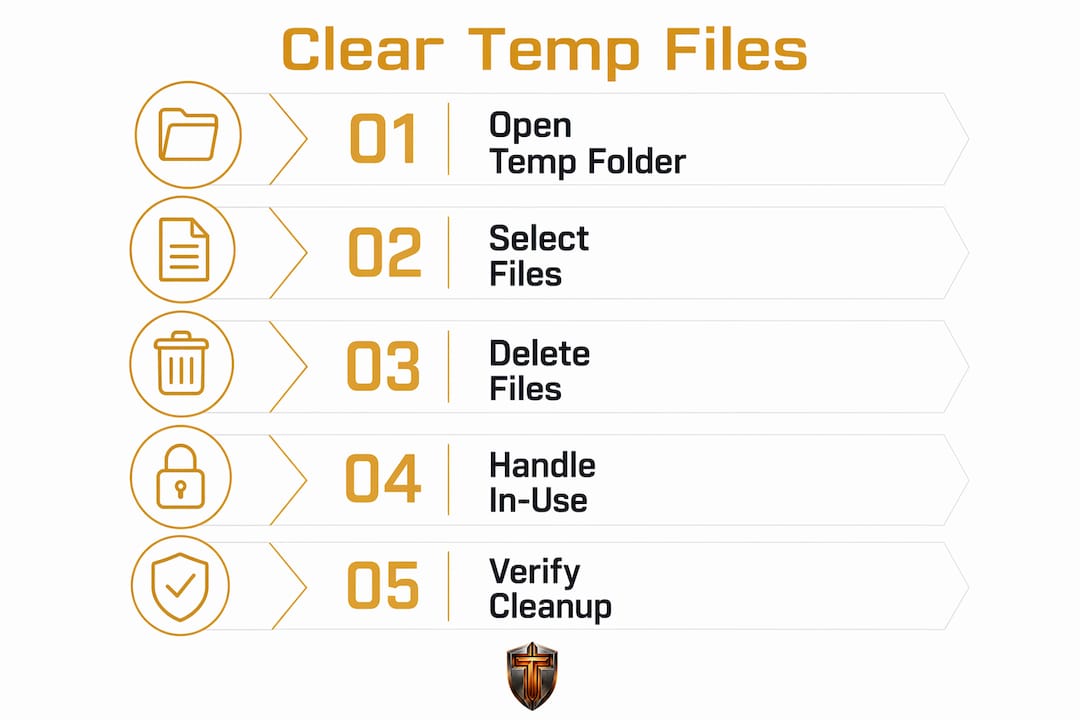
Step 3: For a deeper clean, press Windows + R again, type C:\Windows\Temp, and repeat the process. You may need administrator rights to open this folder.
Step 4: Empty the Recycle Bin afterward. Deleted files sit there until you do.
- Use Disk Cleanup as an alternative: search for it in the Start menu, select your C: drive, check Temporary files, Thumbnails, and Temporary Internet Files, then click OK. The Disk Cleanup utility also surfaces delivery optimization files and internet cache that File Explorer misses.
Pro Tip: After cleanup, reopen %TEMP% and check the folder size in Properties. If it still shows several hundred MB, a running background app is holding files open. Restart and run the cleanup again.
How Storage Sense automates temporary file cleanup for you
Storage Sense is the closest thing Windows has to a "set it and forget it" solution for automated cleanup. Once configured, it runs on your schedule without any manual effort.
To enable it: Go to Settings > System > Storage, then toggle on Automatic User content cleanup.
Key options you can configure:
- Run frequency: daily, weekly, monthly, or only when disk space is low
- Recycle Bin: auto-delete files older than 1, 14, 30, or 60 days
- Downloads folder: optionally clear files not opened in a set period
- Cloud-synced files: make locally available files online-only to reclaim space
The difference between automation and manual cleanup comes down to consistency. Manual cleanup works, but most users forget to do it until the disk is nearly full. Storage Sense prevents that by removing junk before it piles up.
Pro Tip: If your PC is used heavily for gaming or video editing, set Storage Sense to run weekly rather than monthly. Large render caches and shader compilations accumulate fast.
Why clearing temp files actually improves performance
The performance gain from deleting temporary files depends heavily on how full your drive is. On a drive with plenty of free space, you will likely notice nothing dramatic. On a drive that is nearly full, the difference can be immediate.
Here is why: Windows uses free disk space as virtual memory (the page file). When that space shrinks, the OS starts swapping data inefficiently, which slows app launches and increases load times. Reclaiming space on a nearly full drive directly reduces that swapping pressure.
Users with nearly full drives often notice improvements such as faster application launch times, reduced system lag during multitasking, fewer "Low Disk Space" warnings, and smoother boot sequences after clearing temporary files.
IT professionals consistently include temp file cleanup in routine PC maintenance schedules for exactly this reason. It is not a dramatic fix, but it prevents the slow creep of degradation that makes a two-year-old PC feel ancient. If your drive has persistent low disk space even after cleanup, the Microsoft Store cache may be corrupted — run wsreset.exe and the Windows Update troubleshooter to address it.
One caveat: after clearing cached files, some apps and websites load slower temporarily while the cache rebuilds. That is normal and short-lived.
How AI-powered diagnostics take temp file management further
Manual and automated cleanup tools handle the what. AI diagnostics handle the when and why — and that distinction matters on a system under real load.
A tool like Tempered monitors CPU, RAM, GPU, and disk usage in real time, then flags when rising disk pressure or thermal load suggests a cleanup would actually help. Instead of cleaning on a fixed calendar schedule, you clean when the hardware data says it is worth doing.
Practical advantages of pairing AI diagnostics with cleanup:
- Identifies which background processes are generating the most temp file churn
- Recommends cleanup before disk pressure causes visible slowdowns
- Tracks every change with one-click Undo, so nothing is irreversible
- Surfaces startup items and background processes that compound storage issues
Pro Tip: Use Tempered's real-time disk metrics alongside Storage Sense. Storage Sense handles the scheduled sweeps; Tempered catches the spikes between them — like a game install that drops 4 GB of shader cache overnight.
Clearing temp files via Command Prompt or PowerShell
Command Prompt gives you the fastest path to clearing both temp folders in under a minute. Open it as administrator (right-click the Start button, select Terminal (Admin)), then run:
del /q /f /s %TEMP%\*
del /q /f /s C:\Windows\Temp\*
The /q flag suppresses confirmation prompts, /f forces deletion of read-only files, and /s includes subfolders. Files currently in use are skipped automatically.
In PowerShell, the equivalent is:
Remove-Item "$env:TEMP\*" -Recurse -Force -ErrorAction SilentlyContinue
Remove-Item "C:\Windows\Temp\*" -Recurse -Force -ErrorAction SilentlyContinue
-ErrorAction SilentlyContinue handles locked files gracefully without throwing errors. Both approaches are faster than File Explorer for large temp folders and work well in scripts.
Scheduling automated temp file cleanup with Task Scheduler
Task Scheduler lets you run cleanup commands on a precise timetable, going further than Storage Sense's built-in options. The cleanmgr command with /sageset and /sagerun parameters is the standard approach.
Setup steps:
- Run
cleanmgr /sageset:1in an elevated Command Prompt to open Disk Cleanup with a settings dialog. Select the file categories you want included. - Open Task Scheduler, create a new Basic Task, and set your trigger (weekly, on login, etc.).
- Set the action to run
cleanmgr /sagerun:1. This executes the exact configuration you saved in step one.
This method is particularly useful on shared or work PCs where you want cleanup to happen silently in the background without user interaction. Pair it with the PowerShell commands above for a complete scheduled solution covering both the GUI-based Disk Cleanup and the raw temp folders.
What clearing temp files does to your apps and system stability
Clearing temp files is safe for installed applications. Windows rebuilds what it needs as apps run. The concern most users have — that deleting temp files will break something — applies only to files actively in use at the moment of deletion, which is why skipping locked files matters.
A few things to know:
- Browsers lose their local cache, so pages load from the network on first visit after cleanup. Speed returns once the cache rebuilds.
- Windows Update temp files are safe to delete after updates complete. Deleting them mid-update can cause problems, so run cleanup after a full restart.
- App installers sometimes store temp files mid-installation. Never run a cleanup while an installer is active.
System stability is not at risk from routine temp file deletion. The OS is designed for it.
How to identify which temp files are safe to remove
Not every file in a temp folder is equally disposable. Here is how to read what you are looking at:
- Files with recent timestamps (today or this week) may belong to active processes. Check Task Manager before deleting.
- Files older than 30 days are almost always safe. No active process holds a temp file that long.
- Folders named after GUIDs (long alphanumeric strings) are typically installer remnants and safe to delete after installation completes.
- Files with
.tmpor.tempextensions are the core targets. Files with.logextensions in the temp folder are also generally safe but worth a quick glance if you are troubleshooting.
The Settings app path (System > Storage > Temporary files) is the safest identification method for less experienced users. Windows pre-selects only what it has confirmed is safe, and it shows you the size of each category before you commit. For a slow laptop where disk pressure is one of several culprits, this view also helps you prioritize which cleanup step to tackle first.
Tempered gives you real-time insight into what's slowing your PC down
Knowing how to clear temp files manually is useful. Knowing when your system actually needs it, and what else is dragging performance down, is where most users leave time on the table.

Tempered is an AI-powered PC diagnostic tool built for Windows 10 and 11 that monitors CPU, RAM, GPU, and disk metrics live, then tells you in plain language what to fix and why. It flags disk pressure before it causes slowdowns, identifies background processes worth killing, and applies safe performance tweaks, all with a one-click Undo if anything feels off. No technical knowledge required. You can also debloat Windows 11 directly from the same interface.
If you want cleanup that is timed to your actual hardware state rather than a calendar, try Tempered free and run your first AI scan today.
Key Takeaways
Clearing temp files on Windows is most impactful on nearly full drives, where reclaimed space directly reduces disk swapping and improves app load times.
| Point | Details |
|---|---|
| Two temp locations | Clean both %TEMP% (user) and C:\Windows\Temp (system) for a complete sweep. |
| Skip locked files | Files in use by active processes cannot be deleted — skip them, do not force it. |
| Automate with Storage Sense | Configure it in Settings > System > Storage to run daily, weekly, or monthly. |
| Command-line speed | del /q /f /s %TEMP%\* clears the user temp folder faster than File Explorer. |
| Tempered for real-time guidance | Tempered monitors live disk and hardware metrics to tell you when cleanup will actually help. |