
Chrome eating your CPU almost always traces back to one of four culprits: a runaway tab, a misbehaving extension, a stuck service worker, or a conflict with your antivirus or GPU drivers. The fastest fix is immediate: press Shift+Esc to open Chrome's Task Manager, sort by CPU, and end whichever process sits at the top. If Chrome refuses to respond at all, quit it entirely from Windows Task Manager and relaunch.
TL;DR:
- High CPU usage in Chrome is often caused by a single heavy tab, a misbehaving extension, or background processes like service workers or GPU processes.
- Using Chrome's internal Task Manager helps identify the specific process or tab responsible for CPU spikes, enabling targeted fixes.
- Disabling extensions, turning off hardware acceleration, and managing background site permissions can significantly reduce CPU load.
- Persistent high CPU after basic troubleshooting may involve outdated drivers, antivirus conflicts, profile corruption, or aggressive preloading features.
- Automated tools like Tempered can help detect complex, recurring issues involving background interactions that manual methods can't easily identify.
Table of Contents
- Fastest Fixes for Chrome High CPU on Windows
- How Do You Find Which Chrome Process Is Using CPU?
- What's Actually Causing Chrome's High CPU Usage?
- Step-by-Step Fixes: Test After Every Change
- How Do You Confirm the Fix Actually Worked?
- Process Priority, Power Plans, and When to Bring in a Dedicated Tool
- How Pre-Rendering and Speculative Loading Affect CPU
- Does Chrome Use More CPU Than Other Browsers?
- Does Clearing Cache and Temporary Files Help CPU Usage?
- Which Chrome Flags Affect CPU Usage?
- How Sandboxing and Security Features Affect CPU
- A Diagnostic Philosophy Worth Following
- When Recurring CPU Spikes Need More Than Manual Fixes
- Where to Verify These Fixes Yourself
- Sources
Fastest Fixes for Chrome High CPU on Windows
Before you dig into deeper diagnostics, run through this list. Most people solve chrome high CPU Windows problems in under ten minutes without touching a single setting they don't understand.
- Open Windows Task Manager (Ctrl+Shift+Esc) and end any leftover
chrome.exeprocesses if the browser is frozen or won't close normally. - Press Shift+Esc inside Chrome to open its built-in Task Manager, sort by CPU, and end the top offender.
- Disable every extension at once, then test Chrome for a few minutes before re-enabling them one at a time.
- Go to Settings > System and turn off "Continue running background apps when Google Chrome is closed."
- Toggle hardware acceleration off in Settings > System, then restart Chrome to see if usage drops.
- Check for pending updates to Chrome itself and to your GPU drivers.
- Restart your computer. It sounds basic, but it clears stuck processes and memory leaks that accumulate over long sessions.
If CPU usage stays high after all seven steps, you're dealing with something more specific, and the next section walks you through finding it.
How Do You Find Which Chrome Process Is Using CPU?
Start in Windows Task Manager to confirm Chrome, not some other application, is actually the problem. Sometimes what looks like "Chrome" trouble is really a Windows Update check or a backup utility running in the background. Once you've confirmed Chrome is the culprit, Shift+Esc opens Chrome's own Task Manager, which is more useful than the Windows version because it breaks down CPU by individual tab, extension, and internal process rather than lumping everything into one chrome.exe line.
You'll see labels like:
- Tab: [page title] — a specific website's renderer process
- Extension: [name] — CPU used by an installed extension
- GPU Process — handles hardware-accelerated rendering
- Service Worker — background scripts tied to apps like Gmail or Slack
- Network Service — handles requests, including ad refreshes and auto-updating content
You can safely end most of these without losing work in other tabs, though ending a tab process will close that tab. Chrome's own Task Manager is usually enough, but for stubborn or intermittent spikes, Microsoft's Process Explorer or Chrome's official ETW tracing guidance gives IT admins and power users a deeper look at what's happening at the system level.
Pro Tip: If a specific tab is the problem, right-click it and choose "Hide" in Chrome's Task Manager rather than ending it. That keeps the tab open but confirms whether it's responsible before you commit to closing anything.
What's Actually Causing Chrome's High CPU Usage?
Different symptoms point to different root causes. Matching yours to the right one saves you from randomly clicking every setting in Chrome hoping something sticks.
- A single heavy tab: sites with autoplaying video, complex animations, or bloated JavaScript will show up as a tab-specific renderer process consuming CPU.
- A background extension: ad blockers, password managers, and shopping assistants with poorly optimized background scripts often show persistent CPU use even with zero tabs open.
- Service workers: PWAs and web apps like Gmail can keep running in the background after you close their tab, sometimes pulling 10 to 30% CPU on their own.
- Hardware acceleration conflicts: outdated or incompatible GPU drivers can force Chrome into inefficient software rendering, spiking CPU instead of offloading work to the graphics card.
- Antivirus scanning: Windows Defender's real-time protection can clash with Chrome's constant cache and profile writes, creating a scanning loop that eats CPU and disk I/O.
- A corrupted profile or sync loop: a damaged Chrome profile can get stuck repeatedly trying to sync bookmarks or extensions.
- Too many open tabs: memory pressure from dozens of tabs forces Windows into paging, which shows up as CPU overhead from constant context switching.
- Ad-heavy or auto-refreshing pages: news sites and forums with aggressive ad networks keep the network service process busy even when you're not actively scrolling.
Step-by-Step Fixes: Test After Every Change
Work through these in order, and check Chrome's CPU usage after each one before moving to the next. Skipping the verification step is how people end up making five changes when one would have fixed it.
- End the immediate culprit. Close the offending tab or end the process in Chrome's Task Manager. Watch CPU for two minutes to confirm it drops.
- Isolate extensions. Disable all of them, restart Chrome, and monitor for five minutes. If usage stays normal, re-enable extensions one at a time, waiting a few minutes between each, until you catch the offender.
- Kill background permissions. For sites you don't need running after you close them, revoke background sync and notification permissions in Chrome's site settings.
- Toggle hardware acceleration. Turn it off, restart, and check CPU. If it helps, update your GPU drivers through Windows Update or the manufacturer's site, then re-enable acceleration and retest.
- Check for Defender contention. If antivirus scanning seems tied to the spikes, back up your Chrome profile first, then add the Chrome User Data folder to Windows Defender's exclusion list. Only do this if you understand the security tradeoff of excluding a folder from scanning.
- Rule out profile corruption. Clear browsing data, and if problems persist, create a new Chrome profile to see if the issue follows you or stays behind.
- Reduce tab load. Turn on Memory Saver in Chrome's performance settings, or manually close tabs you're not using.
Pro Tip: Keep a plain text note of what you changed and when. If CPU creeps back up two days later, you'll know exactly which fix to revisit instead of starting from zero.
How Do You Confirm the Fix Actually Worked?
Run a baseline test: let Chrome sit idle with your normal tabs open for 5 to 10 minutes and watch both Windows Task Manager and Chrome's Task Manager. CPU should settle into single digits at idle.
- Reproduce the original trigger (opening the same site, waiting the same amount of time) to confirm it's actually resolved, not just quiet for the moment.
- Watch for a pattern: CPU that spikes only during specific actions points back to a tab or extension, while constant elevated use points to a service worker or background process.
- If spikes return after a Windows update or Chrome update, retest hardware acceleration first since driver conflicts are the most common regression.
- Escalate to Process Explorer or an ETW trace if the problem is intermittent and you can't catch it manually.
Process Priority, Power Plans, and When to Bring in a Dedicated Tool
Windows lets you set chrome.exe to a lower priority in Task Manager, but do this only as a temporary diagnostic step. Setting it too low permanently can make Chrome feel sluggish even when CPU numbers look fine. Power plans matter more than people expect. Windows' Balanced or Power Saver plans throttle CPU frequency, which can make Chrome look like it's using a higher percentage of a smaller available pool, not necessarily using more raw power.
When the same CPU spike keeps coming back after you've cleared extensions, updated drivers, and checked Defender, that's usually a sign of a deeper interaction between background processes that manual troubleshooting won't catch on its own. That's the exact gap a Windows-focused optimizer is built to close: watching live process behavior over time and flagging the recurring pattern instead of the one-time spike.
Tools like Tempered analyze those live interactions and propose specific, reversible changes rather than blanket tweaks, which matters if you've already been burned by an optimizer that changed settings you didn't approve.
How Pre-Rendering and Speculative Loading Affect CPU
Chrome doesn't wait for you to click a link before it starts working. Its speculative loading features, including prerendering and prefetching, guess which page you're likely to visit next based on your typing in the address bar or hovering behavior, and start loading it before you commit. This is why search results sometimes feel instant.
The tradeoff is CPU and network usage you didn't explicitly ask for. If you type the start of a frequently visited URL, Chrome may spin up a hidden renderer process for the predicted destination. On a fast, modern CPU with plenty of headroom, this is invisible. On an older machine or one already under load, it can look like Chrome is doing something for no reason, because from the Task Manager's view, it briefly is.
You can see this show up in Chrome's Task Manager as short-lived renderer processes that appear and disappear without you clicking anything. It's usually not the source of sustained high CPU, but it can compound an existing problem. If your machine already runs close to its limit, disabling preload features in Chrome's privacy settings ("Preload pages for faster browsing and searching") removes one more source of background activity, even though it costs you a bit of perceived speed on navigation.
This matters most on lower-power laptops and older desktops where every background process competes for a smaller CPU budget. On a modern desktop CPU, it's rarely worth chasing.
Does Chrome Use More CPU Than Other Browsers?
Chrome's multi-process architecture is both its biggest strength and the reason it tends to show higher CPU and memory numbers than some alternatives. Every tab, extension, and even individual iframes can run in their own isolated process. That isolation protects you: a crash in one tab won't take down your whole browser, and a compromised site can't easily reach into another tab's memory. The cost is overhead. Each process carries its own baseline CPU and memory footprint, and Windows has to schedule and switch between all of them.
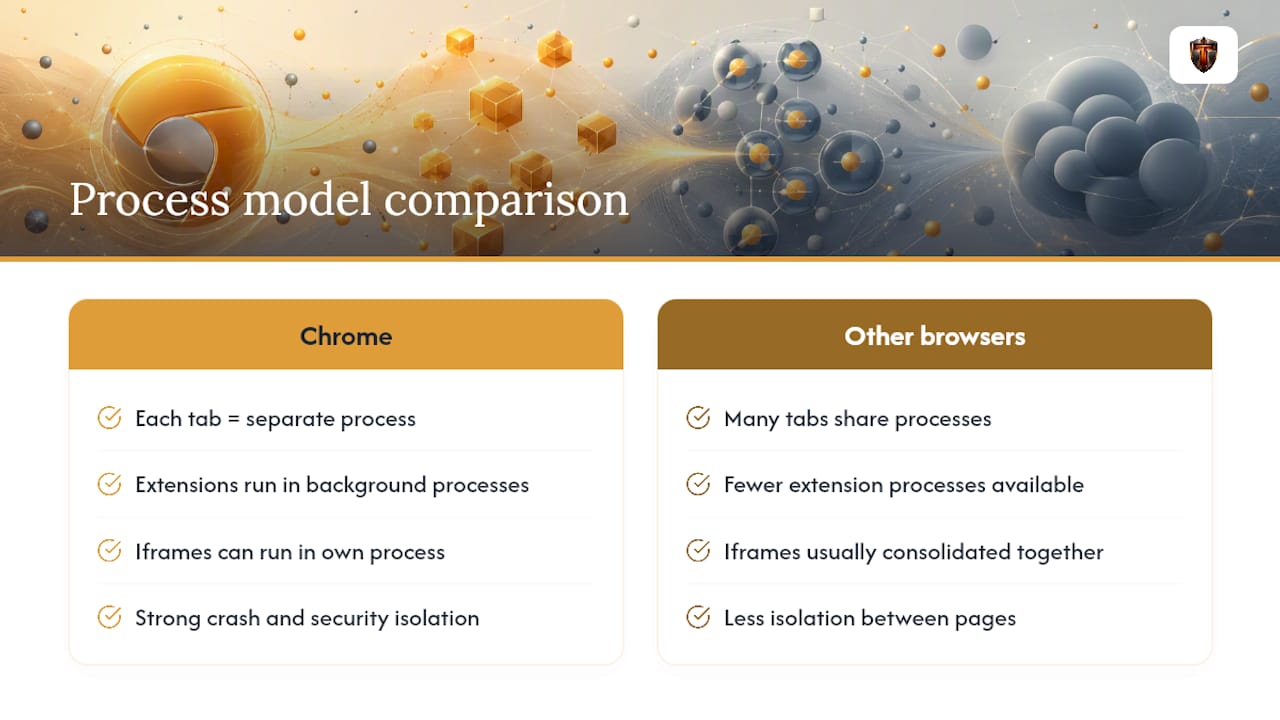
Browsers built on lighter process models, or ones that consolidate more work into shared processes, can look leaner in Task Manager for the same set of open tabs. That doesn't necessarily mean they're doing less work. It often means they're doing the same work with less isolation between pieces, which is a security and stability tradeoff, not a free performance win.
Extensions compound the difference. Chrome's extension ecosystem is the largest of any browser, and each installed extension typically gets its own background process or service worker. A browser with fewer available extensions, or one that runs them differently, will naturally show a smaller CPU footprint simply because there's less running.
If you're comparing Chrome's CPU usage against another browser side by side, look at what's actually open on each side. A fair test means matching tab count, extension count, and site type, not just eyeballing two Task Manager windows with different workloads in each.
Does Clearing Cache and Temporary Files Help CPU Usage?
Clearing your cache rarely fixes an active CPU spike by itself, but it solves a specific and often overlooked problem: a corrupted or bloated cache that forces Chrome to work harder reading and rewriting files than it should.
Chrome constantly writes to its profile folder for caching, session restore, and sync. When that folder grows very large or develops corrupted entries, Chrome can spend extra CPU cycles managing it, particularly during startup or when switching between many tabs that all hit the disk cache.
Clearing browsing data (Settings > Privacy and security > Clear browsing data) and selecting "Cached images and files" resets that folder to a clean state. Pair this with a broader disk cleanup if your Windows drive itself is cluttered with temporary files competing for I/O, since a full disk cleanup can reduce the background contention that makes cache-related slowdowns worse.
This fix matters most if you've been experiencing the problem for weeks or months rather than something that started suddenly. A sudden spike is more likely a specific tab or extension. A slow-building, general sluggishness that clearing cache resolves points to accumulated cache bloat rather than a single bad actor.
Which Chrome Flags Affect CPU Usage?
Chrome's experimental flags, accessible by typing chrome://flags into the address bar, let you toggle features still in testing. A handful of them directly affect CPU behavior, and they're worth knowing even though Google doesn't guarantee they'll stay available in future versions.
GPU rasterization flags control whether Chrome uses your graphics card more aggressively for rendering page content. Forcing this on can shift work off the CPU and onto the GPU, which helps on machines with a capable graphics card sitting mostly idle. On integrated graphics with limited power, it can backfire and increase overall system load.
Parallel downloading and back-forward cache flags affect how Chrome manages navigation and network requests, which can influence short CPU bursts during page loads without materially affecting sustained usage.
Flags are experimental by design, so a setting that helps in one Chrome version might get removed or changed in the next update. Treat any flag change as temporary and test it the same way you'd test disabling an extension: change one thing, monitor, and revert if it doesn't help.
How Sandboxing and Security Features Affect CPU
Chrome's sandbox isolates each renderer process so a malicious or buggy website can't reach your operating system or other tabs directly. This is one of the reasons Chrome has held up well against browser-based exploits for years, but that isolation isn't free. Each sandboxed process needs its own memory space and its own communication channel back to the browser's main process, and maintaining those channels consumes a small but real amount of CPU.
Site Isolation, a related feature that puts cross-site iframes into their own dedicated processes, adds further overhead in exchange for blocking a whole category of data-theft attacks. On a modern multi-core CPU, this overhead is barely noticeable. On older dual-core machines, or systems already juggling twenty open tabs, the cumulative cost of dozens of isolated processes becomes more visible in Task Manager.
You generally shouldn't disable sandboxing or Site Isolation to chase small CPU gains. The security tradeoff is steep, and the actual CPU savings from turning them off are usually small compared to the impact of just closing unused tabs or catching a single runaway extension. If you're on genuinely older hardware where every process counts, the better move is reducing what's running rather than reducing what's protecting you.
A Diagnostic Philosophy Worth Following
Work from the outside in: Windows Task Manager first, then Chrome's Task Manager, then extensions, then hardware acceleration. Resist the urge to make five changes at once, because you'll never know which one actually worked. Almost every high CPU case resolves through this kind of methodical, reversible testing. Reinstalling Windows should be your last option, not your third step.
— Ian
When Recurring CPU Spikes Need More Than Manual Fixes
Manual troubleshooting solves most one-off spikes, but some Windows PCs develop recurring CPU problems that come from several small issues compounding at once: a startup app fighting with Defender, a driver quietly falling out of date, background processes nobody remembers installing. Chasing each one individually gets old fast.

Tempered was built for exactly that pattern. It scans live CPU, disk, and process activity on your Windows 10 or 11 machine, flags the specific interactions actually dragging performance down, and proposes changes you approve one at a time, each with a clear explanation and a one-click undo. It doesn't require any technical background or an API key to run. If you've been through the extension test, the hardware acceleration toggle, and the Defender exclusion, and Chrome's CPU usage still creeps back up a week later, that's the recurring, hard-to-pin-down pattern Tempered is designed to catch. Run a free scan with Tempered and see what it finds on your own system.
Where to Verify These Fixes Yourself
For deeper or enterprise-level diagnosis, Google's own Chrome browser performance troubleshooting guide covers Task Manager use and ETW trace collection in detail.
- Chrome Enterprise's official performance troubleshooting documentation
- Community threads on Chrome's service worker CPU behavior
- Practical walkthroughs like BleepingComputer's memory and CPU diagnostic guide
- Microsoft Q&A discussions on Defender and Chrome resource conflicts
Sources
- Chrome taking most of the CPU and RAM resource — Microsoft Q&A
- How to Fix Chrome Using 100% CPU on Windows Without Reinstalling Everything — Advice for Tech