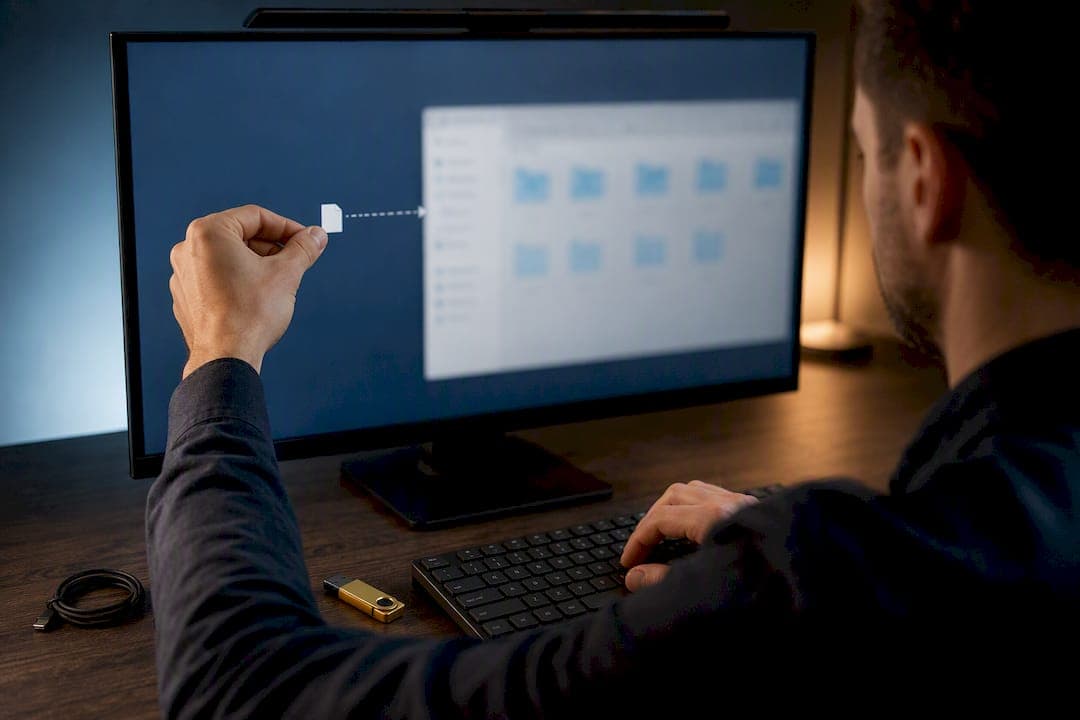
The fastest way in is Win+R, then type shell:startup and hit Enter, which opens the current user's Startup folder directly. Its full path is %userprofile%\AppData\Roaming\Microsoft\Windows\Start Menu\Programs\Startup. For programs that should launch for every account on the machine, use shell:common startup instead. For most modern apps, though, Settings > Apps > Startup or the Task Manager Startup tab is the better tool, since the folder only controls shortcuts, not apps that register themselves through other startup mechanisms.
TL;DR:
- Most startup programs are registered via shortcuts in the startup folders or through Windows' own startup registration systems like the registry or scheduled tasks.
- Editing the startup folder only affects shortcuts and not programs that register themselves elsewhere, so toggling settings in Task Manager or Settings provides a more comprehensive control.
- If programs persist launching despite folder removal or toggling, they likely run through registry entries or scheduled tasks, which require tools like Autoruns to identify and disable.
- To manage startup items safely, use right-click drag to create shortcuts, check app internal settings first, and create a system restore point before editing the registry.
- For complex startup issues, automated tools like Tempered analyze actual hardware activity to recommend precise disabling actions, avoiding guesswork and accidental system impact.
Table of Contents
- Exact Startup Folder Locations and Quick Shell Commands
- How Do You Add or Remove a Startup Folder Shortcut?
- Manage Startup Programs Through Settings and Task Manager
- Why Do Some Programs Still Launch at Startup Anyway?
- What to Do When Shell:startup Comes Up Empty
- Best Practices for Editing Startup Items Safely
- How Tempered Approaches Startup Optimization
- An Automated Option for Startup Cleanup
- Sources
Exact Startup Folder Locations and Quick Shell Commands
Windows actually keeps two separate Startup folders, and mixing them up is the single most common source of confusion when programs launch (or don't) at sign in.
- Current user:
%userprofile%\AppData\Roaming\Microsoft\Windows\Start Menu\Programs\Startup, applies only to the account currently signed in. - All users:
%ProgramData%\Microsoft\Windows\Start Menu\Programs\Startup, applies to every account on the machine and usually needs administrator rights to edit. - Fastest shortcut: press Win+R and type
shell:startupfor the user folder, orshell:common startupfor the all-users version.
Because AppData is a hidden folder by default, typing the full path manually in File Explorer without enabling hidden items will sometimes fail silently. If you'd rather browse than type commands, open File Explorer, click the View menu, then Show, and turn on "Hidden items" so the Roaming and ProgramData paths render normally.
How Do You Add or Remove a Startup Folder Shortcut?
Adding or removing an item from the Windows Startup folder takes under a minute once you know the right sequence. Here's the reliable method:
- Press Win+R, type
shell:startup, and press Enter to open your personal Startup folder in its own window. - Open a second File Explorer window and navigate to the program, file, or folder you want to launch automatically.
- Right click and drag that item into the Startup folder window, then release and choose Create shortcut here from the menu.
- To add a Microsoft Store app, find it in the Start menu, right click, select More, then "Open file location," and copy the resulting shortcut into the Startup folder.
- To remove an item, just delete its shortcut from the Startup folder. It won't launch at the next sign in, and deleting the shortcut never touches the original program files.
Right dragging and choosing "Create shortcut here" matters more than it seems. It preserves the link to the program's real installation path, so a future update to that app won't break the startup entry the way copying the actual executable file into the folder often does.
Pro Tip: If you drag a file with the left mouse button by mistake, Windows may move or copy it instead of creating a shortcut. Right-click dragging forces the context menu every time, which is the safer habit to build.
Manage Startup Programs Through Settings and Task Manager
For anything installed through a normal setup wizard, Settings and Task Manager do a better job than the Startup folder ever will. Go to Settings > Apps > Startup and you'll see a list of apps with simple on/off toggles, plus a note on which ones Windows flags as having "high impact" on boot time. Task Manager offers the same control with more detail: open it with Ctrl+Shift+Esc, click the Startup tab, and sort by the Startup impact column to see exactly which programs are slowing down your sign in.
The reason this matters: many apps never put a shortcut in the Startup folder at all. Instead they register themselves through Windows' own startup task system, and toggling them off in Settings or Task Manager is the only way to actually stop them, since there's no shortcut sitting in the folder to delete.
A few practical distinctions worth keeping straight:
- If an app shows up in Task Manager's Startup tab but not in the Startup folder, it registered itself through a startup task, not a shortcut.
- If it's in the Startup folder, deleting the shortcut is enough. No toggle required.
- Store apps and background services often live exclusively in Settings, never in the folder at all.
Why Do Some Programs Still Launch at Startup Anyway?
Deleted the shortcut, toggled it off in Task Manager, and the app still opens on sign in? It's likely running through a startup path that neither of those tools touches directly.
Two mechanisms account for most of these holdouts. The Registry keeps its own list under HKCU\Software\Microsoft\Windows\CurrentVersion\Run and HKLM\Software\Microsoft\Windows\CurrentVersion\Run, and entries there launch programs at sign in independent of the Startup folder or the toggles in Settings. A RunOnce key variant does the same thing but self-deletes after firing once, usually used by installers finishing setup after a reboot. Separately, Task Scheduler can hold a task configured to trigger "at logon," which produces the exact same symptom: the app opens, but there's no shortcut and no visible toggle explaining why.
When you've checked the obvious mechanisms and an app keeps coming back, Sysinternals Autoruns is the tool built for exactly this. It's a free Microsoft utility that inventories every autostart location on the system at once, including the Startup folder, both Run key locations, scheduled tasks, services, drivers, and browser extensions, in one scrollable list.
- Check the app's own settings first. Most well built software has a "launch at startup" checkbox that's cleaner than any workaround.
- Move to Task Manager or Settings if the app's own controls don't cover it.
- Reach for Autoruns only when something is still launching and you can't find where it's registered.
Autoruns is comprehensive precisely because it's unfiltered. It will show Winlogon notification handlers and AppInit DLLs alongside your everyday startup apps, and disabling the wrong entry there can affect system stability in ways a Startup folder shortcut never could.
What to Do When Shell:startup Comes Up Empty
An empty Startup folder isn't always a bug. It usually means one of a few specific things.
- Double check which command you ran.
shell:startupopens your personal folder;shell:common startupopens the all-users one, and they hold different items. - Confirm you're signed into the account that actually has the startup items you're expecting. Shortcuts saved under a different user profile won't appear.
- Turn on "Show hidden items" and "Show protected operating system files" in File Explorer's View settings. AppData is hidden by default and can make the folder look inaccessible even when it's populated.
- On a managed work laptop, group policy or endpoint security software can restrict or hide startup folder contents entirely. That's an IT department setting, not something broken on your end.
- If you delete a shortcut and the program reappears at the next sign in, check that program's own settings. Many apps quietly recreate their own startup entry.
Best Practices for Editing Startup Items Safely
A few habits separate a clean startup configuration from one that breaks after the next update.
- Always create a shortcut with right-click drag rather than copying the actual program file into the folder.
- Use Settings or Task Manager toggles first for anything that already appears there. It's reversible with one click and doesn't touch the file system.
- Before editing Registry Run keys directly, create a restore point. Registry mistakes are harder to undo than deleting a shortcut.
- Don't disable a process you can't identify. Search the exact name before touching anything tied to drivers, security software, or system services.
- Check an app's internal settings before assuming you need registry edits or Autoruns at all. It's often the fastest fix and the one least likely to cause a side effect.
Pro Tip: Keep a mental order of operations: app settings, then Task Manager, then the Startup folder, then Autoruns only if nothing else explains what you're seeing. Working backward from Autoruns first is how people end up disabling something they didn't mean to.
How Tempered Approaches Startup Optimization
Startup control is one piece of a bigger performance picture, not the whole job. Tempered treats it that way: it flags which startup items are actually slowing down boot, explains why in plain language, and keeps an undo path for every change so nothing gets applied without your approval. For the broader mechanics behind boot delays, our post on reducing background processes goes deeper.
— Ian
An Automated Option for Startup Cleanup
Manual startup folder edits work fine when you know exactly what you're chasing. They get tedious fast when the slowdown could be coming from a dozen different sources at once, some in the folder, some buried in Task Scheduler, some in a registry key you'd never think to check.

Tempered scans your actual hardware activity, CPU, RAM, disk, and boot behavior, and surfaces specific startup items worth disabling, with a plain-language reason for each one and a one-click undo if you change your mind. It's built for the moment after you've done the manual checks in this guide and want a second opinion backed by real diagnostics instead of guesswork. If your boot time still feels off after cleaning up the Startup folder and Task Manager, try Tempered and see what it flags on your own machine.
Sources
For deeper reading beyond this guide, Microsoft's own documentation on adding startup apps and the Autoruns download page cover the technical detail this article simplifies.
- Add an app to run automatically at startup in Windows 10 — Microsoft Support
- Autoruns for Windows — Sysinternals | Microsoft Learn
- How to Access the Windows 10 Startup Folder — How-To Geek