
A clean boot starts Windows 11 with only essential drivers and a bare minimum of startup programs, so you can figure out whether some background app or service is causing your problem. It's the tool to reach for when an app or game refuses to launch, an update keeps failing, or your PC behaves strangely only sometimes. The process is temporary and safe: nothing gets deleted.
- Apps or games that crash on launch or freeze randomly
- Windows updates that fail repeatedly for no obvious reason
- Slowdowns or errors that only show up after certain programs run in the background
Once you're done testing, you flip everything back to normal in a few clicks.
Key Takeaways
A clean boot isolates software conflicts by stripping Windows 11 down to essential drivers and services, and binary-search testing finds the cause in far fewer reboots than checking items one by one.
| Point | Details |
|---|---|
| Use msconfig correctly | Hide Microsoft services before disabling all, or you risk turning off components Windows needs. |
| Document before disabling | Screenshot Task Manager's startup list so re-enabling items later takes minutes, not guesswork. |
| Test in halves, not one by one | Binary-search isolation finds the culprit in about four reboots instead of sixteen. |
| Always reset when done | Return to Normal Startup in msconfig and re-enable every service and startup item you disabled. |
| Treat it as diagnostic, not permanent | A clean boot finds the problem; uninstalling or updating the offending app actually fixes it. |
Table of Contents
- How to Clean Boot Windows 11 Step by Step
- Finding the Culprit Without Rebooting a Dozen Times
- Clean Boot Rules Worth Knowing Before You Start
- Where Tempered Fits After You've Isolated the Problem
- Try Tempered for Ongoing Performance Control
- An Editorial Take on Clean Boot Troubleshooting
- Sources
How to Clean Boot Windows 11 Step by Step
You need an administrator account for this. If you're on a work or school laptop, check with IT first. Many managed devices lock down msconfig through group policy, and you'll hit a wall halfway through if that's the case.
- Open System Configuration. Press the Windows key, type "msconfig," and hit Enter, or open the Run dialog (Windows key + R) and type
msconfig. - Go to the Services tab. Check the box labeled "Hide all Microsoft services" near the bottom left. This step matters: skip it and you risk disabling something Windows genuinely needs to run.
- Click Disable all. With Microsoft services hidden, this only touches third-party services, which is exactly what you want.
- Click Apply, but don't restart yet.
- Switch to the Startup tab. You'll see a line that says "For more details, go to Task Manager." Click it.
- In Task Manager's Startup tab, disable every item marked "Enabled." Right-click each one and choose Disable. Before you touch anything, take a screenshot or jot down which items were on. You'll need that list later.
- Close Task Manager, then click OK back in System Configuration.
- Restart your PC. It now boots into a clean boot environment: minimal drivers, no third-party services, no startup apps.
Pro Tip: Use the Snipping Tool to capture the Task Manager startup list before you disable anything. A quick screenshot saves you from guessing which browser extension or launcher was running when you go to re-enable everything later.
Expect some things to feel off while you're in this state. Your antivirus's live dashboard might not load, cloud sync icons could disappear from the system tray, and certain hardware utilities won't run. None of that is permanent. It's just Windows running with the lights dimmed so you can see the actual problem more clearly. This same sequence, msconfig plus Task Manager, is confirmed in both Microsoft's official clean boot guide and Dell's support documentation, which mirrors it step for step for both Windows 10 and 11.
Finding the Culprit Without Rebooting a Dozen Times
Getting into a clean boot state solves half the problem. The other half is figuring out which of the fifteen or twenty items you disabled was actually causing trouble, and testing them one at a time is painfully slow. If you have many disabled startup items and check them individually, it can take many reboots.
Binary search cuts that dramatically. Re-enable half of the disabled items, restart, and see if the problem comes back.
- If the issue returns, the culprit is in that half. Disable the other half again and split the guilty batch in two.
- If the issue doesn't return, the culprit is in the half you left off. Enable half of that group instead.
- Repeat, splitting the remaining suspects in half each time, until only one or two items are left.
Using binary search, this method takes significantly fewer reboots than checking items one at a time, since each test eliminates half the remaining suspects. Once you're down to two or three items, just switch to enabling them one by one to nail down the exact one.
If nothing you disabled turns out to be the problem, the cause is likely a driver or a Microsoft-side component you never touched, which means it's time to check for driver updates or contact the software vendor directly.
Pro Tip: Keep a simple two-column list as you go: item name on the left, its original state (enabled or disabled) on the right. It turns re-enabling everything into a five-minute task instead of a memory test.
Starting Windows Installer During a Clean Boot
If you need to install or uninstall software while troubleshooting, you might find it fails silently. That's because the Windows Installer service can get disabled when system services are stripped down for a clean boot.
- Open Computer Management (right-click the Start button and select it).
- Navigate to Services and Applications > Services.
- Find Windows Installer, right-click it, and choose Start.
- Advanced users can skip the GUI entirely and run
sc start msiserverfrom an elevated Command Prompt.
Only do this when you actually need to install something. Leave it off otherwise, since the whole point of a clean boot is running as few services as possible.
Getting Back to Normal Startup
Once you've found your answer, don't leave your PC running this way.
- Open msconfig again, go to the General tab, and select Normal startup.
- On the Services tab, uncheck Hide all Microsoft services, then click Enable all and Apply.
- Open Task Manager's Startup tab and re-enable every item you disabled earlier, using your screenshot or notes as a reference.
- Restart and confirm everything, your browser extensions, your sync tools, your launchers, is back and working.
Microsoft confirms this reset process doesn't touch your files or installed applications; you're just flipping switches back to their original positions, as documented in their clean boot support page.
Clean Boot Rules Worth Knowing Before You Start
A clean boot is not Safe Mode, even though people mix the two up constantly. Safe Mode forces a fixed, minimal environment with no flexibility. A clean boot lets you selectively toggle individual services and startup apps, which gives you far more control when you're hunting for one specific conflict rather than just getting a broken system to boot at all.
- You must be signed in as an administrator; standard accounts can't open msconfig's protected settings.
- Managed or corporate devices often block these changes through network policy, so check with IT before you assume something's broken on your end.
- This is a diagnostic state, not a fix. Once you've found the offending app, uninstall it, update it, or roll it back. Don't just leave your PC in clean boot indefinitely.
- The most common mistake is skipping the screenshot step and then forgetting what was originally enabled, turning a ten-minute cleanup into a frustrating guessing game.
Vendor documentation backs this up directly. Sony's support team notes that some functionality is temporarily unavailable during a clean boot, which is expected, not a sign something went wrong.
Where Tempered Fits After You've Isolated the Problem
A clean boot answers one question: is a specific piece of software causing this issue? It's not built for ongoing maintenance, and running your PC in that stripped down state day to day isn't the goal. Once you've found and removed the culprit, you're back to normal, but background processes will keep piling up over time regardless.
That's a different kind of problem, and it's the one Tempered is built to handle. Instead of guessing which service is worth disabling, Tempered scans live hardware metrics, CPU, RAM, GPU, disk, and uptime, and flags real constraints with plain-language explanations of what it wants to change and why.
- Every suggested tweak comes with an expected outcome and a one-click undo path.
- You approve each change individually rather than handing over blanket control.
- It complements diagnostic work like a clean boot rather than replacing it.
If you want more on trimming startup weight long term, Tempered's guide to speeding up boot times on Windows 11 picks up right where this leaves off.
Try Tempered for Ongoing Performance Control
Clean boot troubleshooting solves the mystery in front of you. It won't stop new bloat, stray background processes, or forgotten startup apps from accumulating again next month. That's the gap Tempered was built to close: it keeps watching your system's real hardware load and flags issues before they turn into another troubleshooting session, all while keeping every change reversible. If your PC has felt sluggish for reasons beyond a single misbehaving app, Tempered gives you visibility and control without the guesswork msconfig requires.

An Editorial Take on Clean Boot Troubleshooting
Most guides treat clean boot like a checklist to complete once and forget. The bigger opportunity is the binary-search method, and almost nobody uses it. People disable twelve startup items, then re-enable them one at a time, rebooting a dozen times when four would do. That's the piece worth internalizing here: the checklist gets you into the diagnostic state, but the search strategy is what actually saves your afternoon.
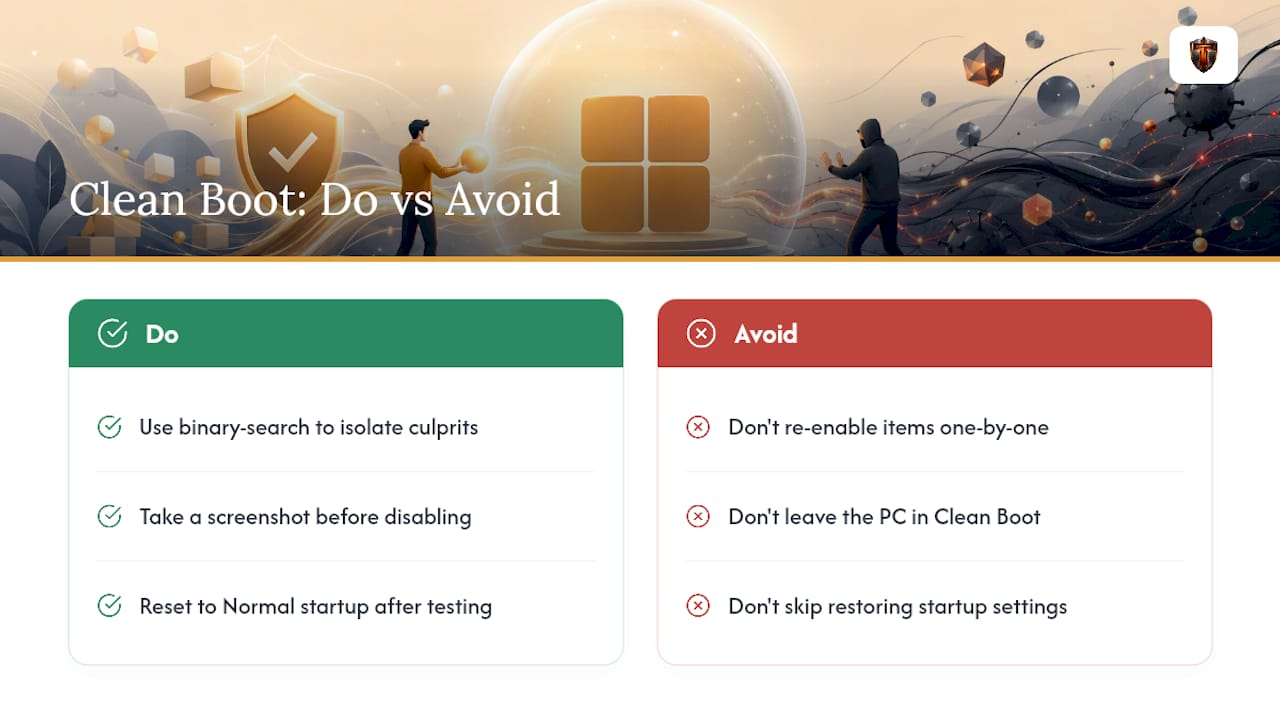
The other place conventional advice falls short is the ending. Plenty of tutorials walk you through disabling everything and finding the culprit, then just... stop. They don't emphasize enough that leaving a system in clean boot is its own problem, quietly breaking sync tools and notification icons you'll forget you disabled. Reset to normal startup is not optional cleanup. It's part of the job.
If you take one thing from this: document before you disable. A screenshot costs ten seconds and saves you from rebuilding your startup configuration from memory a week later.
— Ian