
The Windows power mode is a user-configured slider that tells the operating system how aggressively to prioritize performance versus battery life. For most desktop users, Better Performance or Balanced is the right call. Laptop users who care about battery should default to Best Power Efficiency. Only switch to Best Performance or the hidden Ultimate Performance plan if you're running CPU-bound workloads like video encoding, heavy compilation, or competitive multiplayer gaming where frame-time consistency matters.
Quick picks by situation:
- Gaming on AC power: Best Performance or Ultimate Performance (CPU-bound titles only)
- Working unplugged: Best Power Efficiency or Better Battery
- Everyday desktop use: Balanced or Better Performance
The single most useful thing to know: switching power modes rarely transforms a sluggish PC. If your system feels slow, a background process or thermal issue is usually the real culprit. Power mode is one lever among many, and Microsoft Support confirms it works best when a Balanced-derived plan is already active.
Key Takeaways
The most effective Windows power mode for most users is Better Performance or Balanced on AC power, with Best Power Efficiency reserved for battery-first scenarios and Ultimate Performance limited to workstations and CPU-bound tasks.
| Point | Details |
|---|---|
| Default recommendation | Use Better Performance or Balanced for most desktop and plugged-in laptop use. |
| Gaming impact | Power mode helps most in CPU-bound titles; GPU-bound games show little to no FPS change. |
| Missing slider fix | Run powercfg /list and restore the Balanced plan if a non-Balanced plan is active. |
| Ultimate Performance caution | Use only on AC-powered desktops or workstations; it raises heat and power draw significantly. |
| Tempered for deeper issues | When power mode changes don't help, Tempered diagnoses background and hardware constraints with reversible, explained fixes. |
Table of Contents
- How do you change the Windows power mode?
- What does each power mode actually change?
- Do power modes actually improve gaming performance?
- Why is the High Performance option missing or grayed out?
- How to unlock the hidden Ultimate Performance plan
- How the slider maps to underlying system primitives
- Quick checklist: which mode should you pick right now?
- When Tempered goes further than a power mode switch
- Measure first, then change
- Sources
How do you change the Windows power mode?
There are four ways to do it, ranging from a two-second click to a command-line approach that works even when the Settings UI hides your options.
Method 1: Battery flyout slider (fastest)
- Click the battery icon in the system tray (bottom-right taskbar).
- Move the slider left for efficiency, right for performance.
- The change takes effect immediately, no restart needed.
This method is only available on laptops and devices with a battery. Desktop PCs without a battery icon need the Settings path below.
Method 2: Settings > System > Power & battery
- Open Settings (Win + I).
- Go to System > Power & battery.
- Under "Power mode," open the dropdown.
- Select your preferred mode. Windows 11 shows separate options for "On battery" and "Plugged in" on supported devices.
Method 3: Control Panel Power Options
- Open Control Panel > Hardware and Sound > Power Options.
- Select a plan (Balanced, High Performance, Power Saver).
- Note: this path manages full power plans, not the slider overlay. If you activate a non-Balanced plan here, the Settings slider may disappear entirely.
Method 4: powercfg command line
Open an elevated Command Prompt (Run as administrator) and use these commands:
List all plans:
powercfg /list
Activate a plan by GUID:
powercfg /setactive GUID
Verify the currently active scheme:
powercfg /getactivescheme
Pro Tip: If the Settings slider is missing, run powercfg /list first. If you see a non-Balanced plan active (like a custom OEM scheme), switching back to the Balanced plan in Control Panel often restores the slider immediately.

What does each power mode actually change?
Each mode adjusts a cluster of settings under the hood, primarily around CPU minimum frequency, core parking, and background activity throttling. The effects are more nuanced than "fast" versus "slow."
-
Best Power Efficiency (GUID_POWER_MODE_BEST_EFFICIENCY): Aggressively parks CPU cores, lowers minimum processor frequency, and limits background activity. Display brightness may drop. Windows 11 power settings documentation recommends this mode to reduce background activity and extend battery life on Modern Standby devices.
-
Better Battery / Balanced (GUID_POWER_MODE_NONE): The default. Lets the OS scale CPU frequency dynamically based on demand. Core parking is active but less aggressive. This is the mode the slider overlay is designed around.
-
Better Performance: A moderate overlay on top of Balanced. Reduces core parking slightly, raises the CPU minimum frequency floor, and allows more background activity. Most users notice snappier app launches without a dramatic battery hit.
-
Best Performance (GUID_POWER_MODE_BEST_PERFORMANCE): Keeps CPU cores active, minimizes parking, and raises power limits. Fan noise and heat increase noticeably on laptops. Battery drain accelerates.
-
Battery Saver: Only available on DC (battery) power, not as an AC slider option. It dims the display, restricts background sync, and limits background activity more aggressively than Best Power Efficiency. Windows activates it automatically at low battery thresholds.
Thermal note: On thin laptops, Best Performance can trigger thermal throttling, which actually reduces effective CPU speed below what Balanced delivers. More power mode does not always mean more performance.
The practical gap between Balanced and Better Performance is small on modern hardware with good thermal headroom. The gap between Balanced and Best Performance is real but comes with heat and battery costs that matter more on a laptop than a desktop.
Do power modes actually improve gaming performance?
The honest answer: usually not much, and it depends heavily on whether your game is CPU-bound or GPU-bound.
XDA Developers' hands-on test of the hidden Ultimate Performance plan found measurable improvements in 1% low frame rates in a CPU-bound multiplayer title, but little to no change in several GPU-bound single-player games. That pattern holds across most independent testing: if your GPU is the bottleneck, the power plan barely moves the needle.
Observed example: In CPU-bound multiplayer scenarios, switching from Balanced to Ultimate Performance produced noticeable 1% low improvements. In GPU-limited titles, the same switch showed negligible difference.
Modern hardware compounds this further. Windows' dynamic frequency scaling (part of the Balanced plan) already ramps CPU speed to near-maximum within milliseconds of a load spike. The practical gap between Balanced and High Performance has narrowed considerably on recent Intel and AMD processors.
When Ultimate Performance genuinely helps: workstations running heavy compilation, video encoding, or CPU-bound multiplayer games where frame-time variance (not just average FPS) is the complaint.
How to test it yourself
- Establish a baseline: set your mode, close background apps, and run a 3–5 minute in-game benchmark or a fixed workload.
- Record average FPS, 1% lows, and frame time variance using an in-game counter, CapFrameX, or the Performance overlay in Task Manager.
- Switch the power mode, rerun the identical workload without changing anything else.
- Compare the two result sets side by side.
Pro Tip: Isolate variables before you test. GPU driver settings, Game Mode (Settings > Gaming > Game Mode), background apps, and thermal throttling all affect results more than the power plan in many cases. Check system resource usage in Task Manager before attributing a frame-rate change to the power mode alone.
Why is the High Performance option missing or grayed out?
This is one of the most common Windows 11 complaints, and the cause is almost always one of four things.
Common causes:
- Modern Standby (S0): Devices with Modern Standby use a different power architecture. Windows intentionally hides or limits traditional power plans on these devices to prevent conflicts with hardware-level scaling. Microsoft's power settings guidance notes this is by design, not a bug.
- OEM custom plan active: Some manufacturers ship a proprietary power plan. When it's active, the Settings slider disappears.
- Missing or outdated chipset drivers: Microsoft Q&A and community posts consistently flag chipset driver updates as a fix for missing power options.
- Group Policy restriction: On managed/enterprise machines, IT can disable power plan changes via Group Policy.
Diagnostic steps:
- Run
powercfg /listin an elevated Command Prompt and check which plan is active. - Open Settings > System > Power & battery and confirm the Power mode dropdown is visible.
- Check your OEM's utility (Lenovo Vantage, ASUS Armory Crate, Dell Power Manager) for a conflicting performance profile.
- Update chipset drivers from the manufacturer's support page, not Windows Update alone.
- Restore the Balanced plan:
powercfg /setactive 381b4222-f694-41f0-9685-ff5bb260df2e
Pro Tip: If you suspect Modern Standby is the culprit, run powercfg /a to see which sleep states are available. S0 Low Power Idle listed as supported confirms Modern Standby is active. Disabling it via registry is possible but carries real risks, covered below.
Warning: Disabling Modern Standby via registry (
HKLM\System\CurrentControlSet\Control\Power, settingPlatformAoAcOverrideto0) can cause instability, break fast startup, and void OEM support on some devices. Only attempt this as a last resort, after backing up the registry, and only on non-critical hardware.
How to unlock the hidden Ultimate Performance plan
The Ultimate Performance plan is not visible by default on most Windows 11 consumer devices. Microsoft designed it for workstations where battery life is irrelevant and maximum CPU responsiveness is the priority.
To unlock it:
- Open Command Prompt as administrator.
- Run:
powercfg -duplicatescheme e9a42b02-d5df-448d-aa00-03f14749eb61 - Open Control Panel > Power Options. The new plan appears in the list.
- Select it to activate.
Verify it's active:
powercfg /getactivescheme
Caveats worth reading before you enable it:
- Power draw increases measurably, especially at idle. On a laptop, expect noticeably shorter battery life.
- Heat output rises. On thin-and-light laptops, this can trigger thermal throttling and actually reduce performance below Balanced.
- It's appropriate for: desktop workstations, plugged-in laptops running CPU-heavy tasks, and competitive gaming rigs where every millisecond of CPU latency counts.
- It's not appropriate for: battery-dependent laptops, devices with poor thermal design, or general daily use.
Alternatives if Ultimate Performance feels excessive:
- Tune the Balanced plan's processor minimum state upward via
powercfg /setdcvalueindex(raises the CPU floor without full Ultimate Performance overhead). - Use your OEM's high-performance profile if available (often better tuned for your specific hardware).
- Explore alternatives to the Ultimate Performance plan that balance responsiveness and power draw more carefully.
Pro Tip: The slider customization docs on Microsoft Learn explain how OEMs provision PPM/EPP defaults. If your device shipped with a custom plan, the OEM's profile is often better calibrated for your hardware than Ultimate Performance.
How the slider maps to underlying system primitives
For technically-minded users and IT administrators, the power mode slider is not a plan itself. It's a lightweight overlay that adjusts a small subset of settings on top of the active Balanced-derived plan, primarily Processor Performance Mode (PPM) and Energy Performance Preference (EPP).
Key technical points:
- The slider only appears when a Balanced or Balanced-derived plan is active. Activate a non-Balanced plan in Control Panel and the slider vanishes from Settings. This is documented behavior in Microsoft's slider customization guide.
- The user-configured mode is a "vote," not a command. The PowerSetUserConfiguredDCPowerMode API (powrprof.h) exposes three GUID constants:
GUID_POWER_MODE_BEST_EFFICIENCY,GUID_POWER_MODE_NONE(Balanced), andGUID_POWER_MODE_BEST_PERFORMANCE. Other system signals, including thermal limits and OEM firmware, can override the user's selection. - OEM provisioning: Manufacturers can set slider defaults and customize PPM behavior using Windows Provisioning Framework XML. This is why two laptops with identical Windows builds can behave differently at the same slider position.
| GUID Constant | Slider Label | Primary Effect |
|---|---|---|
| GUID_POWER_MODE_BEST_EFFICIENCY | Best Power Efficiency | Aggressive core parking, low CPU floor |
| GUID_POWER_MODE_NONE | Balanced / Better Battery | Dynamic scaling, moderate parking |
| GUID_POWER_MODE_BEST_PERFORMANCE | Best Performance | Minimal parking, high CPU floor |
For deeper reading on the provisioning XML and PPM tuning, the Microsoft Learn power slider customization page is the authoritative reference.
Quick checklist: which mode should you pick right now?
Match your situation to a mode, then run a 60-second verification.
- Best Power Efficiency: Long battery life is the priority. Unplugged work, travel, meetings. Expect slower app launches and reduced background sync.
- Better Battery / Balanced: Daily laptop use, mixed tasks, plugged in part of the time. The right default for most people.
- Better Performance: Mixed use on a desktop or plugged-in laptop. Snappier feel without a dramatic power cost.
- Best Performance: CPU-bound workloads on AC power. Video editing, compilation, competitive gaming. Monitor thermals.
- Ultimate Performance: Workstations and desktop rigs only. Not for laptops unless plugged in and thermally capable.
Verify it's working:
- After switching, open Task Manager (Ctrl + Shift + Esc) and watch CPU frequency under the Performance tab during a brief workload. Higher minimum frequency confirms the mode is active.
- Run
powercfg /getactiveschemeto confirm the correct plan is set at the OS level.
For gaming specifically, pairing the right power mode with Windows 11 gaming optimizations like GPU scheduling and Game Mode gives you a more complete picture than power mode alone.
When Tempered goes further than a power mode switch
Switching power modes solves a narrow problem. If your PC still feels slow after trying Best Performance, the constraint is likely elsewhere: a background process consuming CPU, a misconfigured thermal policy, bloated startup entries, or a RAM bottleneck that no slider setting can fix.
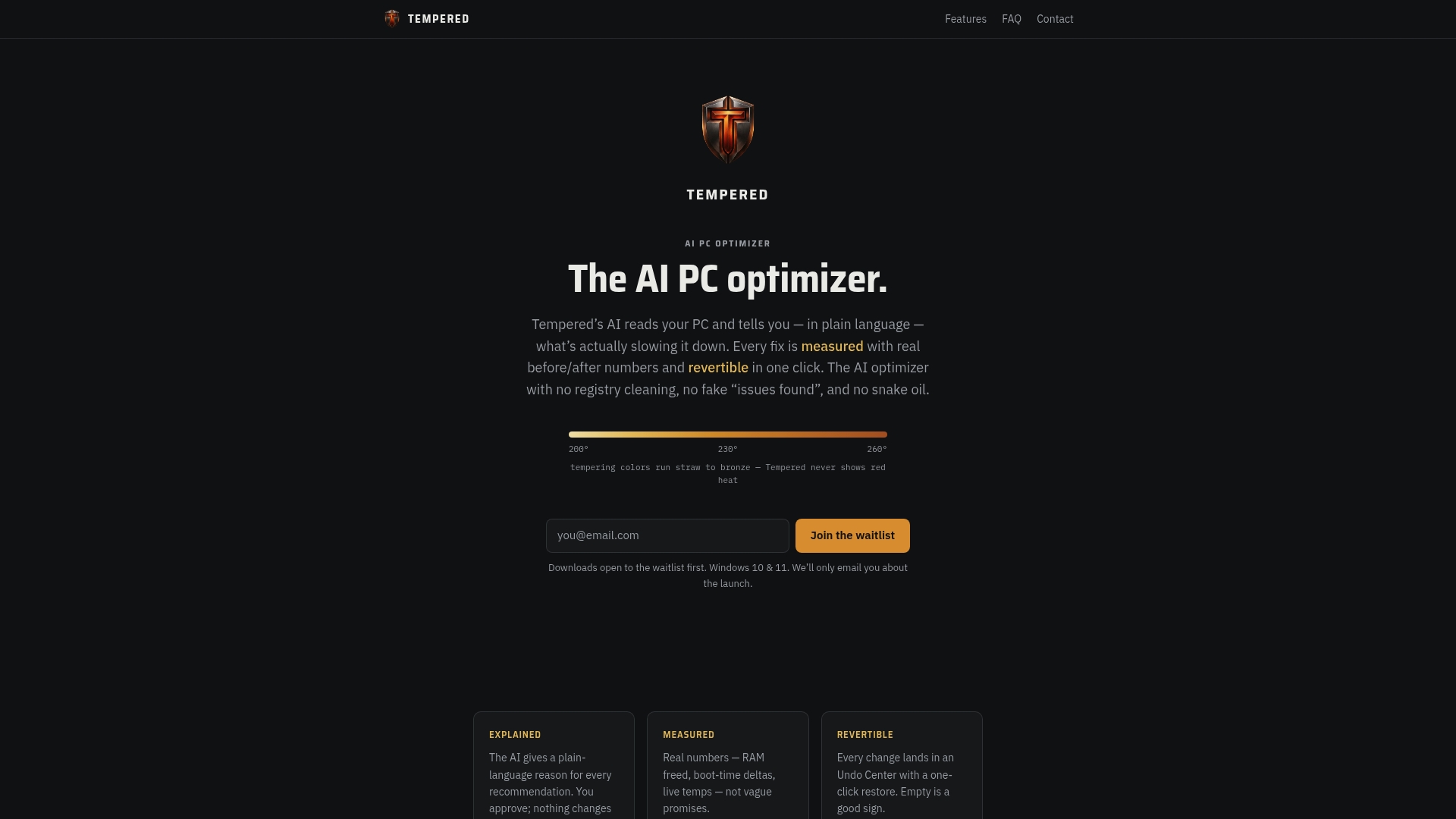
Tempered is built for exactly that situation. It analyzes live CPU, RAM, GPU, and disk metrics, identifies the real constraints, and proposes specific fixes with plain-language explanations and one-click Undo for every change. No guesswork, no black-box tweaks. If a background process is causing CPU contention or your startup sequence is adding 30 seconds to boot time, Tempered surfaces it and lets you decide what to fix. You can try Tempered free and run your first AI-powered diagnostic without needing any technical background or an API key.
Measure first, then change

The advice I'd give anyone tuning power modes: measure before and after every change, and prefer reversible steps. The registry edit to disable Modern Standby, for instance, is not something you want to do on a production machine without a full backup. OEM firmware, thermal design, and driver state all shape what a given power mode actually delivers on your specific hardware. What works on one machine can throttle another. Run a quick benchmark, check your CPU frequency in Task Manager, and let the numbers tell you whether the change was worth it. If the mode switch didn't move the needle, the problem lives somewhere else.