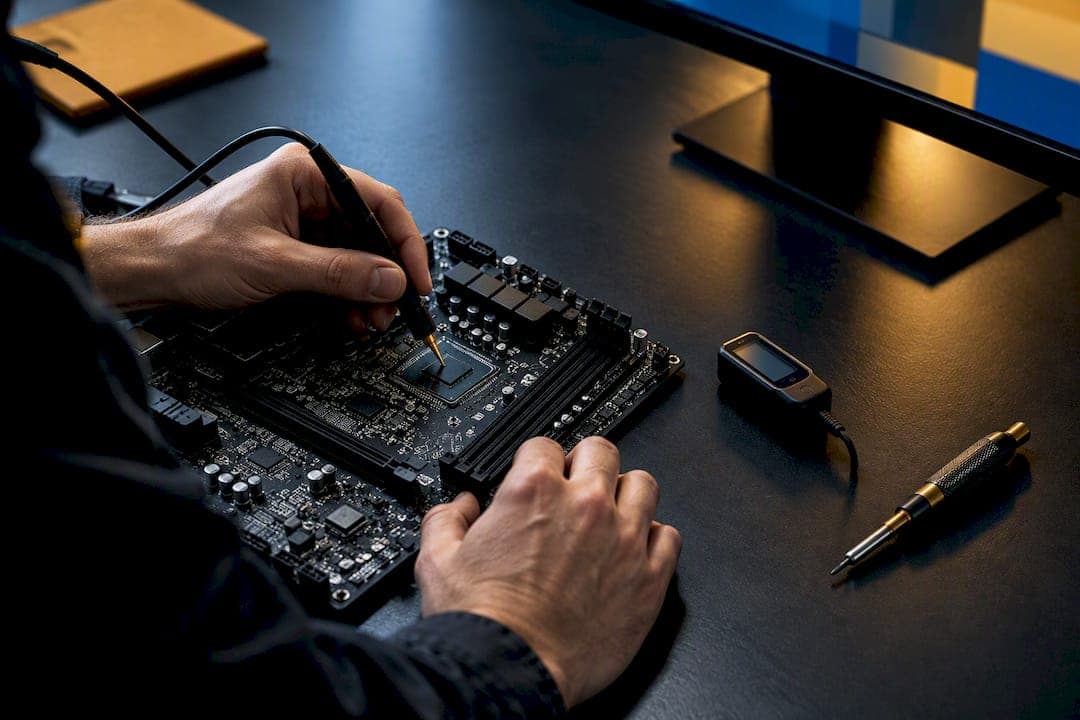
The safest way to update chipset drivers is to skip generic download aggregators and go straight to the source: AMD's Drivers & Support page, Intel's Chipset INF utility, or your motherboard manufacturer's own support site. Create a restore point before you install anything, run the installer as administrator, and reboot when it asks. Measure your boot time and idle CPU load before and after, so you know whether the update actually did anything.
TL;DR:
- Download chipset drivers only from AMD, Intel, or your motherboard OEM support pages to ensure authenticity and proper customization.
- Always verify your current chipset model and driver version using System Information and Device Manager before updating.
- Reinstall chipset drivers as administrator and create a restore point to avoid system issues, especially when downgrading or switching installer versions.
- Update drivers only when adding new hardware, fixing specific issues, or applying security patches, checking for meaningful improvements through measurement.
- Use dedicated system monitoring tools to confirm that driver updates improve real hardware performance, not just subjective or perceived speed increases.
Table of Contents
- Where to Find Official Chipset Driver Downloads
- How Do I Check My Current Chipset Driver Version?
- Step-by-Step: Installing AMD Chipset Drivers
- Step-by-Step: Updating Intel Chipset Support Drivers
- Common Chipset Driver Errors and How to Roll Them Back
- When Should You Actually Update Your Chipset Drivers?
- Measuring the Real Impact Before and After You Update
- What Actually Matters When You Update Chipset Drivers
- A Measurement Layer for the Changes You Just Made
- Sources
- FAQ
Where to Find Official Chipset Driver Downloads
Skip the generic "driver updater" sites entirely. AMD hosts every chipset package on its Drivers & Support page, where you select your processor or chipset from a dropdown and filter by Windows 10 or Windows 11, 64 bit. Intel's path is different: its Chipset Software and Drivers page offers the INF utility directly, but Intel itself recommends checking with your PC manufacturer first, since OEMs frequently customize chipset packages for their boards.
- Desktop with a retail motherboard: go straight to AMD or Intel.
- Laptop or branded desktop (Dell, HP, Lenovo): use the OEM support page first. Lenovo's own chipset driver listings are a good example of how OEMs package Intel drivers with board-specific tweaks.
- Always open the release notes before downloading. They list what changed and what to watch for.
How Do I Check My Current Chipset Driver Version?
You need two pieces of information: your exact chipset model, and the driver version currently installed. Here's the fastest route.
- Press
Windows + R, typemsinfo32, and hit enter. The System Summary tab shows your motherboard manufacturer and model. - Open Device Manager, expand System Devices, and look for entries referencing your chipset (SMBus, PCI Express Root Port, or similar).
- Right-click one, choose Properties, then the Driver tab to see the version number and date.
- Compare that version string against the release notes on AMD's or Intel's support page.
Pro Tip: Copy the version string into a plain text file before you start, along with a screenshot of Device Manager. If something breaks mid-update, you'll have exact evidence to hand to support instead of trying to remember what it said.
Step-by-Step: Installing AMD Chipset Drivers
AMD's chipset package installs the drivers that let your Ryzen platform talk to your storage, USB controllers, and PCIe lanes correctly, instead of relying on Microsoft's generic fallbacks.
- Go to AMD's Drivers & Support page and select your chipset or processor family.
- Download the Windows 10/11 64 bit chipset package and check the release notes for known issues.
- Right click the installer and choose Run as administrator.
- Accept the default installation options unless you have a specific reason to change them.
- Reboot when prompted. Don't skip this step even if Windows doesn't force it.
If you're jumping between major installer versions, AMD's own release notes for build RN-RYZEN-CHIPSET-7-04-09-545 spell out a specific downgrade problem: older installers can fail unless you first uninstall the newer AMD Chipset Installer through Programs and Features and manually delete the leftover Qt_Dependencies folder.
- Uninstall via Settings > Apps > Installed apps (or the legacy Programs and Features).
- Delete the Qt_Dependencies folder if a downgrade or reinstall fails.
- After reboot, check Device Manager for renamed or newly recognized devices that match the release notes.
Step-by-Step: Updating Intel Chipset Support Drivers
Intel's Chipset Software and Drivers page centers on something called the Chipset INF utility. It doesn't install new functional drivers for most subsystems. It installs Windows INF files so your chipset devices get identified and named correctly instead of showing up as generic hardware. Intel explicitly recommends checking with your PC manufacturer first, because OEMs often ship customized versions tuned for their specific boards.
- Check whether your laptop or desktop OEM has a chipset package listed on their support site.
- If not, or if you built the system yourself, download the INF utility from Intel's support page.
- Run the installer, accept the license terms, and reboot when finished.
- Open Device Manager afterward and confirm devices under System Devices now show correct Intel naming instead of generic labels.
- Avoid Intel's generic package on a branded laptop unless the OEM has no chipset driver of its own.
- If a device still shows an error after installing Intel's utility, that subsystem likely needs a separate driver, not the INF utility.
- Contact your OEM's support line directly if their download page doesn't list a chipset package at all.
Common Chipset Driver Errors and How to Roll Them Back
Watch for yellow warning icons in Device Manager, devices that vanish entirely after a reboot, or a sudden blue screen tied to a system device. Open Event Viewer's System log and look for error codes referencing the driver you just installed. Those codes tell you whether the driver failed to load or whether it's conflicting with another component.
Rolling back is usually straightforward. Chipset updates run inside the operating system rather than at the firmware level, so they're generally low risk and fully reversible, unlike a BIOS flash.
- Right click the problem device in Device Manager, choose Properties > Driver > Roll Back Driver.
- If rollback isn't available, uninstall the current package through Apps > Installed apps and reinstall the previous version from AMD's or your OEM's archive.
- For persistent conflicts, do a clean uninstall of every chipset component before reinstalling.
Pro Tip: If you contact vendor support, attach the installer log (usually dropped in your Temp folder during setup) along with the exact error code from Event Viewer. It cuts the back and forth by a day or two.
When Should You Actually Update Your Chipset Drivers?
Update when you add new hardware, when release notes list a fix relevant to a problem you're already having, or when your OEM pushes a security patch. Otherwise, checking every few months is plenty.
- Benefits: better hardware compatibility, occasional stability fixes, security patches, and sometimes minor gains in USB or storage responsiveness.
- Risk level: low. Chipset updates install inside Windows and can be uninstalled if something goes wrong.
- Chipset driver vs. BIOS update: these are not the same thing. Chipset drivers are Windows software; BIOS is firmware burned onto the motherboard itself, and a failed BIOS flash carries far higher stakes, including a board that won't boot at all. Treat BIOS updates with more caution than chipset driver updates.
Measuring the Real Impact Before and After You Update
A driver install that "feels faster" isn't proof of anything. Before you touch the installer, record a reproducible baseline: time your boot from POST to desktop, note idle CPU and RAM usage in Task Manager, and if you game, run one short frame-time capture. Write down the exact chipset driver version string too.
- Create a system restore point.
- Export or write down your current driver version and the baseline measurements above.
- Install the new chipset package following the AMD or Intel steps.
- Reboot, then repeat the same measurements under the same conditions.
- If boot time gets worse or idle CPU climbs, roll back and reassess.
Tempered's own approach to system changes follows this same logic. It measures your actual hardware behavior before suggesting anything, explains what a change is expected to do, and keeps a one-click undo path so a bad outcome never sticks around permanently.
What Actually Matters When You Update Chipset Drivers
Most guides treat chipset drivers like an afterthought, buried under GPU driver advice. That's backwards. The GPU driver gets you more frames; the chipset driver decides whether your storage, USB, and memory controller talk to Windows correctly in the first place. Skip it long enough and you'll chase phantom stability problems that have nothing to do with your graphics card. My advice: pull drivers only from AMD, Intel, or your OEM, measure before and after every install, and leave BIOS updates alone unless a release note specifically tells you to touch them.
— Ian
A Measurement Layer for the Changes You Just Made
Vendor drivers fix compatibility and stability. They don't tell you whether your PC is actually running better afterward, and that's a different problem. Tempered fills that gap: it reads live CPU, RAM, GPU, and disk metrics, then recommends specific, reversible changes with plain-language explanations for each one, so you can confirm a driver update or system tweak actually helped instead of guessing.

The free tier covers basic scans if you just want a baseline reading after your chipset update. The Torque plan, starting at $5.99 a month, and Torque Max, starting at $12.99 a month, unlock unlimited scans, background process management, and Game Mode for anyone who wants ongoing monitoring rather than a one-time check. None of it touches your drivers directly. It sits alongside them, showing you what changed and giving you a one-click undo if a recommendation doesn't pan out. Head to the Tempered pricing page to see which plan fits, or check out what Tempered does before you decide.
Sources
- How to Install AMD Ryzen™ Chipset Drivers on a Windows® Based System — AMD Support
- Intel® Chipset Software and Drivers — Intel Support
- What are chipset drivers, and how to install them? — How-To Geek
FAQ
How Do I Tell if My Chipset Drivers Are Up to Date?
Open Device Manager, expand System Devices, and check the driver version and date on your chipset entries. Compare that against the latest version listed on AMD's support page or Intel's Chipset Software page for your exact model.
Why Isn't My AMD Chipset Driver Updating?
Usually it's a leftover from a previous installer version conflicting with the new one. AMD's release notes specifically call out uninstalling the prior AMD Chipset Installer through Programs and Features and deleting the Qt_Dependencies folder before trying again.
Is It Necessary to Install Chipset Drivers?
Windows installs generic chipset drivers automatically, but vendor packages add compatibility fixes and device recognition that generic drivers miss. It's not mandatory, but skipping it can leave storage or USB controllers running on fallback drivers indefinitely.
Are Chipset Drivers the Same as BIOS Drivers?
No. Chipset drivers are Windows software that helps your CPU, RAM, and storage communicate, while BIOS is firmware stored directly on the motherboard. BIOS updates carry far more risk since an interrupted flash can leave a board unable to boot.
Does Tempered Update Chipset Drivers for Me?
No. Tempered doesn't install or manage chipset drivers directly. It measures your system's performance before and after you install vendor drivers, so you can confirm the update actually helped rather than assuming it did.