
Back up your files first, then reach for the smallest fix that could work: if you know which tweak caused the problem, undo it directly or restore the specific registry key you changed. If the cause is unclear or several tweaks stacked up, roll back with System Restore. Treat Reset This PC as your last resort, and keep SFC and DISM in your back pocket if corrupted files are blocking any of the above.
TL;DR:
- Restoring a system backup or system image is the fastest way to reverse multiple tweaks or unknown causes of system issues.
- System Restore only affects system files and registry, making it a safe option when personal data is not at risk.
- Resetting Windows provides a thorough fix but takes longer and requires careful preparation, especially for cloud downloads or complete drive wipes.
- Restoring individual registry keys with a prior export file is quick if the backup was made beforehand, avoiding broader system resets.
- Using tools with built-in reversible workflows or automatic restore points reduces the risk of irreversible damage and simplifies troubleshooting efforts.
Table of Contents
- Quick Undo Checklist: Pick the Right Route Fast
- Use System Restore to Roll Back Tweaks Safely
- Reset This PC or Reinstall Windows When Tweaks Can't Be Reversed
- Undo Registry Edits and Single-Tweak Rollbacks Safely
- Repair Tools: SFC, DISM, and Startup Repair
- Idempotent Workflows and Reversible Tool Patterns
- How Tempered Approaches Reversible Tweaks
- When to Stop Trying Manual Fixes and Escalate
- Try Tempered Instead of Guessing Which Tweak to Undo
- Sources
- FAQ
Quick Undo Checklist: Pick the Right Route Fast
The right undo method depends on what you remember and how bad things got. Match your situation to one of these before you touch anything:
- One tweak, recent, and you remember it: use the tool's built-in undo button or import your exported .reg backup.
- Several tweaks or an unknown culprit: run System Restore to a point before the changes.
- Windows won't boot or feels fundamentally broken: Reset This PC or a clean reinstall.
Back up first regardless of the path using a scheduler attività server to automate backups and system maintenance tasks. File History, OneDrive, or a $20 external drive covers your documents in minutes. Creating a restore point or system image takes 5 to 10 minutes and gives you a way back if the next step goes sideways. Microsoft's recovery options guide maps these exact scenarios to the right tool, and it's worth reading before you commit to anything irreversible.
Pro Tip: Screenshot your current settings (visual effects, startup apps, power plan) before you start undoing anything. If the "original" defaults turn out worse than what you had, you'll know what to reproduce.
Use System Restore to Roll Back Tweaks Safely
System Restore rewinds your registry, drivers, and installed system files to a snapshot from before the tweaks. It leaves personal files, photos, and documents untouched, which makes it the safest bulk-undo option when you can't pinpoint the exact change.
Here's how to run it:
- Open Settings > System > Recovery > Advanced startup, or search "Create a restore point" and click the System Restore button in the System Properties window.
- Pick a restore point dated before you applied the tweaks. Windows lists the date and a short description of what triggered each one (an app install, a driver update, or a manual checkpoint).
- Confirm and let Windows restart. The rollback itself usually finishes within minutes of the restart, according to Microsoft's own recovery documentation.
- Check whether the original problem is gone. If a second restore point exists further back, you can try that one too.
If you don't see any restore points, System Protection was probably turned off before you started tweaking, which is common on machines running third-party "cleaner" tools that disable it to speed up scans. If the restore fails partway through, boot into the Windows Recovery Environment (hold Shift and click Restart from the sign-in screen) and try System Restore from there instead of the desktop.
Reset This PC or Reinstall Windows When Tweaks Can't Be Reversed
When individual tweaks won't undo and System Restore has no usable point, Reset This PC is next. Find it under Settings > System > Recovery > Reset this PC, and you'll face two real decisions.
- Keep My Files vs. Remove Everything: Keep My Files wipes apps and settings but leaves your personal data alone. Remove Everything wipes the drive completely, which is the cleaner fix if a tweak went deep into system services.
- Cloud Download vs. Local Reinstall: Cloud Download pulls a fresh Windows image from Microsoft's servers, which fixes corrupted local install files but needs a decent internet connection. Local Reinstall uses files already on your PC and is faster if your installation media isn't the problem.
Microsoft notes that Cloud Download can take an hour or more depending on connection speed, while Local Reinstall often finishes in 20 to 40 minutes. Before you start, grab your BitLocker recovery key from your Microsoft account, note which peripherals need manufacturer drivers reinstalled afterward, and confirm your file backup actually completed. After the reset, run Windows Update immediately and reinstall your core apps one at a time so you can spot any recurring issue.
Undo Registry Edits and Single-Tweak Rollbacks Safely
If you exported the registry key before changing it, restoring it is a two-minute job:
- Locate the
.regfile you saved before editing (check your desktop or wherever you exported it). - Double-click the file and confirm the merge prompt.
- Restart the affected app or reboot your PC to apply the restored values.
Exporting a key first, as outlined in guides on safe registry editing, is what makes this simple. You right-click the key in Registry Editor, choose Export, and save the .reg file somewhere you'll remember.
If you skipped that step, you have three fallback options: run System Restore to a point before the edit, uninstall the app or utility that made the change (many optimization tools revert their own registry writes on uninstall), or restore from a full system image if you keep one. What you can't do is reset the entire registry to some universal default. There's no single "factory registry" to revert to, since the registry structure itself is a live, interdependent web of keys that changes with every update and app install. Tools promising a one-click global registry reset are typically making broad, unverified changes rather than a genuine, targeted rollback, and that's exactly the kind of gamble that got most readers here in the first place.
Pro Tip: Before running any registry tweak from a random forum post again, export the specific key first. It costs 30 seconds and turns a risky edit into a fully reversible one.
Repair Tools: SFC, DISM, and Startup Repair
Corrupted system files sometimes block a clean undo, throwing errors mid-restore or leaving settings half reverted. Two command-line tools fix that without a full reset.
- Run
sfc /scannowfrom an elevated Command Prompt to scan and repair corrupted system files. - Run
DISM /Online /Cleanup-Image /RestoreHealthif SFC reports damage it can't fix on its own. DISM repairs the underlying Windows image that SFC pulls its replacement files from. - Use Startup Repair from the Windows Recovery Environment if your PC won't boot at all.
Both commands need an internet connection for DISM and typically finish in 10 to 20 minutes, though a heavily damaged install can take longer. Reboot after each tool runs, and if System Restore failed earlier because of file corruption, try it again once SFC and DISM report a clean scan.
Idempotent Workflows and Reversible Tool Patterns
Idempotent tooling means a program checks your system's current state before it changes anything, so running it twice never stacks duplicate changes on top of each other. The best reversible tools pair that check with a snapshot and a transaction journal, a running log of exactly what value existed before each edit, which is what makes a true one-click revert possible later.
Before running any optimization tool, check whether it actually offers this. A quick verification checklist:
- Does it create a Windows restore point automatically before applying changes?
- Does it keep its own snapshot or transaction log separate from System Restore?
- Does each individual tweak have its own revert button, rather than one all-or-nothing undo?
- Does it write a readable audit log of what changed and when?
Tools built on this pattern, like idempotent PowerShell toolkits designed for reversible tuning, preview changes before applying them, which is a feature worth demanding from anything you run again. If the tool you already used lacked all four, System Restore, a targeted registry restore, or a system image are your recovery paths.
How Tempered Approaches Reversible Tweaks
Tempered was built around the exact problem this article addresses: optimization tools that make changes you can't confidently reverse. Every recommendation Tempered proposes comes with a plain-language explanation of what it does, an expected outcome, and a documented undo path attached to that specific change, not a blanket "restore defaults" button.
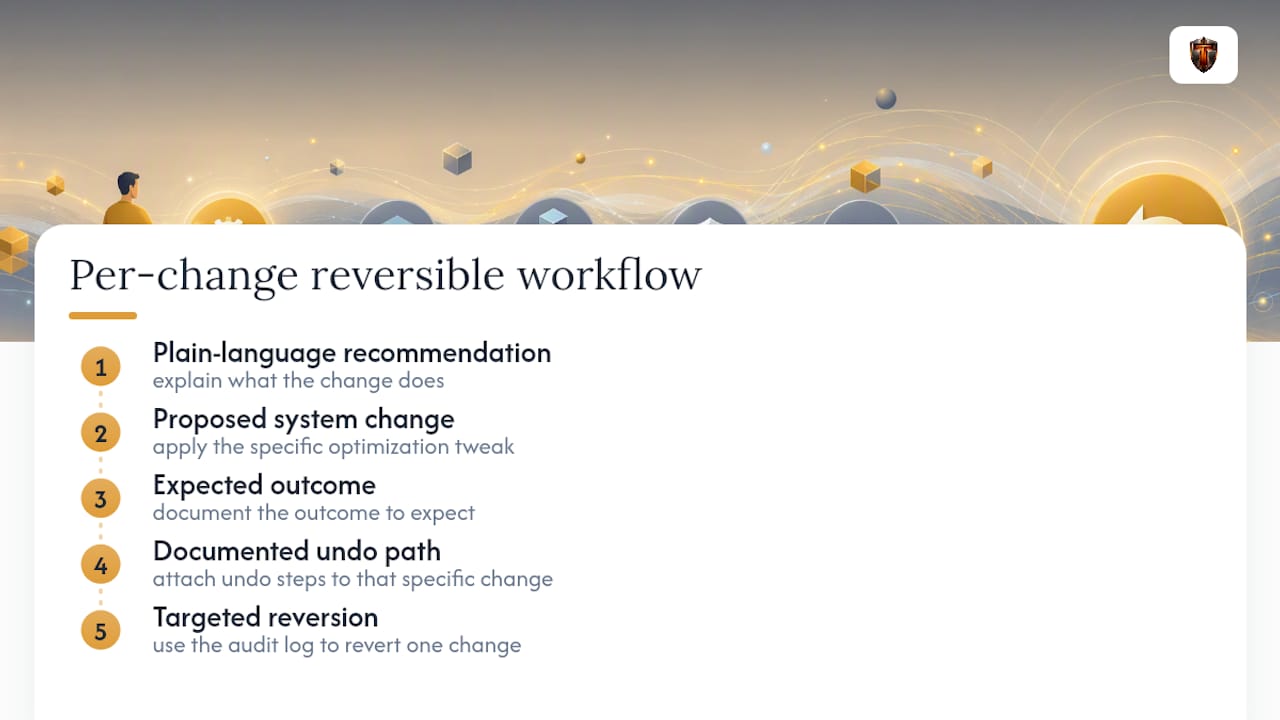
That per-change audit trail is what prevents the "no-undo" scenario in the first place. Instead of guessing which of a dozen stacked tweaks caused a slowdown, you can look at the log and revert the one that did it. If you're cleaning up after a previous debloating pass, Tempered's guide on removing bloatware without breaking things and its walkthrough on undoing registry changes cover the hands-on steps in more detail.
When to Stop Trying Manual Fixes and Escalate
If you've tried per-tweak undo and System Restore twice and the system is still unstable, stop tinkering. Repeated failed attempts usually mean deeper corruption that a reset handles faster than more manual digging. Back up again before that step, weigh your remaining time against the risk of another failed fix, and, going forward, favor tools that build in reversibility instead of tweaks you have to reverse-engineer later.
— Ian
Try Tempered Instead of Guessing Which Tweak to Undo
A good optimization tool offers clear explanations, expected results, and one-click undo options tied to specific tweaks, helping users avoid guessing which changes caused issues or relying solely on restore points.

If you're rebuilding your setup after a rough round of manual tweaks, or you diagnosed a slowdown you can't quite fix, tools like Tempered's process management guide show a safer way to approach the same goals. When you're ready to try it, the Free plan gets you started with no commitment, and Torque plans starting at $5.99 per month unlock unlimited scans if you want ongoing monitoring instead of one-off fixes.
Sources
FAQ
How Do I Undo Chris Titus Tweaks?
Chris Titus Tech's WinUtil applies a mix of registry edits, service disables, and debloat scripts, and it doesn't keep a built-in master undo log for every change. Your best bet is System Restore to a point before you ran the utility, since that rolls back the registry and service changes in one step without touching personal files, as confirmed in Microsoft's recovery documentation. If no restore point exists, you'll need to manually re-enable specific services or reinstall removed apps one at a time.
How Do I Disable Windows Optimization Tweaks?
Identify which tweaks are active first by checking Task Manager's Startup tab, Services (services.msc), and Settings > System > Notifications for anything disabled. Reverse each one through its original toggle where possible, or use System Restore if you can't remember what changed. Tools with per-tweak undo buttons make this far faster than hunting through settings manually.
How Do I Revert to an Older Version of Windows?
Within 10 days of an update, go to Settings > System > Recovery and select Go back, which uninstalls the update and restores your previous Windows version along with its settings. After that window closes, your only paths are a manual reinstall using an older ISO or restoring from a full system image if you made one before updating.
How Long Does It Take to Undo Changes Made to Your Computer?
A single per-tweak undo or registry key restore takes seconds to a couple of minutes. System Restore typically completes within minutes of the restart it requires, according to Microsoft, while Reset This PC ranges from about 20 minutes for a local reinstall keeping your files to over an hour for a full cloud download wipe.