
If you exported a .reg backup before making the change, import it now. That is the fastest, least destructive fix. If Windows still boots but feels unstable, run System Restore, then SFC and DISM. If Windows won't boot at all, you'll need an offline hive restore from RegBack (verify it actually has files first) or a Repair/Reset as a last option.
- Have a
.regexport? Import it through Registry Editor. - Windows boots but acts wrong? Try System Restore, then
sfc /scannow. - Windows won't boot? Use offline RegBack recovery or Repair/Reset.
One caution before any of this: create a fresh backup or restore point first. Modern Windows 10/11 installs frequently have an empty RegBack folder(https://www.packtpub.com/en-In/learning/tech-news/microsoft-will-not-support-windows-registry-backup-by-default-to-reduce-disk-footprint-size-from-windows-10-onwards), so don't assume a safety net exists until you check.
Key Takeaways
Undoing a registry change safely comes down to matching the right recovery method to how much the system is currently broken, from a simple .reg import to a full offline hive restore.
| Point | Details |
|---|---|
| Match the method to severity | Import a .reg file for isolated fixes, System Restore for broader instability, offline recovery only if Windows won't boot. |
| Verify RegBack before trusting it | Modern Windows often ships with empty RegBack files; check sizes before copying anything. |
| Run SFC and DISM early | These catch file corruption that mimics registry damage before you escalate to a reset. |
| Back up before every edit | Export the specific key and create a restore point first, so undoing later takes seconds. |
| Tempered offers a managed alternative | It applies user-approved tweaks with plain-language explanations and a one-click undo history. |
Table of Contents
- How to restore a registry backup with .reg import
- When should you use System Restore instead?
- How do you recover registry settings when Windows won't boot?
- Do SFC and DISM fix registry problems?
- Should you reset your PC or run a repair install?
- How can you prevent registry problems before they start?
- Who wrote this and how does Tempered fit in?
- What matters most when reversing a registry edit
- Get a managed undo path instead of guessing
- Where to check the exact commands and procedures
- Sources
How to restore a registry backup with .reg import
Restoring a .reg file is the cleanest way to undo registry changes when you actually have one saved. There are two ways to do it. You can double-click the .reg file, which merges its keys directly into the registry, or open Registry Editor, go to File > Import, and select the file manually. Either method triggers a User Account Control prompt, since writing to the registry needs administrator rights.
Here's the process from start to finish:
- Locate the
.regfile you exported earlier (right-click a key in RegEdit and choose Export to create one). - Double-click it, or open RegEdit and use File > Import.
- Approve the UAC prompt.
- Restart the PC so the change fully takes effect.
- Reopen the affected app or setting to confirm the fix worked.
Import problems usually trace back to one of three things: insufficient permissions, a corrupted file, or a .reg file edited by hand with a syntax error. Open a suspect file in Notepad first. If you or someone else typed in a merge command, it's worth scanning the raw text for anything you don't recognize before merging it. Microsoft's own backup and restore procedure confirms Import only writes what's inside the file. Anything created after your backup stays untouched.
Pro Tip: Export only the specific key you're about to edit, not the whole hive. A targeted .reg file imports in seconds and carries far less risk of overwriting something unrelated.

When should you use System Restore instead?
System Restore rolls back system files and registry state to an earlier point in time, without touching your personal documents, photos, or saved files. That makes it a better fit than a .reg import when you're not sure exactly which key caused the problem, or when several changes piled up before things went wrong.
Running it is straightforward:
- Type "restore point" into the Start menu search and open Create a restore point.
- Click System Restore, then pick a restore point dated before the trouble started.
- Confirm and let Windows reboot to apply it.
If the desktop won't load reliably, boot into Advanced Startup (hold Shift while clicking Restart, or interrupt boot three times) and choose Troubleshoot > Advanced Options > System Restore. This path works even in Safe Mode, which is often the more stable environment for running it if the normal desktop hangs.
A few things worth checking if it fails:
- Confirm System Protection is actually turned on for your main drive.
- Check restore point timestamps. If none exist recently, the feature was likely disabled before your edits.
- Try again from Safe Mode if the normal restore attempt errors out.
Microsoft recommends trying System Restore before anything more disruptive, since it reverses configuration changes without wiping files.
How do you recover registry settings when Windows won't boot?
When the system won't start at all, you need to work from outside Windows. Boot into Advanced Startup from installation media, or interrupt the normal boot sequence three times to trigger recovery mode, then open Troubleshoot > Advanced Options > Command Prompt.
From there:
- Run
dir C:\Windowsto confirm your Windows drive letter. In recovery mode it's frequently not C:, so check before you type anything else. - Navigate to
X:\Windows\System32\config(swap X for your actual drive letter). - Create a backup folder first:
md C:\Windows\System32\config\MyRegBack, then copy the current hive files into it. - Open
X:\Windows\System32\config\RegBackand check file sizes. If the files show 0 KB, stop. Copying them will make things worse, not better. - If the RegBack files are valid and non-zero, copy them into the config folder with
copy /y. - Exit Command Prompt and reboot normally.
Pro Tip: Never skip step 4. Windows 10 and 11 frequently leave RegBack empty by default to save disk space, and a zero-byte file copied over a working hive turns a fixable problem into a full reinstall.
Do SFC and DISM fix registry problems?
Not directly, but they solve a lot of issues that look like registry damage and aren't. Corrupted system files can produce the exact same symptoms as a bad registry key: settings that won't stick, apps that crash on launch, features that silently disappear.
Run these before you touch anything more drastic:
sfc /scannowscans protected system files and repairs any it finds damaged, reporting success or failure in the console output.DISM /Online /Cleanup-Image /RestoreHealthrepairs the Windows image itself, which SFC then draws from to fix files.- If DISM can't reach Windows Update, point it at a mounted installation ISO instead using the
/Sourceflag. - Boot issues that predate any registry edit often respond to Startup Repair, found under Advanced Startup.
- If problems began right after installing a driver or app, uninstall it before trying anything else.
These tools repair the files the registry points to. They won't undo an intentional registry edit you made yourself. That's a job for import, System Restore, or offline hive recovery.
Should you reset your PC or run a repair install?
Resetting comes closest to returning most registry keys to factory defaults, but it's also the most disruptive option on this list, so treat it as a fallback rather than a first move.
Windows gives you two paths:
- Keep my files removes apps and settings but preserves personal documents, useful when the registry mess is tied to configuration rather than corrupted user data.
- Remove everything wipes the drive clean, appropriate when you're preparing to sell the machine or suspect deeper corruption than settings alone.
An in-place repair install, run by mounting Windows setup from the desktop and choosing "Keep personal files and apps," often solves registry corruption without the app reinstall hassle of a full reset. How-To Geek notes this route works when simpler fixes haven't. Before either option, back up documents, export any registry keys you'd want to reference later, and gather installer files and license keys.
Pro Tip: Create a USB recovery drive before you start. If the reset process itself hits an error, you'll want a way back in that doesn't depend on the broken installation.
After a reset, update your drivers, run Windows Update, and reinstall apps from your saved installer list rather than searching for them again from scratch. For deeper cleanup once you're back up and running, removing leftover bloatware is a reasonable next step.
How can you prevent registry problems before they start?
The best way to undo registry changes is to make undoing them unnecessary in the first place. A five-minute habit before any edit saves hours of recovery work later.
- Create a System Restore point and export the specific key you're about to touch, right-click it in RegEdit and choose Export.
- Store that backup somewhere other than the same drive, an external drive or a cloud folder works fine.
- Write down the original value before you change it, even a plain text note helps if you need to manually reverse a tweak.
- Make the change, restart, and confirm the intended behavior actually happened before moving on to the next edit.
- Skip unfamiliar "registry cleaner" tools that promise automatic fixes. One partner analysis of scan-and-repair utilities makes the same point: transparency in what gets changed matters more than speed.
Forum threads on registry recovery consistently show the same pattern: people who exported the exact key they were about to edit recover in minutes, while people who tried a full-registry export and restore run into far more friction. If you'd rather not track this manually, Tempered records an undo path automatically for every performance tweak it applies, which covers the same need without the manual export step.
Who wrote this and how does Tempered fit in?
This guide draws on documented Microsoft recovery procedures, published how-to references, and the practical failure points those sources flag repeatedly, especially the RegBack deprecation issue that trips up otherwise careful users.
Tempered takes a different approach to the same problem. Rather than leaving you to hunt down which key changed, it:
- Scans live Windows 10/11 performance metrics and flags real constraints, not generic warnings.
- Explains each suggested change in plain language before you approve it, including the expected outcome.
- Tracks every applied tweak with a one-click undo, so reversing a change doesn't require Command Prompt or RegEdit at all.
That undo path matters because most "registry fixer" tools apply changes silently and offer no record of what they touched. Tempered's step-by-step SysMain walkthrough shows the same transparency applied to a real tweak, with the rollback built in from the start.
What matters most when reversing a registry edit
The single biggest mistake technically capable users make isn't editing the registry. It's assuming a safety net exists that Windows quietly removed years ago. RegBack used to be a dependable automatic backup. On current builds, it's frequently empty, and copying zero-byte files back into System32\config turns a recoverable problem into a reinstall. That single caveat deserves more attention than most troubleshooting guides give it.
The conventional advice, "just restore from backup", also oversells what a .reg import actually does. It merges what's in the file. It does not remove keys created after that file was saved. If your problem stems from something added later rather than something changed, importing an old backup won't touch it. System Restore handles that broader case better, which is why it belongs ahead of manual .reg restores whenever a recent restore point exists.
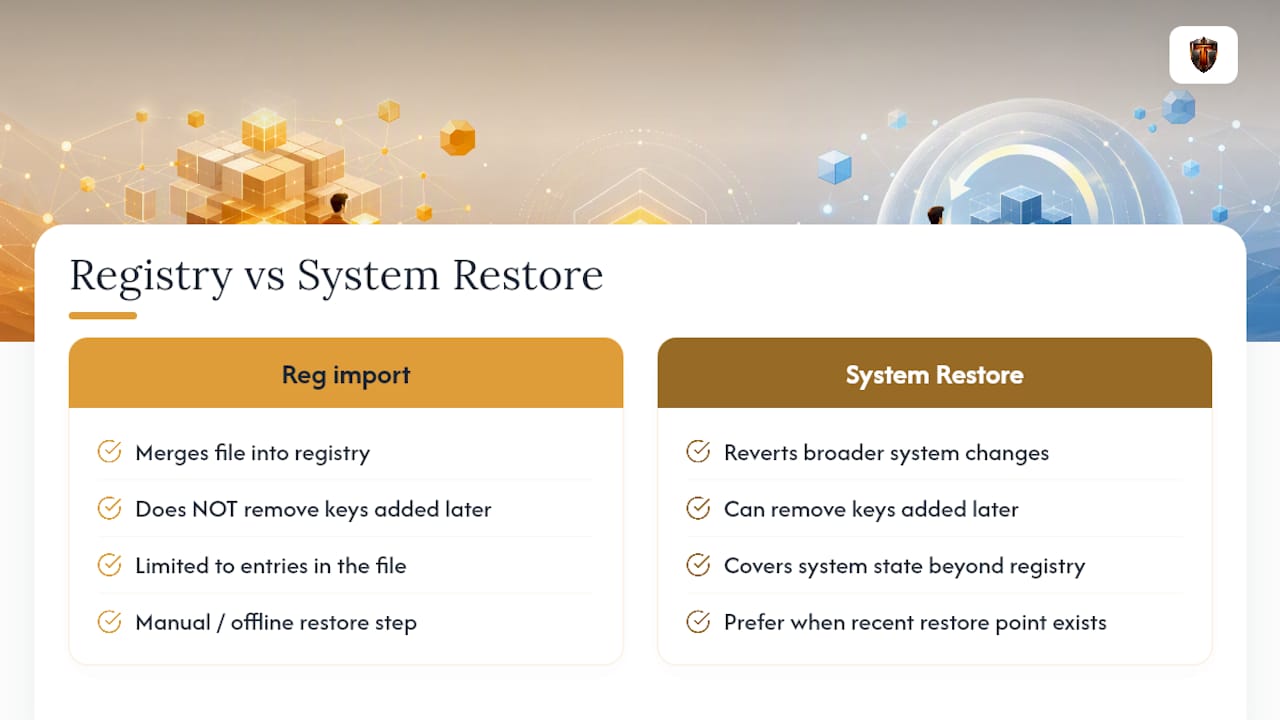
If you take one thing from this roadmap, make it the ordering: cheap and reversible first, offline and manual only when nothing else works. Skipping straight to a reset because it feels thorough usually costs more time than it saves.
Get a managed undo path instead of guessing
Tempered gives you the same control this guide just walked through, minus the manual RegEdit work and the risk of copying a zero-byte hive file by mistake. Every performance tweak Tempered suggests comes with a plain-language explanation of what it does and a one-click undo already attached, so you're never stuck reverse-engineering what changed.

It suits anyone who wants faster startups and steadier performance without becoming a full-time registry troubleshooter. If you came here after a rough recovery experience, that's the exact gap Tempered is built to close: changes you can see, approve, and reverse, all in one place. Try Tempered and run your first scan to see what it flags on your own machine.
Where to check the exact commands and procedures
- Microsoft Support: back up and restore the registry
- How-To Geek: registry backup and restore walkthrough
- Lifewire: step-by-step registry restore guide
- PacktPub: RegBack deprecation coverage