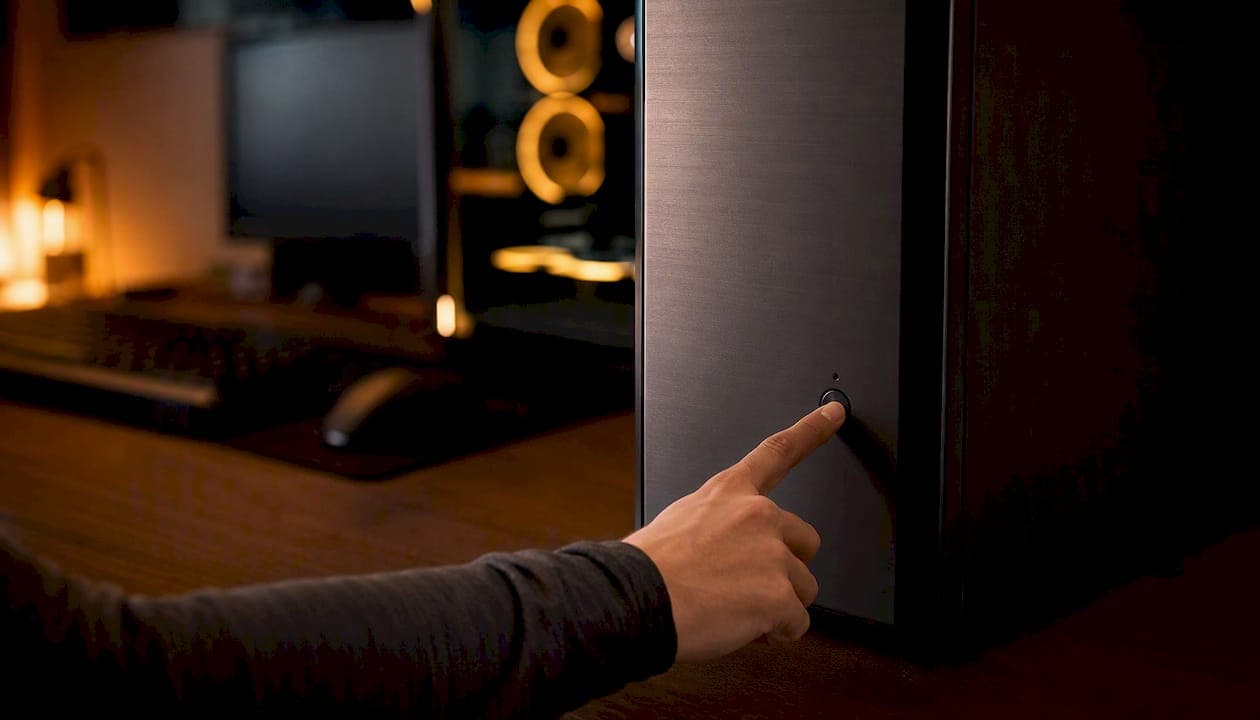
Use Sleep for short breaks, Hibernate for extended unplugged periods, and Shutdown when you want zero power draw or a completely fresh system state. That's the short answer, backed by Microsoft's own power-state documentation, HowToGeek's practical breakdown, and CNET's laptop-care guidance.
- Short break (minutes to a few hours): Sleep. You're back in seconds, session intact.
- Overnight or long unplugged stretch: Hibernate or Shutdown. Both draw near-zero power; hibernate restores your session, shutdown wipes it.
- Travel or long-term storage: Shutdown. No power draw, no background processes, and a clean boot when you return.
Key Takeaways
Sleep is the right default for daily use; hibernate and shutdown protect battery and system health for longer breaks and travel.
| Point | Details |
|---|---|
| Sleep for short breaks | Use sleep for any absence under two hours; you're back in seconds with your session intact. |
| Hibernate for long unplugged breaks | Hibernate writes your session to disk and draws near-zero power, protecting battery overnight. |
| Shutdown for travel and fresh starts | Shutdown prevents wake-in-bag overheating and gives you a clean system state on return. |
| Weekly restart is non-negotiable | A full restart once a week clears RAM, applies updates, and prevents memory-leak buildup. |
| Tempered for ongoing health | Tempered identifies startup bloat and memory issues that make sleep and boot performance worse over time. |
Table of Contents
- What does sleep vs. shutdown actually do inside your PC?
- How much power does each mode actually use?
- Resume time and daily convenience: does the speed difference matter?
- When should you use sleep, hibernate, or shutdown?
- Common risks, myths, and what can actually go wrong
- How to change sleep, hibernate, and shutdown settings in Windows
- Quick checklist and system-health habits worth keeping
- The habit that actually works
- Tempered keeps your Windows PC running at its best
- Sources
What does sleep vs. shutdown actually do inside your PC?
Every power state changes what Windows keeps alive and where it stores your session. The difference matters more than most people realize.
Sleep keeps your open apps and files in RAM. The display turns off, the CPU drops to near-idle, and a small trickle of power holds everything in memory. Wake the machine and you're back where you left off in a few seconds.
Hibernate does something smarter for battery life: it writes the entire contents of RAM to a file on your drive (hiberfil.sys), then cuts power almost completely. Resume takes longer than sleep but far less time than a cold boot, and your session survives even if the battery dies overnight.
Shutdown closes every running program, clears RAM, and powers the system off. Windows Fast Startup (enabled by default on most machines) saves a partial kernel snapshot to disk so the next boot is quicker than a true cold start, but your open apps are gone.
A fourth option worth knowing: Hybrid Sleep, which combines sleep and hibernate. It keeps your session in RAM for fast wake but simultaneously writes it to disk as a backup. It's mainly useful on desktops where a sudden power cut would otherwise wipe an unsaved session. Most laptops disable it by default because hibernate alone covers the same risk.
| Mode | Power draw | Session preserved | Where session lives | Resume speed |
|---|---|---|---|---|
| Sleep | Low (a few watts) | Yes | RAM | Seconds |
| Hibernate | Near-zero | Yes | Disk (hiberfil.sys) | tens of seconds |
| Shutdown | Near-zero | No | Nowhere | Full boot |
| Hybrid Sleep | Low (like sleep) | Yes | RAM + disk | Seconds (or full if power lost) |
Note: on some devices with InstantGo (Modern Standby), hibernate may not appear in the power menu by default. Check your device documentation if the option is missing.
How much power does each mode actually use?
Sleep is not as power-efficient as it looks on paper. MakeUseOf's comparison puts it plainly: sleep uses very little power and lets you return instantly, but hibernate uses even less and is the smarter choice when you won't be near a charger for a long stretch.
The catch is Modern Standby. Windows uses sleep time to run background tasks: syncing OneDrive, downloading updates, and checking email. BGR's analysis flags this directly: Modern Standby can wake a sleeping PC to run background tasks, which increases energy use compared to a truly idle state. On some laptops, a machine left sleeping overnight loses noticeably more battery than expected because of this activity.
- Sleep draws a few watts continuously, more if Modern Standby is active.
- Hibernate and Shutdown draw near-zero after the transition completes.
- Background sync apps like OneDrive can wake sleeping devices and add to drain.
Pro Tip: If your laptop is unplugged and you won't use it for more than two or three hours, choose hibernate over sleep. You'll return to the same session without the battery hit.
Resume time and daily convenience: does the speed difference matter?
For most people, it does. Sleep wakes in a few seconds. Hibernate typically takes tens of seconds depending on factors like RAM size and disk speed. A full boot after shutdown can vary widely depending on hardware.
HowToGeek's explainer makes the practical case clearly: resume time is the single biggest daily friction point, and sleep wins that comparison every time.
Where shutdown earns its place is in workflows that benefit from a clean state: installing drivers, applying Windows updates, or starting a long gaming session where you want every resource freed up. Gamers, in particular, often find that a fresh boot before a session clears driver artifacts and reduces stuttering that accumulates over days of sleep cycles.
- SSD: dramatically reduces hibernate and boot times; if you're on an HDD, hibernate's advantage over shutdown shrinks.
- Fast Startup: enabled by default in Windows 10 and 11; keeps boot times short even after a full shutdown.
- Large RAM: more RAM means hibernate writes more data to disk, which slightly extends resume time.
When should you use sleep, hibernate, or shutdown?
Match the mode to the situation. Here's how to think about it:
Scenario-based recommendations:
- Stepping away for 30 minutes: Sleep. Instant resume, minimal drain.
- Between back-to-back meetings: Sleep. You need your session exactly as you left it.
- Overnight, plugged in: Sleep or hibernate. Sleep is fine if you want updates to run; hibernate if you'd rather the machine stay completely quiet.
- Overnight, on battery: Hibernate. Sleep will drain the battery by morning, especially with Modern Standby active.
- Packing up for travel: Shutdown. No power draw in the bag, no risk of the machine waking in transit.
- Long-term storage (weeks or more): Shutdown, with the battery partially charged if possible.
Quick decision flow:
- Will you be away less than two hours? → Sleep.
- Will you be away longer, and is the device unplugged? → Hibernate.
- Do you need a fresh system state, or are you traveling? → Shutdown.
- Are you installing updates or drivers? → Shutdown or Restart (not Sleep).
Special cases worth noting: Servers and always-on desktops rarely sleep at all since uptime is the priority. Multi-monitor desktops with hybrid sleep enabled get the best of both worlds. Gaming rigs benefit from a weekly full shutdown to clear driver state, even if sleep handles daily use fine.
Common risks, myths, and what can actually go wrong
A few beliefs about power states are wrong in ways that cost people battery life and stability.
Myth: Shutdown always saves significantly more energy than sleep. For short breaks, the difference is negligible. Sleep draws a few watts; the time you'd spend rebooting and reopening apps costs more in productivity than it saves in electricity. The calculus changes only for long idle periods, where hibernate or shutdown genuinely wins.
Myth: Sleep will damage your hardware. It won't. Sleep is a designed operating state, not a workaround. The only hardware concern worth taking seriously is SSD longevity from frequent hibernate writes, and even that is minor on modern drives. Check your SSD health periodically if you hibernate daily on an older drive.
Practical risks to watch for: Sleep drain on battery (Modern Standby background activity); devices failing to wake due to outdated drivers; Windows updates requiring a restart that sleep delays indefinitely; memory leaks accumulating over days of continuous sleep cycles. CNET recommends at least a weekly full restart to clear RAM and restore responsiveness.
Common wake problems and quick fixes:
- Device won't wake from sleep: Update your display and chipset drivers via Device Manager. Check that "Allow this device to wake the computer" is enabled for your keyboard and mouse in Device Manager → Power Management.
- Sleep draining battery faster than expected: Modern Standby is likely active. Switch to hibernate for overnight use or check which apps are scheduled to sync in the background.
- Updates not applying: Windows Update requires a restart, not just a wake from sleep. Schedule a weekly restart to keep patches current.
How to change sleep, hibernate, and shutdown settings in Windows
These steps work on both Windows 10 and 11. The menus look slightly different, but the paths are the same.
Enable hibernate (it may be hidden by default):
- Open Control Panel → Power Options → Choose what the power buttons do.
- Click Change settings that are currently unavailable.
- Check Hibernate under Shutdown settings and click Save changes.
- Hibernate now appears in the Start menu power options.
Set sleep timers:
- Go to Settings → System → Power & sleep (Windows 10) or Settings → System → Power (Windows 11).
- Set separate timers for screen off and sleep under "On battery" and "Plugged in."
- For desktops, set sleep to "Never" if you prefer manual control.
Change lid and power button behavior:
- Control Panel → Power Options → Choose what the power buttons do.
- Set "When I press the power button" and "When I close the lid" to Sleep, Hibernate, or Shut down per your preference.
Toggle Fast Startup:
- Same screen as above: Change settings that are currently unavailable.
- Check or uncheck Turn on fast startup. Disabling it gives a true cold boot, which can resolve some driver-related wake issues.
Troubleshooting wake issues:
- Run
powercfg /energyin an elevated Command Prompt to generate a power efficiency report. - Check BIOS/UEFI settings for "Wake on LAN" or "USB wake support" if the machine wakes unexpectedly.
- On Windows 11, Settings → System → Power → Screen and sleep shows additional Modern Standby controls on supported hardware.
Windows 10 vs. 11 note: Windows 11 consolidates most power settings under Settings → System → Power, while Windows 10 splits them between Settings and Control Panel. The Control Panel paths above work on both.
Quick checklist and system-health habits worth keeping
Power-state habits work best when they're paired with basic maintenance. Here's what to actually do:
- Daily: Use sleep for short breaks; switch to hibernate when unplugged for more than two hours.
- Weekly: Do a full restart or shutdown to clear RAM, apply pending updates, and reset background processes. CNET's guidance and tech writers consistently recommend this cadence.
- Monthly: Check for driver updates (display, chipset, network) via Device Manager or your manufacturer's support page. Outdated drivers are the most common cause of wake failures.
- Quarterly: Run a disk and SSD health check to confirm your hibernate file has a healthy drive to write to.
- Before travel: Always shut down. A sleeping laptop in a bag can wake, overheat, and drain completely.
Pro Tip: Windows Task Scheduler can automate a weekly restart at a time you choose (say, 2 AM Sunday). Set it once and forget it. Your machine will be fresher every Monday morning without any manual effort.
If you want to go further, Windows 11 debloat steps reduce the background processes that make sleep less efficient in the first place.
The habit that actually works
Sleep during the day, hibernate when you close the lid and unplug, and a full shutdown or scheduled restart once a week. That's it. The weekly restart is the one most people skip, and it's the one that makes the biggest difference in long-term stability and responsiveness. Keep drivers current, check your SSD health a few times a year, and you won't need to troubleshoot wake problems very often.
Tempered keeps your Windows PC running at its best
Knowing when to sleep, hibernate, or shut down is half the battle. The other half is making sure your PC is actually in good shape when it wakes up. Tempered is an AI-powered optimizer built for Windows 10 and 11 that analyzes your CPU, RAM, disk, and startup load in plain language, then proposes specific changes you approve before anything runs.

It can flag unnecessary startup apps that slow your boot after a shutdown, suggest when a restart would clear a memory bottleneck, and track every change with one-click Undo so nothing happens without your knowledge. There's a free tier with no technical setup required. If you want a cleaner, faster machine to come back to after sleep or a fresh boot, try Tempered and run your first scan in under two minutes.
Sources
- Shut down, sleep, or hibernate your PC — Microsoft Support
- Should You Shut Down, Sleep, or Hibernate Your Laptop? — HowToGeek
- Should You Shut Down Your Laptop or Just Close the Lid? — CNET
- Sleep vs. Shutdown: What's Best for Your Laptop? — MakeUseOf
- Shutdown Vs. Sleep: What's Better For Your PC? — BGR