
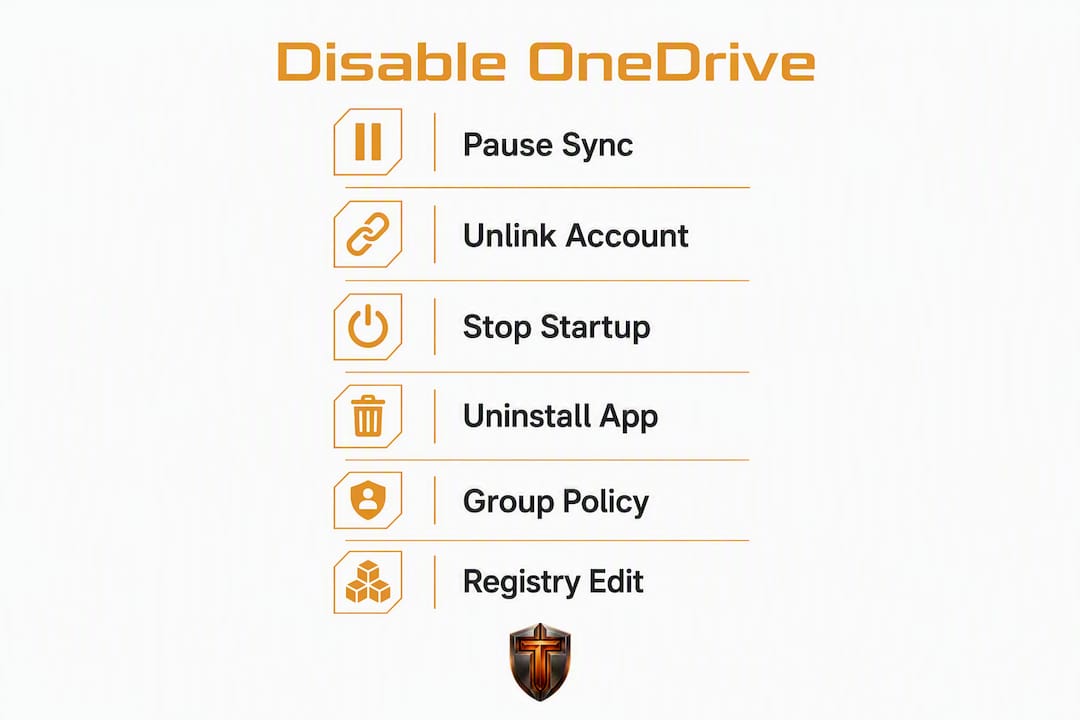
To stop OneDrive right now: pause syncing from the system tray for a quick, reversible test. If you want it gone longer, unlink your PC to stop sync while keeping local files. For a permanent stop, uninstall the app or lock it out via Group Policy (Pro/Enterprise) or a registry edit (Home). Before you do anything permanent, check the OneDrive icon in your taskbar tray, open Task Manager's Startup tab, and confirm your files are safe at OneDrive.com.
Pick your method:
- Pause syncing — 2, 8, or 24 hours; fully reversible; best first diagnostic step
- Unlink this PC — stops sync, keeps the app and all local files intact
- Stop folder backup — prevents Desktop, Documents, and Pictures from auto-saving to OneDrive
- Disable at startup — stops OneDrive from running in the background without removing it
- Uninstall — removes the app; cloud files stay safe on OneDrive.com
- Group Policy — system-level block for Windows 11 Pro and Enterprise
- Registry edit — same effect as Group Policy for Windows 11 Home users
Table of Contents
- How do you pause OneDrive syncing temporarily?
- How do you unlink OneDrive from your PC without losing files?
- How do you stop Windows from saving Desktop and Documents to OneDrive?
- How do you stop OneDrive from running at startup?
- How do you uninstall OneDrive from Windows 11?
- How do you disable OneDrive with Group Policy on Windows 11 Pro?
- Registry method for Windows 11 Home users (back up first)
- Will you lose files when you unlink or uninstall OneDrive?
- Is OneDrive actually causing your PC to slow down?
- How do you re-enable or reinstall OneDrive after disabling it?
- Key Takeaways
- The case for pausing before you pull the trigger
- Tempered can confirm the diagnosis before you disable anything
- Official docs and helpful references
How do you pause OneDrive syncing temporarily?
Pausing is the fastest, safest move. It stops background sync without touching your account link, your files, or any settings.
- Click the OneDrive cloud icon in the system tray (bottom-right corner).
- Select Settings / Help & Settings.
- Click Pause syncing.
- Choose 2 hours, 8 hours, or 24 hours.
OneDrive supports these three pause intervals directly from the tray menu. Sync resumes automatically when the timer expires, so nothing is permanent.
Why start here? If your PC feels sluggish or your internet is crawling, pausing sync tells you immediately whether OneDrive is the culprit. Run the slow task again — a large file copy, a game launch, a video export — and compare. If performance improves, you have your answer.
Pro Tip: After pausing, open Task Manager (Ctrl+Shift+Esc) and check the Processes tab. If OneDrive.exe drops off the high-CPU or high-disk list, that's your confirmation before you commit to anything more permanent.
When pause isn't enough — say, you want sync stopped indefinitely without reinstalling — move to unlinking.
How do you unlink OneDrive from your PC without losing files?
Unlinking disconnects your PC from your Microsoft account so syncing stops completely, but the OneDrive app stays installed and every local file stays exactly where it is.
- Click the OneDrive cloud icon in the system tray.
- Select Settings.
- Go to the Account tab.
- Click Unlink this PC, then confirm with Unlink account.
Unlinking or uninstalling OneDrive does not delete your files stored in the cloud. Your files remain accessible by signing into OneDrive.com. — Microsoft Support
Before you click confirm, check the sync status icons on your files in File Explorer. A green checkmark means the file is fully synced to the cloud. A cloud icon means it exists only online. If you see cloud-only icons on files you need locally, download them first.
After unlinking, open File Explorer and browse the OneDrive folder. Files that were fully synced will still be there as normal files. Files On-Demand placeholders may show as unavailable since there's no active account connection to pull them from the cloud. Then visit OneDrive.com and sign in to confirm your cloud copies are intact.
How do you stop Windows from saving Desktop and Documents to OneDrive?
Windows 11 nudges you to back up Desktop, Documents, and Pictures to OneDrive automatically. You can turn that off without unlinking or uninstalling anything.
- Click the OneDrive cloud icon in the system tray.
- Select Settings.
- Go to the Backup tab (sometimes labeled Sync and backup).
- Click Manage backup.
- Toggle off Desktop, Documents, and Pictures individually.
- Confirm when prompted.
OneDrive's Manage backup settings let you stop each folder independently, so you can keep Documents syncing while removing Desktop, for example.
To selectively stop syncing large folders:
- Open OneDrive Settings → Account → Choose folders
- Uncheck any folder you don't want synced locally
- Click OK
When you stop a folder from backing up, Windows moves it back to its original local location. Check that the files landed correctly in C:\Users\YourName\Documents (or Desktop/Pictures) before assuming the move is done.
Folders worth exempting for privacy or storage control:
- Desktop (often cluttered with shortcuts and sensitive files)
- Downloads (rarely needs cloud backup)
- Any folder containing large media files or project archives
How do you stop OneDrive from running at startup?
Even if you never use OneDrive, it launches at sign-in by default and sits in the background consuming disk and network resources. Two ways to stop that:
Method 1 — Task Manager:
- Press Ctrl+Shift+Esc to open Task Manager.
- Click the Startup apps tab.
- Find Microsoft OneDrive in the list.
- Right-click it and select Disable.
Disabling the startup entry via Task Manager is the most direct route and takes effect on the next sign-in.
Method 2 — OneDrive Settings:
- Open OneDrive Settings from the system tray.
- Go to the Settings tab (or General).
- Uncheck Start OneDrive automatically when I sign in to Windows.
To verify it worked: sign out and back in (or restart), then check the system tray. No cloud icon means OneDrive isn't running. You can also open Task Manager's Processes tab and confirm OneDrive.exe isn't listed.
How do you uninstall OneDrive from Windows 11?
Uninstalling removes the app entirely. Your cloud files stay safe — this only affects the local client.
Pre-step: Quit OneDrive first. Click the system tray icon → Settings/Help & Settings → Quit OneDrive. If it won't close, kill the process via Task Manager or run TASKKILL /f /im OneDrive.exe in an elevated Command Prompt. Trying to uninstall while the process is active often fails or leaves files locked.
GUI method:
- Open Settings → Apps → Installed apps.
- Search for Microsoft OneDrive.
- Click the three-dot menu → Uninstall.
Command-line method (run as Administrator):
For 32-bit systems:
%systemroot%\System32\OneDriveSetup.exe /uninstall
For 64-bit systems:
%systemroot%\SysWOW64\OneDriveSetup.exe /uninstall
The correct path depends on your system architecture — most modern Windows 11 machines are 64-bit, so SysWOW64 is the typical choice.
After uninstalling, the OneDrive folder under your user profile usually remains. You can delete it manually if you've confirmed all files are backed up elsewhere. Any files that were fully synced before uninstall remain in that folder as normal local files.
Uninstalling OneDrive does not delete files stored in the cloud. Sign into OneDrive.com at any time to access them. — Microsoft Support
How do you disable OneDrive with Group Policy on Windows 11 Pro?
Group Policy is the cleanest system-level method for Pro and Enterprise users. It removes OneDrive from File Explorer and blocks it from running, without touching the registry manually.
- Press Win+R, type
gpedit.msc, and press Enter. - Navigate to: Computer Configuration → Administrative Templates → Windows Components → OneDrive
- Double-click Prevent the usage of OneDrive for file storage.
- Set it to Enabled.
- Click OK.
- Restart your PC.
Setting this policy to Enabled removes OneDrive from File Explorer, prevents new OneDrive installs for users on this machine, and blocks the sync client from running. It's reversible: set the policy back to Not Configured and reboot to restore OneDrive. — MakeUseOf
After restarting, open File Explorer and confirm the OneDrive entry is gone from the left panel. Check Task Manager's Startup tab — Microsoft OneDrive should no longer appear as an active entry.
Windows 11 Home users: gpedit.msc is not available by default on Home edition. Use the registry method below instead.

Registry method for Windows 11 Home users (back up first)
The registry key DisableFileSyncNGSC replicates the Group Policy effect exactly. Home users should use this registry approach rather than installing third-party Group Policy editors.
Step 1 — Back up the registry first:
- Press Win+R, type
regedit, press Enter. - Click File → Export.
- Choose All under Export range, name the file (e.g.,
registry_backup), and save it somewhere safe.
Step 2 — Create the key and value:
- Navigate to:
HKEY_LOCAL_MACHINE\SOFTWARE\Policies\Microsoft\Windows - Right-click Windows → New → Key → name it
OneDrive. - Inside the new
OneDrivekey, right-click → New → DWORD (32-bit) Value. - Name it
DisableFileSyncNGSC. - Double-click it and set the value to
1. - Click OK and close Registry Editor.
- Restart your PC.
Always export a registry backup before editing HKLM keys. A corrupt HKEY_LOCAL_MACHINE entry can affect system-wide behavior. The exported .reg file lets you restore with a double-click if anything goes wrong. — Winaero
To undo: Open Registry Editor, navigate back to HKLM\SOFTWARE\Policies\Microsoft\Windows\OneDrive, and either delete the DisableFileSyncNGSC DWORD or set its value to 0. Reboot.
Will you lose files when you unlink or uninstall OneDrive?
Short answer: no. Microsoft confirms that unlinking or uninstalling OneDrive does not delete files stored in the cloud. They stay on OneDrive.com and are accessible whenever you sign in.
The part that trips people up is Files On-Demand. When this feature is active, OneDrive shows placeholder icons for files that exist only in the cloud — they look like real files in File Explorer but aren't stored locally. If you unlink or uninstall while placeholders are present, those files won't be accessible offline until you reconnect.
Pre-change checklist:
- Check every file's sync icon in File Explorer: green checkmark = local copy exists; cloud icon = online only
- Download any cloud-only files you need locally before proceeding
- Visit OneDrive.com and confirm your cloud copies are all there
- Copy critical folders (Desktop, Documents) to a separate local drive or USB as a manual backup
Pro Tip: If you're not sure which files are placeholders, open OneDrive Settings → Account → and look at the storage meter. If your local OneDrive folder is much smaller than your cloud storage usage, you have placeholder files that aren't fully downloaded.
Is OneDrive actually causing your PC to slow down?
Before permanently disabling anything, spend five minutes confirming OneDrive is the real problem.
- Press Ctrl+Shift+Esc to open Task Manager → Processes tab.
- Sort by Disk or CPU. If
OneDrive.exeis near the top during the slowdown, that's a strong signal. - Open Resource Monitor (search for it in Start) → Disk tab → check which process is generating the most read/write activity.
- Pause OneDrive sync (see the first section) and repeat the slow task immediately after.
If performance improves after pausing, OneDrive is the culprit. If it doesn't, the problem is elsewhere — check RAM usage or SSD health before making permanent changes.
Pro Tip: Running TASKKILL /f /im OneDrive.exe in an elevated Command Prompt kills the process instantly without uninstalling anything. It's a clean diagnostic step — if your PC speeds up, you know where to focus.
Tempered's AI diagnostic tool takes this a step further by reading live CPU, RAM, GPU, and disk metrics simultaneously and flagging which background processes are actually pulling resources. It's a useful way to confirm the diagnosis before you commit to removing anything permanently.
How do you re-enable or reinstall OneDrive after disabling it?
Changed your mind? Getting OneDrive back is straightforward regardless of which method you used.
After unlinking:
- Click the OneDrive icon in the system tray (it may still be there).
- Sign in with your Microsoft account.
- Choose which folders to sync during the setup wizard.
After uninstalling:
- Run
%systemroot%\System32\OneDriveSetup.exe(32-bit) or%systemroot%\SysWOW64\OneDriveSetup.exe(64-bit) to reinstall from the existing setup file. - Alternatively, go to Settings → Apps → search for OneDrive and reinstall if the option appears.
- Sign in and complete the folder selection setup.
After Group Policy disable:
- Open
gpedit.msc→ navigate back to the OneDrive policy. - Set Prevent the usage of OneDrive for file storage to Not Configured.
- Restart your PC.
After the registry edit:
- Open Registry Editor → navigate to
HKLM\SOFTWARE\Policies\Microsoft\Windows\OneDrive. - Delete the
DisableFileSyncNGSCDWORD or set its value to0. - Restart.
After any of these steps, confirm the OneDrive cloud icon returns to the system tray and that your selected folders begin syncing again.
Key Takeaways
Pausing sync is always the right first move — it's reversible, takes ten seconds, and tells you whether OneDrive is the source of your problem before you change anything permanent.
| Point | Details |
|---|---|
| Pause before anything else | Pause syncing for 2, 8, or 24 hours to test performance without changing account links or files. |
| Unlink vs. uninstall | Unlinking stops sync but keeps the app and local files; uninstalling removes the app but not cloud files. |
| Edition-specific methods | Pro/Enterprise users should use Group Policy; Home users should apply the DisableFileSyncNGSC registry DWORD. |
| Files stay safe in the cloud | Microsoft confirms unlinking or uninstalling does not delete cloud files — they remain at OneDrive.com. |
| Tempered for diagnostics | Tempered's AI tool reads live CPU, RAM, disk, and GPU metrics to confirm whether OneDrive is the real performance culprit before you remove anything. |
The case for pausing before you pull the trigger
Most guides jump straight to uninstall. That's often the wrong call. OneDrive is genuinely useful for a lot of people — automatic backup of Desktop and Documents has saved files that would otherwise be gone after a drive failure. Removing it permanently because of a one-time slowdown is like pulling a fuse because a light flickered.
The pause-first approach costs nothing and gives you real data. If pausing sync for two hours and running your slow task again shows no improvement, OneDrive wasn't the problem. At that point, look at startup programs more broadly, check disk health, or run a full diagnostic before uninstalling anything. The registry and Group Policy methods are powerful, but they're also the hardest to undo cleanly if you're not comfortable in those tools.
For less technical users especially, reversible steps reduce risk. Unlink before you uninstall. Back up before you edit the registry. The five minutes you spend confirming sync status before unlinking is worth far more than the hour you'd spend recovering a file you thought was local but wasn't.
Tempered can confirm the diagnosis before you disable anything
If you're disabling OneDrive because your PC feels slow, the real question is whether OneDrive is actually responsible. Tempered's AI diagnostic tool reads live CPU, RAM, GPU, and disk metrics simultaneously, identifies which background processes are pulling the most resources, and flags the ones worth addressing — without requiring you to uninstall anything first.

Where manual Task Manager checks give you a snapshot, Tempered tracks patterns over time and surfaces the specific processes causing sustained load. You can manage startup entries, pause background processes, and apply safe tweaks — all with one-click undo if something changes unexpectedly. It's a less destructive path than jumping to Group Policy or registry edits, especially if you're not certain OneDrive is the culprit.
The free tier lets you run a diagnostic scan and see what's actually running on your system. If OneDrive shows up as a genuine resource drain, you'll know. If it doesn't, you'll have saved yourself an unnecessary uninstall. Run a free scan with Tempered and get a clear picture of what's actually slowing your PC down.
Official docs and helpful references
- Turn off, disable, or uninstall OneDrive — Microsoft Support — the authoritative source for unlinking, hiding, and uninstalling OneDrive; confirms cloud files are preserved after any of these actions
- How to cancel or stop sync in OneDrive — Microsoft Support — official guidance on pause intervals (2/8/24 hours) and stopping sync without account changes
- Completely Uninstall OneDrive using Command Prompt in Windows 11 — TheWindowsClub — command-line uninstall paths for 32-bit and 64-bit systems and TASKKILL pre-step
- How to Completely Uninstall OneDrive in Windows 11 — Winaero — registry method for Home users, DisableFileSyncNGSC key details, and preventing reinstallation for new user profiles
- How to disable or remove OneDrive in Windows 11 — MakeUseOf — Group Policy path and expected behavior after enabling the storage prevention policy