The fastest fix is Delivery Optimization: open Settings > Windows Update > Advanced options > Delivery Optimization, cap the download rate in Mbps or as a percentage of your connection, and turn off "Allow downloads from other devices" to kill uploads. If your connection has a hard data cap, skip the fine-tuning and mark the network as Metered instead.
TL;DR:
- Setting bandwidth caps in Delivery Optimization is best done with absolute Mbps limits on slow or unreliable connections, while percentage limits suit fast, stable networks.
- Enforcing bandwidth restrictions via Group Policy or MDM ensures settings remain effective across multiple devices and cannot be altered by users.
- Using a metered network connection effectively blocks most updates entirely, especially on data-capped plans like satellite or mobile hotspots.
- Delivery Optimization peer sharing can be disabled or limited to prevent your upload bandwidth from being used with unknown devices or external networks.
- Manual checks of the Activity monitor help verify if your bandwidth caps are working correctly and detect external factors that may affect network performance.
Table of Contents
- How to set download and upload caps in Settings
- How do you enforce bandwidth limits with Group Policy?
- Can you set Windows Update limits through the registry?
- Marking your connection as metered stops updates cold
- What happens if your PC uploads updates to strangers?
- When should you use BITS instead of Delivery Optimization?
- Why don't your bandwidth limits seem to work?
- Ian and Tempered on safe, reversible changes
- Why most bandwidth advice skips the boring part
- Sources
How to set download and upload caps in Settings
Every Windows 10 and 11 machine has the controls you need built into Settings, no third-party app required. Here's the exact path and what each option actually does.
- Open Settings > Windows Update > Advanced options > Delivery Optimization.
- Select Advanced options to reveal the download and upload sliders.
- Under "Limit how much bandwidth is used for downloading updates in the background," choose either Absolute bandwidth (Mbps) or Percentage of measured bandwidth, then enter a value.
- Repeat for foreground downloads if you want a separate cap for updates you trigger manually.
- Scroll down to the upload section and toggle Limit how much bandwidth is used to upload updates, then set a percentage.
- Set a Monthly upload limit anywhere from 1 to 500 GB if you want a hard ceiling regardless of percentage settings.
Background downloads are the automatic ones Windows fetches quietly. Foreground downloads happen when you click "Check for updates" and install right away. You can throttle each independently, which matters if you're fine with slow background patching but want full speed when you manually force an update before a deadline.
- Absolute (Mbps): best on slow or inconsistent connections, like rural fixed wireless or a shared cellular hotspot.
- Percentage: better on fast fiber or cable lines, since a flat Mbps number can either choke a gigabit connection unnecessarily or barely register on a 25 Mbps DSL line.
Once you've set your numbers, scroll to the Activity monitor on that same Delivery Optimization settings page. It shows bytes downloaded and uploaded in the last 30 days, plus how much came from Microsoft's servers versus other PCs on your network or the internet.
Pro Tip: Set your cap, run a manual update check, then check the Activity monitor again five minutes later. If the byte count barely moved, your cap is working. If it jumped a lot, something else on your network is grabbing bandwidth.
How do you enforce bandwidth limits with Group Policy?
Settings-app sliders are fine for one PC, but they can be changed by anyone with access to the machine. If you're managing Windows 10 or 11 Pro, Enterprise, or Education devices, Group Policy gives you enforcement that survives a curious user or a factory reset of preferences.
Open gpedit.msc, then navigate to Computer Configuration > Administrative Templates > Windows Components > Delivery Optimization. The policy names documented by Microsoft map directly to what you'd otherwise set through the GUI:
- DOPercentageMaxBackgroundBandwidth sets the background cap as a percentage, identical to the Settings slider.
- DOMaxBackgroundDownloadBandwidth sets an absolute limit in KB/s, not Mbps. Divide your target Mbps by 8 and multiply by 1,000 to get the right KB/s value.
- DOMaxForegroundDownloadBandwidth does the same for foreground transfers.
- DOSetHoursToLimitBackgroundDownloadBandwidth lets you define a specific time window, like business hours, where a tighter cap applies automatically.
Home edition doesn't ship with the Local Group Policy Editor at all, so this path is Pro and above only. On managed fleets, the same policy values apply through Intune or another MDM platform, which is the only way to guarantee the setting sticks across every device instead of relying on each user's local configuration.
Pro Tip: If you manage more than a handful of PCs, push these through MDM rather than local policy. A local GPO setting can be overridden the next time someone touches the same key at the domain level, and you'll spend an afternoon figuring out why your caps stopped working.
Can you set Windows Update limits through the registry?
Yes, though this is the least forgiving method and Group Policy will always take priority if both are configured. The relevant values live under Delivery Optimization's registry path, and the main ones you'll encounter are:
- DownloadRateBackgroundPct and DownloadRateForegroundPct control download percentages.
- UpRatePctBandwidth controls the upload percentage.
- UploadLimitGBMonth sets the monthly upload cap in gigabytes.
Before touching any of these, export the current key so you have a rollback path. Right-click the Delivery Optimization key in Registry Editor, choose Export, and save the .reg file somewhere you'll remember. Add or modify the DWORD values, then sign out or restart for the change to take effect.
If something goes wrong, delete the value you added or double-click the exported .reg file to restore the original state. Just know that if a Group Policy or MDM setting exists for the same parameter, it wins, and your registry edit will sit there doing nothing.
Marking your connection as metered stops updates cold
Throttling controls speed. Metered status controls whether large downloads happen at all. Windows treats a metered connection as a signal to skip most non-essential automatic downloads entirely, not just slow them down.
To set it, go to Settings > Network & Internet, select your Wi-Fi network or Ethernet adapter, and flip Metered connection on.
- It's the better tool when you have an actual data cap, like a satellite plan or a mobile hotspot billed by the gigabyte.
- The trade-off is that some non-critical updates get deferred indefinitely, so you'll need to occasionally check for updates manually to avoid missing an important security patch.
- Critical security updates generally still get through, but don't treat metered mode as a substitute for periodic manual checks.
What happens if your PC uploads updates to strangers?
Delivery Optimization works like a small peer-to-peer network. By default, your PC can send update chunks it already downloaded to other Windows devices, either on your local network or across the internet, which is how Microsoft spreads the load off its own servers.
The setting that controls this is Allow downloads from other devices, with two modes: Devices on my local network and Devices on my local network, and devices on the internet. The second option is what lets your upload bandwidth get used by machines you've never heard of.
- Toggle Allow uploads to other devices while this PC is on battery power off if you're on a laptop and don't want background uploads draining your charge.
- Set an upload percentage and a Monthly upload limit between 1 and 500 GB in Advanced options if you want peer sharing on but bounded.
- For a single PC household, turning peer sharing off entirely is usually the simplest move. There's no other device on your network to benefit from it, so you're just donating upload bandwidth for nothing.
When should you use BITS instead of Delivery Optimization?
Background Intelligent Transfer Service (BITS) throttling operates at a different layer than Delivery Optimization, and it's the right tool when you need strict time-based control rather than a flat speed cap.
- BandwidthThrottlingStartTime and BandwidthThrottlingEndTime define a window, like 9 AM to 6 PM, during which a bandwidth ceiling applies.
- BITS_MaxBandwidth sets that ceiling in Kbps for the defined window, documented under the BITS policy CSP.
- Outside the configured hours, transfers run at full speed automatically, no manual toggling required.
BITS only governs background transfers. If a download runs in the foreground because someone clicked "install now," it can bypass the BITS schedule entirely. This makes BITS the right call for business networks running real-time apps, like VoIP or video conferencing, where you need guaranteed quiet hours rather than a constant percentage cap.
Why don't your bandwidth limits seem to work?
Run through this order before assuming Windows is ignoring your settings:
- Check if the download was manual. Foreground updates triggered by clicking "Download and install" can bypass Delivery Optimization caps entirely, even when background limits are configured correctly.
- Look for a conflicting Group Policy or MDM profile. A domain-level policy silently overrides local Settings changes, and there's no visible warning when it happens.
- Rule out your router. Quality-of-service rules, ISP-side traffic shaping, an active VPN, or a third-party firewall can all cap or reroute traffic before Windows even gets a chance to apply its own limit.
- Open the Delivery Optimization Activity monitor and compare actual throughput against your configured cap. A mismatch points to something outside Windows entirely, not a broken setting.
Pro Tip: If the Activity monitor shows normal Delivery Optimization numbers but your overall internet still feels slow during updates, the bottleneck usually isn't Windows. Check for another device or app hogging the connection first.
For a broader view of what's actually competing for bandwidth on your machine, a general network monitoring tool alongside Windows' built-in Task Manager Performance tab can show which process is pulling data in real time, separate from anything update-related.
Ian and Tempered on safe, reversible changes
Every adjustment covered here, from Delivery Optimization sliders to registry edits, should leave you a clear way back to default. That's the standard Tempered applies to system tweaks generally: identify the actual constraint, propose a specific change, and keep an undo path ready.
Test new caps during a low-stakes window, not right before you need a critical patch installed. And if you're cleaning up background network load more broadly, pieces like disabling unnecessary telemetry or cutting OneDrive sync traffic pair naturally with tighter update bandwidth control.
Why most bandwidth advice skips the boring part
Most guides on this topic treat Delivery Optimization as the whole story, hand you a percentage to type in, and move on. That's incomplete. The real friction isn't finding the slider, it's figuring out why the slider didn't do anything, and that's the part conventional advice glosses over.
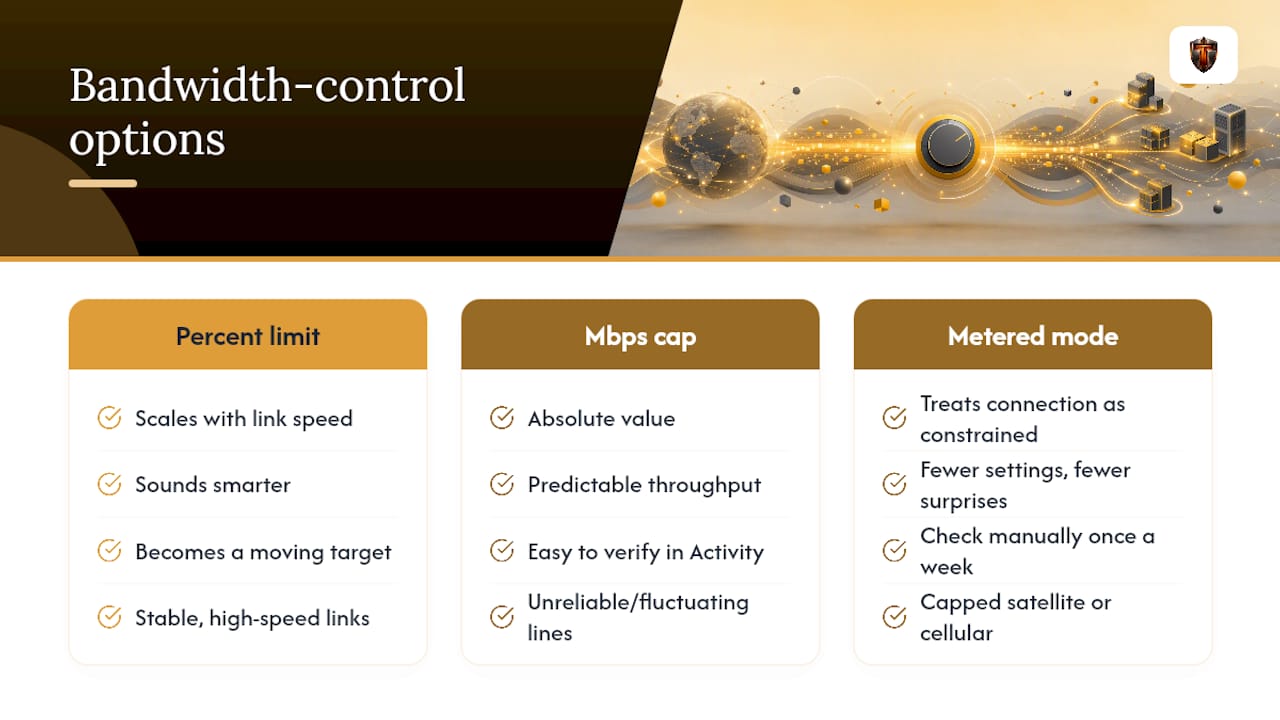
My read after going through Microsoft's own documentation: absolute Mbps caps get recommended too rarely. Percentage-based limits sound smarter because they scale, but on a connection that fluctuates, a percentage of a moving target is a moving target itself. If your line is unreliable, a hard Mbps number is easier to reason about and easier to verify against the Activity monitor.
The other thing worth saying plainly: Metered mode is underused by people who actually need it. Anyone throttling a capped satellite or cellular connection down to 1 Mbps is fighting the wrong battle. Just mark it metered and check manually once a week. Fewer settings, fewer surprises, and you still control when critical patches land.
— Ian
Sources
- Delivery Optimization in Windows | Microsoft Support
- Delivery Optimization reference | Microsoft Learn