
The best PC optimizer for most Windows users in 2026 is IObit Advanced SystemCare for general maintenance, Razer Cortex for gaming, and CCleaner for straightforward junk removal. But the right pick depends on what's actually slowing your machine down. Here's a quick-reference shortlist to orient you before the full comparison:
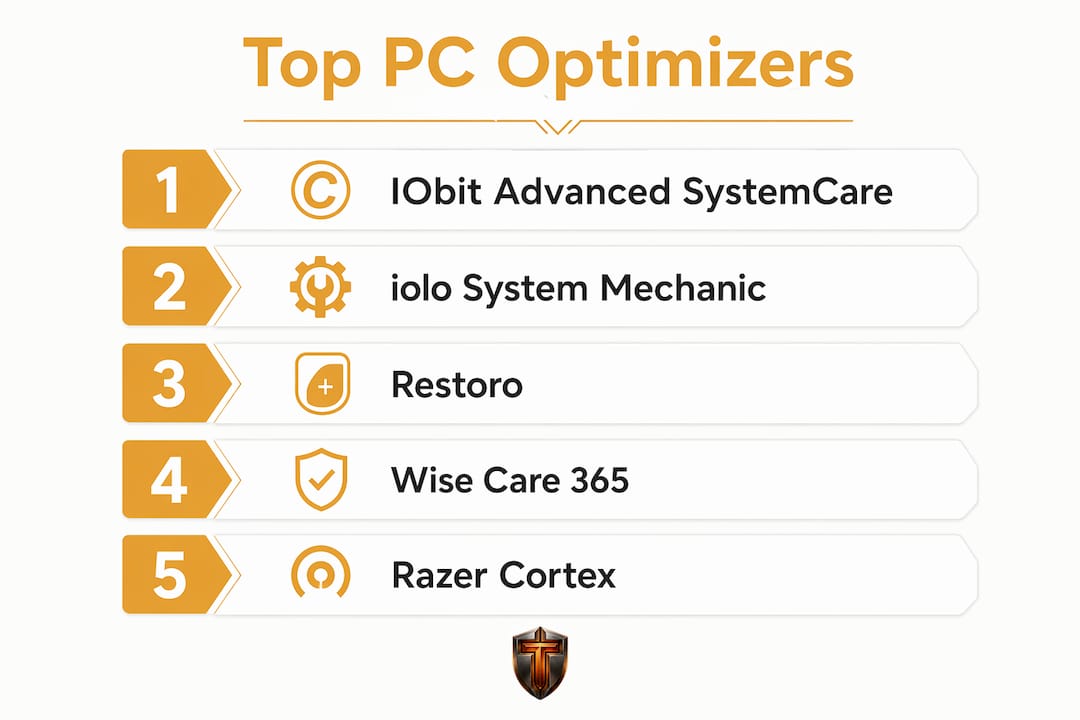
- IObit Advanced SystemCare — best all-in-one for everyday Windows maintenance
- Restoro — best for repairing corrupted system files and stability issues
- DefenceByte — best for users who want optimization paired with malware removal
- iolo System Mechanic — best for power users and gamers needing deep resource tuning
- Wise Care 365 — best budget pick with privacy tools included
- AVG TuneUp — best for automated, set-and-forget maintenance
- Fortect — best for fast Windows repair alongside cleanup
- Ashampoo WinOptimizer — best for tech-savvy users who want granular control
- CCleaner — best for basic junk cleaning and startup management
- Glary Utilities — best multi-tool suite for general PC maintenance
- Razer Cortex — best free gaming optimizer for frame rate boosts
- WinUtilities — best lightweight option for simple, no-frills cleaning
- WinZip System Utilities — best for existing WinZip users wanting integrated cleanup
- Auslogics Boost Speed — best for real-time system monitoring alongside speedup
- PC Services Optimizer — best for advanced users tuning Windows service configurations
- Winhance — best minimalist tool for casual users who want quick results
- TotalAV — best combined antivirus and optimizer for one-subscription simplicity
- Norton 360 — best security-first platform with optimization built in
- Avira Prime — best premium all-in-one for protection and PC cleaning
- Bitdefender — best security-led optimizer for users who prioritize threat defense
- McAfee — best for existing McAfee subscribers wanting integrated PC cleanup
PC optimizers boost speed by clearing junk files, reining in background processes, and trimming startup bloat. Most support both Windows 10 and Windows 11 with regular updates.
What's the best PC optimizer software in 2026? Full comparison
The tools below vary widely in scope, from bare-bones junk cleaners to full security-and-performance suites. Price, feature depth, and gaming suitability are the three axes that matter most for most users.
| Tool | Best For | Price | Core Features | Ease of Use | Performance Impact | Security | Gamer Suitability |
|---|---|---|---|---|---|---|---|
| IObit Advanced SystemCare | General maintenance | Free / paid tiers | Junk clean, startup, registry, real-time boost | Very easy | High | Basic | Moderate |
| Restoro | System repair | Paid (free scan) | File repair, stability fix, malware scan | Easy | Moderate | Moderate | Low |
| DefenceByte | Security + optimization | Paid | Malware removal, junk clean, registry fix | Easy | Moderate | High | Low |
| iolo System Mechanic | Power users, gamers | Paid | Deep tuning, Game Mode, real-time monitoring | Moderate | Very high | Moderate | High |
| Wise Care 365 | Budget users | Free / paid | Cleanup, privacy tools, registry | Very easy | Moderate | Low | Low |
| AVG TuneUp | Automated maintenance | Paid | Auto-clean, update mgmt, sleep mode | Very easy | High | Moderate | Low |
| Fortect | Quick Windows repair | Paid (free scan) | Windows repair, cleanup, malware | Easy | Moderate | Moderate | Low |
| Ashampoo WinOptimizer | Tech-savvy users | Paid | Modular tools, deep tweaks, privacy | Moderate | High | Moderate | Moderate |
| CCleaner | Basic cleanup | Free / paid | Junk files, startup, browser clean | Very easy | Moderate | Low | Low |
| Glary Utilities | Multi-tool suite | Free / paid | 20+ modules, repair, cleanup, privacy | Easy | Moderate | Low | Low |
| Razer Cortex | Gamers | Free | Game Mode, FPS boost, process kill | Very easy | High (gaming) | Low | Very high |
| WinUtilities | Simple cleaning | Free / paid | Core cleanup, registry, startup | Very easy | Low | Low | Low |
| WinZip System Utilities | WinZip users | Paid | Cleanup, compression integration | Easy | Moderate | Low | Low |
| Auslogics Boost Speed | Real-time monitoring | Paid | System monitor, cleanup, internet boost | Easy | High | Low | Moderate |
| PC Services Optimizer | Advanced Windows tuning | Free | Service config, speed tweaks | Complex | Moderate | Low | Low |
| Winhance | Casual, lightweight use | Free | Minimal tweaks, fast UI | Very easy | Low | Low | Low |
| TotalAV | Antivirus + optimizer | Paid | Antivirus, junk clean, startup | Easy | Moderate | High | Low |
| Norton 360 | Security-first users | Paid | Full AV, cleanup, VPN, dark web | Easy | Moderate | Very high | Low |
| Avira Prime | All-in-one protection | Paid | AV, PC cleaner, VPN, password mgr | Easy | Moderate | Very high | Low |
| Bitdefender | Security with tuneup | Paid | AV, optimizer, anti-phishing | Easy | Moderate | Very high | Low |
| McAfee | McAfee subscribers | Paid (add-on) | Junk clean, bandwidth mgmt, process kill | Easy | Moderate | High | Low |
| Advanced SystemCare (IObit) | General maintenance | Free / paid tiers | Same as IObit Advanced SystemCare | Very easy | High | Basic | Moderate |
Pro Tip: Gaming-focused optimizers like Razer Cortex and iolo System Mechanic restrict background processes during gameplay to improve frame rates and cut lag. If gaming is your primary use case, these two are worth testing before anything else.
IObit Advanced SystemCare
Advanced SystemCare is the most downloaded all-in-one optimizer in its category, and for good reason. One-click scanning covers junk files, registry errors, startup programs, and real-time performance boosts in a single pass. The free tier is genuinely useful for basic maintenance; the Pro version adds real-time protection and deeper privacy tools. It runs on both Windows 10 and Windows 11 without configuration headaches.

Pros: One-click simplicity, broad feature set, active development with frequent updates. Cons: The free version shows upsell prompts, and the real-time boost feature can feel aggressive on lower-end hardware.
Restoro
Restoro takes a different angle from most cleaners. Rather than just deleting files, it scans for corrupted Windows system files and replaces them using a cloud-based library of clean components. That makes it particularly useful when a PC is crashing or behaving erratically, not just running slowly. The free scan shows you what's broken; fixing it requires a paid license.
Pros: Addresses root causes of instability, not just surface clutter. Cons: Paid-only repair, and the scan results can feel alarmist to less experienced users.
DefenceByte
DefenceByte positions itself at the intersection of security and optimization, running malware scans alongside the standard junk-file and registry cleanup. For users who want a single tool covering both threat removal and performance tuning, it fills that gap without requiring a separate antivirus subscription. The interface is clean and approachable.
Pros: Integrated malware scanning, straightforward UI. Cons: Less well-known than rivals, with a smaller update track record publicly available.
iolo System Mechanic
iolo System Mechanic is the optimizer of choice for power users who want real control. Its LiveBoost technology dynamically reallocates CPU and RAM in real time, and its dedicated Game Mode shuts down non-essential processes the moment you launch a game. Performance impact varies between entry-level utilities and deeper platforms like this one, and System Mechanic sits firmly at the high end of that spectrum. Annual pricing covers up to five PCs.

Pros: Deep resource tuning, Game Mode, real-time hardware monitoring. Cons: Steeper learning curve, and the full feature set can overwhelm casual users.
Wise Care 365
Wise Care 365 punches above its price point. The free version covers disk cleanup, registry repair, and basic privacy tools, while the Pro tier adds scheduled cleaning and more granular privacy controls. It's one of the few budget tools that integrates privacy cleaning alongside standard optimization, which matters if you share a machine or care about browser history and cached credentials.
Pros: Affordable, privacy tools included, clean interface. Cons: Performance impact is moderate rather than dramatic on already-clean systems.
AVG TuneUp
AVG TuneUp earns its place through automation. Its Sleep Mode feature detects resource-heavy background apps and puts them in a low-power state without you lifting a finger. Automatic update management keeps drivers and software current, which addresses one of the most common causes of slowdowns that file cleaning alone misses. The annual subscription covers multiple devices.
Pros: Excellent automation, Sleep Mode is genuinely effective, trusted brand. Cons: No free tier beyond a trial period; some advanced features require navigating deeper menus.
Fortect
Fortect focuses on speed of repair. It scans for damaged Windows files, privacy threats, and performance bottlenecks, then presents a consolidated fix list. The free scan is thorough; the paid license executes the repairs. Users dealing with a Windows installation that's degraded over time, rather than just accumulated junk, will find Fortect more targeted than a standard cleaner.
Pros: Fast diagnosis, Windows repair focus, clear results presentation. Cons: Repair requires purchase, and it's less suited to ongoing maintenance than to one-time fixes.
Ashampoo WinOptimizer
Ashampoo WinOptimizer is built for users who want to go deep. Its modular design lets you run specific tools, such as the Internet Cleaner, Drive Defrag, or System Benchmark, independently rather than forcing a one-click-does-everything approach. That granularity is a genuine advantage for anyone who knows exactly what they want to tune. Ashampoo releases updates frequently, keeping pace with Windows changes.
Pros: Modular, highly customizable, strong update cadence. Cons: The sheer number of tools can overwhelm users who just want a quick cleanup.
CCleaner
CCleaner has been the go-to junk cleaner for over a decade, and its core strength remains the same: fast, reliable removal of temporary files, browser cache, and startup entries. The free version covers most casual users' needs. The paid tiers add real-time monitoring and automatic updates. One caveat worth knowing: CCleaner's registry cleaner is controversial among experts, who generally advise skipping it on modern Windows installations.
Pros: Proven track record, simple interface, widely trusted. Cons: Registry cleaning is debated; the free version now includes more promotional messaging than it used to.
Glary Utilities
Glary Utilities packs over 20 individual tools into a single interface, covering everything from duplicate file finders to memory optimizers and disk repair. The free version is genuinely comprehensive, which is rare at this price point. For users who want a toolbox rather than a single automated solution, Glary Utilities delivers more variety than almost anything else in the free tier.
Pros: Extensive free toolset, modular, good for hands-on users. Cons: Interface feels dated; some modules overlap in function.
Razer Cortex
Razer Cortex is free, focused entirely on gaming, and does its one job well. When you launch a game, it kills non-essential background processes and reallocates system resources to maximize frame rates. It also includes a game launcher and deal-finder, though those are secondary to the performance function. For gamers on a budget who don't need full system maintenance, Cortex is the obvious starting point.
Pros: Free, effective Game Mode, zero learning curve. Cons: No general PC maintenance tools; purely gaming-focused.
WinUtilities, WinZip System Utilities, and PC Services Optimizer
WinUtilities is a lightweight suite covering the basics: junk files, registry, startup, and disk cleanup. It won't transform a slow PC, but it's stable and unobtrusive. WinZip System Utilities makes the most sense for users already in the WinZip ecosystem, offering cleanup tools integrated with the compression suite rather than as a standalone product. PC Services Optimizer is a niche tool for advanced users who want to manually configure which Windows services run at startup, a level of control that most users don't need and shouldn't attempt without some technical confidence.
Auslogics Boost Speed
Auslogics Boost Speed combines real-time system monitoring with a full cleanup suite. Its dashboard shows CPU, RAM, and disk usage live, which helps users understand what's actually consuming resources before running any fixes. The internet optimization module, which adjusts TCP/IP settings, is a differentiator that few competitors include at this price level.
Pros: Real-time monitoring, internet optimization, clear dashboard. Cons: Some features duplicate what Windows 11 already handles natively.
Winhance
Winhance is a free, open-source Windows optimizer with a deliberately minimal feature set. It applies safe performance tweaks and removes some Windows telemetry and bloat, but it doesn't offer ongoing monitoring or scheduled cleaning. Best suited to users who want a one-time debloat rather than a recurring maintenance tool.
Security suites with built-in optimization: TotalAV, Norton 360, Avira Prime, Bitdefender, and McAfee
These five products lead with security and treat optimization as a supporting feature. TotalAV bundles a junk cleaner and startup manager inside its antivirus subscription, making it a practical single-subscription option for users who don't want to manage separate tools. Norton 360 goes further, adding a VPN, dark web monitoring, and cloud backup alongside its cleanup tools. Avira Prime is the most premium of the group, combining antivirus, a PC cleaner, a VPN, and a password manager under one annual fee.
Bitdefender's optimizer is lighter than its security engine, but the combination of best-in-class threat detection with basic tuneup tools suits users who prioritize protection over deep performance tuning. McAfee's PC Optimizer is a standalone add-on to existing McAfee subscriptions, covering junk removal and bandwidth management. It's a logical choice if you're already paying for McAfee Total Protection and want cleanup without adding another vendor.
How to choose the best PC optimizer for your needs
Picking the right tool comes down to matching the software's strengths to what's actually wrong with your machine. Here are the criteria that matter most:
- System compatibility. Most optimizers support both Windows 10 and Windows 11, but verify before buying, especially on older hardware or niche configurations.
- Scope of optimization. Decide whether you need basic cleanup only (CCleaner, Winhance), deep performance tuning (iolo System Mechanic, Auslogics Boost Speed), security integration (TotalAV, Norton 360, Bitdefender), or system repair (Restoro, Fortect).
- Performance impact of the tool itself. Some optimizers run heavier than others. On a low-end machine, a resource-hungry optimizer can make things worse while it's running. Lightweight options like WinUtilities or Wise Care 365 are safer bets for older hardware.
- Gaming needs. If gaming performance is the goal, Razer Cortex (free) and iolo System Mechanic (paid) are the two tools built specifically around that use case.
- Free vs. paid. Free optimizers from reputable companies can handle basic cleanup safely. Unknown free tools carry real risk. If you need scheduled cleaning, real-time monitoring, or advanced features, a paid tier is usually worth it.
- Trial versions and refund policies. Try-before-you-buy options let you assess whether a tool actually improves your specific system before committing. Prioritize tools that offer a free scan or a money-back guarantee.
- Update frequency. Frequent updates keep an optimizer compatible with the latest Windows versions and security patches. A tool that hasn't been updated in a year is a liability, not an asset.
- Customer support. Paid tools from established vendors (AVG, IObit, Ashampoo, Norton) generally offer email or chat support. Free tools typically rely on community forums.
- Ease of use. One-click tools like Advanced SystemCare and AVG TuneUp suit casual users. Modular tools like Ashampoo WinOptimizer and Glary Utilities suit users who want to pick and choose what runs.
Pro Tip: Before installing any optimizer, check your Task Manager for processes consuming the most CPU and RAM. That 30-second check often reveals the actual culprit, whether it's a browser extension, a background updater, or a startup program, and tells you exactly which type of tool to prioritize.
What most PC optimizers miss: the hardware side of slowdowns
Junk files are rarely the main reason a PC feels slow. Hardware bottlenecks and outdated drivers cause most real-world performance degradation, and no amount of registry cleaning fixes a CPU running at 95°C or a GPU driver two versions behind.
The tools that address this gap go beyond file deletion. Real-time monitoring of CPU temperature, RAM usage, and GPU load tells you whether a slowdown is a software problem or a hardware limit you've already hit. Updating GPU drivers is one of the highest-impact steps most users skip entirely, and it costs nothing.
- Background processes are often the biggest drag. A single poorly coded app running at startup can consume more resources than all your junk files combined.
- Outdated drivers cause instability, crashes, and missed performance gains, particularly on gaming hardware where driver updates frequently include frame rate improvements.
- Thermal throttling is invisible to most cleanup tools. When a CPU hits its temperature limit, it slows itself down automatically. No optimizer can fix that without addressing airflow or thermal paste.
- RAM pressure shows up as disk thrashing when Windows starts using the page file. More RAM or better memory management fixes this; deleting temp files does not.
- Windows 11 debloat techniques, such as disabling telemetry services and removing pre-installed apps, can recover meaningful resources that standard cleaners never touch.
An AI-powered diagnostic tool analyzing live CPU, RAM, and GPU metrics can recommend targeted fixes rather than running the same generic cleanup script every time. That approach produces safer, more specific results than a one-size-fits-all scan.
Pro Tip: Monitor your CPU temperature before and after running any optimizer. If temperatures stay high after cleanup, the bottleneck is thermal, not software, and no PC speed-up tool will solve it.
Tempered gives you a different way to diagnose and fix PC slowdowns
The tools compared above are solid options for cleaning files and managing startup programs. Tempered takes a different approach: instead of running a generic scan, it reads your live hardware metrics, including CPU load, RAM pressure, GPU temperature, and disk activity, then tells you in plain language exactly what's holding your system back.

Where most optimizers apply the same fixes to every machine, Tempered's AI diagnostic identifies the specific processes, temperatures, and resource conflicts affecting your PC right now. Every change it recommends is reversible through a one-click Undo Center, so there's no risk of breaking something you can't restore. The free tier covers limited AI scans; paid plans unlock higher scan limits and premium features. No technical knowledge required, and no AI API key to configure. For gamers and casual users who want real answers instead of a progress bar, Tempered is worth a look.
Key Takeaways
The best PC optimizer matches your specific bottleneck: file cleanup tools help with clutter, but hardware monitoring and driver updates fix the slowdowns that cleaners can't touch.
| Point | Details |
|---|---|
| Best all-in-one pick | IObit Advanced SystemCare covers junk cleaning, startup, and real-time boost in one free or paid package. |
| Best for gamers | Razer Cortex (free) and iolo System Mechanic (paid) both prioritize CPU and RAM for gaming sessions. |
| Hardware beats junk files | Outdated drivers and thermal throttling cause more slowdowns than junk files; no cleaner fixes those. |
| Free vs. paid safety | Free optimizers from reputable vendors are safe for basic cleanup; unknown free tools carry real risk. |
| Tempered's approach | Tempered reads live CPU, RAM, and GPU metrics to recommend specific fixes, with every change reversible via Undo Center. |