What are the best FPS boosters for PC gaming right now?
The strongest FPS booster software in 2026 combines automated resource management with hardware-aware tuning. Razer Cortex leads for gamers who want AI-driven settings prediction before they even launch a game. MSI Afterburner is the go-to for anyone willing to manually push GPU clocks. Process Lasso handles CPU priority tuning that most other tools ignore entirely. For network-dependent titles, ExitLag targets lag at the routing level rather than the hardware level. Hone suits budget-conscious users on mid-range or low-end machines who want a clean, no-fuss experience.
Each tool targets a different layer of the performance stack, so the "best" choice depends on your hardware, your game type, and how much you want to configure manually.
| Tool | Best For | Key Features | Pricing | Platform Compatibility | Ease of Use |
|---|---|---|---|---|---|
| Razer Cortex | AI-driven auto-tuning | FPS prediction, game booster, deals hub | Free + paid tiers | Windows | Easy |
| Hone | Low-end PC optimization | Resource management, simple UI | Free + paid tiers | Windows | Very easy |
| ExitLag | Online competitive gaming | Multi-path routing, lag reduction | Subscription | Windows, Mac | Easy |
| NVIDIA App | NVIDIA GPU users | Driver management, overlay, tuning | Free | Windows | Easy |
| AMD Software: Adrenalin Edition | AMD GPU users | Driver suite, Radeon Boost, tuning | Free | Windows | Moderate |
| MSI Afterburner | Manual GPU overclocking | Clock/voltage control, monitoring | Free | Windows | Advanced |
| Process Lasso | CPU priority management | ProBalance, process rules, governor | Free + paid | Windows | Moderate |
Pro Tip: Run a baseline FPS benchmark in your most-played game before installing any booster. Without that number, you have no way to know whether a tool actually helped.
How do these tools actually differ from each other?
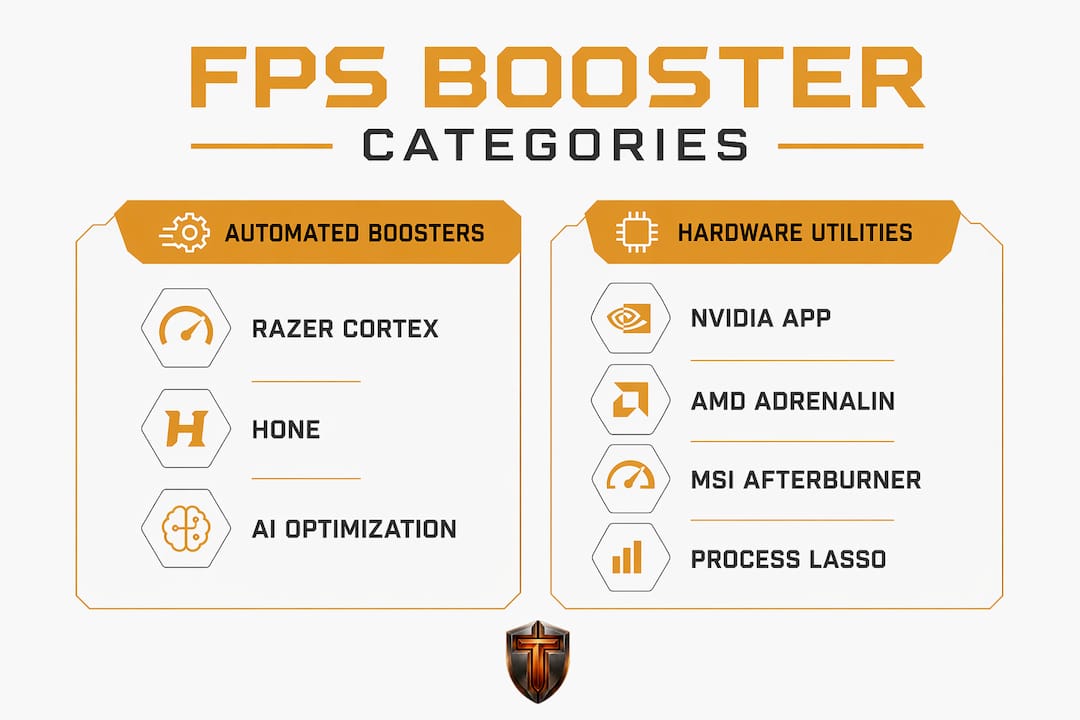
The seven tools above split into three distinct categories: automated game boosters, hardware tuning utilities, and network optimizers. Understanding which category fits your problem saves you from installing software that cannot address your actual bottleneck.
Automated game boosters: Razer Cortex and Hone
Razer Cortex's standout feature is its Booster Prime module, which analyzes your hardware profile and predicts the FPS you will get in a specific game before you load it. You set a target frame rate, click Optimize, and the tool adjusts graphics settings automatically to hit that number. The base Game Booster layer also frees up RAM and terminates background processes when you launch a game, delivering higher framerates and faster load times without manual configuration. It's a genuinely useful two-layer system: one layer for session-level resource cleanup, another for per-game settings intelligence.

Hone takes a simpler approach. It focuses on resource allocation on low to mid-range machines, with a clean interface that requires almost no configuration. There are no overclocking controls, no network routing features. For a gamer on an older rig who just wants something that works without a learning curve, Hone fits that need cleanly.
Hardware tuning utilities: NVIDIA App, AMD Software: Adrenalin Edition, MSI Afterburner, and Process Lasso
The NVIDIA App replaces GeForce Experience as the central hub for NVIDIA GPU users. It handles driver updates, in-game overlays, and per-game graphics presets, all within a single interface. Because it communicates directly with NVIDIA hardware, its tuning suggestions are more accurate than generic third-party tools.
AMD Software: Adrenalin Edition does the same for AMD GPU owners, but goes further with features like Radeon Boost, which dynamically lowers resolution during fast motion to maintain frame rate, and Radeon Anti-Lag, which reduces input latency. These are firmware-level features that no third-party booster can replicate on AMD hardware.
MSI Afterburner gives you manual control over GPU core clock, memory clock, voltage, and fan curves. It works on cards from any manufacturer, not just MSI. The level of control is unmatched, but it requires you to understand what you're adjusting. Pushing clocks too far without adequate cooling causes crashes or hardware damage.
Process Lasso addresses a different problem entirely: CPU contention. Its ProBalance algorithm dynamically adjusts process priorities so your game holds onto CPU time even when background apps compete for it. On systems where Windows' default scheduler lets a browser update or antivirus scan steal CPU cycles mid-game, Process Lasso noticeably smooths out frame pacing.
Network optimizer: ExitLag
ExitLag operates at the network layer, not the hardware layer. It routes your game traffic through optimized paths to reduce ping and packet loss in online titles. If your FPS drops are caused by server-side lag or unstable routing rather than local hardware limits, ExitLag addresses the actual cause. It runs on a subscription model and supports Windows and Mac.
- Razer Cortex: Best all-in-one automated booster; free tier covers most casual needs.
- Hone: Cleanest experience for low-end PCs; minimal setup required.
- ExitLag: Only tool here that targets network latency directly.
- NVIDIA App: Free, hardware-native, and the right choice for any NVIDIA user.
- AMD Software: Adrenalin Edition: Free with AMD GPUs; Radeon Boost and Anti-Lag are hardware-level advantages.
- MSI Afterburner: Maximum manual control; not for beginners.
- Process Lasso: Underappreciated for CPU-bound systems; ProBalance works quietly in the background.
How to choose the right FPS booster for your setup
Picking the wrong tool wastes time and can introduce instability. Work through these criteria before downloading anything.
Identify your bottleneck first. Low FPS has three common causes: a GPU that can't keep up with rendering demands, a CPU that can't feed the GPU fast enough, or network latency in online games. Each cause points to a different tool. GPU-bound systems benefit most from Razer Cortex, NVIDIA App, or AMD Software: Adrenalin Edition. CPU-bound systems respond well to Process Lasso. Network issues call for ExitLag.
Check hardware compatibility. NVIDIA App only works with NVIDIA GPUs. AMD Software: Adrenalin Edition only works with AMD GPUs. MSI Afterburner works across brands but requires a compatible GPU. Razer Cortex, Hone, and Process Lasso are hardware-agnostic.
Decide how much manual control you want. Ease of use varies widely across these tools, from fully automated AI-driven options to utilities that require hands-on configuration. Razer Cortex and Hone handle most decisions for you. MSI Afterburner and Process Lasso reward users who want to tune settings themselves.
Benchmark before and after. Tools like MSI Afterburner's built-in overlay, or FRAPS, display live frame rates during gameplay. Monitoring CPU temperature alongside FPS helps you catch thermal throttling, which drops frame rates without any obvious warning. Take a five-minute recording of your FPS in a consistent scene before installing a booster, then repeat the same test after.
Consider risks before overclocking. MSI Afterburner's manual controls can push hardware past safe limits if you're not careful. Start with small clock increments, run a stress test after each change, and monitor temperatures throughout. Automated tools like Razer Cortex apply only validated settings, so the risk of instability is much lower.
- Identify whether your bottleneck is GPU, CPU, or network before choosing a tool.
- Match the tool to your GPU brand when using hardware-native software.
- Benchmark FPS before and after any change to measure real improvement.
- Monitor temperatures to rule out thermal throttling as the root cause.
- Increase overclocking settings gradually and test stability after each step.
Pro Tip: If your FPS is inconsistent rather than just low, check frame pacing with CapFrameX or RTSS. A tool that raises average FPS but worsens frame pacing can actually make gameplay feel worse.
What FPS boosters can realistically improve (and what they can't)
FPS booster software genuinely helps in specific situations. On mid-range and low-end PCs, freeing up background processes and reallocating system resources can produce noticeable frame rate gains, particularly in CPU-bound scenarios where Windows is spreading resources across too many idle tasks. Updating GPU drivers alone sometimes recovers meaningful performance, especially after a major game patch that exposed a driver-level bug.
What boosters cannot do is overcome a fundamental hardware ceiling. If your GPU physically cannot render a scene at 60 FPS, no software will change that. Tools that claim otherwise are either misrepresenting their capabilities or measuring gains in scenarios where background bloat was the real problem all along.
What FPS boosters can realistically improve:
- Frame rate consistency by reducing CPU and RAM contention from background processes.
- Load times by prioritizing game-related disk and memory operations.
- Network-related frame drops in online games, via tools like ExitLag.
- Per-game graphics settings, automatically tuned to hit a target frame rate (Razer Cortex Booster Prime).
- Input latency on AMD hardware through Radeon Anti-Lag.
What they cannot fix:
- A GPU that is simply too slow for a game's minimum requirements.
- Overheating caused by dust buildup or inadequate cooling hardware.
- Slow storage causing long load times when the drive itself is the bottleneck.
- Poor game optimization from the developer's side.
Manual alternatives work well alongside or instead of dedicated booster software. Windows 11 debloating removes background services that consume RAM and CPU cycles without contributing anything useful. Disabling Xbox Game Bar and hardware-accelerated GPU scheduling (if your GPU doesn't support it well) are two quick Windows settings changes that help on older hardware. Adjusting in-game settings manually, particularly shadow quality and draw distance, often yields more FPS than any third-party tool.
Overusing or misconfiguring booster software carries real risks. Aggressive process termination can crash games that rely on background services. Overclocking without adequate cooling shortens GPU lifespan. Automated tools that modify Windows registry entries without a rollback option can leave a system in a degraded state after uninstallation.
How AI is changing the way FPS optimization works
The shift from manual tweaking to AI-driven optimization is the most significant development in PC performance tuning in recent years. Razer Cortex's Booster Prime is the clearest example currently available: its machine-learning algorithm profiles your hardware, predicts frame rates for specific games, and adjusts graphics settings automatically to match a target you set. You're not guessing which settings to lower. The model has already determined the best tradeoff for your exact hardware configuration.
Experts recommend FPS boosters that combine automated AI-driven optimization with real-time performance monitoring, because the combination eliminates the trial-and-error cycle that manual tuning requires. The AI handles the initial configuration; live monitoring catches any drift caused by thermal changes or background load spikes.
Key advantages AI brings to FPS optimization:
- Per-game settings profiles that account for each title's rendering demands differently.
- FPS prediction before launch, so you know what to expect without loading the game.
- Automatic adjustments when hardware conditions change, such as temperature increases.
- Reduced risk of misconfiguration compared to manual overclocking or registry edits.
- Continuous model improvement as the AI processes more hardware and game data.
Tempered takes a broader approach to AI-driven PC optimization. Rather than focusing solely on game settings, it analyzes live CPU, RAM, GPU, and disk metrics to identify inefficiencies across the whole system, then recommends specific actions in plain language. Every change it applies is logged and reversible through a one-click Undo Center, which removes the risk that typically comes with automated system modifications. For gamers who want AI-level intelligence applied to the full system, not just graphics settings, that scope is the key difference.
Pro Tip: Before running any AI optimizer, close all non-essential applications and let your system idle for two minutes. A clean baseline gives the AI more accurate data to work from and produces better initial recommendations.
Tempered gives you a smarter starting point for PC performance
The tools compared above each solve one piece of the puzzle: Razer Cortex handles game settings, MSI Afterburner pushes GPU clocks, Process Lasso manages CPU priorities. What they don't do is look at your whole system and tell you, in plain English, what's actually holding you back.

Tempered does exactly that. Its AI scans your live CPU, RAM, GPU, and disk metrics, flags the specific inefficiencies dragging your performance down, and recommends concrete fixes without requiring any technical background. Game Mode, startup management, and background process control are all built in, and every change is reversible through the Undo Center. If you'd rather start with a full-system diagnosis before reaching for a dedicated game performance optimizer, Tempered is the cleaner first step.
Key Takeaways
The most effective FPS booster matches your specific bottleneck: GPU-bound systems need hardware-native tools, CPU-bound systems need process priority management, and network issues require routing-level solutions like ExitLag.
| Point | Details |
|---|---|
| Match tool to bottleneck | Identify whether GPU, CPU, or network is limiting FPS before choosing software. |
| AI-driven tools reduce guesswork | Razer Cortex Booster Prime predicts FPS and auto-adjusts settings based on your hardware profile. |
| Manual methods still matter | Driver updates, Windows debloating, and startup cleanup often recover FPS without extra software. |
| Benchmark before and after | Measure FPS in a consistent scene before and after any change to confirm real gains. |
| Tempered for whole-system diagnosis | Tempered's AI scans live hardware metrics and recommends specific fixes with one-click rollback. |