
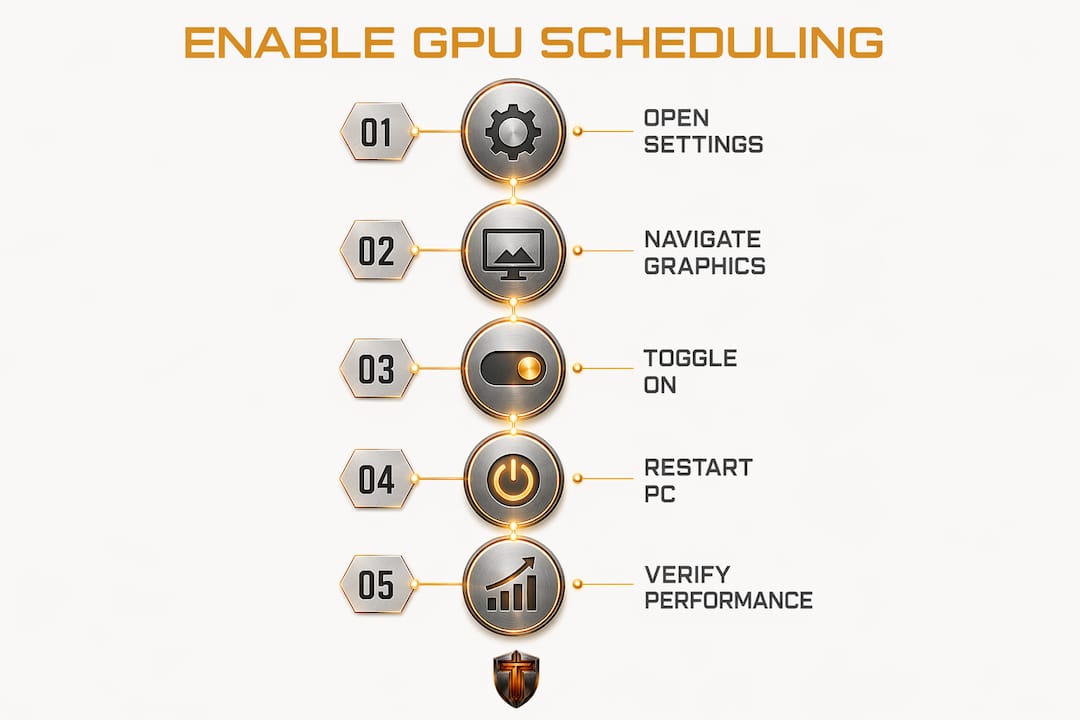
Hardware-Accelerated GPU Scheduling (HAGS) shifts GPU task management from a high-priority CPU thread to a dedicated processor on the GPU itself, reducing CPU overhead and cutting latency in graphics-heavy workloads. To enable GPU scheduling on Windows 10 or 11, go to Settings > System > Display > Graphics, find the Hardware-Accelerated GPU Scheduling toggle, switch it on, and restart your PC. The toggle only appears when your hardware and drivers meet the requirements below.
Prerequisites at a glance:
- GPU must support WDDM 2.7 or higher
- Nvidia GeForce GTX 1000 series or newer, driver version 451.48 or later
- AMD Radeon RX 5600/5700 series or newer, Adrenalin 2020 Edition 20.5.1 or later
- Windows 10 version 2004 (may 2020 update) or Windows 11 version 22H2 or newer
- A restart is required after toggling the setting
How Hardware-Accelerated GPU Scheduling actually works
Traditionally, the CPU managed GPU scheduling through a high-priority thread. Every time your GPU needed a new task, the CPU had to queue it, hand it off, and track completion. That process introduced latency, and on busy systems it competed with other CPU work.
HAGS offloads most of that scheduling to a dedicated processor built into the GPU itself. The GPU scheduler can now manage its own work queue directly, cutting the round-trip to the CPU. Microsoft introduced this change through an update to the Windows Display Driver Model (WDDM), specifically version 2.7, which gives drivers the hooks needed to expose the GPU scheduler to Windows.

The reason HAGS stayed opt-in rather than becoming the default is straightforward. Microsoft acknowledged that over a billion device configurations exist in the wild, and a feature this deep in the graphics stack could cause instability on untested combinations. OEMs that validate their systems fully can ship with HAGS enabled from the factory, but for everyone else, the toggle stays off until you flip it.
Benefits and potential drawbacks of enabling HAGS
The case for turning HAGS on is real but conditional. Users with mid-range to high-end modern GPUs often see improved frame-time consistency and reduced micro-stuttering, particularly in games that push the CPU hard. Laptops with both integrated and dedicated graphics tend to benefit more than desktop rigs with a powerful CPU to spare.
Potential benefits:
- Lower input lag in GPU-bound scenarios
- Reduced micro-stuttering and more consistent frame times
- Minor CPU load reduction during graphics-intensive tasks
- Better GPU-CPU communication in modern titles
Potential drawbacks:
- Up to 1GB of additional VRAM consumed on some GPU models, which can push mid-range cards into system memory fallback
- Compatibility problems with software like OBS Studio, including frame drops and encoding errors
- Increased stuttering with certain older games or specific rendering pipelines
- Instability on systems with outdated or mismatched drivers
Pro Tip: Run a frame-time capture tool like CapFrameX or NVIDIA FrameView before and after enabling HAGS. A raw FPS number won't tell you much. Frame-time variance is where you'll actually feel the difference.
The VRAM cost deserves a closer look. On GPUs with 6GB or 8GB of VRAM, losing nearly 1GB to the scheduler can push a demanding game over the card's limit, causing stutters that are worse than anything HAGS was meant to fix. If your GPU is already running tight on video memory, test carefully before committing.
Step-by-step: how to enable GPU scheduling on Windows 10 and 11
The path differs slightly between the two operating systems, but the underlying toggle is the same.
Windows 11
- Open Settings (Win + I)
- Go to System > Display
- Scroll down and click Graphics
- Click Change default graphics settings
- Toggle Hardware-Accelerated GPU Scheduling to On
- Restart your PC
Windows 10
- Open Settings (Win + I)
- Go to System > Display
- Scroll down and click Graphics settings
- Toggle Hardware-accelerated GPU scheduling to On
- Restart your PC
Pro Tip: If you don't see the toggle at all, type "Graphics settings" directly into the Windows search bar. It bypasses the Settings menu nesting and takes you straight to the right page.
Registry method for advanced users
Advanced users who want to script the change or enable HAGS when the toggle is missing can do it through the registry. Navigate to HKEY_LOCAL_MACHINE\SYSTEM\CurrentControlSet\Control\GraphicsDrivers, find or create a DWORD value named HwSchMode, and set it to 2 to enable HAGS. A restart is still required. Back up your registry before editing it.
"Hardware Accelerated GPU Scheduling enables more efficient GPU scheduling between applications. For most users, this transition will be transparent." — Microsoft DirectX Developer Blog
GPU scheduling settings are reversible at any point. If something goes wrong after enabling HAGS, toggle it back off and restart. No permanent changes are made to your system.
Troubleshooting: why the HAGS toggle might not appear
The most common reason the toggle is missing is a driver that doesn't support WDDM 2.7. Even if your GPU is compatible, an older driver version will hide the option entirely.
Common causes and fixes:
- Outdated GPU driver: Update to the latest release from Nvidia or AMD. For Nvidia, driver 451.48 or later is required. For AMD, Adrenalin 2020 Edition 20.5.1 or later.
- Unsupported GPU: GPUs older than the Nvidia GTX 1000 series or AMD RX 5600/5700 series don't support WDDM 2.7 and cannot use HAGS regardless of driver version.
- Windows version too old: HAGS requires Windows 10 version 2004 at minimum. Check your build under Settings > System > About.
- Integrated graphics only: Systems running on integrated Intel graphics without a discrete GPU won't see the toggle.
- Driver corruption: A clean driver install using DDU (Display Driver Uninstaller) in safe mode often resolves cases where the toggle disappeared after a driver update.
Keeping your GPU drivers current is the single most reliable fix for a missing HAGS option. Driver updates also frequently improve HAGS stability on hardware that technically supports it but behaved poorly on older releases.
Performance impact: what research and expert insights reveal

The honest answer on HAGS performance is that results vary more than most guides admit. Some productivity applications show up to 10% improvement with HAGS enabled, while certain rendering workloads can see roughly a 5% decrease. Gaming differences are generally minor, often less than 2% FPS either way.
| Workload type | Typical HAGS impact |
|---|---|
| Modern AAA games | Less than 2% FPS change; frame times may improve |
| Productivity apps (video, 3D) | Up to 10% gain in some applications |
| Rendering workloads | Up to 5% decrease in some modes |
| Live streaming (OBS Studio) | Potential instability; test carefully |
| Older games | Risk of increased stuttering |
The frame-time consistency angle is where HAGS makes its clearest case. Raw FPS barely moves, but the smoothness of delivery can improve noticeably on systems where the CPU was the scheduling bottleneck. For content creators, the GPU acceleration benefits extend beyond games into audio and video processing pipelines as well.
Pro Tip: Disable HAGS immediately if you notice frame-time spikes or stuttering that wasn't there before. Don't troubleshoot with it on. Turn it off, confirm the issue disappears, then decide whether to investigate further or leave it off.
No universal recommendation exists. Your CPU model, GPU VRAM capacity, driver version, and the specific software you run all affect the outcome. Monitoring your CPU temperature and GPU load before and after the change gives you a clearer picture of whether HAGS is helping or hurting your specific setup.
Tempered's AI diagnostic tool takes the guesswork out of decisions like this one. It reads your live CPU, GPU, and RAM metrics, flags inefficiencies, and tells you in plain language what to change and why. Every tweak is tracked and reversible through the built-in Undo Center, so you're never locked into a setting that doesn't work for your rig.

Try Tempered free and get a full system scan in minutes, no technical knowledge required.
Key Takeaways
Hardware-Accelerated GPU Scheduling shifts scheduling work from the CPU to the GPU itself, offering real but conditional benefits that depend entirely on your hardware, drivers, and software.
| Point | Details |
|---|---|
| HAGS requires specific hardware | Your GPU must support WDDM 2.7; Nvidia GTX 1000+ and AMD RX 5600/5700+ qualify. |
| Windows version matters | Windows 10 version 2004 or Windows 11 version 22H2 is the minimum requirement. |
| Performance gains are modest | Gaming FPS changes are typically less than 2%; some productivity apps show up to 10% improvement, while certain rendering modes may experience up to a 5% decrease in performance. |
| VRAM cost is real | HAGS can consume up to 1GB of additional VRAM, which hurts cards already running tight. |
| Test before committing | Benchmark frame times on your own system; disable HAGS immediately if stuttering increases. |