
Yes, you can safely disable Windows search indexing if you rarely search for file content and don't mind slower results in File Explorer and the Start menu. The fastest routes are pausing indexing from Settings for a temporary break, excluding folders through Indexing Options for a lasting fix, or stopping the Windows Search service entirely. Most people get better results tuning first rather than shutting the whole system off.
TL;DR:
- Pausing indexing is effective for short-term relief during high disk activity, but it resets automatically after a while.
- Excluding folders through Indexing Options is recommended for long-term optimization without sacrificing search functionality.
- Fully disabling the Windows Search service is suitable only for machines that do not require content search, such as dedicated gaming or render nodes.
- Managing search index activity can be automated via Group Policy or scripting for large-scale deployment across multiple devices.
- Disabling Windows Search reduces resource usage but significantly slows file and Outlook searches, especially on older or low-spec systems.
Table of Contents
- Should You Pause, Exclude, or Fully Disable Search Indexing?
- How Do You Pause or Modify Indexing in Windows Settings?
- How Do You Permanently Disable the Windows Search Service?
- Can Administrators Automate This Across Multiple Machines?
- What Do You Actually Gain and Lose by Disabling It?
- What Does the Search Index Store, and How Do You Protect Sensitive Files?
- How Do You Fix a Broken or Stuck Index?
- Is There a Safer Way to Free Up Resources Than Disabling Core Windows Features?
- When I'd Disable Indexing vs When I'd Just Tune It
- Get Faster Performance Without Losing Windows Search
- Where to Verify These Steps
- Sources
Should You Pause, Exclude, or Fully Disable Search Indexing?
The right move depends on how long you need relief and how often you actually use Windows Search.
Pause works best for short bursts of heavy activity. Installing a game, running a backup, or copying a huge batch of files all spike disk usage, and the indexer competes for the same resources. Pausing gets it out of the way for a bit without touching your settings permanently.
Exclusion is the better long-term answer for most people. Using Indexing Options → Modify, you tell Windows to skip folders you never search, like game installation directories, virtual machine images, or a media library, while keeping search fast for Documents, Desktop, and email. This is the option Microsoft Support recommends before reaching for a full shutdown.
Full disable makes sense on machines that never need content search: dedicated gaming rigs, render nodes, or a stripped-down workstation where you already know where every file lives.
- Pause: fast, temporary, resumes on its own
- Exclude: durable, selective, keeps search useful where it matters
- Disable: permanent, frees the most resources, kills content search everywhere
How Do You Pause or Modify Indexing in Windows Settings?
On Windows 11, indexing controls live under Settings → Privacy & security → Searching Windows. On Windows 10, go to Settings → Search → Searching Windows, then click Advanced indexing options. Both paths lead to the same Indexing Options control panel.
- Open Indexing Options and click Pause. Indexing halts immediately.
- Wait it out. Pausing is not permanent. Windows typically resumes indexing automatically after a short period, so don't rely on it if you need indexing off for the rest of the day.
- For lasting changes, click Modify and deselect drives or folders you don't need searched. This shrinks the index and cuts background activity without losing search where you actually use it, a method Microsoft Support walks through directly.
- Click Advanced, then the File Types tab, to control whether specific extensions get indexed by properties only or by full file contents.
- Check Task Manager's Disk and CPU tabs before and after to confirm
SearchIndexer.exeactivity has actually dropped.
Pro Tip: If you only need quiet for an hour, skip the settings dive entirely and just hit Pause. It resets on its own, so there's nothing to remember to turn back on.
How Do You Permanently Disable the Windows Search Service?
Pausing doesn't stick, and exclusions still leave the service running in the background. If you want indexing off across every restart, you have to disable the Windows Search service itself.
Using Services.msc:
- Press
Win + R, typeservices.msc, and hit Enter. - Scroll to Windows Search, right click, and choose Stop.
- Right click again, select Properties, and set Startup type to Disabled.
- Click Apply, then OK.
Using the command line:
Open an elevated Command Prompt or PowerShell window and run:
sc stop "wsearch"
sc config "wsearch" start=disabled
Both approaches produce the same result, and community guidance on Microsoft Q&A confirms this is the standard sequence power users rely on. The moment the service stops, SearchIndexer.exe disappears from Task Manager, and background disk and CPU activity tied to indexing drops right away, though the index database itself, Windows.edb, can grow large enough to matter on space-constrained drives before you delete it.
What you lose immediately: fast content search in File Explorer, rich Start menu results, and Outlook desktop search. File names still show up in basic searches, but Windows now scans folders on demand instead of pulling from a prebuilt index, which is noticeably slower on large drives.
To reverse it, open Services.msc, set Windows Search back to Automatic (Delayed Start), then click Start. From the command line: sc config "wsearch" start=delayed-auto followed by sc start "wsearch".
Can Administrators Automate This Across Multiple Machines?
If you're managing more than a handful of devices, clicking through Services.msc on each one doesn't scale. Group Policy and scripting give you a repeatable path.
- Local Group Policy Editor (
gpedit.msc) exposes indexing controls under Computer Configuration → Administrative Templates → Windows Components → Search, where you can restrict indexing locations or disable specific search features outright. - PowerShell handles bulk changes cleanly:
Stop-Service "WSearch"andSet-Service "WSearch" -StartupType Disableddisable it, while a simpleGet-Service "WSearch"across a device list reports current status for auditing. - On domain-joined or MDM-managed machines, local policy changes can get silently overridden by higher-level IT policy at the next sync, so check with whoever owns the management console before rolling this out fleet-wide.
- Test on a handful of machines first, confirm search behavior matches expectations, and keep the reversal commands (
Set-Service "WSearch" -StartupType Automatic) documented before pushing to the full fleet.
What Do You Actually Gain and Lose by Disabling It?
Indexing exists to make search instant. Without it, Windows has to open and scan files on the fly every time you search, which is slower but only runs when you ask for it. The indexer, by contrast, works constantly in the background, consuming CPU cycles, disk I/O, and RAM to keep that index current, particularly right after installing large programs or syncing cloud storage.
After disabling it, expect these changes:
- File Explorer's search box searches file names but skips file contents, so finding "that email with the word 'invoice' in it" no longer works instantly.
- Start menu search results get thinner, especially for documents and settings buried deep in the OS.
- Outlook's desktop search, which depends heavily on the same indexer, slows down substantially.
You'll notice the biggest gains on machines least equipped to absorb the indexer's overhead: aging hard drives instead of SSDs, low-RAM laptops, or systems already juggling heavy background tasks like antivirus scans or sync clients. On a modern SSD with 16GB of RAM, you may barely notice a difference either way. Before deciding, check Task Manager or a resource monitor for a baseline, then compare again after your changes settle.
What Does the Search Index Store, and How Do You Protect Sensitive Files?
The index database, Windows.edb, lives locally on your machine. It is not transmitted anywhere or used to train any Microsoft models, according to Microsoft's own privacy documentation. The concern for privacy-minded users isn't where the data goes. It's that a local index of file contents makes sensitive material easier to surface if someone else gets access to your machine.
The fix is almost always exclusion, not full disable. Open Indexing Options → Modify and deselect OneDrive, Documents, Downloads, or any folder holding financial records, medical files, or client data. Everything else stays searchable.

Full disable earns its keep only on air-gapped machines or devices holding genuinely sensitive material where no search convenience is worth the risk. If you're working under a compliance requirement, log every indexing change you make and keep a backup before touching the service or the database directly.
How Do You Fix a Broken or Stuck Index?
Indexing problems usually show up as one of three symptoms: search results that clearly ignore files you know exist, "Access is denied" errors in Indexing Options, or a Windows.edb file that's ballooned to several gigabytes.
- Open Indexing Options and check the status line at the top. "Indexing complete" means it's healthy; anything stuck on "Indexing speed is reduced due to user activity" for hours points to a deeper issue.
- Click Advanced, then Rebuild. This wipes and regenerates the entire index from scratch. On a drive with a few hundred thousand files, expect it to take a good chunk of a day. Microsoft recommends letting it run up to 24 hours before assuming something's wrong.
- If
Windows.edbitself is oversized, stop the Windows Search service first. Tools likeEsentUtl.execan compact the database, but this is a low-level operation. Back up your data before attempting it, and only proceed if you're comfortable working from a command line. - If Start menu or app search stops returning any results after a change, confirm the Windows Search service is running (
services.msc) and set to Automatic, then rebuild the index as a last step.
Is There a Safer Way to Free Up Resources Than Disabling Core Windows Features?
Disabling a system service is a blunt instrument. It solves the resource problem, but it also removes a feature you might miss more than you expect, six weeks from now, when you're hunting for a file you can't quite name. Tempered takes a different approach: it reads live CPU, RAM, disk, and GPU metrics on your actual machine and identifies which background processes are genuinely causing slowdowns, rather than assuming the indexer is guilty by default.
Instead of an all-or-nothing switch, Tempered suggests targeted changes, deprioritizing a specific process, adjusting startup behavior, or excluding a resource-heavy task, and explains what each change does and what to expect afterward. Every adjustment comes with a one-click undo, so you're never stuck if a tweak doesn't help. For someone whose real problem is a bloated startup list or a runaway background app rather than the indexer itself, that's often a faster fix than digging through Services.msc at all.
When I'd Disable Indexing vs When I'd Just Tune It
My rule of thumb: disable it only if you genuinely never search file contents and you have another way to find things, whether that's rigid folder discipline or a third-party search tool. For a gaming laptop or a render box, that's an easy yes. For a shared family computer or anything holding tax documents, I lean toward exclusion instead. After any change, I always run a couple of test searches for files I know exist. If Start menu results go quiet, something's wrong.
— Ian
Get Faster Performance Without Losing Windows Search
Tempered gives you a way to speed up a sluggish PC without gambling on which system service is safe to switch off. It scans your machine's live metrics, points to the actual processes eating your CPU or disk, whether that's the indexer, a startup app, or something else entirely, and proposes specific fixes you approve one at a time.

Every change comes with a plain-language explanation of what it does and a documented undo path, so tuning your PC never means guessing whether you'll regret it later. That matters most when the culprit isn't indexing at all: Tempered has caught runaway CPU processes and disk usage spikes that had nothing to do with search. If your PC has been dragging and you're not sure whether the indexer is really to blame, try Tempered and let it show you what's actually running your resources down.
Where to Verify These Steps
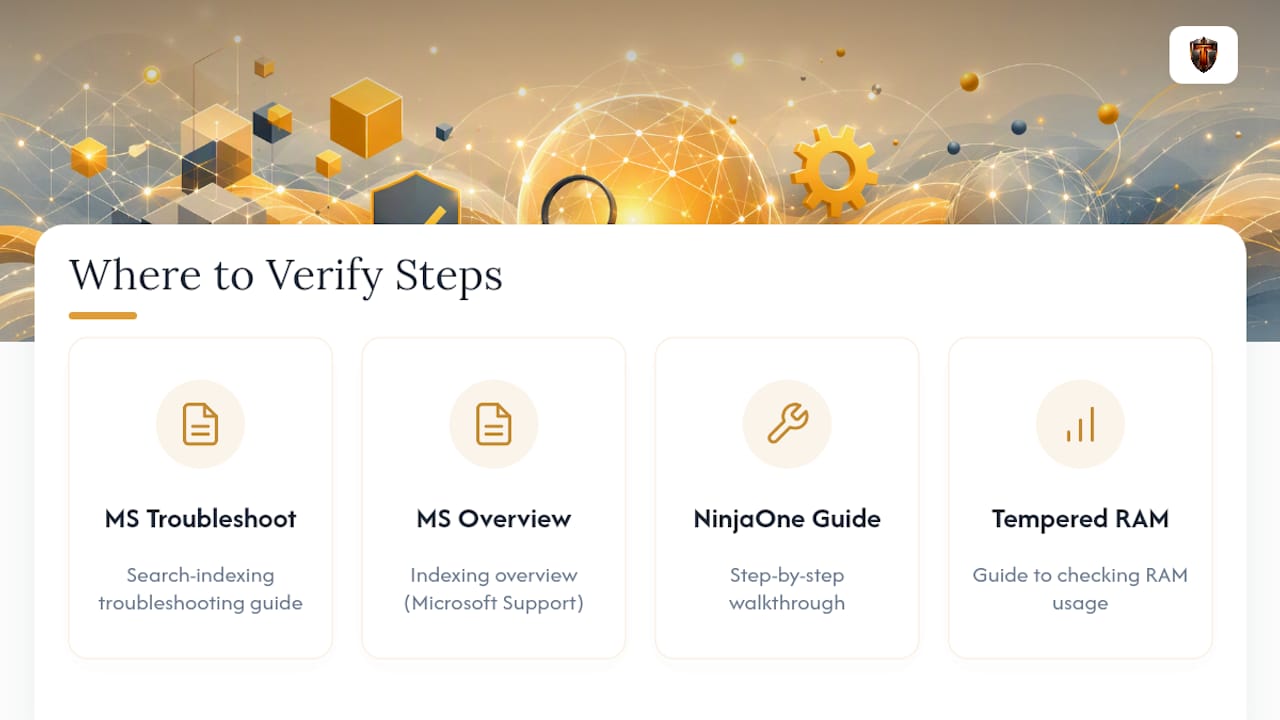
For official confirmation of every method above, check Microsoft's search indexing troubleshooting guide, Microsoft Support's indexing overview, and NinjaOne's step-by-step walkthrough. For related tuning, see Tempered's guide to checking RAM usage.
Sources
- Search indexing in Windows - Microsoft Support
- Disable Windows Search Indexer - Microsoft Q&A
- How to Enable & Disable Search Indexing in Windows 10/11 - NinjaOne