A normal GPU temperature at idle is generally below 50°C and typically below 85°C under gaming load. Sustained temperatures above the low 90s Celsius warrant attention. Safe GPU temps for most modern cards fall well within those ranges, and the majority of readings people worry about turn out to be completely fine.
Three things to do right now if you're concerned:
- Check your temps with MSI Afterburner, GPU-Z, or Windows Task Manager (more on each below).
- Watch for symptoms, not just numbers: frame drops, stuttering, or sudden clock speed dips are the real warning signs.
- Improve airflow or run a diagnostic if temps are consistently above 85°C under load.
Pro Tip: If your GPU fan isn't spinning at idle, that's probably intentional. Many modern cards use zero-RPM fan modes below a certain temperature threshold to reduce noise. A reading of 45–50°C with fans off is normal behavior, not a fault.
The key insight most guides miss: a single temperature number tells you less than you think. What matters is whether your GPU holds its boost clocks and stays stable under load. A card sitting at 82°C while maintaining full performance is healthier than one hitting 75°C and throttling.
Key Takeaways
A normal GPU temperature during gaming falls between 65°C and 85°C; sustained readings above 90°C indicate a cooling problem that needs attention before the next session.
| Point | Details |
|---|---|
| Normal idle range | 30–50°C at idle; zero-RPM fan modes can push this toward the higher end without any fault. |
| Normal gaming range | 65–85°C under load; high-TDP cards running at 83°C are often within design spec. |
| Throttle threshold | 90–100°C triggers clock reduction and frame drops; sustained exposure accelerates hardware aging. |
| First fixes to try | Clean dust, improve case airflow, and adjust fan curves before attempting undervolting or paste replacement. |
| Tempered for diagnostics | Tempered automates GPU temp analysis and proposes safe, reversible fixes with plain-language explanations. |
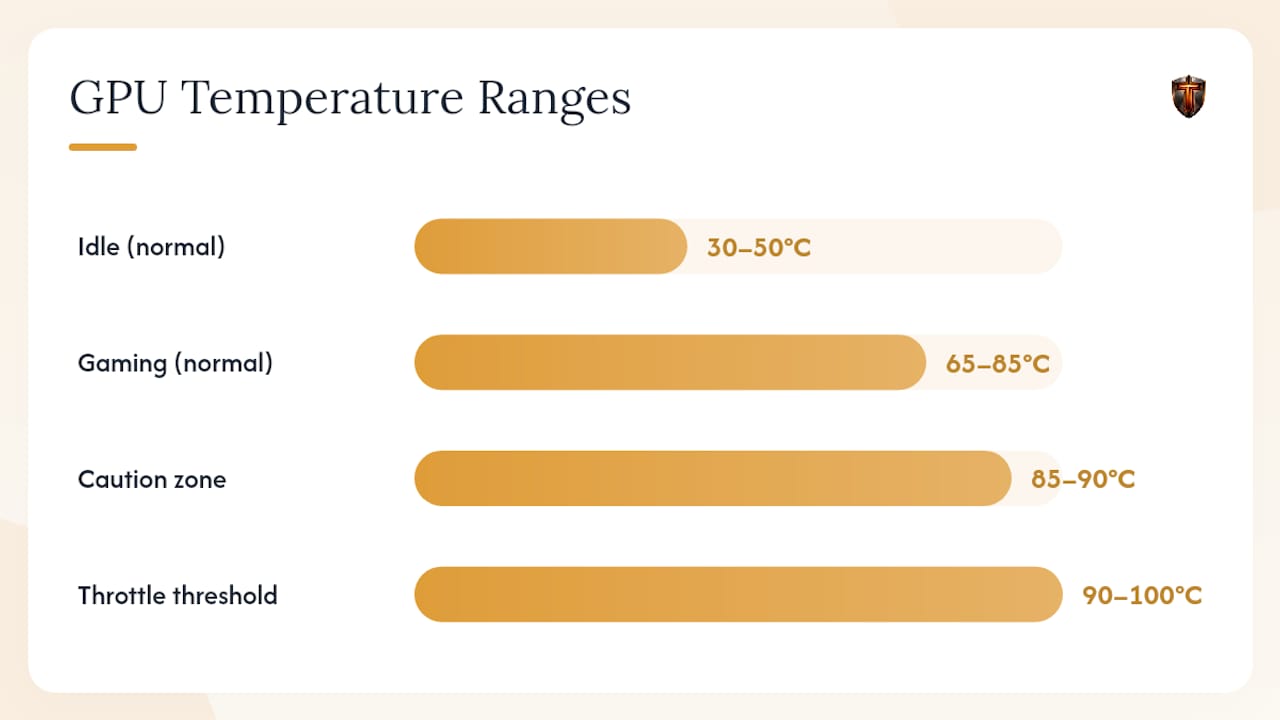
Table of Contents
- What is a normal GPU temperature range?
- How do you check your GPU temperature?
- What causes high GPU temperatures?
- What should you do when your GPU runs hot?
- What is thermal throttling, and when does it become a real risk?
- How do NVIDIA, AMD, and laptop GPUs differ in temperature behavior?
- Monitoring best practices and the right tools for the job
- What actually matters when you look at GPU temps
- Tempered gives you automated GPU diagnostics without the guesswork
- Sources
What is a normal GPU temperature range?
The table below gives you a practical reference. These are the ranges that apply to most desktop GPUs from the last several generations.
| Condition | Typical Range | Notes |
|---|---|---|
| Idle (desktop, no load) | A typical range below 50°C | Zero-RPM fan modes can push idle toward the higher end |
| Light load (video, streaming) | Moderate temperatures below the caution zone | Fans usually spin up; stable clocks expected |
| Gaming / full load | Up to the mid-80s Celsius is generally normal | Normal operating zone for most cards |
| Caution threshold | 85–90°C | Investigate airflow and fan curves |
| Thermal throttle / danger zone | Around 90°C and above | Clock reduction begins; immediate action needed |
According to SunbeamTech's GPU temperature guide, idle temps around 30–40°C are typical, with 30–50°C being the acceptable window, and gaming temps in the 65–85°C range are considered normal for modern hardware.
A few things shift these numbers. Entry-level cards with lower TDPs (thermal design power) often run cooler than high-end flagship GPUs, which push more watts through a smaller die. A card like an RTX 4090 running at 83°C under load is operating exactly as designed. The same reading on a budget card might indicate a problem.
Core temp vs. junction/hotspot temp is another variable worth understanding. The core temp is the average across the GPU die. The junction or hotspot temp reflects the single hottest point, which can run 10–20°C higher. On AMD cards especially, junction temps in the high 90s are often within spec. Don't compare AMD junction readings directly to NVIDIA core readings.
Pro Tip: If your card shows a high idle temp (say, 50°C) with fans at zero RPM, check whether your GPU supports a zero-RPM mode. This is a feature, not a flaw. The How-To Geek guide on GPU temps explains why stability and clock behavior matter more than the raw number.
How do you check your GPU temperature?
You have several solid options, each showing slightly different data.
MSI Afterburner is the most popular choice for gamers. It shows core temp, fan speed, GPU usage, and clock speeds simultaneously, and you can configure an on-screen display overlay so you see live readings while gaming. Download it from MSI's official page.
GPU-Z from TechPowerUp gives you the most detailed sensor breakdown. It clearly labels core temp, hotspot temp, VRAM temp, and memory junction separately, which is useful when you're trying to understand whether a high reading is a core issue or a hotspot reading. Get it at TechPowerUp.
Windows Task Manager (Performance tab → GPU) shows a quick core temp without installing anything. It's good for a fast sanity check but lacks hotspot and VRAM data.
HWMonitor logs all system sensors in one view, including CPU, GPU, and motherboard temps. It's useful when you want a holistic picture of what's running hot across the whole system.
Tempered takes a different approach. Rather than showing raw sensor numbers, it runs an automated diagnostic against your live hardware metrics and tells you in plain language what's causing elevated temps and what you can safely change. More on that in the monitoring section below.
Step-by-step: run a proper temperature check
- Install MSI Afterburner or GPU-Z and open it before launching any game.
- Note your idle temps after 5 minutes of desktop use with no other applications running.
- Launch a game or a benchmark tool and play or run it for at least 10 minutes.
- Check the maximum recorded temp in Afterburner's logging tab or GPU-Z's sensor history.
- Compare your idle and load readings against the ranges in the table above.
- Watch the GPU clock speed column alongside temperature. If clocks drop while temps spike, that's throttling.
Watch for these during the check:
- Clock speeds dropping mid-session without you changing settings
- Fan speed staying low while temps climb past 80°C
- Temps that keep rising and never stabilize (a sign of inadequate cooling)
- VRAM temps significantly higher than core temps
Pro Tip: Run your check during a demanding game or a benchmark like 3DMark, not a light title. A GPU that looks fine in a low-demand game can still throttle under a real workload.
What causes high GPU temperatures?
Most elevated GPU temps come down to a handful of causes, and the fix is usually simpler than people expect.
Airflow and case cooling is the biggest factor. A case with poor intake-to-exhaust balance starves the GPU of cool air. If your case has more exhaust fans than intake fans, it creates negative pressure and pulls warm air in through gaps and drive bays instead of through filtered intakes. The GPU sits at the bottom of the airflow chain in most builds, so it's the first component to suffer.
Dust accumulation on heatsink fins and fan blades is the second most common culprit. A thick layer of dust acts as insulation, trapping heat against the GPU die. CORSAIR's thermal guide identifies cleaning and airflow optimization as the first-line fixes before assuming any hardware fault. Even a moderate dust buildup can raise temps by 5–10°C.
Ambient room temperature matters more than most people account for. A GPU in a 90°F room will run 10–15°C hotter than the same card in a 65°F room under identical load. If your temps spike in summer and normalize in winter, ambient temp is likely the variable.
Laptop chassis constraints are a different category entirely. Laptop GPUs share a thermal solution with the CPU, operate in a confined space, and often run at reduced power limits to manage heat. Expecting desktop-class temps from a gaming laptop is unrealistic. Sustained gaming temps of 85–90°C are common on thin-and-light gaming laptops and are often within the manufacturer's design spec.
Overclocking and power settings raise the thermal ceiling. Running a GPU at 110% power limit without improving cooling is a direct path to higher temps. Similarly, inefficient fan curves that keep fans too slow during the early temperature climb let heat build before the fans respond.
Background processes that keep GPU utilization elevated at "idle" are an underappreciated cause. A browser with hardware acceleration, a video call, or a background game launcher can keep the GPU at 20–40% load, which raises temps and keeps fans spinning when you'd expect silence.
What should you do when your GPU runs hot?
Work through this list in order. The fixes at the top take two minutes and solve most problems.
- Verify your monitoring tool is reading the right sensor. Confirm you're reading GPU core temp, not a hotspot or VRAM temp, before drawing conclusions.
- Reboot and check idle temps. Close all background apps and let the system sit for five minutes. If idle temps are above 55°C with fans running, something is keeping the GPU loaded.
- Clean the GPU and case. Compressed air through the heatsink fins and case intakes. Do this outside or near a window. Takes 10 minutes and often drops temps by 5–10°C.
- Check and improve case airflow. Add or reposition case fans to create positive pressure (more intake than exhaust). Make sure no cables block airflow paths near the GPU.
- Adjust your fan curve. In MSI Afterburner, set a more aggressive fan curve so fans spin up earlier in the temperature climb. A curve that hits 60% fan speed at 70°C instead of 80°C can shave 5–8°C off peak temps.
- Update GPU drivers. Outdated drivers can cause inefficient power management. Updating your GPU drivers takes under 10 minutes and occasionally fixes thermal behavior directly.
- Reduce power limit or undervolt. In Afterburner, dropping the power limit by 10–15% often reduces temps by 5–10°C with minimal performance loss. Undervolting (reducing voltage at the same clock speed) is more involved but can drop temps significantly on cards that run hot by default.
- Reapply thermal paste. If your GPU is more than three years old and temps have climbed over time, dried thermal paste between the die and heatsink is a likely cause. This requires disassembling the cooler. On a desktop card it's a 30-minute job; on a laptop, it may void your warranty.
- Consider aftermarket cooling. GPU cooler replacements exist for many popular cards. An aftermarket triple-fan cooler can drop temps by 15–20°C on cards that shipped with inadequate stock cooling.
Pro Tip: Before reapplying thermal paste or opening a laptop, check whether the device is still under warranty. Many manufacturers void coverage for user-performed thermal maintenance on laptops.
Safety note: Opening a laptop for thermal maintenance carries real risk. If you're not comfortable with the process, a local repair shop can do it for a modest fee and won't void your warranty the way a DIY attempt might.
Detailed walkthroughs for reducing GPU temperatures cover each of these steps with hardware-specific guidance.
What is thermal throttling, and when does it become a real risk?
Thermal throttling is the GPU's self-protection mechanism. When the card reaches its thermal limit, typically between 90°C and 100°C, it reduces its clock speeds to generate less heat. According to darkFlash's GPU temperature guide, this clock reduction causes immediate frame drops and stuttering. If throttling can't bring temps down fast enough, the system may shut down entirely to prevent hardware damage.
The symptoms map cleanly to actions:
- Sudden FPS drops mid-session → open your monitoring tool and check the temp log. If temps spiked to 90°C+ at the same moment, throttling is the cause.
- Stuttering that wasn't there before → check whether GPU clocks are dropping. Stable temps with dropping clocks suggest a driver or power issue; rising temps with dropping clocks confirm throttling.
- System shutdown during gaming → this is an emergency shutdown triggered by the GPU or motherboard thermal protection. Check temps immediately on next boot.
- Sustained temps above 85°C every session → investigate airflow and fan curves before the next gaming session.
The real risk isn't a single hot session. Sustained exposure to high temperatures accelerates electromigration in the GPU die and degrades thermal interface materials faster. A card that runs at 95°C for hours every day will age faster than one that runs at 75°C. Brief spikes into the low 90s during a demanding scene are survivable, as TechRadar notes, but making 90°C+ your average gaming temp is a long-term reliability concern.
Monitoring your PC temps over multiple sessions gives you a clearer picture of whether high readings are occasional spikes or a persistent pattern.
How do NVIDIA, AMD, and laptop GPUs differ in temperature behavior?
The same number can mean different things depending on the card you're reading it from.
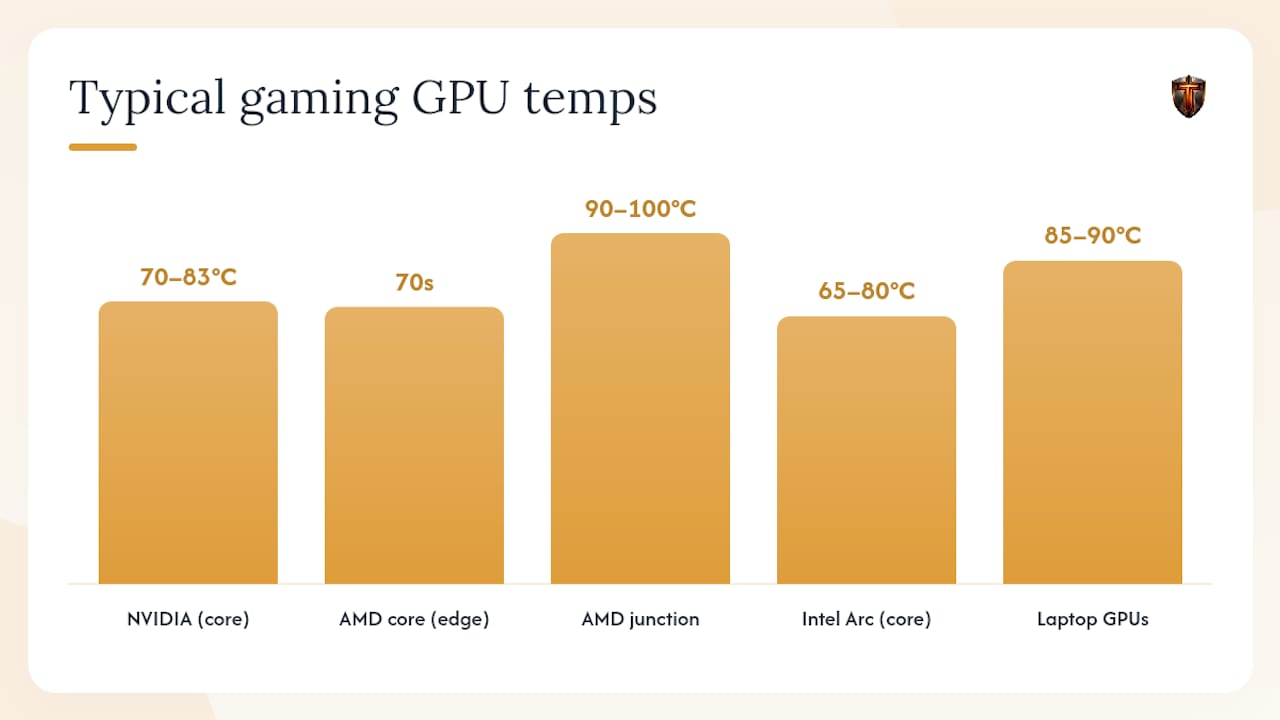
NVIDIA cards report a single GPU core temperature as the primary metric. NVIDIA's own documentation lists maximum operating temperatures around 90°C for many cards, with automatic clock reduction at that threshold. For most GeForce cards, a gaming temp of 70–83°C is normal. The NVIDIA GeForce forums reflect community experience in the same range, with users and NVIDIA support alike pointing to airflow and drivers as the first things to check.
AMD cards report both a core (edge) temperature and a junction temperature. The junction temp is the hottest point on the die and can run 10–20°C above the core reading. AMD's Radeon RX 5000 series and later cards commonly show junction temps in the 90–100°C range during gaming while the core temp sits in the 70s. This is by design. SunbeamTech's guide confirms that AMD junction temps can approach 110°C and still be within the manufacturer's design spec for that sensor. Don't compare AMD junction readings to NVIDIA core readings directly.
The practical rule for AMD cards: watch the core (edge) temp for overall thermal health, and watch the junction temp for hotspot behavior. If the junction temp is consistently above 100°C, investigate airflow even if the core temp looks fine.
Intel Arc cards are newer to the market and follow a similar core-temp reporting model to NVIDIA. Typical gaming temps fall in the 65–80°C range for current Arc-class cards, though the platform is still maturing and driver updates have historically affected thermal behavior.
Laptop GPUs operate under fundamentally different constraints. Shared thermal solutions, thin chassis, and power limits mean a laptop GPU running at 85–90°C during gaming is often within spec. The tradeoff is longevity: laptop thermal solutions degrade faster, and reapplying thermal paste every two to three years is good practice for heavy users.
High-TDP desktop cards (RTX 4080, RX 7900 XTX) are designed to run hotter than mid-range cards. A 350W card in a well-ventilated case hitting 83°C is not a problem. The same temp on a 150W card in the same case might indicate a cooling issue.
Monitoring best practices and the right tools for the job
Checking your GPU temp once isn't enough. The useful habit is logging temps across a full gaming session and comparing idle-to-load deltas after any change you make to cooling.
- Log during a full session, not just a quick check. MSI Afterburner's logging feature writes a CSV you can review after the fact.
- Compare idle and load readings every time you change something: a new fan curve, a cleaned heatsink, a driver update.
- Check VRAM temps where your tool supports it. On AMD cards especially, VRAM temps can exceed core temps and are worth watching independently.
- Keep drivers updated. Thermal behavior can change with driver releases, particularly on newer architectures.
- Watch GPU clock stability alongside temperature. A card holding its boost clock at 82°C is healthier than one dropping clocks at 75°C.
For tools: MSI Afterburner handles fan curves and gives you an in-game OSD. GPU-Z gives the clearest sensor labeling for core vs. hotspot. Task Manager is the fastest no-install check. HWMonitor covers the whole system in one view.
Tempered fits a different use case. If you'd rather not interpret raw sensor data yourself, Tempered's automated diagnostics analyze your live hardware metrics, including GPU load and temperature patterns, and tell you in plain language what's wrong and what to change. Every suggested fix comes with an explanation and a one-click undo, so you're never making a blind change. For users who want to monitor system resources without becoming a hardware expert, that's a meaningful difference from staring at a graph.
Pro Tip: After cleaning your GPU or adjusting a fan curve, run the same benchmark you used before the change and compare the peak temps. Without a before/after comparison, you can't tell whether the fix actually worked.
What actually matters when you look at GPU temps
Most GPU temperature anxiety is misplaced. The number on the screen isn't the story. The story is whether your card holds its clocks, stays stable, and doesn't throttle under the workload you're throwing at it.
A card running at 84°C with locked boost clocks and zero frame drops is performing exactly as its engineers intended. A card hitting 72°C while stuttering and dropping clocks has a real problem. Chasing a lower temperature number without watching clock stability is the wrong frame.
The other thing worth saying plainly: most overheating problems are maintenance problems. Dust, poor airflow, and a fan curve that's too conservative account for the majority of cases where temps are genuinely too high. Before you consider undervolting or replacing thermal paste, clean the card and check your case airflow. That alone fixes the problem more often than not.
Scheduled maintenance matters too. A GPU that ran cool for two years and now runs hot didn't change. The dust did.
Tempered gives you automated GPU diagnostics without the guesswork
Monitoring GPU temps manually is useful, but interpreting what to do about them is where most users get stuck. Tempered is built for exactly that gap.

Tempered scans your live hardware metrics, including GPU temperature, load, clock behavior, and background processes, and delivers plain-language recommendations you can act on immediately. No raw sensor graphs to decode, no manual fan curve math.
- Diagnose: Tempered identifies whether elevated temps come from airflow issues, background processes, driver configuration, or power settings.
- Optimize: It proposes specific, safe tweaks with clear explanations of what each change does and what improvement to expect.
- Revert: Every change is tracked with one-click undo, so you're never locked into a setting that didn't work.
Tempered runs on Windows 10 and 11, requires no technical expertise, and no AI API key. Start your free scan at Tempered and see what's actually driving your GPU temps.