The fastest ways to lower GPU temperatures right now
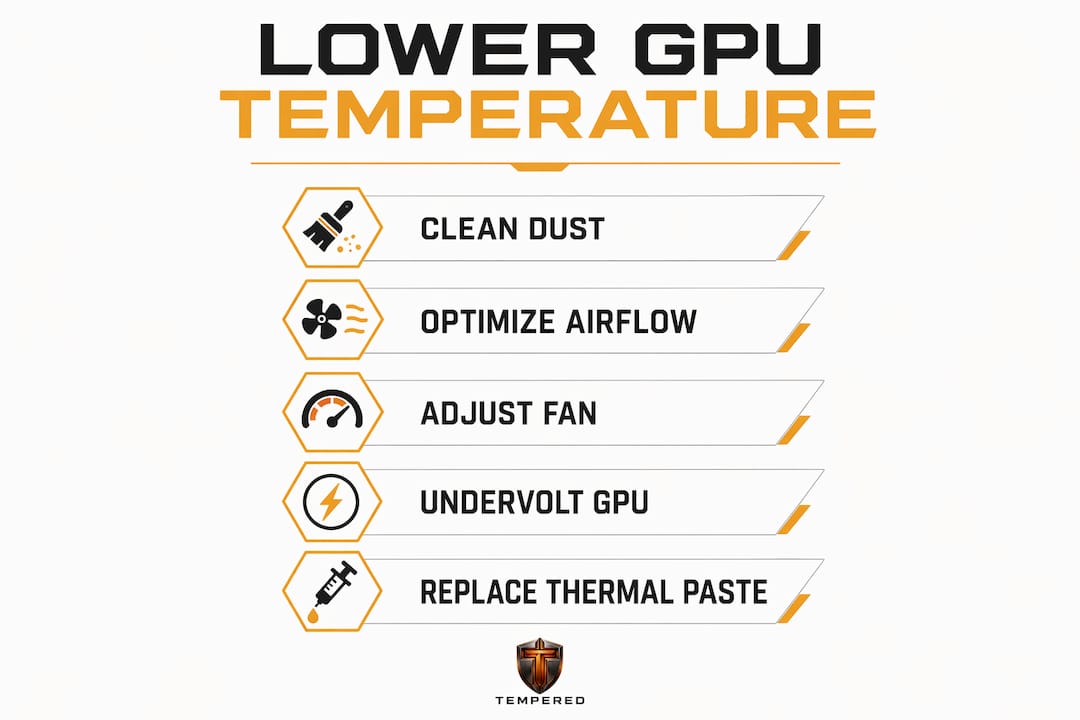
Your GPU is running hot, and the fix is almost always one of these six things: dust removal, airflow correction, a custom fan curve, undervolting, thermal paste replacement, or a cooling hardware upgrade. Most users only need the first three. Here are what each one actually does and what kind of temperature drop you can realistically expect.
- Clean the dust: Compressed air blasted through heatsink fins and fan blades can lower GPU temperatures by up to 15°C on a system that has not been cleaned in over a year. Do this first, before anything else.
- Fix your case airflow: Intake fans at the front and bottom, exhaust at the rear and top. Getting this right typically reduces GPU core temps by 8–12°C on average.
- Set a custom fan curve: Using MSI Afterburner to start fans ramping at 60°C instead of 75°C makes a real difference during gaming sessions, at the cost of slightly more noise.
- Undervolt the GPU: Reducing the voltage on your GPU's frequency curve can cut temperatures by 10–20°C with zero FPS loss when tuned carefully. Power consumption often drops significantly.
- Replace thermal paste: On cards older than two years, fresh paste from Thermal Grizzly Kryonaut, Arctic MX-6, or Noctua NT-H2 can lower temperatures by 5–15°C.
- Upgrade the cooler: Aftermarket air or water cooling can reduce temperatures by 10–25°C depending on the solution you choose.
Combining two or three of these methods is where the real gains happen. Combining a clean system with a dialed-in fan curve and a solid undervolt can take a card running at very high temperatures down to a much safer and cooler level without spending a dollar.
Table of Contents
- How case airflow and cleaning reduce GPU heat
- How to set up fan curves and monitor GPU temps
- Cooling solution upgrades: air cooling vs. water cooling
- Undervolting and underclocking: reduce heat without losing performance
- Thermal paste replacement and ongoing GPU maintenance
- Tempered gives you real-time GPU diagnostics without the guesswork
- Key Takeaways
How case airflow and cleaning reduce GPU heat
Poor airflow is the most common reason a GPU runs hotter than it should. The card pulls air from inside the case, so if that air is already warm from other components or trapped by cables and dust, the GPU has no way to cool itself properly. Getting airflow right costs nothing and often delivers the biggest temperature improvement of any method on this list.
The correct setup is straightforward:
- Intake fans go at the front and bottom of the case, pulling cool room air in.
- Exhaust fans go at the rear and top, pushing heated air out.
- Cable management matters more than most people expect. A bundle of cables sitting in front of the GPU's intake chokes airflow just as effectively as a blocked vent.
A common mistake is running all fans as exhaust. That creates negative pressure, which pulls unfiltered air in through every gap in the case, bringing dust with it and reducing cooling efficiency. Positive or balanced pressure with filtered intakes is the better setup.
Dust is the other half of this equation. Even a thin layer on heatsink fins acts as insulation, trapping heat that should be moving out of the card. On a system that has not been cleaned in 6–12 months, a thorough compressed air cleaning can recover as much temperature headroom as a fan curve adjustment. Do it outdoors, hold the fan blades still while blasting air through them, and do not forget the case intake filters.
Ambient room temperature also plays a role. A GPU in a 90°F room is fighting a harder battle than the same card in a 68°F space. If you game in a warm room, opening a window or running a ceiling fan reduces the baseline the GPU has to work against.
Pro Tip: Aim for positive case pressure: slightly more intake CFM than exhaust. This keeps dust from sneaking in through unfiltered gaps and gives your GPU a steady supply of cooler air to work with.
How to set up fan curves and monitor GPU temps
Default GPU fan curves are tuned for quiet operation, not cooling. Most cards will not spin their fans aggressively until temperatures are already high, which means the GPU has already been running warm for a while before the cooling response kicks in. A custom curve fixes this by getting the fans moving earlier.

MSI Afterburner is the standard tool for this on both NVIDIA and AMD cards. Open the fan curve editor, and set the fans to start ramping at 60°C instead of the default 75°C. A curve that hits 70% fan speed by 75°C and 90% by 85°C gives the cooler a head start and keeps temperatures from spiking during demanding scenes.
Key monitoring tools worth having:
- HWiNFO64: Shows GPU core temp, hotspot temp, and VRAM temperature simultaneously. Most users only watch core temp and miss VRAM issues entirely.
- MSI Afterburner with RivaTuner: Overlays real-time temps directly on screen while gaming, so you can see exactly when and why temperatures spike.
One thing worth knowing: VRAM junction temperatures on high-end GPUs can reach 90–100°C within spec. Monitoring core temperature alone can miss a VRAM thermal problem that is causing crashes or graphical artifacts. Always check all three readings.
Pro Tip: After adjusting your fan curve, run a demanding game for 20 minutes and note the peak temperatures. Then tweak the curve in small steps until you find the point where cooling is solid and noise is still tolerable. Iterating takes 30 minutes and pays off for every gaming session afterward.
Cooling solution upgrades: air cooling vs. water cooling
Stock GPU coolers are designed to a cost target, and on many cards, especially mid-range models, they leave real thermal headroom on the table. If cleaning, airflow, and fan curve adjustments are not enough, upgrading the cooling hardware is the next step.
Here is how the main options compare:
| Cooling method | Typical temp drop | Noise level | Cost | Difficulty |
|---|---|---|---|---|
| Stock air cooler | Baseline | Moderate | Included | None |
| Aftermarket air cooler | 10–25°C | Low to moderate | $30–$50 | Moderate |
| AIO liquid cooler (GPU) | 15–25°C | Low | $80–$120 | High |
| Custom water loop | 20–25°C+ | Very low | $200 | Very high |
Aftermarket air coolers replace the stock heatsink and fan assembly with a larger, higher-quality unit. They are the most practical upgrade for most users, typically reducing temperatures by 10–25°C: meaningful temperature reductions, no liquid involved, and installation is reversible. Adding one or two 120mm or 140mm intake fans to empty case slots is a cheaper first step that feeds cooler air to whatever cooler is already on the GPU.
AIO liquid coolers mount a radiator to the case and run coolant lines to a waterblock on the GPU. The temperature reductions are larger, but installation is more involved and some GPU AIOs require removing the stock cooler entirely. Custom water loops deliver the best thermal performance of any solution, but the cost and complexity put them firmly in enthusiast territory.
For most gamers, the practical path is: fix airflow first, add case fans if needed, then consider an aftermarket air cooler if temperatures are still a problem. Water cooling makes sense for high-TDP cards in hot environments or for users who want near-silent operation. Maintaining ideal GPU thermal levels also benefits workloads beyond gaming, including audio processing and creative applications that stress the GPU for extended periods.
Undervolting and underclocking: reduce heat without losing performance
Undervolting is the most effective free method to reduce GPU heat, and it is the one most users have never tried. The concept is simple: your GPU ships from the factory with a voltage that guarantees stability across a wide range of silicon quality. Most cards have headroom, meaning they use more power than they actually need to hit their rated clock speeds. Undervolting finds the lowest voltage at which your specific chip runs stably at its target frequency, then locks that in.
The physics behind it are worth understanding. Power scales with voltage squared, so a relatively small voltage reduction produces a disproportionately large drop in heat output. A 10% voltage reduction can cut heat generation by 20% or more. That is why the results often feel dramatic.
The process in MSI Afterburner:
- Press Ctrl+F to open the voltage/frequency curve editor.
- Identify the clock speed your GPU sustains under load using HWiNFO64.
- Find a lower voltage point on the curve that targets the same frequency.
- Drag that point up to your target clock, then flatten all points to the right.
- Apply the curve and stress test for 15–20 minutes using FurMark or 3DMark.
- If stable, try dropping voltage another 25mV. If it crashes, back off by 25mV and retest.
AMD cards use a simpler voltage offset approach: start at -30mV in AMD Software and increase the offset in -10mV steps until instability appears, then back off one step.
Underclocking is a blunter tool. Reducing maximum clock speeds directly lowers power draw and heat, but at the cost of some performance. It is worth considering on factory-overclocked "OC" models where the manufacturer pushed clocks beyond what the stock cooler handles well. Combining a mild underclock with an undervolt often produces better results than either method alone.
One benefit that catches people off guard: undervolting allows GPUs to maintain boost clocks longer before hitting thermal or power limits. If your card was already thermal throttling, you may actually see a small performance gain after undervolting, because the card can now sustain its full boost clock through an entire gaming session.
Thermal paste replacement and ongoing GPU maintenance
Thermal paste does not last forever. The compound between the GPU die and the heatsink gradually dries out over years of heat cycling, and as it does, heat transfer efficiency drops. The result is a card that runs progressively hotter even though nothing else has changed. Thermal paste degradation is a slow process, which is why many users do not connect the dots until temperatures are noticeably worse than they were two years ago.
Signs it is time to replace the paste:
- The card is 2+ years old and temperatures have crept up over time.
- Cleaning dust made no meaningful difference.
- Temperatures are higher than reviews showed for the same card at launch.
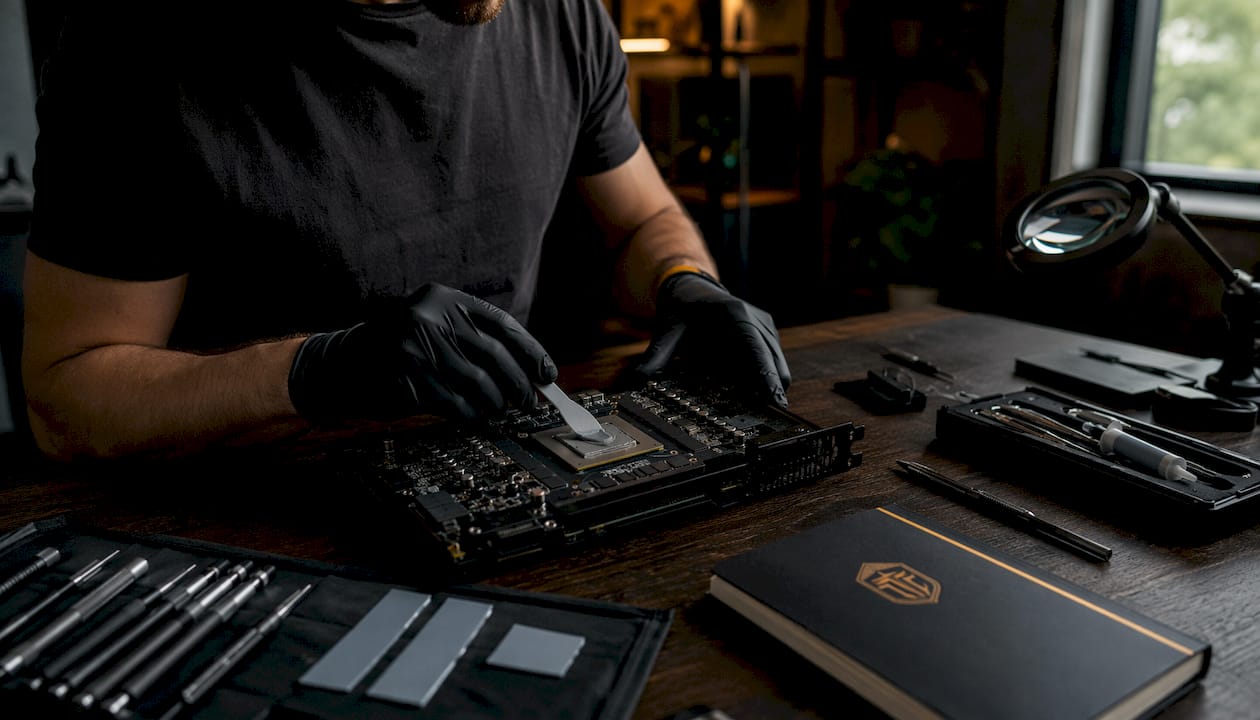
Recommended pastes worth using: Thermal Grizzly Kryonaut, Arctic MX-6, and Noctua NT-H2. All three offer significantly better heat transfer than most factory-applied compounds and can drop GPU temperatures by 5–15°C. Clean the old paste off thoroughly with 90%+ isopropyl alcohol before applying fresh compound. A thin, even layer is all that is needed. More paste does not mean better cooling.
For cards with GDDR6X memory, thermal pads over the VRAM chips are worth inspecting at the same time. On some high-end cards, those pads stiffen and lose contact after two or more years, which shows up as elevated VRAM temperatures even when core temps look fine. Replacing them with Thermal Grizzly Minus Pad 8 can drop VRAM temps by 10–20°C on affected cards.
Maintenance frequency matters too. Cleaning dust every 6–12 months and checking thermal paste every 2–3 years keeps a GPU running close to its original thermal performance for the life of the card. Staying on top of GPU driver updates is part of the same routine, since driver releases sometimes include improved thermal management algorithms.
Tempered gives you real-time GPU diagnostics without the guesswork
Knowing your GPU is running hot is one thing. Knowing exactly why, and what to fix first, is where most users get stuck. Tempered is an AI-powered PC diagnostic tool built for Windows 10 and 11 that reads live hardware metrics including GPU temperature, CPU load, RAM usage, and disk health, then tells you in plain language what is wrong and what to do about it.

Where Tempered stands apart from manually checking HWiNFO64 and guessing at fan curves is the diagnostic layer. Instead of staring at a graph and wondering if 84°C is a problem for your specific card, Tempered analyzes your system's full picture and surfaces the actual bottleneck. Background processes quietly loading the GPU, a startup program hammering RAM, a fan curve that was never adjusted from the factory default. It catches all of it. Every change the tool recommends is tracked and reversible through a one-click Undo Center, so there is no risk of making things worse.
For gamers who want their GPU running cooler without spending an afternoon in forums, Tempered is the direct path from "my card is hot" to "here is what to fix." The free tier covers AI scans and basic recommendations. Paid plans unlock higher scan limits and premium features for users who want ongoing monitoring. Start a free scan and see what your system is actually doing.
Key Takeaways
Cleaning dust, fixing case airflow, and undervolting are the three highest-impact methods to lower GPU temperature, and all three cost nothing to implement.
| Point | Details |
|---|---|
| Safe gaming temps | Most modern GPUs operate safely at moderate temperatures under gaming load. |
| Undervolting impact | Undervolting can cut GPU temps by 10–20°C and reduce power draw by over 50W with no FPS loss. |
| Dust and airflow | Regular cleaning can recover up to 15°C; correct fan orientation drops temps by 8–12°C on average. |
| Thermal paste | Replacing paste on a GPU older than two years can lower temperatures by 5–15°C. |
| Tempered | Tempered's AI diagnostic tool identifies the specific cause of high GPU temps and recommends fixes in plain language. |