
Use Sleep for short breaks and Hibernate for overnight or travel. That's the whole answer for most people. Sleep keeps your session alive in RAM and wakes in 1–2 seconds, drawing a small but continuous trickle of power. Hibernate writes everything to disk, cuts power to zero, and takes noticeably longer to resume than Sleep. Both are better than leaving your PC running idle.
A few things narrow that gap. If your machine uses a modern SSD, hibernate resume times drop noticeably compared to older spinning drives. And if your laptop runs Windows 11 with Modern Standby hardware, you may not even see a Hibernate option by default. One more detail worth knowing early: hibernate creates a file called hiberfil.sys that eats roughly as much disk space as your installed RAM, so a 16 GB system gives up about 16 GB of storage.
- Sleep: near-instant wake, small power draw, data lives in RAM
- Hibernate: zero power draw, slower wake, data saved to disk (hiberfil.sys)
- SSD owners: hibernate resume is faster than you probably expect
- Modern Standby laptops: hibernate may be hidden; you can re-enable it via
powercfg
Table of Contents
- How do Sleep and Hibernate compare across the things that matter?
- How Sleep and Hibernate actually work
- When should you use Sleep vs Hibernate?
- How to enable and configure Sleep and Hibernate on Windows
- Hybrid sleep, macOS standby, and Linux suspend explained
- How to stop your PC from waking up when it shouldn't
- So which one should you actually use?
- Key Takeaways
- A note on how I actually use these modes
- Tempered keeps your PC running the way you set it up
- Useful sources and further reading
How do Sleep and Hibernate compare across the things that matter?
| Dimension | Sleep | Hibernate |
|---|---|---|
| Best for | Short breaks (minutes to a few hours) | Overnight, travel, long gaps |
| Power while paused | Low but continuous (~4W typical) | Effectively zero (~0–0.2W) |
| Resume/wake time | 1–2 seconds | 5–15 seconds (faster on SSD) |
| Data persistence | RAM only; lost if battery dies | Saved to disk; survives full power loss |
| Battery risk (laptops) | Session lost if battery fully drains | None; state preserved on disk |
| Storage impact | None | hiberfil.sys ≈ size of installed RAM |
| How to enable (Windows) | On by default | Power Options or powercfg /hibernate on |
The decisive trade-offs come down to four things:
- Power: Sleep draws a few watts continuously; hibernate draws essentially nothing once the machine is off.
- Speed: Sleep wins on wake time, but SSDs have made hibernate much more competitive.
- Safety: If a laptop battery dies during Sleep, you lose your open session. Hibernate avoids that risk entirely by writing state to disk first.
- Disk space: Hibernate costs you storage. On a tight SSD, that 16 GB hit matters.
How Sleep and Hibernate actually work
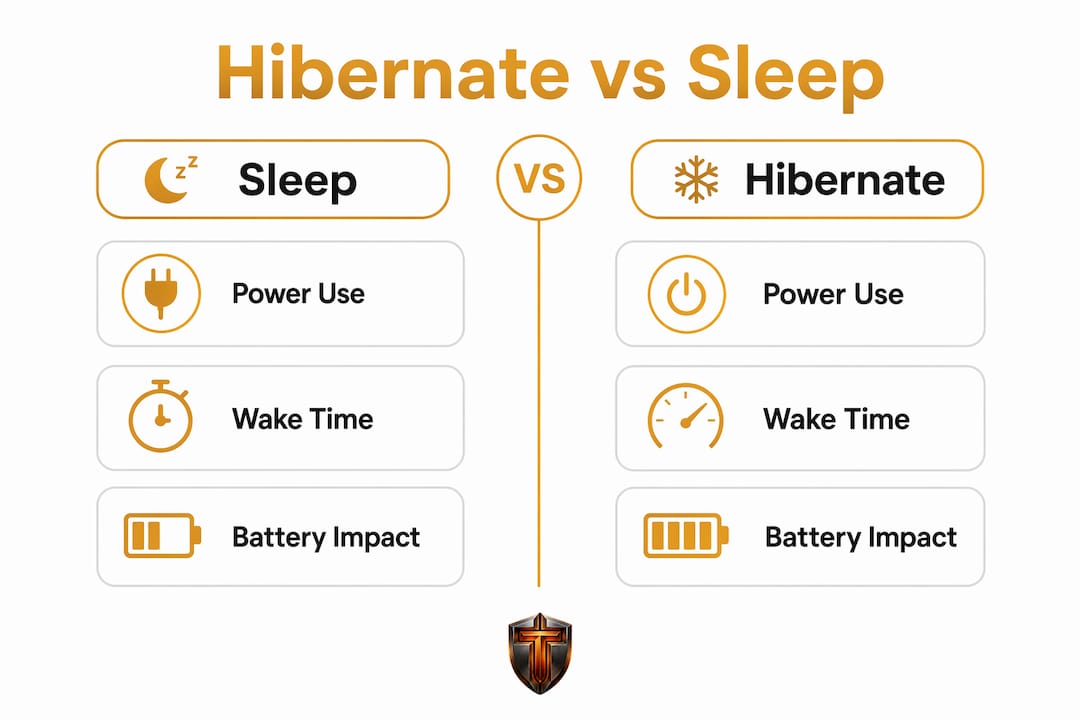
Sleep puts your PC into a low-power holding pattern. RAM stays powered, so your open tabs, documents, and apps are all right where you left them the moment you wake the machine. The tradeoff is that the system never fully powers off, which means it keeps drawing a small amount of electricity the whole time.
Hibernate takes a different approach. Windows writes a complete snapshot of your RAM to a file on disk (hiberfil.sys), then cuts power entirely. When you power back on, Windows reads that snapshot back into memory and picks up where you left off. Because it involves a full disk read, the resume is slower than Sleep, but on an SSD the difference shrinks to something most users find perfectly acceptable.
The technical labels for these states are S3 (Sleep) and S4 (Hibernate) in the ACPI power management spec. If you've ever seen those codes in Windows event logs or BIOS settings, that's what they refer to. Modern Standby (sometimes called S0 Low Power Idle) is a newer mode that keeps the network alive for updates and notifications while still saving power. It's designed to replace S3 on newer hardware, which is why some Windows 11 laptops hide the classic Hibernate option.
Pro Tip: If your laptop battery is below 20% and you're stepping away for more than an hour, choose Hibernate. Sleep will keep draining the battery, and if it hits zero, your unsaved session is gone.
When should you use Sleep vs Hibernate?
The rule is simple: match the mode to how long you'll be away.
Use Sleep when:
- You're grabbing coffee and coming back in 20 minutes
- You're switching between meetings and need a fast resume
- Your laptop is plugged into AC power and battery drain isn't a concern
- You're on a desktop that won't lose power unexpectedly
Use Hibernate when:
- You're done for the night and want zero power draw
- You're packing up a laptop and won't be near a charger for hours
- You're storing the machine for a few days
- Your battery is low and you can't risk losing your session
Laptop-specific note: This is where hibernate earns its keep. A laptop in Sleep mode on a full battery might be fine for a few hours, but leave it in a bag overnight and you could come back to a dead battery and a lost session. Hibernate sidesteps that entirely.
Desktop-specific note: Desktops on AC power rarely need hibernate. Sleep works fine because there's no battery to drain and no risk of power loss (unless you're in an area with unreliable electricity). Hybrid Sleep, covered below, is usually the better choice for desktops.
Scenario quick-reference:
- Coffee break (15–30 min) → Sleep
- Lunch break (1–2 hours, plugged in) → Sleep
- End of workday, laptop unplugged → Hibernate
- Overnight travel, laptop in bag → Hibernate
- Desktop, short break → Sleep
- Desktop, end of day → Sleep or Shutdown
How to enable and configure Sleep and Hibernate on Windows

Windows 10 and 11 both handle this through Power Options and the powercfg command-line tool. Here's how to get it set up.
Enable Hibernate via Settings:
- Open Settings → System → Power & sleep → Additional power settings
- Click Choose what the power buttons do in the left sidebar
- Click Change settings that are currently unavailable
- Check the Hibernate box under Shutdown settings
- Click Save changes
Enable Hibernate via Command Prompt (run as Administrator):
- Open Command Prompt or PowerShell as Administrator
- Type
powercfg /hibernate onand press Enter - To confirm it's active, type
powercfg /availablesleepstates - To check what last woke your PC, type
powercfg /lastwake - To audit active wake timers, type
powercfg /waketimers
Check or adjust hiberfil.sys size:
The file lives at C:\hiberfil.sys and is hidden by default. To see it, enable hidden/system files in File Explorer. You can reduce it to 50% of RAM size with powercfg /hibernate /size 50, which saves space at the cost of slightly slower resume.
Modern Standby warning: Many Windows 11 laptops with Modern Standby hardware hide Hibernate from Power Options entirely. Running
powercfg /availablesleepstateswill tell you which states your system supports. If S4 (Hibernate) is missing, your hardware may not support it, or it may be disabled at the firmware level. In some cases, enabling hibernate via powercfg will restore the option; in others, the manufacturer has locked it out.
Pro Tip: After enabling Hibernate, set your laptop's lid-close action to Hibernate (via Power Options → Choose what closing the lid does). That one change prevents most overnight battery drain from accidental Sleep.

Hybrid sleep, macOS standby, and Linux suspend explained
What hybrid sleep does
Hybrid Sleep is Windows' middle-ground option, designed mainly for desktops. It writes a memory snapshot to disk like hibernate but keeps RAM powered for a fast resume like Sleep. If power cuts out unexpectedly, the machine recovers from the disk snapshot. If power stays on, it wakes from RAM in seconds. It's a fail-safe for desktops where power loss is possible but not expected.
macOS sleep and safe sleep
Apple handles this differently. macOS uses a feature called safe sleep (controlled via pmset in Terminal), which writes a memory image to disk before sleeping. On modern Macs with Apple Silicon, the system manages power states automatically and aggressively, so users rarely need to configure anything manually. The equivalent of hibernate on a Mac is called standby, and it kicks in automatically after a set sleep duration.
Linux suspend and hibernate
| Linux term | Windows equivalent | How it works |
|---|---|---|
| Suspend (pm-suspend) | Sleep (S3) | RAM powered, fast resume |
| Hibernate | Hibernate (S4) | State written to swap partition |
| Suspend-then-hibernate | Hybrid approach | Suspends first, hibernates after a timer |
Linux hibernation requires a properly configured swap partition or swap file large enough to hold your RAM. On systemd-based distros, systemctl hibernate triggers it. The main gotcha: many Linux distributions ship with hibernation disabled or misconfigured because swap size defaults don't account for full RAM dumps.
How to stop your PC from waking up when it shouldn't
Unexpected wake-ups are one of the most common complaints about Sleep mode, and they're almost always caused by background processes, scheduled tasks, or misconfigured peripherals. A small set of wake timers causes the majority of phantom drain events.
Audit and fix wake sources:
- Run
powercfg /lastwaketo see what woke your PC last time - Run
powercfg /waketimersto list all active scheduled wake events - Open Device Manager, right-click network adapters and USB hubs, go to Power Management, and uncheck "Allow this device to wake the computer"
- In Task Scheduler, look for tasks with "Wake the computer to run this task" enabled and disable it for non-critical jobs
Balancing hibernate with system updates:
Windows Update sometimes needs to wake a sleeping machine. If you hibernate overnight, updates may not install until you next log in. That's usually fine, but if you're on a managed corporate machine, check with IT before disabling wake timers entirely.
Background drain reality check: Changing your power state from Sleep to Hibernate won't fix a machine that wakes itself up every 20 minutes. The wake timer is the problem, not the mode. Fix the source first, then choose your power state.
A tool like Tempered can surface these background drains automatically. Its AI diagnostic scans live CPU, RAM, and disk metrics, flags processes that are keeping your machine active when it shouldn't be, and recommends specific changes without requiring you to dig through Device Manager manually. For users who want to reduce background processes without the trial-and-error, that kind of automated audit is genuinely useful.
Pro Tip: Run a diagnostic scan after enabling Hibernate for the first time. Background processes that were harmless during Sleep can become visible battery drains once you start tracking actual power-off cycles.
So which one should you actually use?
Sleep for short breaks. Hibernate for overnight, travel, or any time your laptop won't be plugged in. That rule covers 90% of situations.
- Sleep: coffee breaks, between meetings, desktop use on AC power
- Hibernate: end of day on a laptop, travel, low battery situations, long storage
- SSD users: hibernate resume is fast enough that the speed argument for Sleep is weaker than it used to be
- Modern Standby laptops: if Hibernate isn't visible, enable it via
powercfg /hibernate onor accept that Modern Standby handles low-power idle adequately - One action item: if you use a laptop away from a charger overnight, enable Hibernate now via Power Options and set lid-close to Hibernate
Key Takeaways
Sleep is the right default for short breaks; Hibernate is the right choice for overnight use, travel, or any situation where your laptop might fully discharge before you return.
| Point | Details |
|---|---|
| Sleep vs Hibernate rule | Use Sleep for breaks under a few hours; use Hibernate for overnight or travel. |
| Power draw difference | Sleep draws a small continuous amount of power; Hibernate drops to nearly zero power draw. |
| Resume time gap | Sleep wakes in 1–2 seconds; Hibernate takes 5–15 seconds, faster on SSDs. |
| Disk space cost | Hibernate creates hiberfil.sys sized roughly equal to your installed RAM. |
| Tempered for optimization | Tempered's AI diagnostic flags background wake timers and drain sources automatically. |
A note on how I actually use these modes
Hibernate before travel is a habit I won't give up. Closing the lid and knowing the machine is genuinely off, not slowly draining in a bag, removes a whole category of "why is my battery at 12%?" surprises. Between meetings during the day, Sleep is fine because the machine is nearby and plugged in.
The part most guides skip: the power mode you choose matters less than whether your background processes are behaving. I run periodic diagnostic scans with Tempered to check for processes that are holding wake locks or spiking CPU at idle. It's the kind of thing that's invisible until you look for it, and fixing one rogue scheduled task can do more for battery life than switching from Sleep to Hibernate ever would.
Tempered keeps your PC running the way you set it up

Choosing the right power state is step one. Keeping your PC from quietly undermining it is step two. Tempered's AI diagnostic scans your live hardware metrics, CPU, RAM, disk, and uptime, and surfaces the background processes and wake timers that drain power even when your machine is supposed to be off. No manual Device Manager spelunking required. Every recommended change is reversible through Tempered's one-click Undo Center, so you're never locked into a setting you didn't mean to keep. If you want your Sleep and Hibernate choices to actually stick, run a free scan with Tempered and see what's working against you.
Useful sources and further reading
- Shut down, sleep, or hibernate your PC — Microsoft Support: The official Microsoft guide to enabling Sleep and Hibernate, configuring power buttons, and understanding Windows power states.
- Confusion Between "Hibernate" and "Sleep" — Microsoft Q&A: Community Q&A on Microsoft Learn clarifying the technical differences between S3 and S4 states.
- Does Hibernating My PC Save More Energy Than Sleep? — How-To Geek: Measured power draw comparison between Sleep and Hibernate with real wattage numbers.
- Hibernate vs Sleep in Windows 11: Which One Should You Use — FDaytalk: Practical breakdown of hibernate behavior, hiberfil.sys, and Modern Standby interactions on Windows 11.
- Sleep vs Hibernate in Windows: What's the Difference? — wikiHow: Accessible explainer covering the core trade-offs and when each mode makes sense.
- What is the difference between Sleep and Hibernate? — Super User: Community discussion with technical depth on hiberfil.sys sizing and ACPI state definitions.
- Microsoft Windows: What's The Difference Between Sleep & Hibernate? — SlashGear: Consumer-friendly overview of hybrid sleep and practical use-case guidance.